Turn browsers into buyers. Build it with
Revolution Slider
Try It Free
×
Skip to content
Shopidevs - Shopify Developers
Main Menu
Home
Apps
Slider Revolution Shopify
Slider Demos
Pricing
Case Study
Essential Grid Gallery
Grid Gallery Demos
Pricing
EasyBoost App
Syncora: Backup & Restore
Sidekick AI Studio
Themes
Docs
Slider Revolution Shopify
Essential Grid Gallery
EasyBoost
Syncora: Backup & Restore
Pesto – Restaurant Theme
Brator – Auto Parts Shopify Theme
Resources
Blog
Best Shopify Apps
Best Shopify themes
Case Study
Affiliate
Support
Visit Store
Home
Docs
Slider Revolution 6 Shopify
How to show Slider in Store
Show Slider in Store
Show Slider in Store
If you use Slider Revolution without a theme extension, just follow these steps.
Step-1:
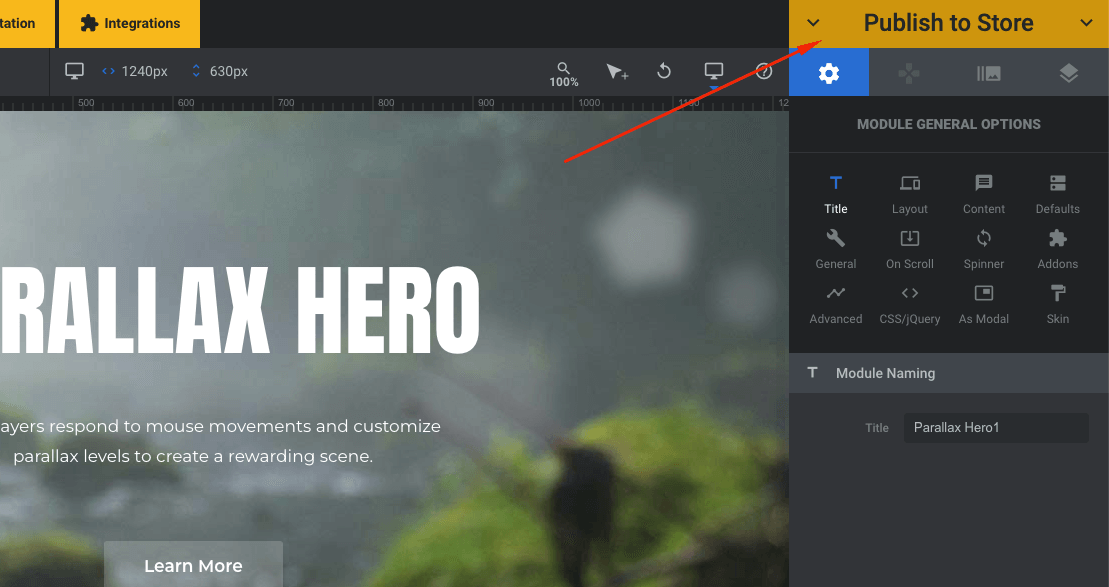
After completion of your slider, Click on “Publish to store”
Step-2:
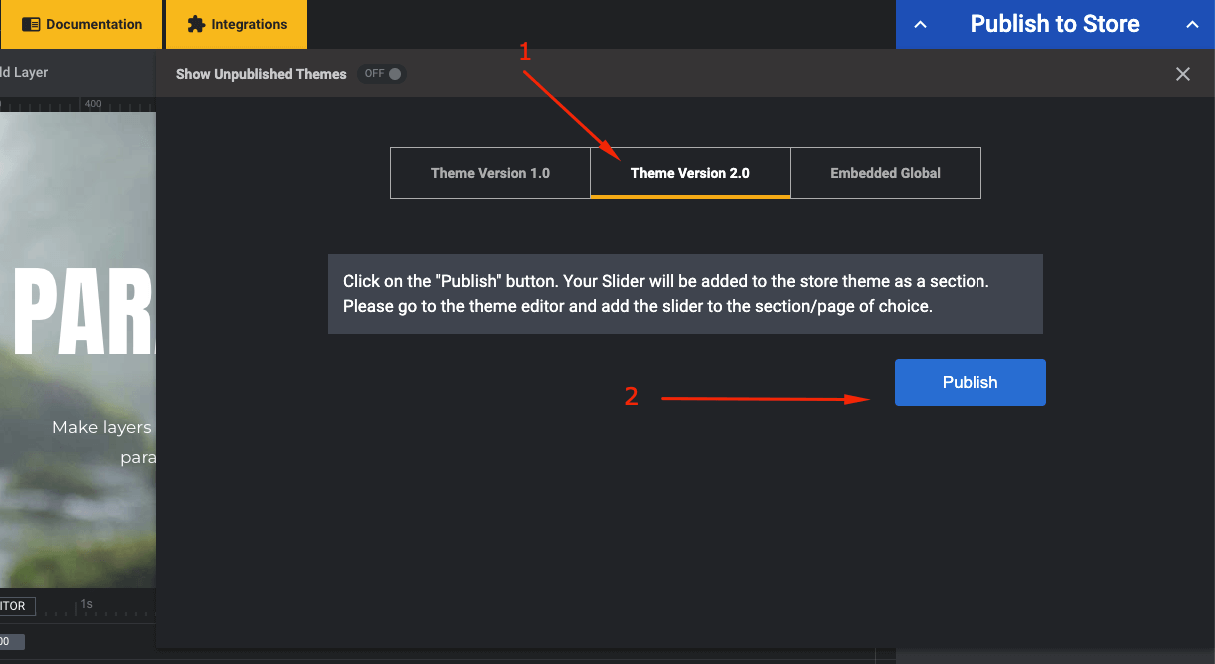
Select the “Theme version 2.0” tab and click on “Publish” button.
Step-3:
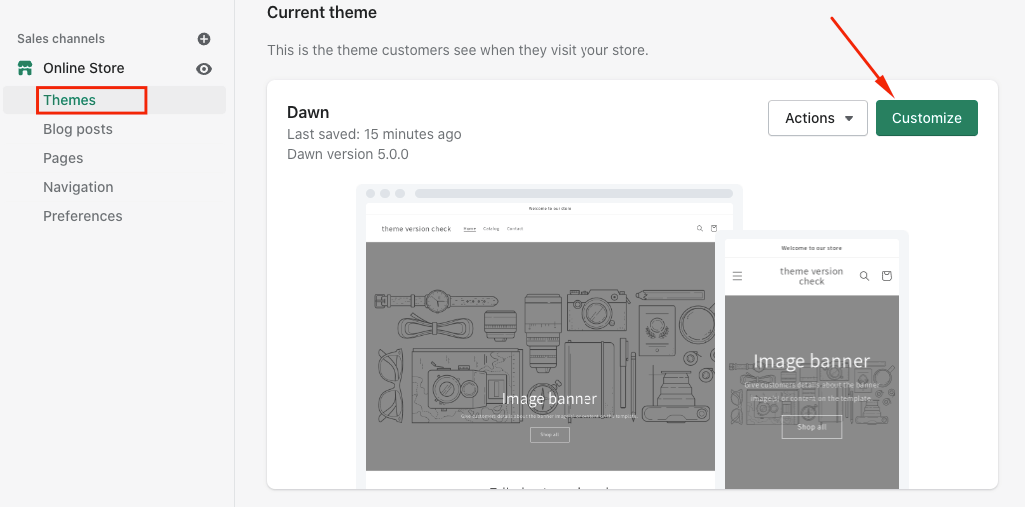
Go to theme customizer
Step-4:
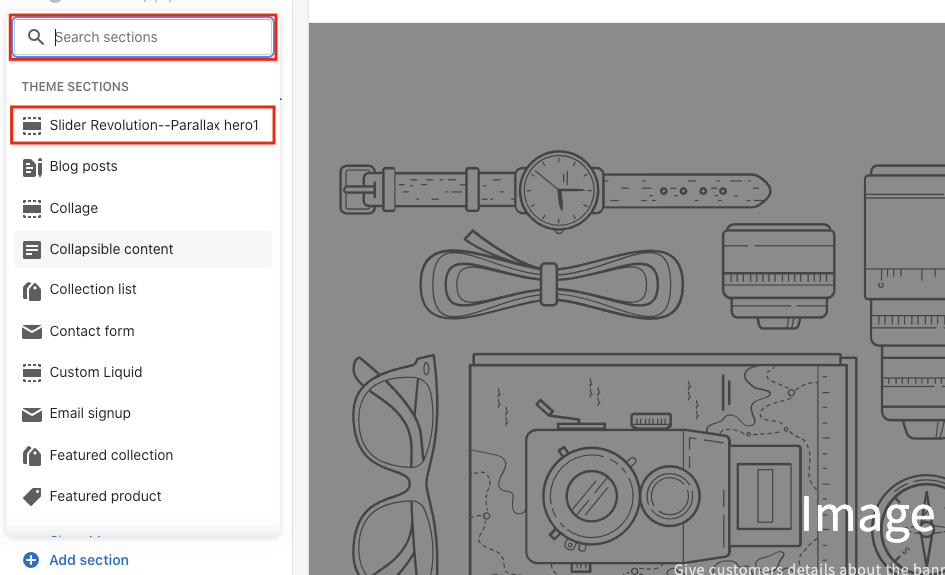
From the left sidebar, add go to “Add section”
Step-5:
here, you will see the silder you have created
Step-6:
Now click on the slider to add it on the page and click on “Save” on the top right corner.
Step-7:
If you want to publish the slider on other page, you need to use drop down menu and select the page. Then follow the steps from 4 to 6.
What are your feelings
Share This Article :
How to publish slider in Shopify online store 2.0
How to Publish Slider with Theme App Extension
Scroll to Top