Static product photos tell customers what something looks like. Video tells them how it works, how it fits, and how it feels to use, which is a different and more persuasive job. Shopify does not make video a first-class citizen everywhere in the theme editor, so most merchants either miss the feature entirely or settle for a basic upload that autoplays badly on mobile.
There are three real ways to add video to a Shopify store: the native theme editor’s video section, an embedded YouTube or Vimeo link, or a dedicated app like Slider Revolution for full-page video banners and carousels. This guide covers all three, with the actual trade-offs between them.
To add video to your Shopify store: go to Online Store, Themes, Customize, add a Video section to your page, and upload your file or paste a YouTube/Vimeo link. This works on any Online Store 2.0 theme and takes under 5 minutes.
For a video banner with animation, text overlays, and multiple video sections across your homepage, use Slider Revolution, which includes dedicated video slider and video banner templates built for this exact use case.
- Shopify’s native video section supports direct upload and YouTube/Vimeo embeds, but with limited layout and animation control
- Hosting video on YouTube or Vimeo (set to unlisted) avoids Shopify’s file size limits and reduces page weight
- Slider Revolution adds video banners, video sliders, and text-over-video layouts that the native editor cannot replicate
- Keep product and homepage videos under 2 minutes; shorter videos hold attention and load faster
- Compress video files before upload, oversized video is one of the most common causes of slow Shopify homepages
- Add captions and a high-quality thumbnail for videos that do not autoplay, both affect click-through and accessibility
Why Add Video to Your Shopify Store
Video earns its place on a product page or homepage when it does something a photo cannot: show motion, scale, sound, or a process. The concrete reasons it is worth the setup time:
- Better product explanations: video reduces the back-and-forth of imagining how something works or fits, which cuts pre-purchase hesitation.
- Longer engagement: visitors stay on pages with video longer than pages with static images alone, which is itself a positive signal for conversion rate optimization.
- Stronger brand trust: unboxing clips, founder explainers, and customer testimonials build credibility faster than text claims.
- Higher conversion on high-consideration products: demos and explainer videos reduce return rates by setting accurate expectations before purchase.
Method 1: Native Shopify Theme Editor
Every Online Store 2.0 theme (Dawn, Refresh, Sense, Craft, and most third-party 2.0 themes) includes a Video section you can add without code.
- Open the theme editor: Go to Online Store, Themes, and click Customize on your active theme.
- Navigate to the section you want to edit: This can be the homepage, a product page, or any other page in your store.
- Add the Video block: Click Add Section (or Add Block), and select Video from the list of available section types.
- Upload your video file: Choose Select Video, then upload from your local files. Shopify hosts the file directly on its CDN.
- Adjust settings and save: Set the dimension, position, alt text for SEO, and a cover image (thumbnail). Click Save to publish.
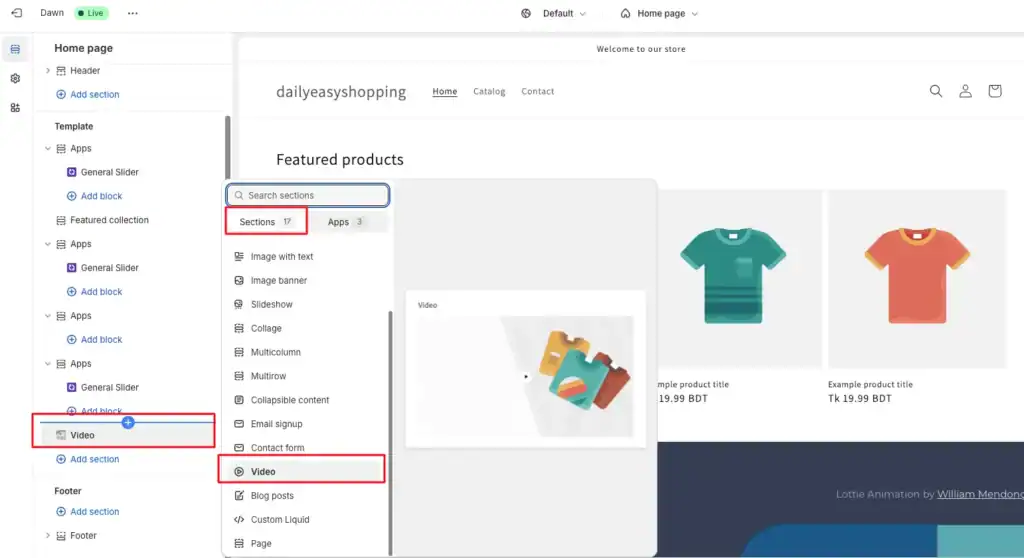
Theme limitation: some third-party themes do not include a native video section. If you cannot find a Video option in Add Section, your theme may require Liquid code editing, which is not recommended without development experience. In that case, Method 2 or Method 3 below is the safer route.
Method 2: Embed YouTube or Vimeo
Hosting your video on YouTube or Vimeo instead of uploading it directly to Shopify keeps your page lighter and avoids Shopify’s file size restrictions entirely.
- Upload to YouTube or Vimeo: Create an account if needed, upload your video, and set its privacy to Unlisted so it does not appear in public search or channel listings.
- Copy the video link: Click Share under the video and copy the URL, or copy it directly from your browser’s address bar.
- Paste the link into the Shopify video block: In the theme editor, add a Video section as in Method 1, but instead of uploading a file, paste the YouTube or Vimeo URL into the video URL field.
- Adjust and save: Set positioning and thumbnail settings, then click Save to publish the embedded video.
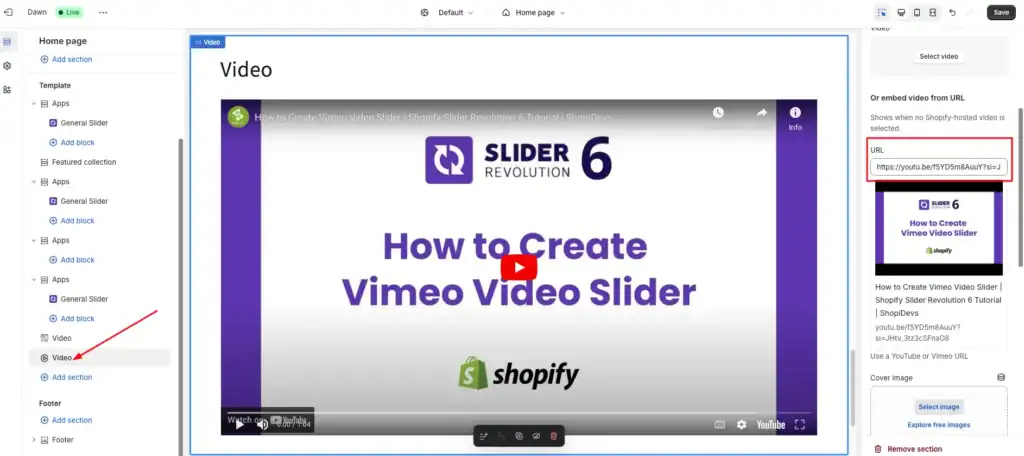
This method is the right default for most stores: no file size ceiling, no CDN storage cost, and YouTube/Vimeo handle compression and adaptive streaming automatically across devices.
Method 3: Slider Revolution (Video Banners and Sliders)
The native video block and YouTube embed both place a single video in a fixed section. Neither supports a fullwidth hero video banner with animated text layers, a rotating video slider showcasing multiple products, or a countdown timer layered over a promotional video. Slider Revolution covers all of these through its video carousel and video banner templates.
Setup: install the app, go to My Sliders, choose a video template (or start blank), set the background source type to HTML5 video and select from your media library, then preview across devices before saving. Publishing uses a shortcode: copy it from the app dashboard, add a General Slider app block in the theme editor, and paste the shortcode in.
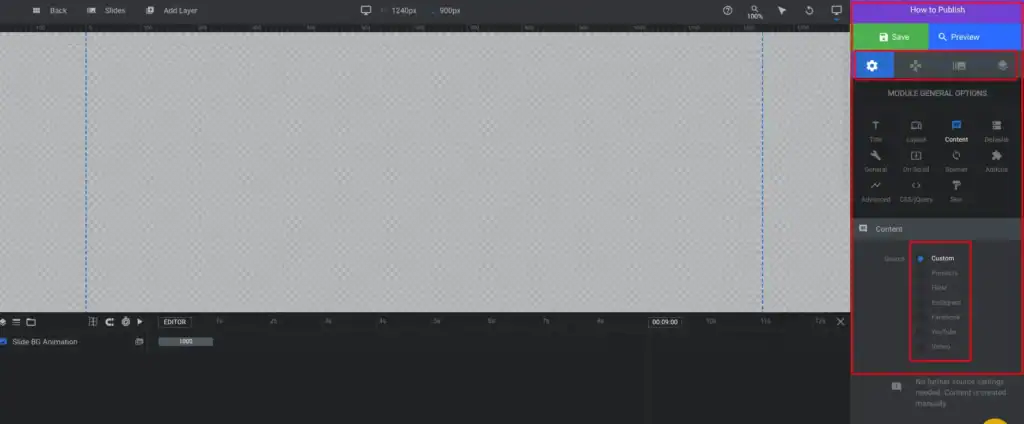
This is the right tool for product launch videos, feature announcement banners, and UGC or unboxing video showcases, use cases the native editor and simple embeds cannot handle without layout compromises.
PROS
- Fullwidth video banners with animated text layers
- Video sliders and carousels for multiple videos
- Countdown timers and CTAs layered over video
- Same app also covers hero sliders, product sliders, and announcement bars
- Works as a no-code app block on Online Store 2.0 themes
CONS
- Overkill if you only need one simple embedded video
- Shortcode-based publishing has a small learning curve on first use
Free plan: 1 slider, limited templates | Basic: $9.99/month | Standard: $17.99/month | Business: $24.99/month
Method Comparison at a Glance
| Need | Native Editor | YouTube/Vimeo Embed | Slider Revolution |
|---|---|---|---|
| Single video, quick setup | Yes | Yes | Yes |
| No file size limits | No | Yes | Yes (via embed or HTML5) |
| Fullwidth banner with text overlay | No | No | Yes |
| Video slider/carousel | No | No | Yes |
| Countdown timer over video | No | No | Yes |
| Setup time | Under 5 minutes | Under 10 minutes | 15-20 minutes |
| Cost | Free | Free | Free plan, then from $9.99/month |
Best Practices for Shopify Store Videos
DO
- Keep videos under 2 minutes with a strong hook in the first 3 seconds
- Compress video files before upload to protect page load speed
- Add captions for accessibility and for viewers who browse with sound off
- Use a high-quality thumbnail if autoplay is disabled
- Test playback and layout on mobile specifically, not just desktop preview
AVOID
- Uploading uncompressed, high-resolution source files directly to Shopify
- Autoplaying video with sound on by default, this frustrates visitors and increases bounce
- Stacking multiple autoplay videos on one page, it compounds load time
- Using video as a replacement for clear product photography rather than a supplement
Video works best as part of a considered homepage layout rather than dropped into a random section. Pair it with strong product photography for the pages where video is not present, and keep the visual style consistent with any product banners or lookbook galleries elsewhere on the page.
For merchants on any of the free Shopify themes, all three methods above work without custom theme code. For more control over where video sections sit on the page, pair this with Shopify custom templates, and see the product slider guide for combining video with rotating product displays.
Frequently Asked Questions
Can you add videos to Shopify?
Yes. Shopify supports adding videos to product pages, homepages, blogs, and other pages through three methods: uploading directly via the native theme editor, embedding a YouTube or Vimeo link, or using an app like Slider Revolution for video banners, sliders, and animated overlays.
How do I add a video to my Shopify homepage?
Go to Online Store, Themes, Customize, navigate to your homepage, click Add Section, and select Video. Upload a file directly or paste a YouTube/Vimeo link. For a fullwidth video banner with text overlays and animation, use the Slider Revolution app instead, which provides dedicated video banner templates.
Should I upload video directly to Shopify or use YouTube/Vimeo?
For most stores, YouTube or Vimeo (set to unlisted) is the better default. It avoids Shopify’s file size limits, offloads video hosting and compression to a platform built for it, and reduces the load on your store’s page weight. Direct upload works fine for short, small clips but can slow page speed if the file is large or uncompressed.
How do I add a pop-up video to Shopify?
Embed a video link from YouTube or Vimeo, then use your theme’s editor or a popup app to trigger the embed on a button click or page event. This typically requires either an app built for popups or custom JavaScript to control when the popup appears, since Shopify’s native video section does not include popup behavior by default.
What is the best app for adding video to a Shopify store?
Slider Revolution is the best option for stores that need more than a single embedded video: fullwidth video banners, video sliders and carousels, text overlays, and countdown timers layered over video. For a single straightforward video, the native theme editor or a YouTube/Vimeo embed is sufficient and does not require an app.
Build Video Banners and Sliders With Slider Revolution
Go beyond a single embedded video. Add fullwidth video banners, rotating video sliders, and animated text overlays without writing code.

Jakaria is an SEO Content Writer in Shopify, Ecommerce, WordPress, and Tech Industry with 5+ years of experience. He specialises in developing engaging, helpful content by simplifying complex topics into an amazing story for B2B, SaaS, and Shopify businesses. He’s also passionate about staying updated on growth marketing strategies and Shopify trends.