Most Shopify stores lose visitors in the first three seconds. The homepage loads. Nothing grabs attention. The visitor scrolls once and leaves.
A well-designed product banner fixes that. It directs the eye, communicates your offer, and gives the visitor a clear reason to click. This guide covers every type of Shopify product banner, where to place them, three ways to add them without a developer, and seven ready-to-use templates you can deploy today.
A Shopify product banner is a visual section used to highlight a product, promotion, or brand message. It can be an image, video, slideshow, or animated graphic and is commonly placed on the homepage, collection pages, or product pages to drive clicks and conversions.
Not the same as an announcement bar: announcement bars display short notices such as shipping offers or discount codes, while product banners are large visual sections designed to showcase products and increase sales.
- Choose the banner type based on your goal, whether it’s promotion, branding, or product launches.
- The homepage hero banner gets the highest visibility and deserves the most attention.
- You can build banners using the Theme Editor, custom code, or a Shopify banner app.
- Recommended hero size: 1920×600px for desktop and 750×1000px for mobile.
- Banner performance depends more on the image, headline, and CTA than the banner style itself.
What Is a Shopify Product Banner?
A Shopify product banner is a large visual section on a page, typically full-width, used to showcase a product, highlight a promotion, or communicate a seasonal campaign. It is one of the most visible elements in your store and directly affects whether a visitor stops scrolling or leaves.
Banners come in different formats: static images, looping videos, multi-slide carousels, and grid layouts. Each format serves a different purpose. A hero banner on your homepage has one job: capture attention and push the visitor toward your best offer. A collection page banner has a different job: tell shoppers they are in the right place and surface what is worth browsing.
A product banner is a large visual section built around an image or video to promote products or campaigns. An announcement bar is a slim text strip displayed at the top of your store for short messages like shipping offers or discount codes. They serve different purposes and are managed separately in Shopify.
Average time to capture a visitor’s attention before they leave.
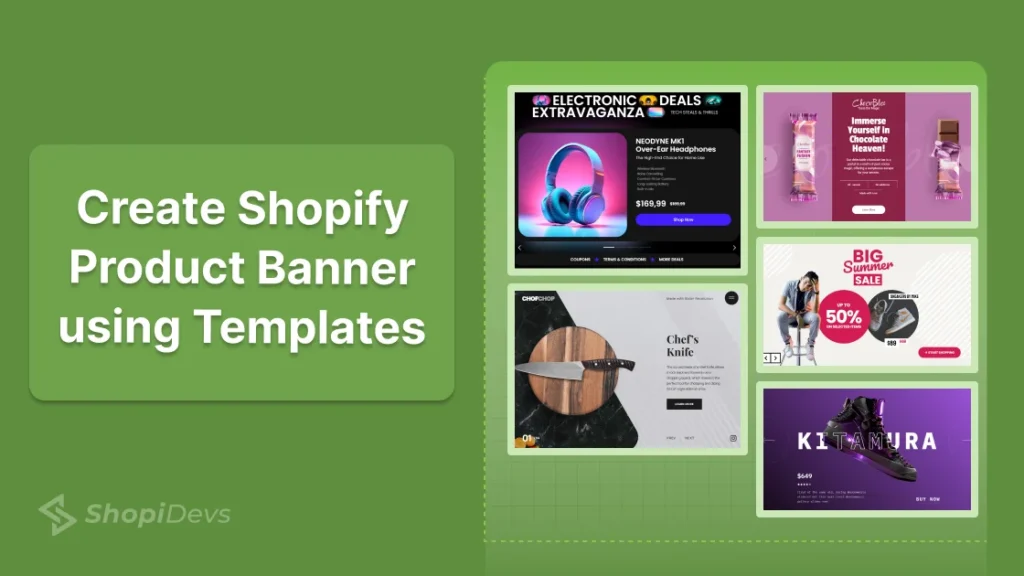
Ready-to-use Shopify banner templates available in Slider Revolution.
Different Shopify banner types for various marketing goals.
8 Types of Shopify Product Banners
Shopify stores can display multiple types of banners across different pages. Each type works best for a specific goal. Knowing which banner to use where is what separates stores that convert from stores that just look good.

1. Static Image Banner (Hero Banner)
A full-width, single-image banner. This is the most common type on Shopify homepages. It features one product, one message, and one CTA. Simple, fast-loading, and effective when the image is high quality. Best for stores with a hero product or a single ongoing promotion.
2. Slideshow / Carousel Banner
Cycles through multiple images automatically or on user interaction. Use this when you have more than one product or offer to feature simultaneously without cluttering the page. Limit slides to 3-5 maximum to maintain load speed and user attention. Works well for seasonal collections and product launches.
Auto-rotating slideshows can reduce conversions if they move too quickly. Set slide rotation to at least 5 seconds so visitors have time to read your message and CTA, and always provide manual navigation arrows for better usability.
3. Video Banner
Replaces the static image with an auto-playing video (usually muted and looping). Video banners drive higher engagement and are especially effective for apparel, beauty, food, and lifestyle products where motion communicates what an image cannot. Use MP4 format and compress the file to under 5MB to avoid hurting page speed.
4. Promotional Sale Banner
Designed specifically for discount events: flash sales, Black Friday, BOGO deals, seasonal clearances. These banners prioritize the offer over brand aesthetics. Bold typography, contrasting colors, and urgency-driven copy (“Sale ends in 24 hours”) are standard. Pair with a countdown timer for maximum urgency.
5. Countdown Banner
Displays a live ticking timer alongside a product or offer. Creates genuine urgency and encourages faster purchase decisions. Used for limited-time launches, flash deals, and pre-orders. The countdown element alone can increase click-through rates significantly because it makes the scarcity real and visible.
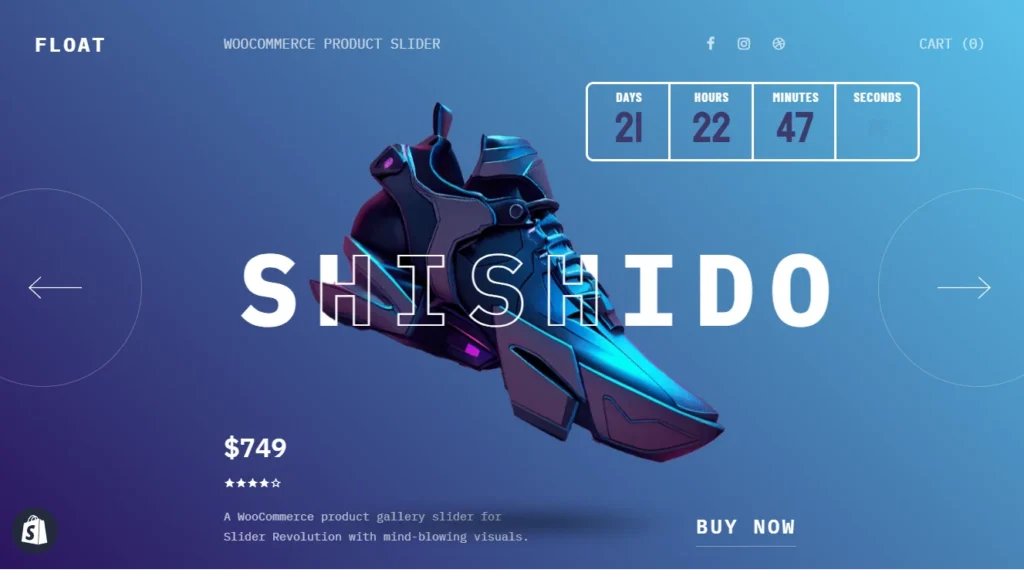
Place your countdown banner near the hero section of your homepage during sales events. Visitors instantly recognize the offer is time-sensitive, creating urgency without requiring extra copy.
6. Seasonal / Holiday Banner
Customized for specific events: Black Friday, Christmas, Valentine’s Day, summer clearance, etc. These banners use event-appropriate colors, themes, and copy. They signal to shoppers that this is a relevant, timely offer, not a generic promotion. Update these before each campaign and retire them promptly afterward.
7. Grid-Integrated Banner
A structured layout where product images or brand content are displayed in a grid format rather than a single wide banner. Grid banners are ideal for showcasing product categories, curated collections, or lookbook-style content. They help shoppers navigate to specific product groups naturally.
Standard Shopify themes, including Dawn, do not have built-in grid gallery functionality. The Essential Grid Gallery app fills that gap with 80+ templates, lazy loading, hover effects, and bulk media upload support.

8. New Product Arrival Banner
Specifically designed to announce newly launched products. Uses phrases like “Just Launched,” “New Arrival,” or “Now Available” to signal freshness and exclusivity. These banners encourage early adopters to click and build anticipation around your product calendar. Most effective when deployed within the first 1-2 weeks of a launch.
Where to Place Banners on Your Shopify Store
Where you put a banner determines how many people see it, and what action they take next. The same banner in the wrong spot will underperform. Here are the six most effective placements and when to use each one.
Your homepage hero is the most visible section of your store. Use it to showcase your strongest offer, bestselling product, or current campaign with a clear CTA. Avoid using valuable hero space for generic branding that doesn’t drive action.
How to Add a Product Banner on Shopify (3 Methods)
There are three reliable ways to add a product banner to your Shopify store. The method you choose depends on your technical skill level and how much design flexibility you need.
Method 1: Shopify Theme Editor (No Code)
Shopify’s Theme Editor lets you add banners without coding. It’s compatible with every Shopify theme and is the easiest option for most store owners.
- Log in to admin.shopify.com and open Online Store → Themes.
- Click Customize on your active theme.
- Select Add section and choose Image Banner or Slideshow.
- Upload your banner, add your headline and CTA, then adjust colors and layout.
- Preview on mobile and click Save.
Shopify’s Theme Editor is ideal for basic banners, but advanced features like animations, video backgrounds, countdown timers, and custom layouts require custom code or a dedicated banner app.
Method 2: Custom HTML / CSS (Advanced)
For full design control, add a custom banner directly in your theme’s Liquid files. This method requires basic HTML, CSS, and Liquid knowledge.
- Go to Online Store → Themes → Edit code.
- Create a backup of your theme before editing.
- Open the appropriate Liquid template or section file.
- Add your HTML, CSS, and optional JavaScript for the banner.
- Preview on desktop and mobile, then Save.
Method 3: Slider Revolution App (Recommended)
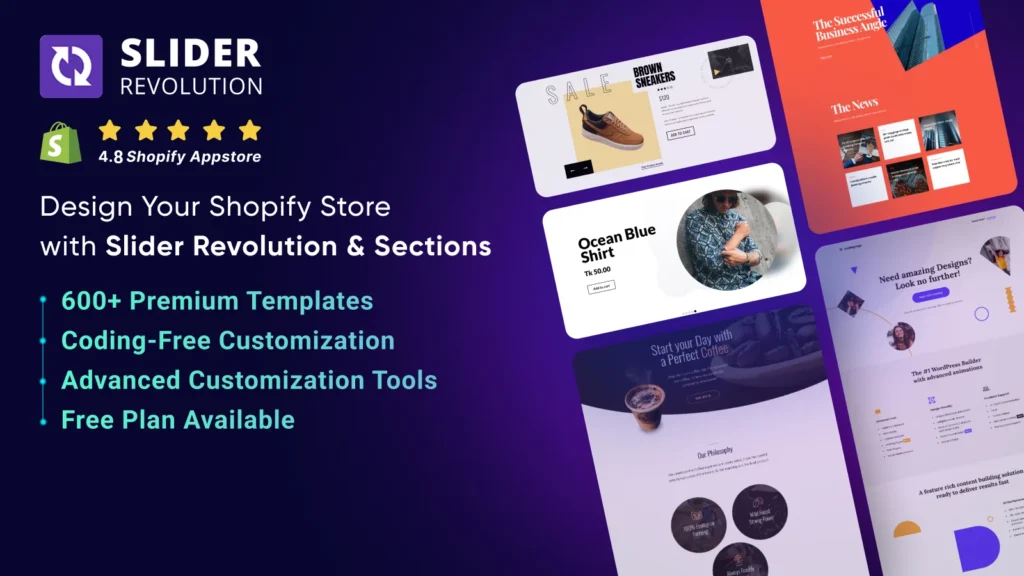
Slider Revolution combines the simplicity of Shopify’s Theme Editor with the flexibility of a visual builder, offering 500+ professionally designed templates.
- Install Slider Revolution & Sections from the Shopify App Store.
- Select a banner template or start from scratch.
- Customize text, images, animations, and CTA buttons.
- Publish the banner to your chosen page.
Shopify Banner Best Practices
A banner can look great and still fail to convert. Design is only one piece. Here are five practices that separate high-performing Shopify banners from decorative ones.
1. Use the Right Banner Dimensions
Wrong image dimensions cause banners to crop, stretch, or look pixelated, all of which undermine credibility instantly. Use these as your baseline:
Always check your specific theme’s documentation for exact recommended sizes. For a complete guide on Shopify image dimensions, see the Shopify image banner size guide.
2. Optimize for Mobile First
More than 70% of Shopify store traffic comes from mobile devices. If your banner works on desktop but breaks on mobile, you are losing the majority of your visitors. Before publishing any banner:
- Use a separate mobile image upload (most themes support this in the Image Banner section).
- Keep headline text to 6-8 words maximum; more than that gets clipped on small screens.
- Make the CTA button large enough to tap with a thumb (minimum 44px height).
- Avoid placing text or buttons at the very edges of the image; they may get cut off by different screen sizes.
3. One Clear CTA Per Banner
Every banner needs a single, specific action for the visitor to take. Stores that include two or three CTAs on the same banner see lower conversion rates, not higher. The choice paralysis effect is real. Pick one goal per banner:
- “Shop the Collection” for a category banner.
- “Get 20% Off, Today Only” for a promotional banner.
- “See What’s New” for a new arrival banner.
Your CTA button should stand out from the banner background. Use a light-colored button on dark banners and a dark or brand-colored button on light banners. The goal is instant visibility, so visitors notice the CTA without searching for it.
4. Keep Image File Sizes Under Control
Oversized banner images slow your store. Slow stores hurt Core Web Vitals scores. Core Web Vitals scores affect your Google rankings. The chain of consequences is direct.
- Use the WebP format; it delivers smaller file sizes than JPEG or PNG at the same visual quality.
- Keep hero banner images under 200KB after compression.
- Shopify automatically compresses and serves optimized versions of uploaded images, but starts with a well-compressed source file.
5. A/B Test Before You Commit
Gut feel is not a conversion strategy. The banner that looks best to you may not be the one that converts best for your customers. Test at least two variations before locking in a permanent banner design. What to test:
- Image-only versus image with text overlay.
- Short punchy headline versus descriptive headline.
- One CTA button versus two CTA buttons.
- Different CTA button colors (contrast versus brand match).
Give each variation at least two weeks and sufficient traffic before concluding. Changes made too early produce misleading results.
Explore 500+ Shopify Banner Templates
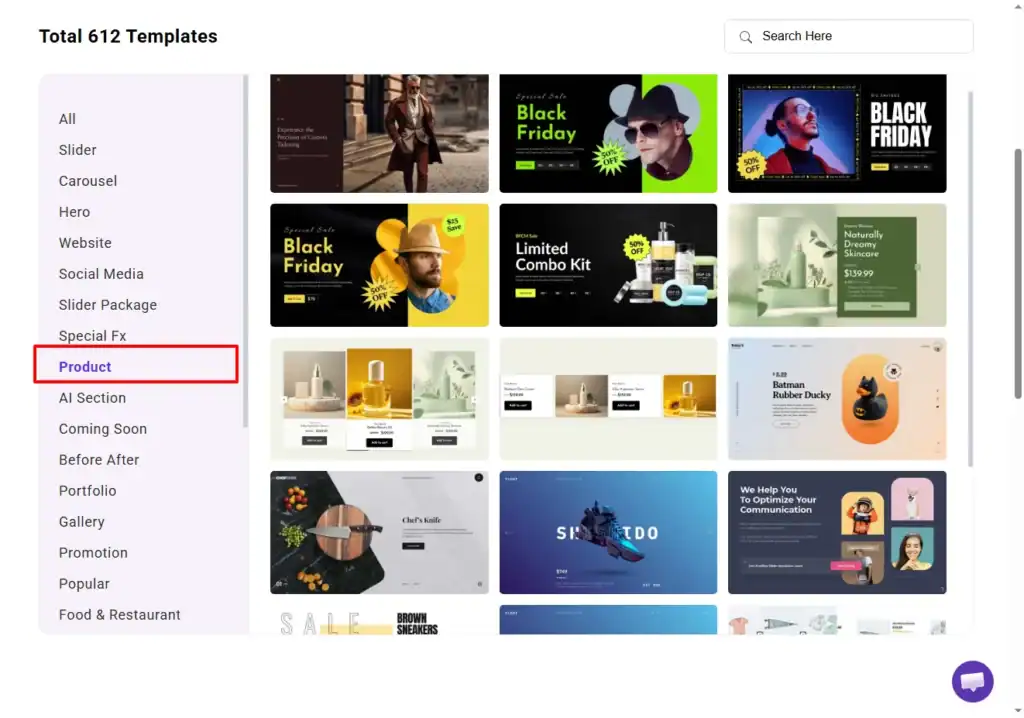
Slider Revolution & Sections contains 600+ templates for different Shopify store sections, 500+ of them are purpose-built product banners. Categories include hero sliders, promotional sale banners, countdown timers, video banners, and product carousels. Each template is ready to customize: swap the images, update the text, set the CTA link, and publish.
Below are seven templates across different use cases, product types, and styles.
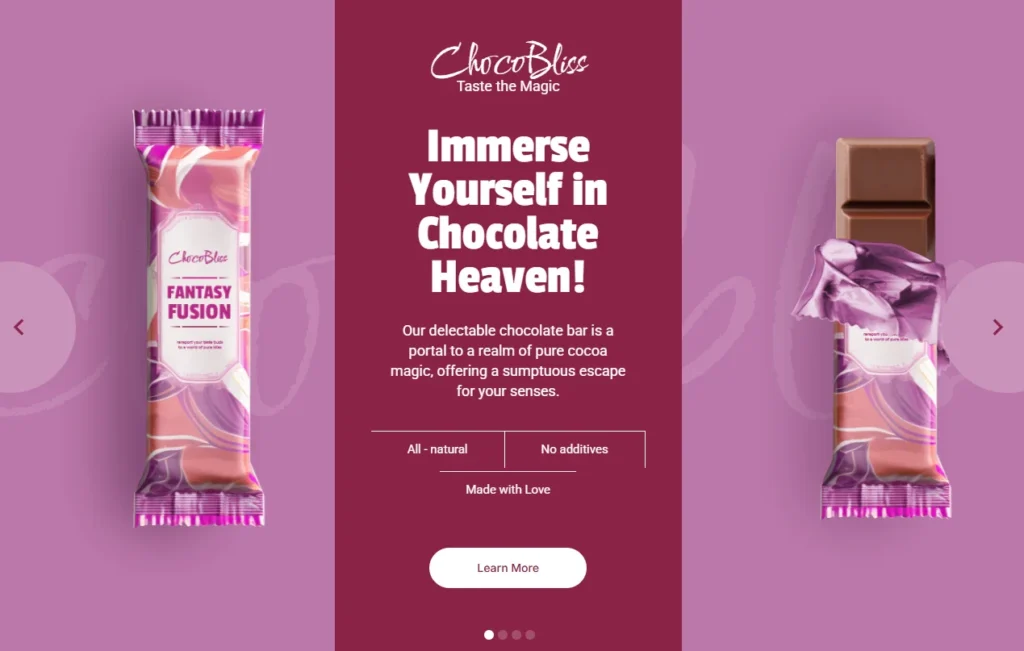
1. Chocolate Bar Product Presentation
Ideal for food, confectionery, and beverage brands. Features smooth text animations, premium product visuals, and a clean layout that highlights packaging details and product quality with maximum impact.
View Live Demo →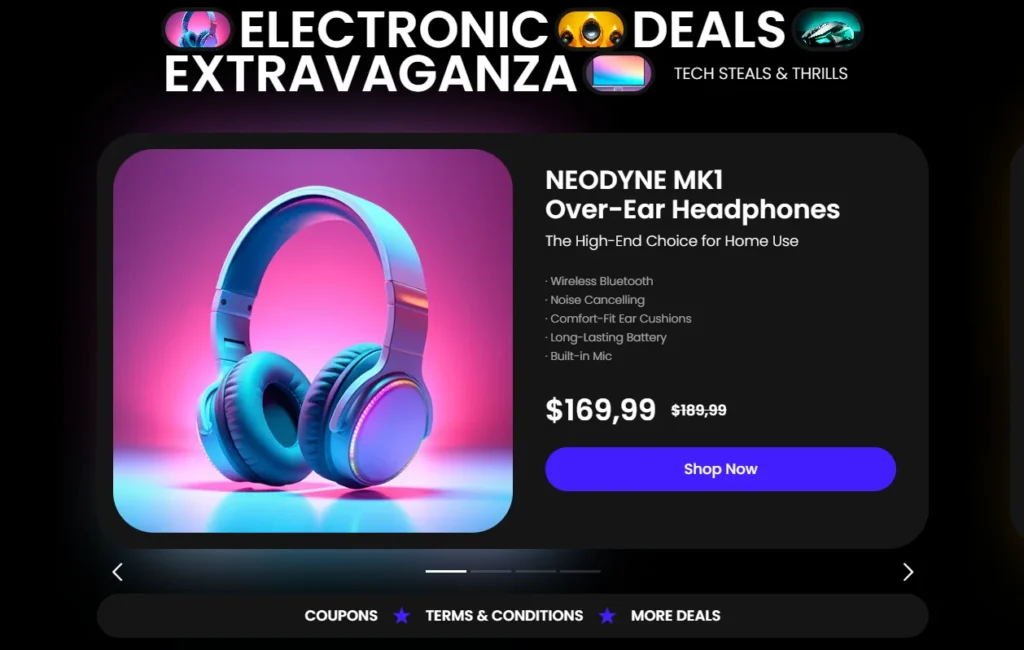
2. Product E-Commerce Carousel
Perfect for showcasing multiple products in one interactive slider. Great for new arrivals, best sellers, and seasonal collections, with smooth transitions and strong “Buy Now” CTAs for fashion, electronics, and lifestyle stores.
View Live Demo →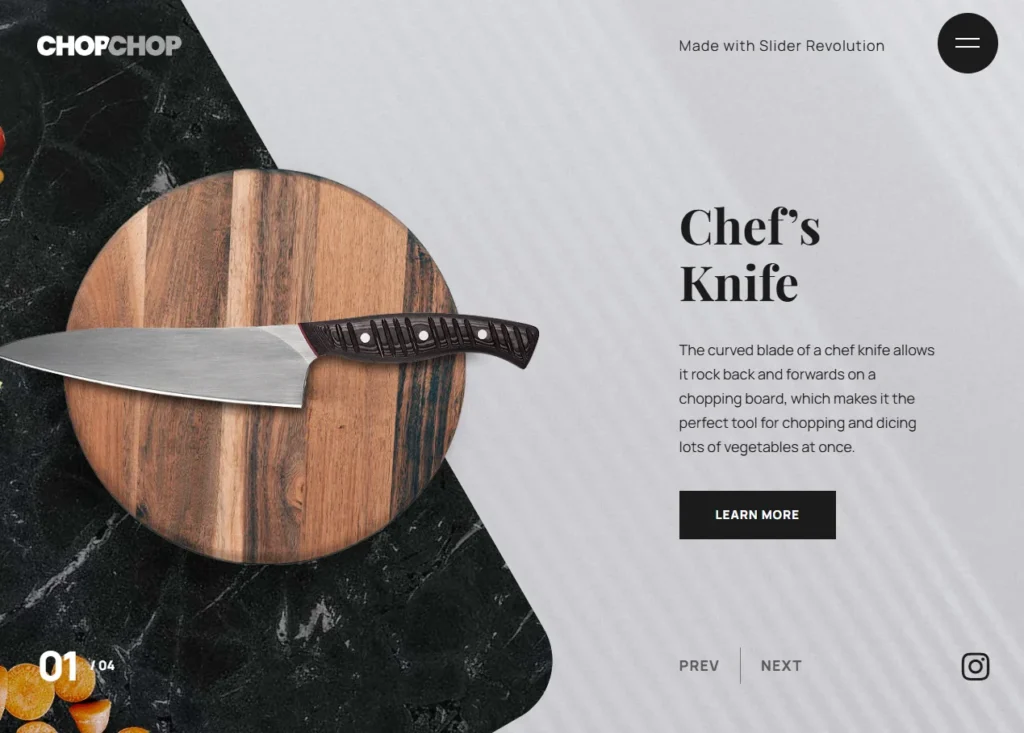
3. Kitchen Knives Product Slider
Designed for premium kitchenware and home goods brands. Bold transitions, sharp visuals, and elegant layouts create a high-end shopping experience that makes products feel more valuable than static images alone.
View Live Demo →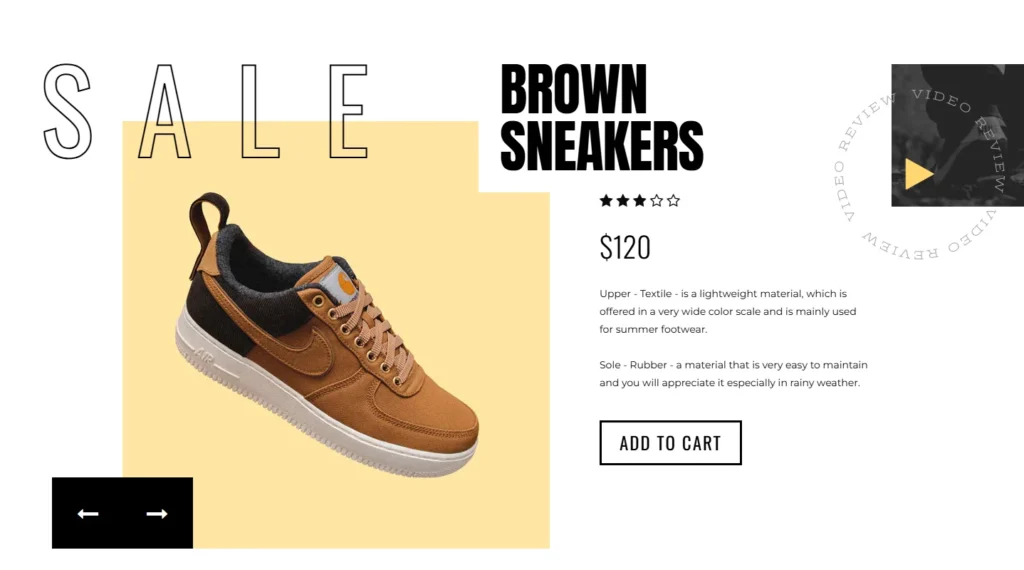
4. Dynamic E-Commerce Product Slider
Perfect for stores with large product catalogs. Combines animated pricing, product highlights, and smooth slide transitions to showcase multiple products in a single interactive banner for fashion, beauty, and electronics stores.
View Live Demo →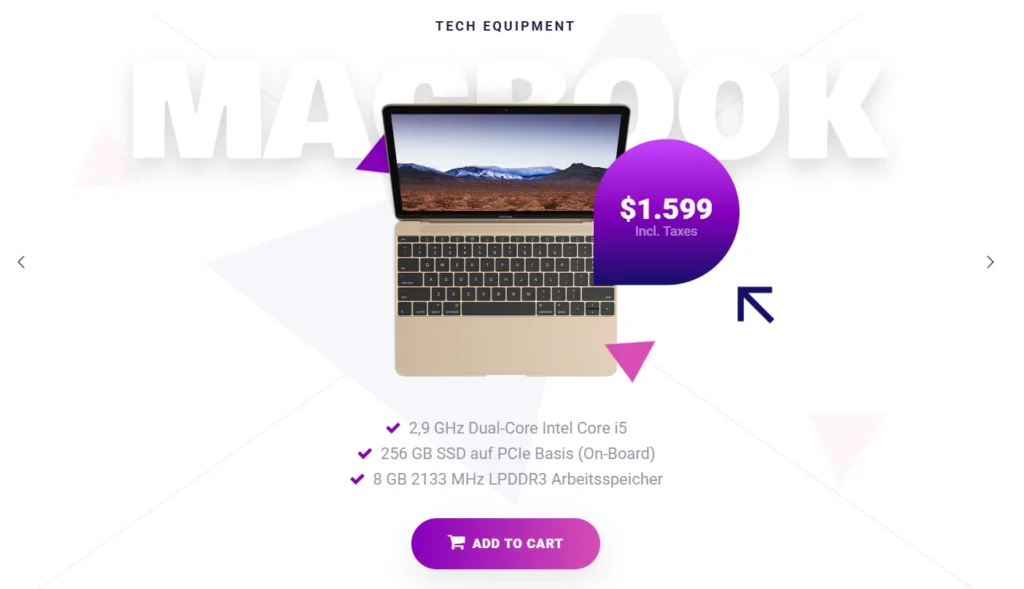
5. Product Showcase Slider
A full-screen product showcase designed to maximize visual impact. Ideal for featured collections, premium products, and tech gadgets with immersive layouts, gradient overlays, and engaging animations that capture attention instantly.
View Live Demo →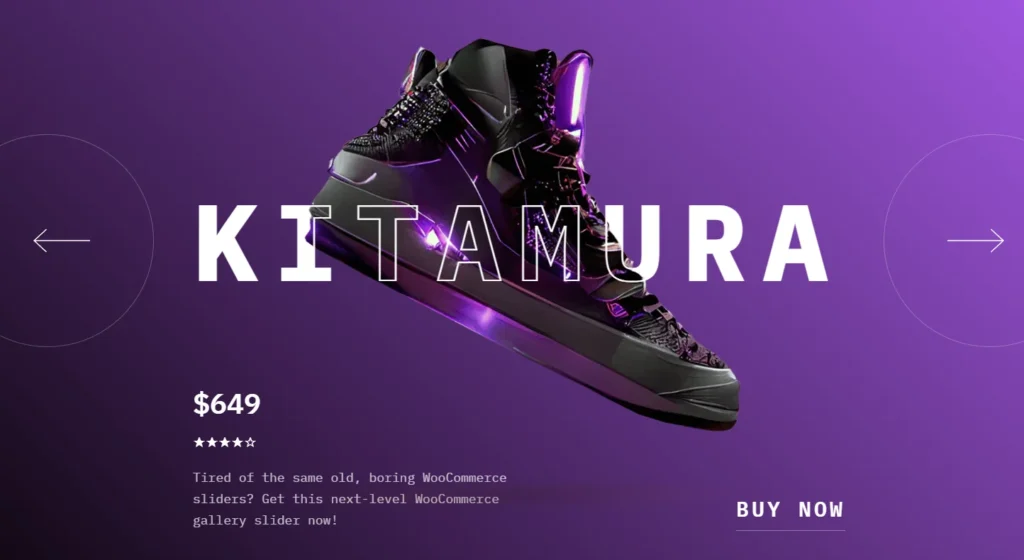
6. Sneaker E-Commerce Slider
Built for footwear, streetwear, and fashion brands. Combines bold typography, stylish animations, and dynamic product visuals to create an energetic shopping experience that’s perfect for new launches and limited-edition collections.
View Live Demo →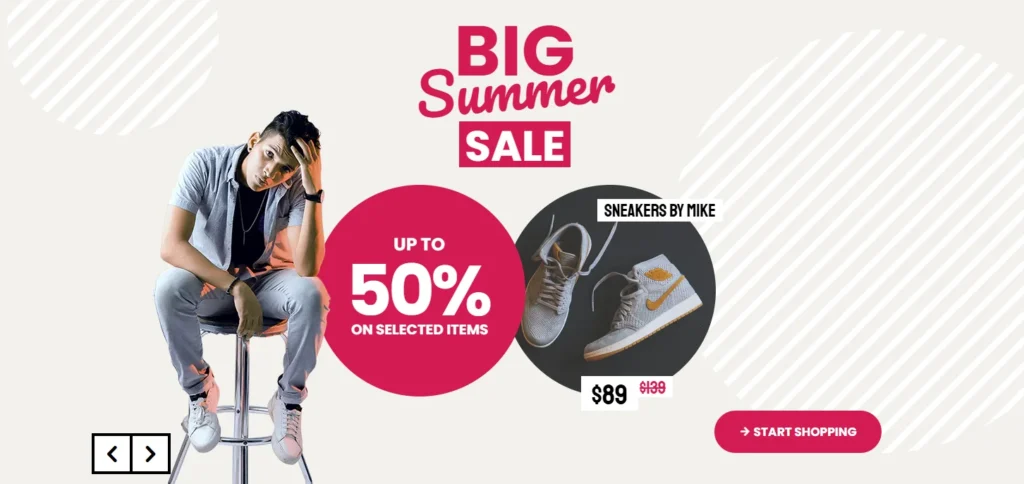
7. Big Summer Sale Banner
A high-impact promotional banner built for seasonal campaigns, flash sales, and holiday events. Bold typography, vibrant colors, and strong CTAs make it easy to launch limited-time offers that drive clicks and conversions.
View Live Demo →500+ More Shopify Banner Templates
Explore the complete Slider Revolution template library featuring hero banners, product sliders, countdown timers, video backgrounds, seasonal campaigns, and more. Customize everything visually with no coding required.
Everything built in. No apps to install.
Bundles, promos, a shoppable lookbook and a mega menu ship with the theme. Five EU languages, one-time payment, lifetime updates — and no monthly app fees eating your margin.
Get Snazzy →
Frequently asked questions
What is a Shopify product banner?
A Shopify product banner is a visual content block displayed in your store to highlight a product, promotion, or brand message. It can be a static image, video, slideshow, or animated graphic and is placed in key sections of the page — typically the homepage hero, collection pages, or product pages, to drive clicks and conversions. It is different from an announcement bar, which is the slim text strip at the top of every page.
How do I add a product banner in Shopify?
There are three ways. First, the Shopify theme editor: go to Online Store → Themes → Customize, click + Add section, choose Image Banner or Slideshow, upload your image, and configure the CTA. Second, custom HTML/CSS via the theme code editor, for users comfortable with coding. Third, a banner app like Slider Revolution, which gives you 500+ pre-built templates without any code. For most store owners, the theme editor or Slider Revolution is the right choice.
What size should a Shopify product banner be?
For a homepage hero banner, use 1920x600px on desktop and 750x1000px on mobile. For collection page banners, 1200x400px works well. Always verify with your theme’s recommended dimensions, as they vary. Use WebP format and compress images under 200KB to maintain page speed. See the full Shopify banner size guide for every section type.
What is the difference between a Shopify banner and an announcement bar?
A product banner is a large visual section, typically full-width with an image or video, designed to showcase a product, campaign, or offer. An announcement bar is a slim text strip at the top of every page used for short messages like “Free shipping on orders over $50.” They serve different functions and are configured separately in the theme editor. If you want to display a product promotion visually, you need a product banner, not an announcement bar.
Can I add a video as a Shopify banner?
Yes. Shopify supports video banners in MP4 format. In the theme editor, look for a Video section or use an Image Banner section that supports a video background. For advanced video banner features — autoplay, custom overlays, text animations, and looping, Slider Revolution offers a dedicated video carousel and video banner builder without any coding required.
What is the best app to create Shopify banners?
Slider Revolution is one of the most widely used Shopify banner apps, with 500+ customizable templates covering hero banners, product sliders, countdown banners, video banners, and seasonal campaigns. Essential Grid Gallery is the top choice specifically for grid-style product banners with 80+ templates. Both are available in the Shopify App Store and require no coding knowledge to use.
How do I create an effective Shopify mobile banner?
Use a portrait image sized at 750x1000px for mobile. Keep headline text to 6-8 words so it does not overflow on small screens. Make the CTA button large enough to tap comfortably (minimum 44px height). Most Shopify themes let you upload a separate mobile image for the Image Banner section, use this feature rather than relying on a cropped version of the desktop image. Always preview your banner in the theme editor’s mobile view before saving.

Jakaria is an SEO Content Writer in Shopify, Ecommerce, WordPress, and Tech Industry with 5+ years of experience. He specialises in developing engaging, helpful content by simplifying complex topics into an amazing story for B2B, SaaS, and Shopify businesses. He’s also passionate about staying updated on growth marketing strategies and Shopify trends.