
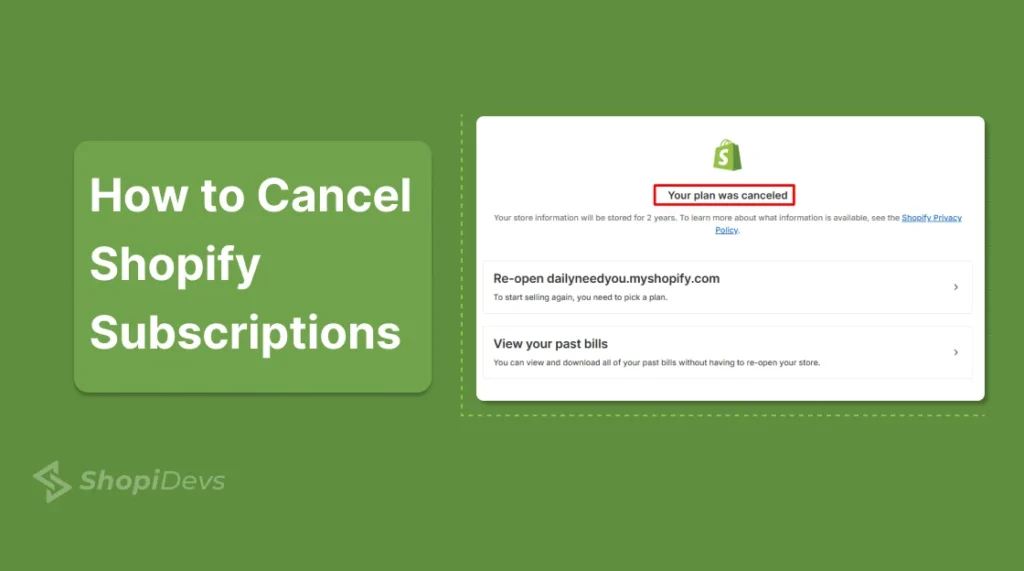
Canceling a Shopify subscription looks like a one-click action, but the order you do things in decides whether you walk away clean or lose data you needed. Deactivate before backing up, and your product catalog, customer list, and order history are gone with no way back.
The subscription itself cancels in under a minute from Settings, Plan, Cancel Plan. The part that actually matters is everything you do in the 10 minutes before that click: backing up your store, clearing recurring app charges, and deciding whether you want deactivation or permanent deletion.
Quick Answer
To cancel your Shopify subscription: go to Settings, Plan, click Cancel Plan, select a reason, and confirm with your admin password. Before you do, back up your store data, since a canceled store cannot be restored once its retention window passes.
If you might reopen later, choose Pause and Build ($9/month) instead of full cancellation. It keeps your theme, products, and settings intact at a fraction of your current plan cost.
Key Takeaways
- Deactivating keeps your data for a limited retention window; deleting removes it permanently and immediately
- Back up your store before canceling. Once deactivated, restoring lost data is not guaranteed
- Uninstall or downgrade Shopify apps first, several continue billing even after your store is deactivated
- Turn off domain auto-renewal separately if you registered your domain through Shopify and won’t need it
- Pause and Build ($9/month) is the better move if there’s any chance you reopen the store later
- Canceling means losing your SEO rankings and backlinks the moment the store goes offline
What You Lose Before You Cancel
Canceling isn’t reversible in the way most merchants assume. Before deactivating, weigh these five costs against whatever you’re saving on the monthly bill:
- Pause instead of canceling: Shopify’s Pause and Build plan keeps your store live at a lower cost without wiping data or settings, worth checking before you cancel outright.
- Loss of SEO and brand presence: canceling takes your site offline, and with it your search rankings, backlinks, and organic traffic.
- Difficult to restore later: reopening after a full cancellation means starting over. If there’s any chance you’ll relaunch, Pause and Build (from $9/month) keeps products, themes, and integrations intact.
- App ecosystem and integrations: Shopify’s App Store lists 8,000+ apps handling inventory, marketing, and sales. Rebuilding those workflows on a different platform costs real time and money.
- Existing customer base: closing your store cuts off loyal customers permanently. Even migrating elsewhere disrupts their experience if it’s not planned around.
Back Up Your Store Data First (Best for Pre-Cancellation Backup)
Once a subscription cancels, billing history, customer emails, order data, and product data are all at risk. These aren’t just records, they’re business assets, and the only safe move is backing them up before you touch the Cancel Plan button.
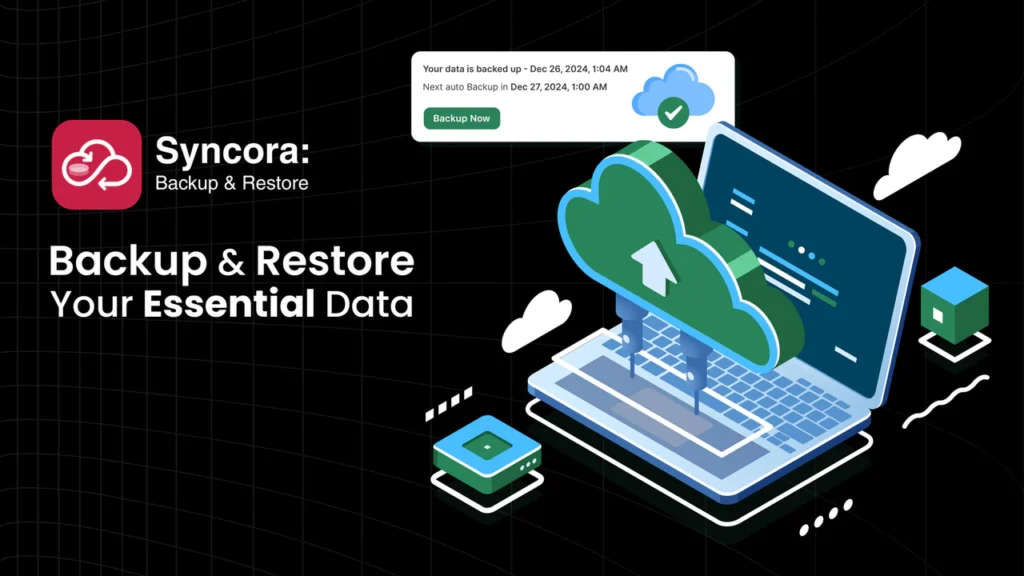
Canceling your subscription without a backup means losing your best-selling products, customer records, and store design in one step. Syncora runs continuously in the background, capturing changes as they happen and syncing encrypted copies off-platform, so none of that is tied to whether your Shopify subscription stays active.
PROS
- Real-time protection, captures changes instantly and syncs to Google Drive
- One-click restore for a product, theme, or the entire store
- Duplicate your store for safe testing or platform migration without downtime
- Scheduled weekly or monthly auto-saves that run without manual effort
CONS
- Only useful if installed before you need it, so set it up ahead of any cancellation decision
- Restore speed depends on store size for very large catalogs
Pre-Cancellation Checklist
With your data backed up, three more things need to happen before you cancel, or they’ll keep charging you or leave loose ends after your store closes.
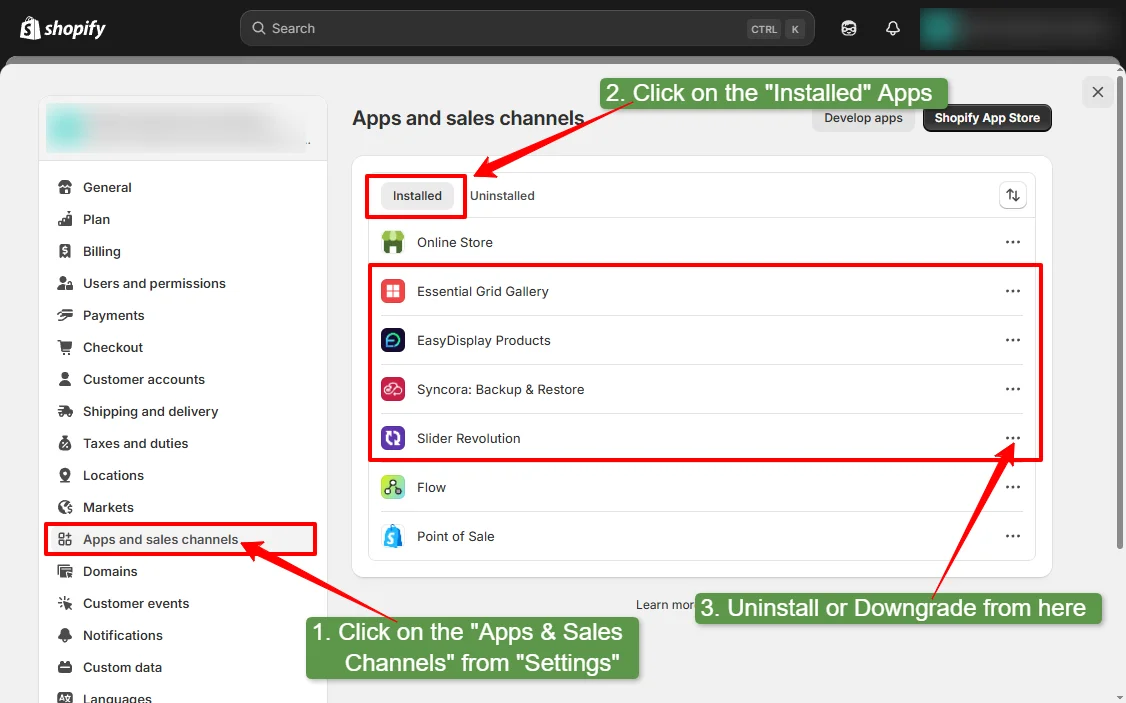
Downgrade or Uninstall Shopify Apps
App subscriptions and auto-renewals can keep billing even after your store is deactivated. Go to Settings, Apps and Sales Channels, then uninstall apps from the 3-dot menu or downgrade to each app’s free plan from its pricing page.
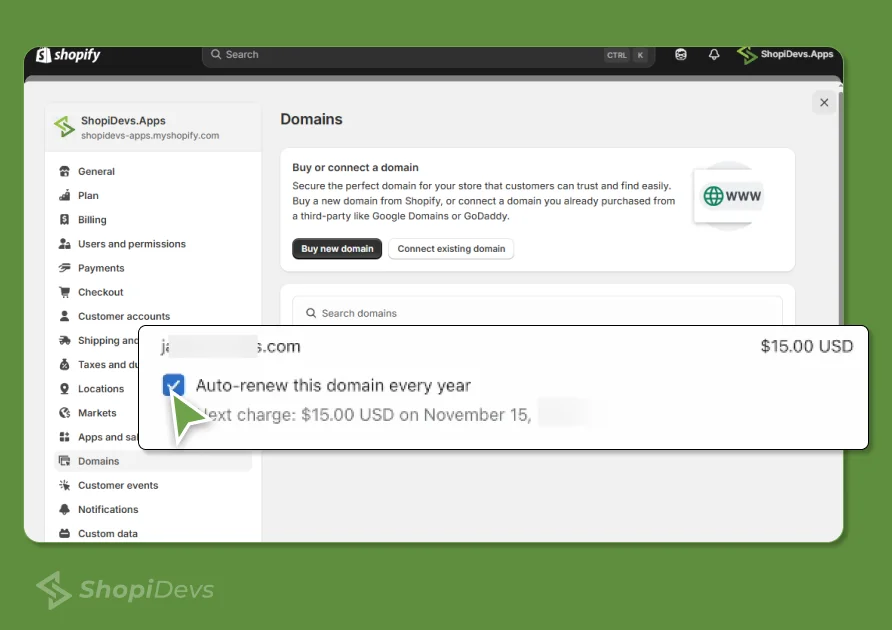
Turn Off Auto-Renewal for Your Domain
If your domain is registered through Shopify and you don’t plan to use it again, turn off auto-renewal under Settings, Domains. If you’re only pausing temporarily, skip this step. If you want to keep the domain for another platform, transfer it out rather than letting it lapse.
Remove Staff and Collaborator Access
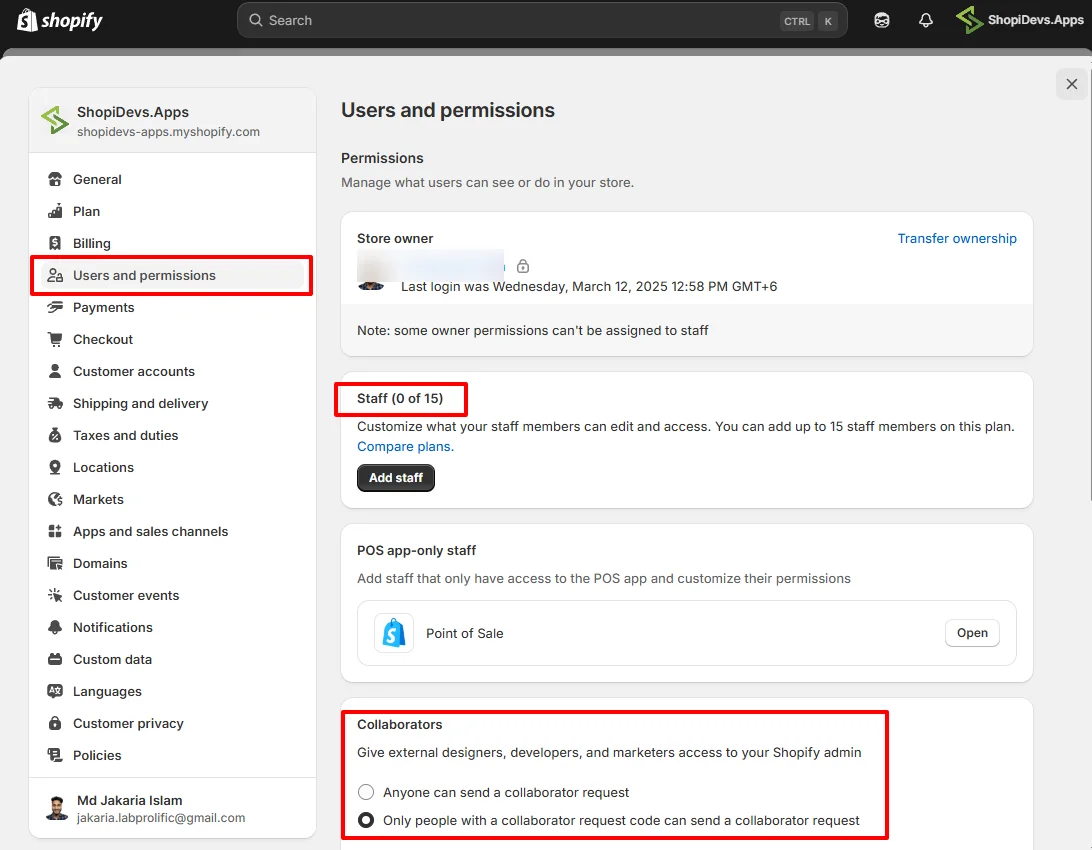
If you’ve granted collaborator access or added staff accounts, remove them under Settings, Users and Permissions. Signing everyone out protects sensitive data once the store is no longer under your active management.
How to Cancel Your Shopify Subscription
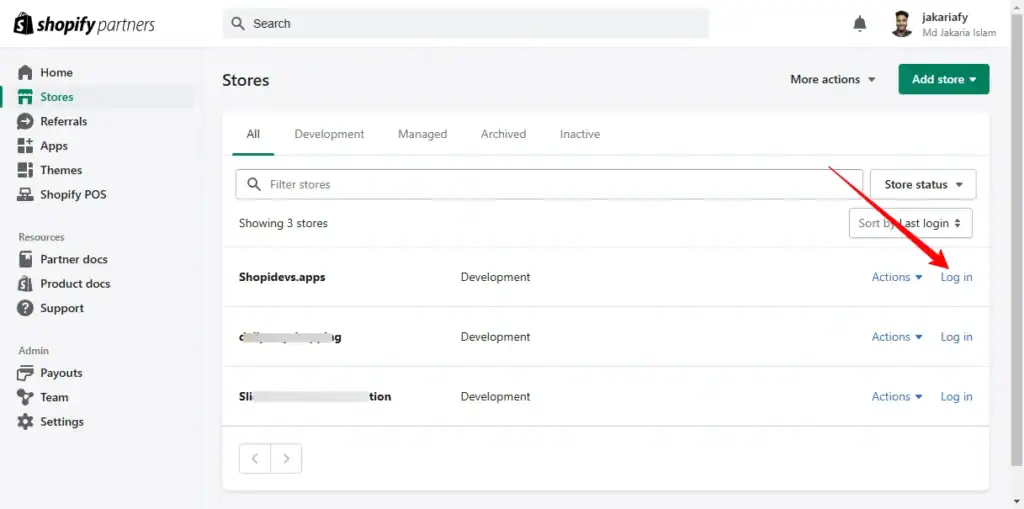
- Log in to your Shopify admin: Sign in with your store credentials to reach the admin dashboard.
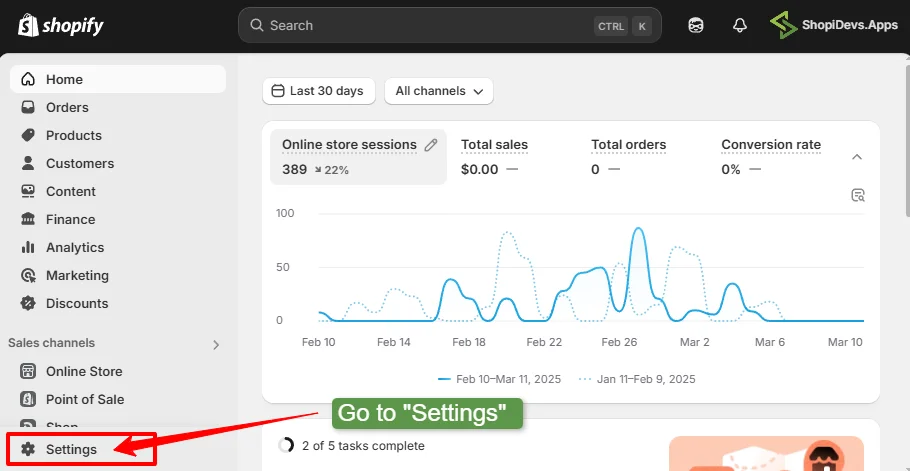
- Go to Settings: Open Settings from the bottom of the left sidebar.
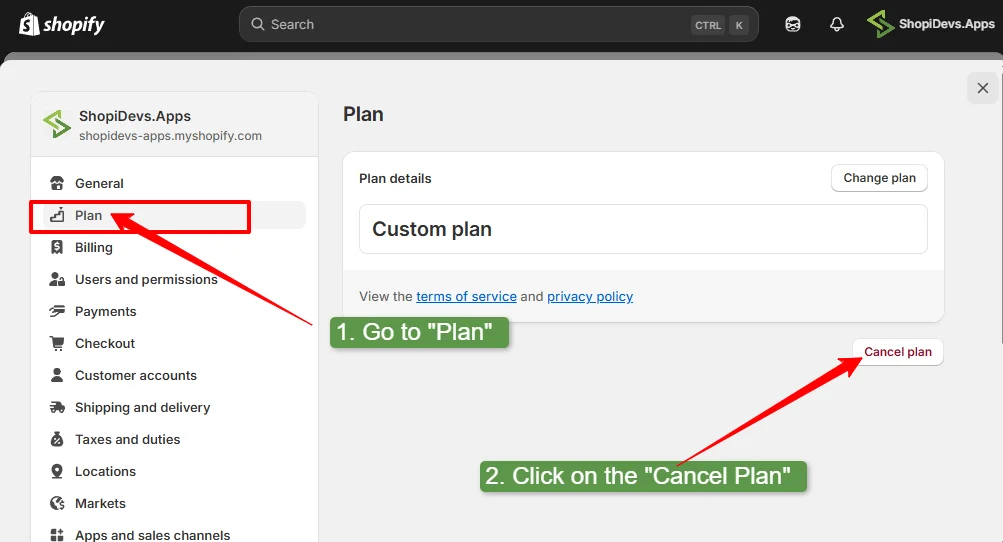
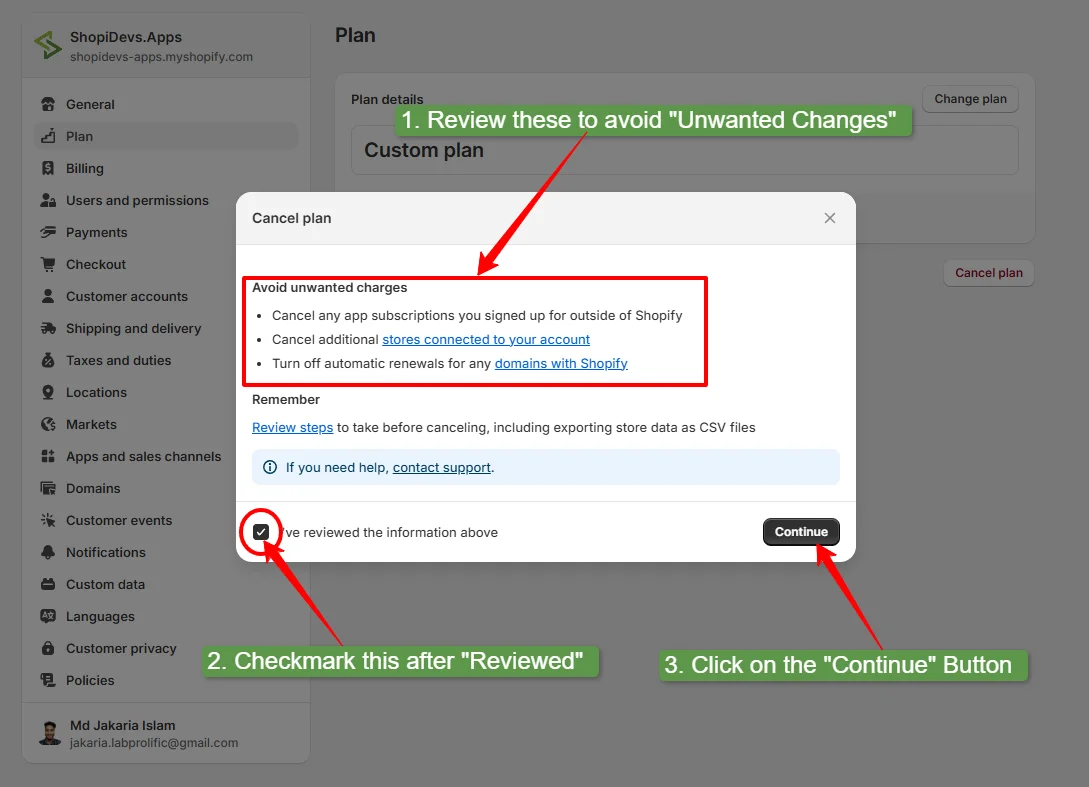
- Click Plan, then Cancel Plan: Navigate to the Plan section and select Cancel Plan.
- Review the information and continue: Shopify shows a summary of what canceling affects. Read it, then click Continue.
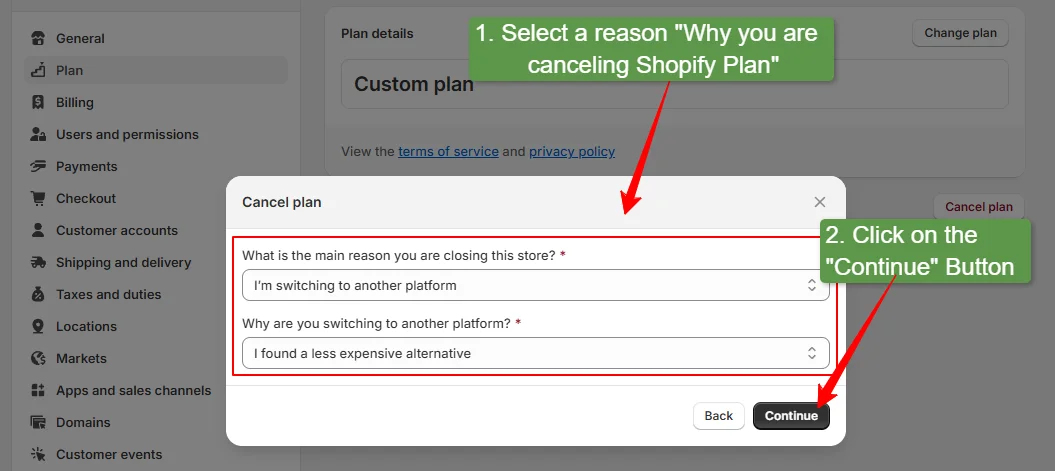
- Select a reason and confirm: Choose why you’re canceling and confirm again, acknowledging you’ll lose store data. This step may ask for your admin password.
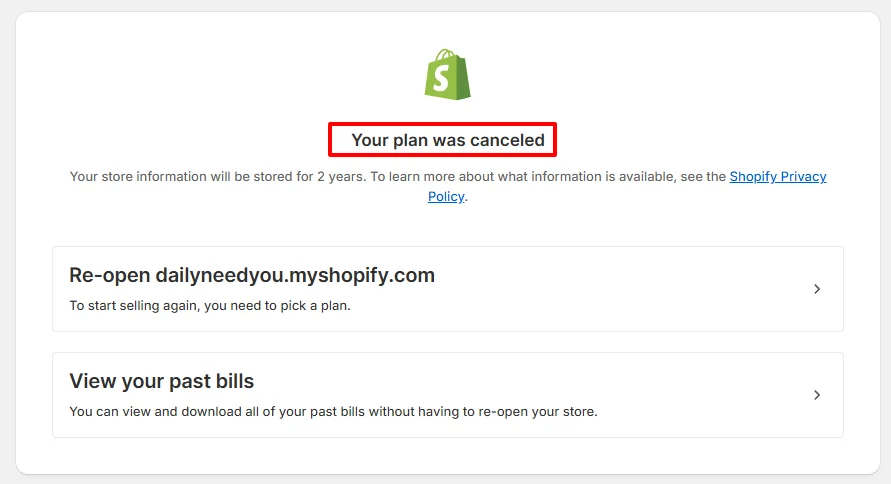
- Subscription canceled: Once confirmed, your Shopify subscription is canceled and the store deactivates.
Deactivating vs. Deleting a Shopify Store
Both routes cancel your subscription, but the outcome for your data is very different.
| What Happens | Deactivating | Deleting |
|---|---|---|
| Store data | Kept for 2 years | Erased permanently |
| Reactivation | Yes, via Stores > Inactive > choose a new plan | No, cannot be restored |
| Best for | Temporary closure or uncertain plans to reopen | Permanent shutdown with no return plans |
5 Alternatives if You’re Switching Platforms
| Platform | Best For | Trade-off |
|---|---|---|
| WooCommerce | Full control on WordPress, no monthly platform fee | You manage hosting and updates yourself |
| BigCommerce | Growing stores needing built-in SEO and no transaction fees | Less app-store depth than Shopify |
| Magento (Adobe Commerce) | Large-scale, highly customized enterprise stores | Requires developer resources to manage |
| Squarespace | Small stores prioritizing design over app ecosystem | Limited third-party app selection |
| PrestaShop | Open-source control across multiple payment gateways | You cover domain, hosting, and security separately |
Read the direct comparison if Shopify vs. WooCommerce is the one you’re weighing, it’s the most common switch merchants make after canceling.
Frequently Asked Questions
Can you cancel Shopify anytime?
Yes. Shopify doesn’t restrict when you can cancel a subscription, you’re free to deactivate your store whenever you want. Follow the proper sequence, backup first, then cancel, to avoid losing data or facing unexpected charges.
How do I stop automatic payments on Shopify?
Log in to your Shopify admin, go to Settings, Payments, Manage, and deactivate automatic payments. You can also change the payment method or switch to a manual payment option instead of quitting entirely.
How do I change my Shopify subscription instead of canceling?
Go to Settings, Plan, and choose a different plan to upgrade or downgrade anytime. If you want to pause without canceling, select Pause and Build to keep your store active with limited features at a reduced cost.
Will I lose my data if I cancel my Shopify subscription?
If you deactivate, Shopify retains your data for up to 2 years and you can reactivate later. If you delete your account outright, all data, products, orders, and settings are erased permanently with no way to restore them.
Do Shopify apps keep charging after I cancel my subscription?
They can. App subscriptions and auto-renewals run independently of your Shopify plan. Uninstall or downgrade every installed app from Settings, Apps and Sales Channels before canceling to stop recurring app charges.
Back Up Your Store Before You Cancel
Protect your products, customers, and orders with real-time backup and one-click restore, so canceling never means losing your business data.

Jakaria is an SEO Content Writer in Shopify, Ecommerce, WordPress, and Tech Industry with 5+ years of experience. He specialises in developing engaging, helpful content by simplifying complex topics into an amazing story for B2B, SaaS, and Shopify businesses. He’s also passionate about staying updated on growth marketing strategies and Shopify trends.