A static Shopify store looks finished. An animated one feels alive. The difference shows up in time-on-page and scroll depth, two signals Google uses to assess content quality, and two things that directly affect conversion rate.
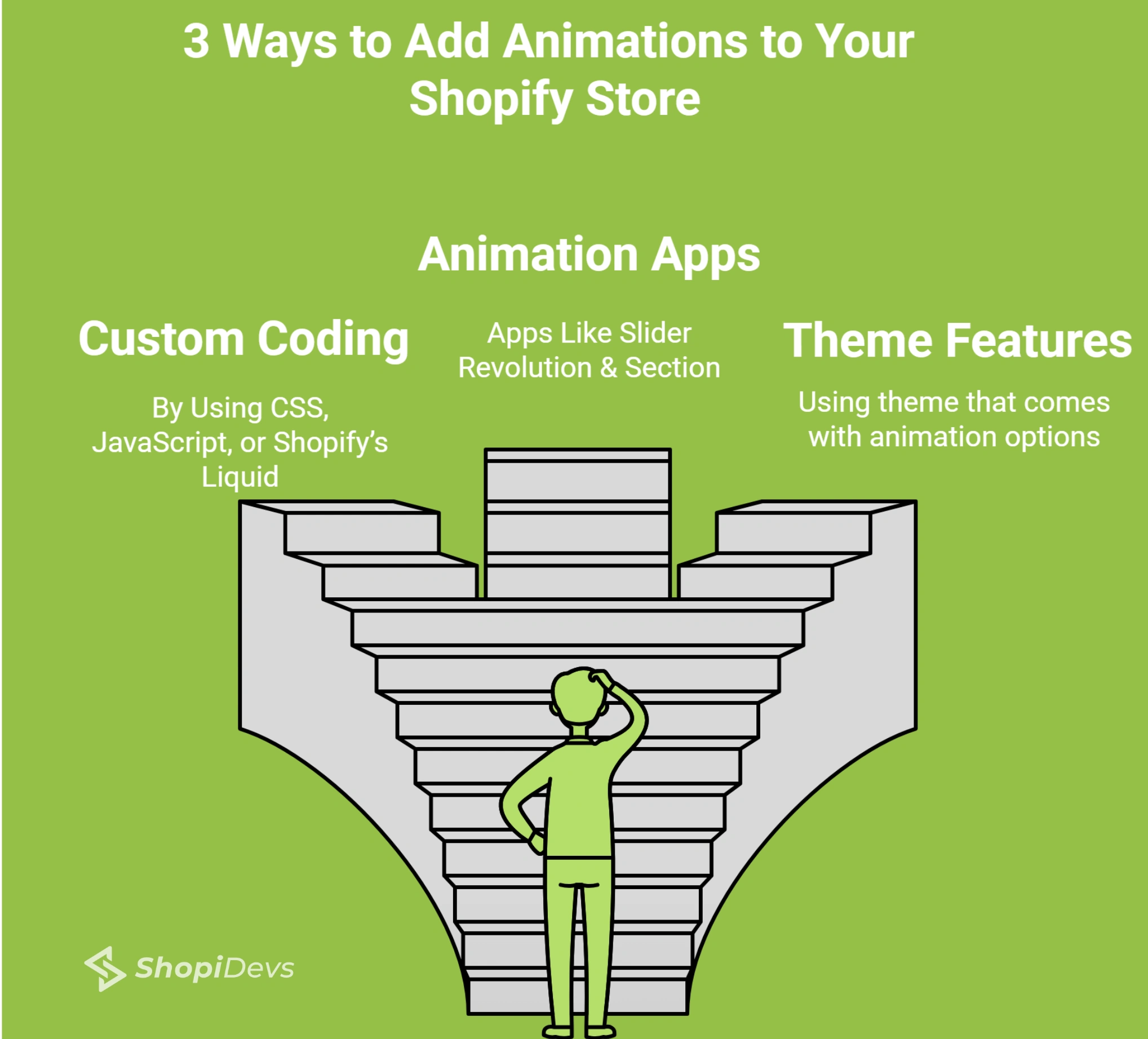
Three routes exist: the built-in settings already inside your OS 2.0 theme (zero cost, zero code), a no-code app like Slider Revolution (most animation types, no development required), or custom CSS and JavaScript written directly into your theme files (full control, requires intermediate skill). Each has a different cost, skill ceiling, and performance profile.
This guide covers all three methods with step-by-step instructions, working CSS code for scroll reveal, and performance rules to make sure your animations speed the store up rather than slow it down.
Quick Answer
The fastest way to add animations to a Shopify theme without writing code is to open Online Store → Themes → Customize → Theme Settings and enable the Animations option. This activates built-in scroll reveal animations on Dawn and most Shopify OS 2.0 themes.
For advanced effects like parallax scrolling, animated sliders, particle backgrounds, or typewriter text, install the Slider Revolution & Sections app, choose a template, and add it through the Shopify theme editor. If you’re building custom animations, use CSS properties such as opacity and transform together with JavaScript’s IntersectionObserver API for smooth, performance-friendly animations.
Key Takeaways
- Most Shopify OS 2.0 themes, including Dawn, include a built-in Animations setting. Enable it before installing an animation app.
- For smooth animations, animate
opacityandtransform. Avoid animatingwidth,height,top, andleftbecause they trigger layout recalculations. - Keep animation durations between 200 and 400 milliseconds for interface interactions and 500 to 700 milliseconds for hero section reveals. Durations above 800 milliseconds generally feel slow.
- Always include a
prefers-reduced-motionmedia query when creating custom animations to improve accessibility for users with motion sensitivity. - Slider Revolution & Sections includes advanced effects such as particle backgrounds, typewriter text, parallax scrolling, Lottie animations, and animated layers without requiring custom code.
- For animated hero sections, see the Shopify product banner guide. To create animated countdown promotions, follow this countdown banner tutorial.
Types of Shopify Animations
Before choosing a method, know what you are trying to add. Shopify animations fall into four categories:
| Animation Type | What It Does | Best For |
|---|---|---|
| Scroll reveal | Elements fade or slide into view while the visitor scrolls. | Section introductions, feature blocks, product descriptions |
| Hover effects | Images, buttons, or cards animate when the cursor hovers over them. | Product images, buttons, navigation links |
| Hero banner animations | Text and images animate as the page loads. | Homepage hero sections, promotional banners, announcements |
| Micro-interactions | Small animations provide feedback after user actions. | Add to Cart buttons, forms, wishlist icons |
| Parallax | Background layers move at different speeds while scrolling. | Hero sections, full-width image banners |
| Transitions | Smooth movement between interface states or pages. | Cart drawers, filter panels, page navigation |
Method Comparison: Built-in vs App vs CSS
| Method | Skill Required | Cost | Animation Types | Performance Risk | Best For |
|---|---|---|---|---|---|
| Built-in Theme Settings | None | Free | Scroll reveal, fade-in | Low | Beginners, quick setup |
| Slider Revolution App | None | Free plan with optional paid add-ons | Parallax, particles, Lottie, animated sliders, typewriter effects | Low (optimized) | Hero sections, sliders, advanced visual effects |
| Custom CSS / JavaScript | Intermediate | Free | Any custom animation | Medium (depends on implementation) | Developers, custom brand experiences |
Method 1: Built-in Theme Settings (No Code, No App)
Best for: Scroll reveal animations on every section without installing apps or writing code.
Shopify’s Dawn theme and most OS 2.0 themes include a native animations setting. It adds scroll-triggered fade-in and slide-up effects to every section automatically. This is the fastest way to add animation to a Shopify store.
- Go to your theme customizer: In your Shopify admin, go to Online Store > Themes and click Customize on your active theme.
- Open Theme Settings: In the theme editor, click the Theme Settings panel (the paint bucket icon in the left sidebar).
- Enable animation: Scroll to the Animations section and toggle it on. In Dawn, this enables scroll-triggered reveal animations on all page sections. Some themes also offer options for animation style (fade, slide, zoom) and duration. Save and preview.
What you get:
Built-in Shopify theme animations use native CSS transitions and the browser’s IntersectionObserver API. They are optimized by Shopify for performance, require no third-party scripts, and have the lowest performance risk of any animation method.
If your theme does not have an Animations toggle, it is either not OS 2.0 compatible or uses a different naming convention. Check under Theme Settings > Transitions or Scroll Effects. For a list of free OS 2.0 themes that include built-in animations, see the best free Shopify themes guide.
Method 2: Slider Revolution App (No Code, Advanced Animations)
Best for: Hero banners, parallax effects, particle animations, animated sliders, typewriter text, Lottie animations, and advanced visual effects without writing any code.
The Slider Revolution & Sections app is the most capable no-code animation solution for Shopify. It adds animated sections through the Shopify theme editor as app blocks, so no theme files are modified and nothing breaks during theme updates. It covers animation types that would take weeks to build from scratch with custom code.
The app offers animation at three levels: layer animations (text and image elements), background animations (full-section transitions), and advanced add-ons including particle effects, parallax scroll, Lottie animations, and distortion effects.
Step 1: Install and Open the App
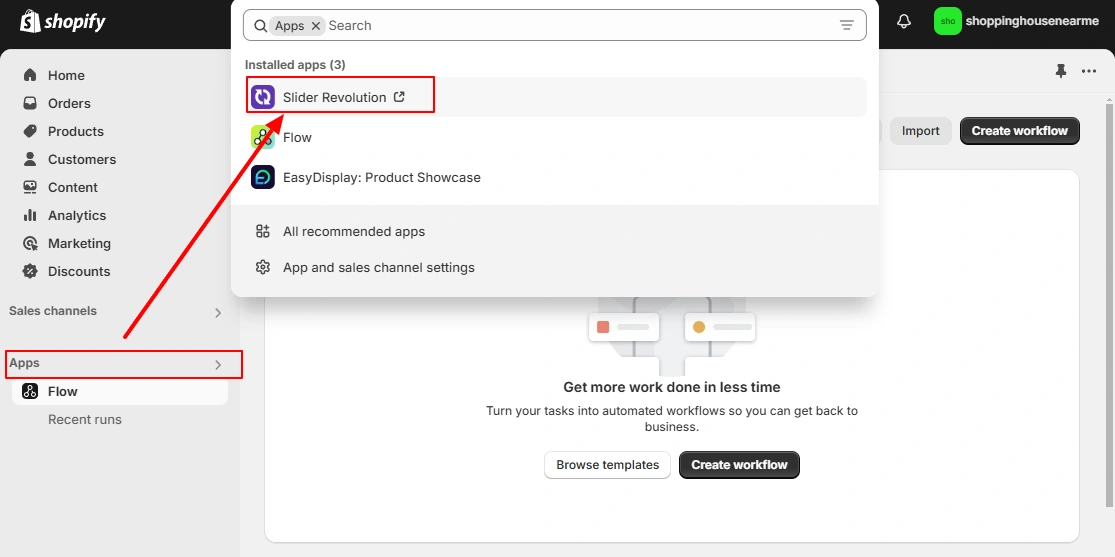
Go to your Shopify admin, click Apps, and select Slider Revolution. If not yet installed, install it from the Shopify App Store.
Step 2: Create a Slider from Template
On the Slider Revolution dashboard, click New Slider from Template. This opens the template library with 200+ pre-animated templates organized by category.
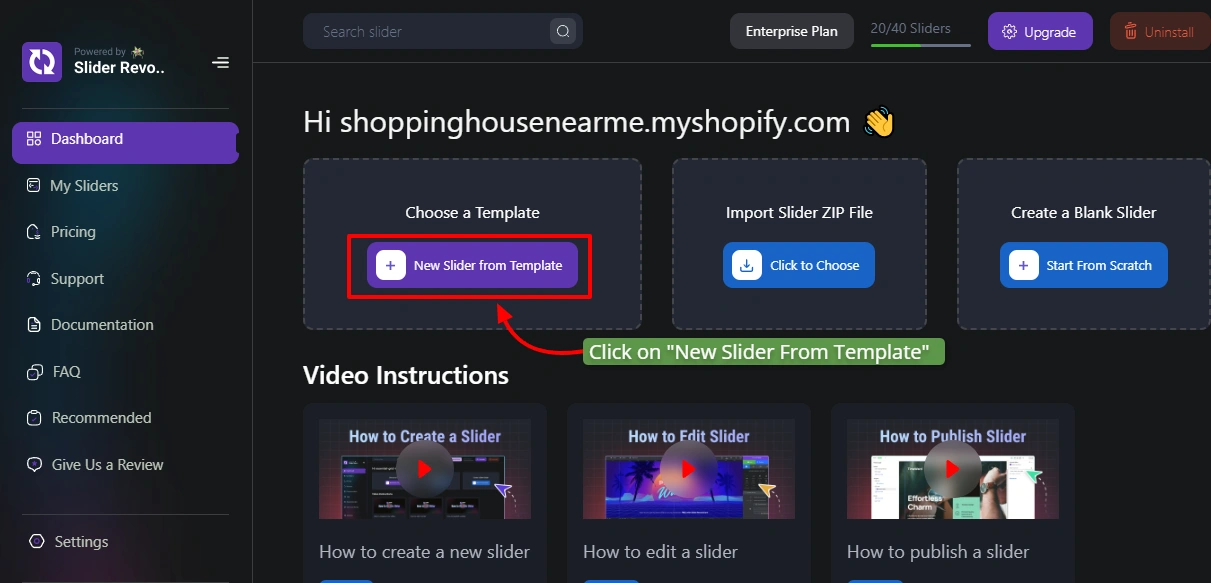
On the Slider Revolution dashboard, click New Slider from Template. This opens the template library with 200+ pre-animated templates organized by category.
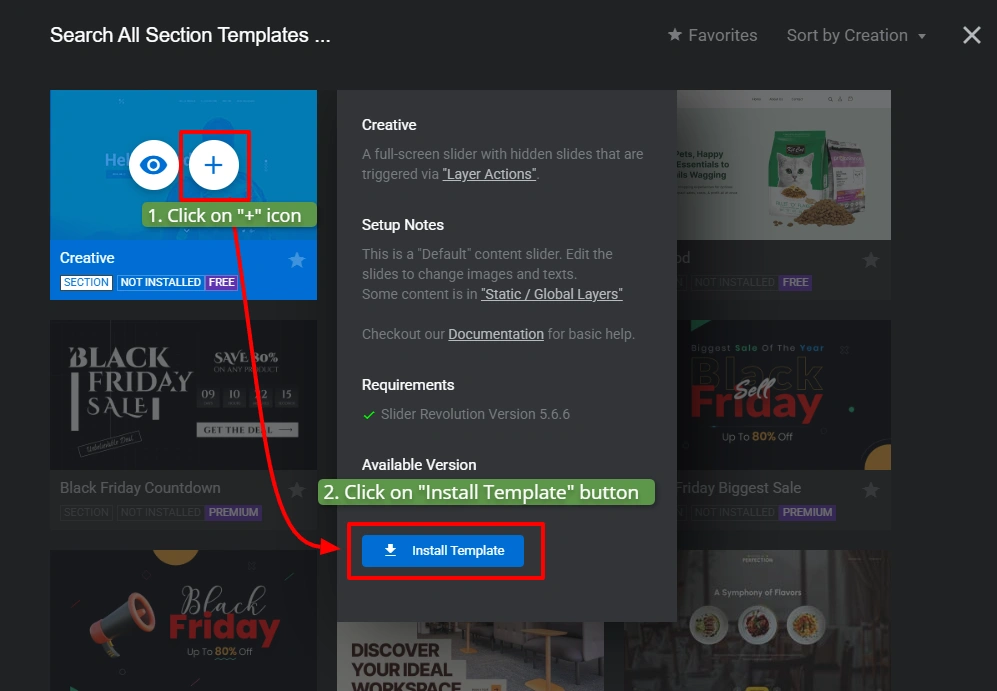
Choose a template, click the Plus icon, then click Install Template.
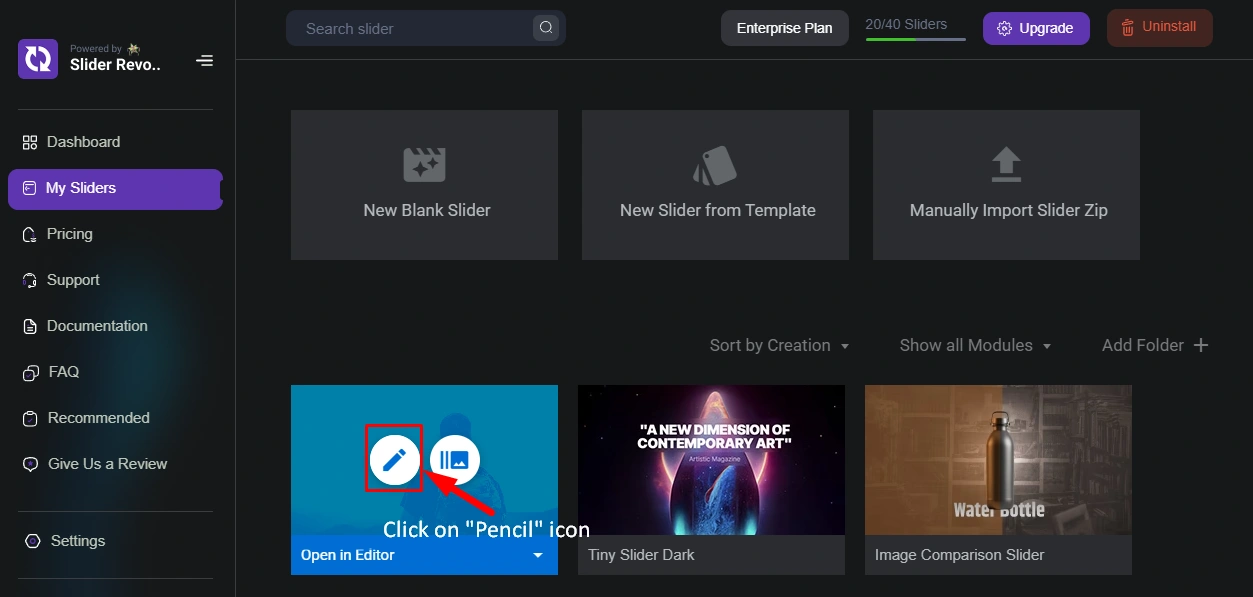
Go to My Sliders and click the Pencil icon to open the template editor.
Step 3: Add Animations to Layers
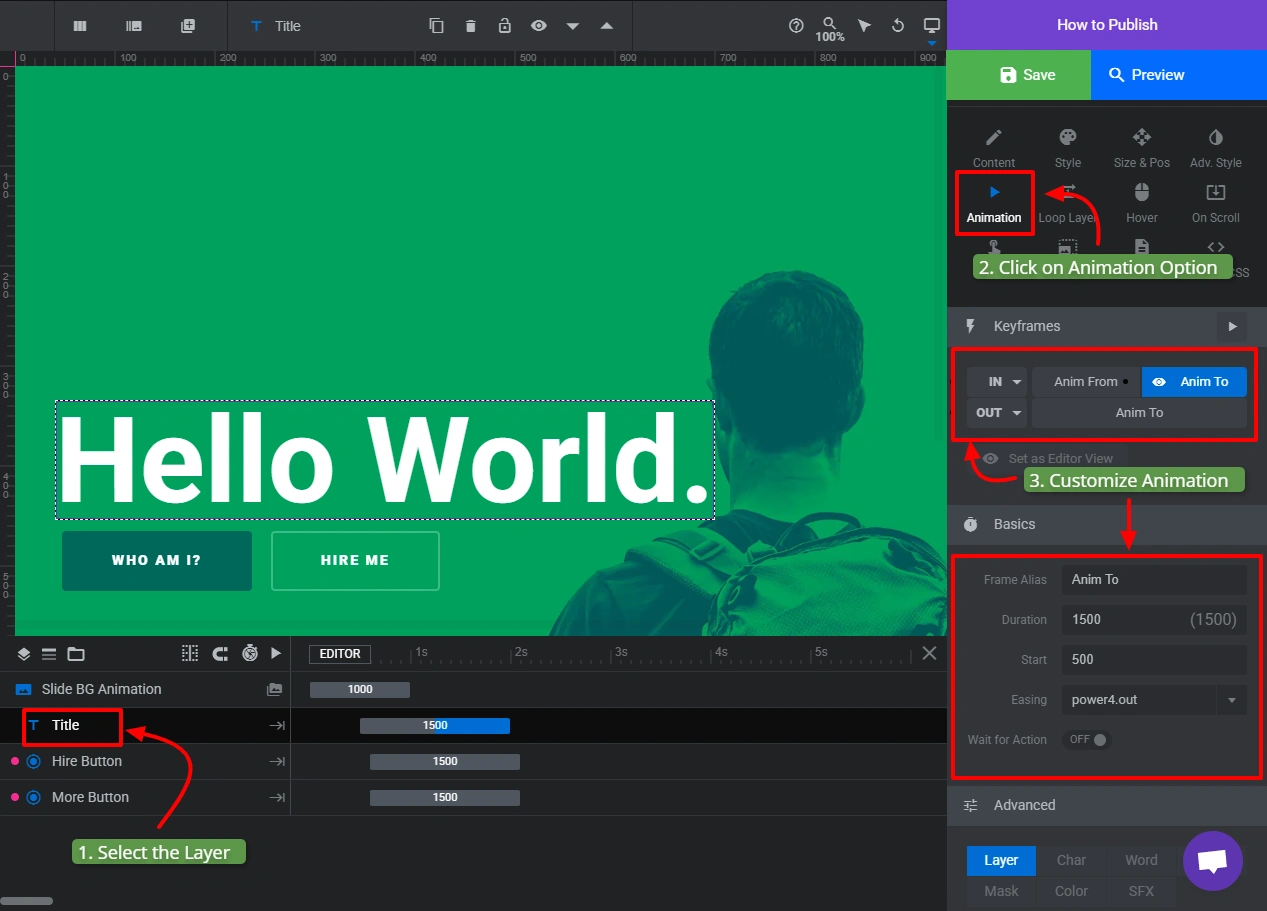
Select any layer (text, image, button) and click the Animation button in the panel. Set In and Out animations from these options:
- Block Transitions (SFX)
- Letter Transitions (animated per character)
- Masked Transitions
- Pop-Ups, Rotations, Skew Transitions
- Slide and Simple Transitions
- Random Transitions
Step 4: Add Background Animations
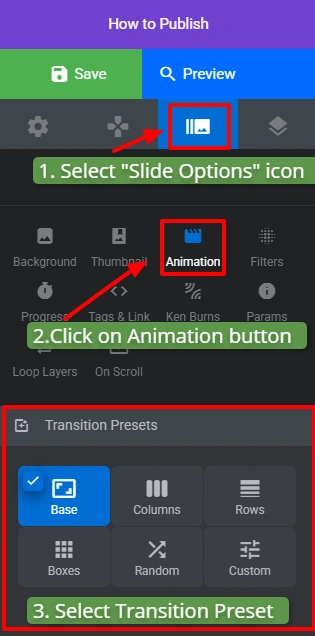
Click the Slide Options icon on the left panel, then click Animation and select a Transition Preset. Background animation options include Base (fade, zoom, parallax slide), Row and Column, Box transitions, and Random effects.
Step 5: Add Advanced Animations with Add-ons

Go to Module General Options and click the Add-ons button.
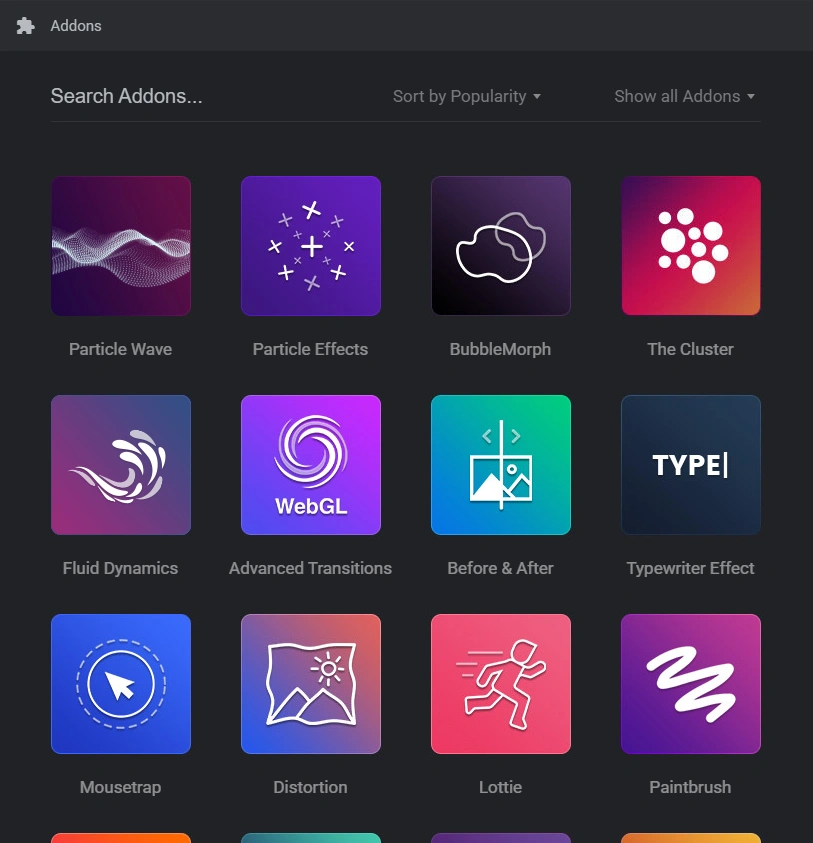
The add-ons gallery includes 12 animation add-ons:
- Particle Wave and Particle Effects: animated floating particles as background or foreground
- The Cluster: AI-style particle cluster hero effect
- Fluid Dynamics: liquid motion effect over images
- Advanced Transitions: cinematic page and slide transitions
- Before & After: interactive comparison slider with animation
- Typewriter Effect: animated letter-by-letter text reveal
- Lottie: scalable JSON-based vector animations
- Exploding Layers: elements burst apart and reassemble
- Polyfold Scroll Effect: page folding animation on scroll
- Distortion: image ripple and distortion effects
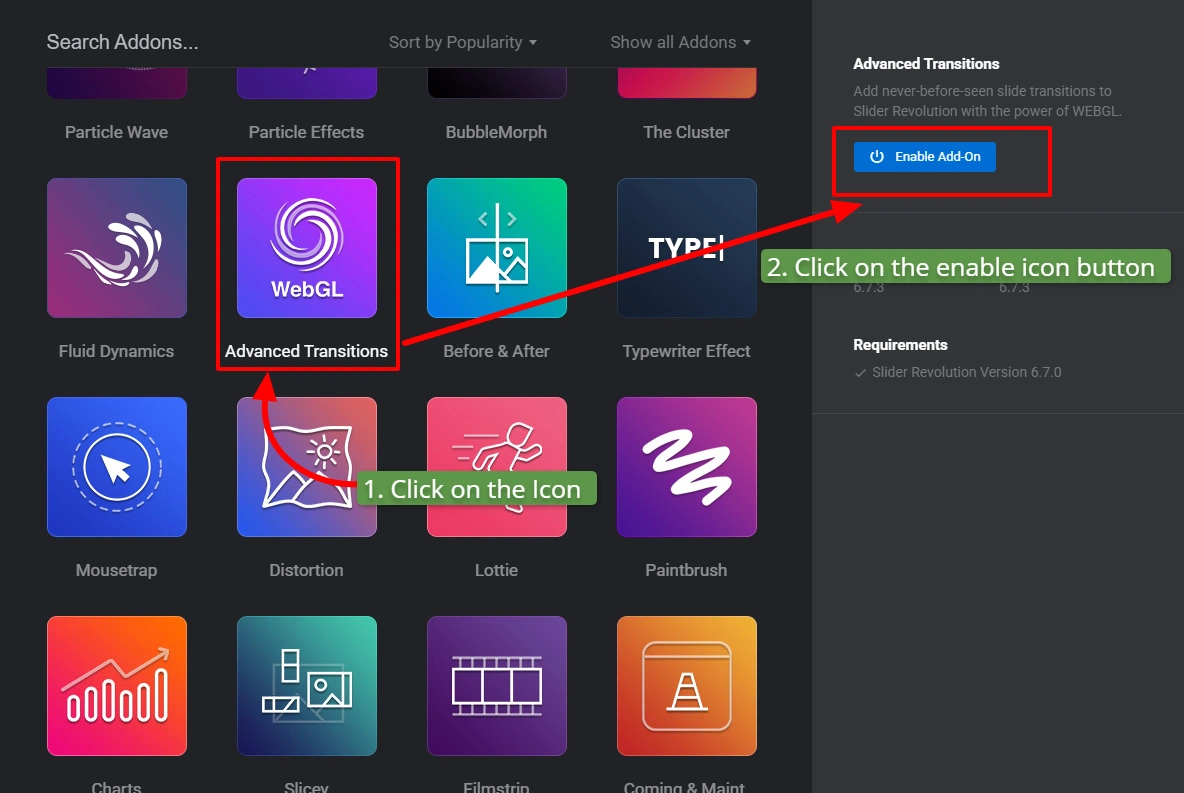
Click an add-on logo and click Enable Add-on.
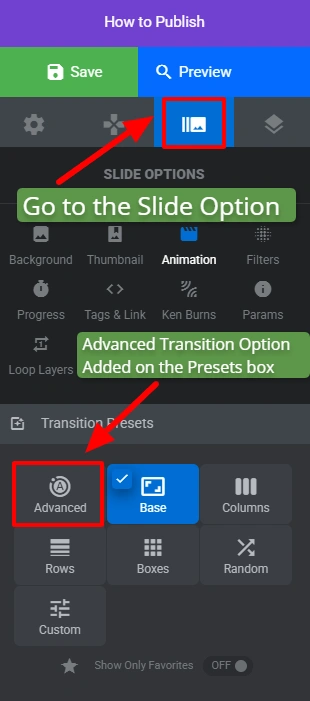
The enabled add-on’s options appear in the Slide Options panel under Transition Presets.
Step 6: Save, Preview, and Publish
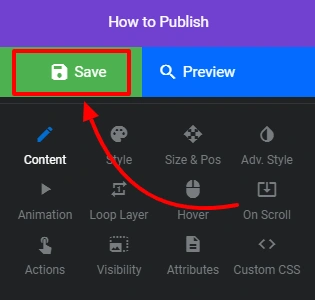
Click Save, then Preview to check the animation.
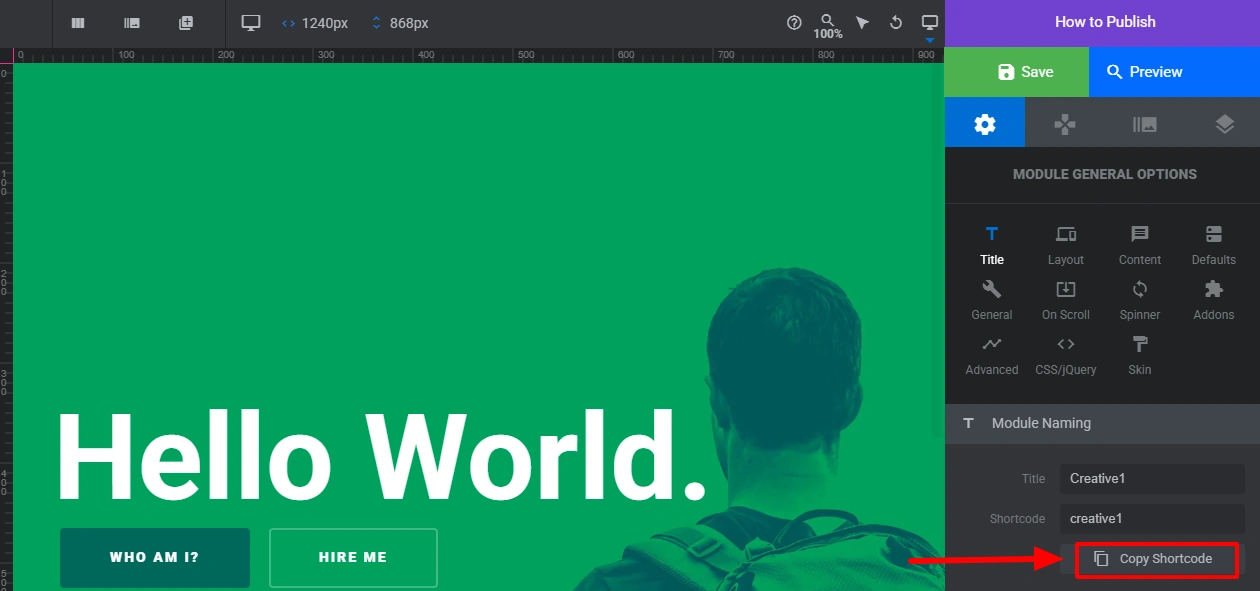
Copy the slider’s Shortcode from the editor.
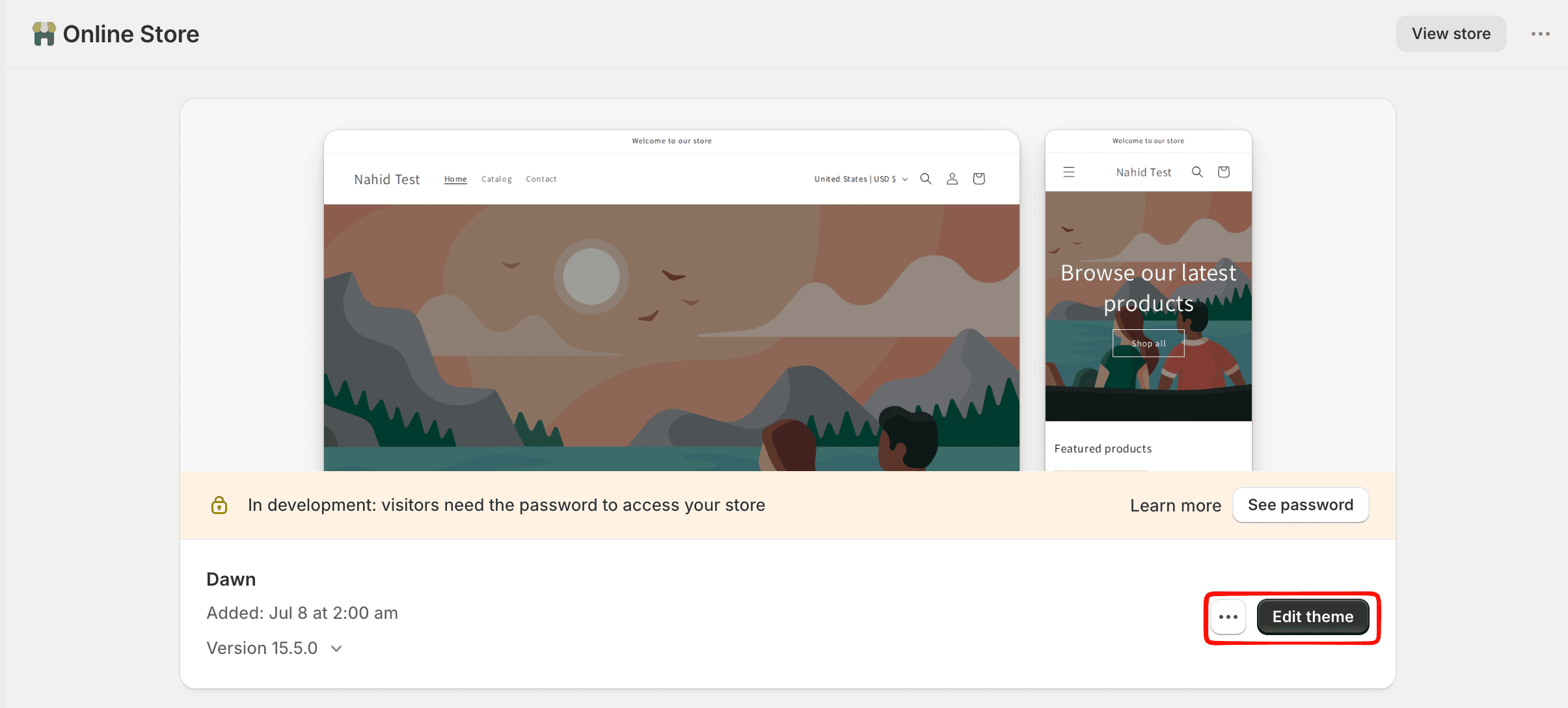
Go to Online Store > Themes > Customize.
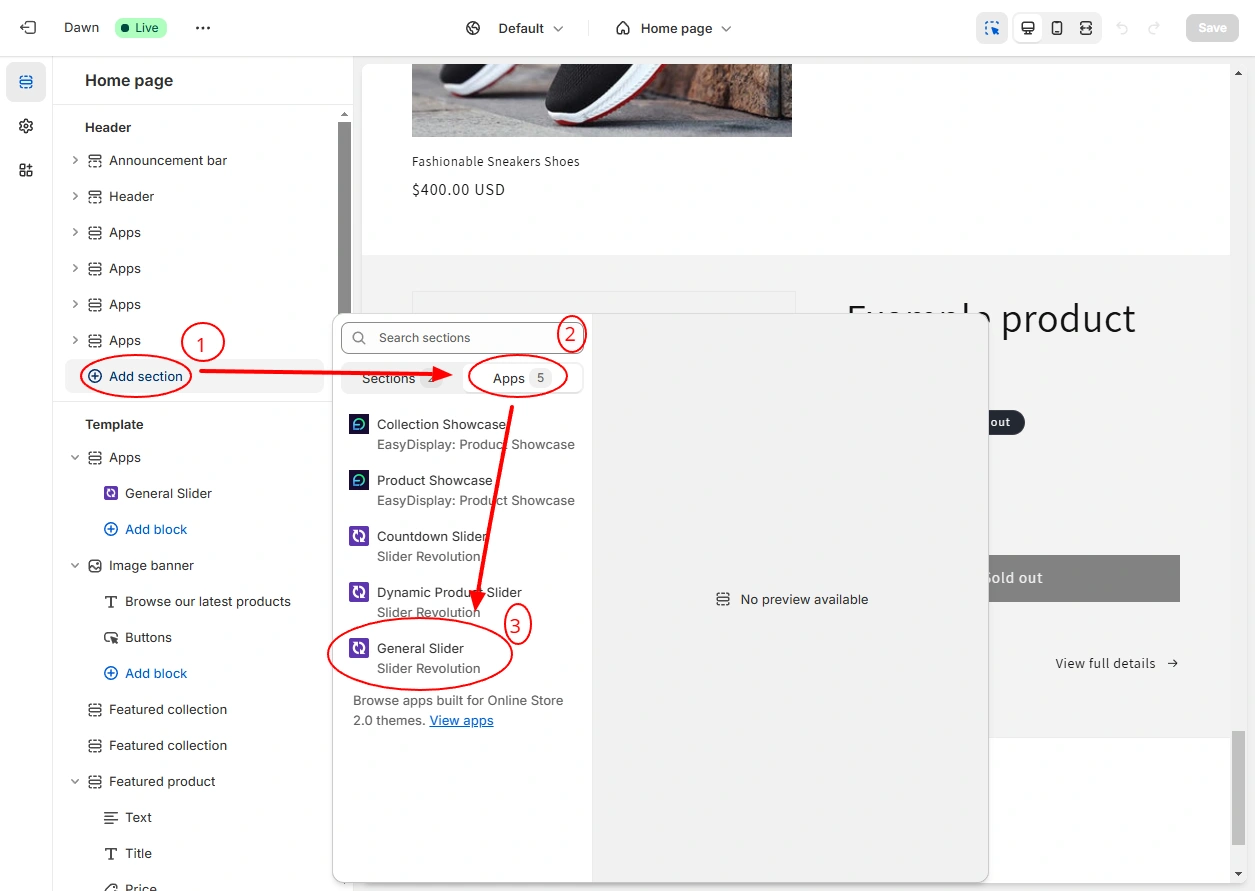
Click Add Section > Apps > General Slider in the location where you want the animation to appear.
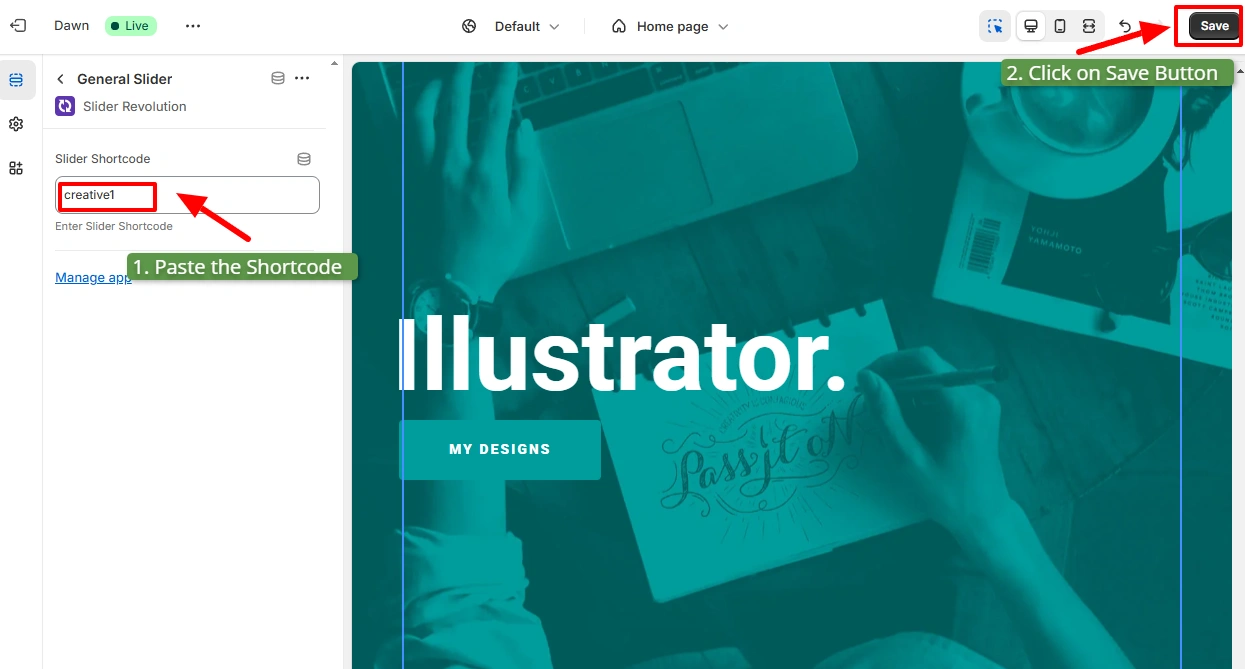
Paste the shortcode into the Slider Shortcode field and click Save. The animated section is now live in your store.
Method 3: Custom CSS and JavaScript (Full Control)
Best for: Developers who need brand-specific animations, or store owners who want scroll reveal effects on selected elements without relying on an app.
Performance Rules Before You Write Any CSS Animation
Performance tip:
Animate only opacity and transform. These properties are GPU accelerated and avoid layout recalculation. Animating width, height, margin, top, left, or padding forces the browser to recalculate layout on every frame, causing janky animations and reduced frame rates.
Optimal durations: 200 to 400ms for button and hover interactions, 400 to 600ms for section reveal animations, 600 to 800ms for hero text entrances. Keep easing set to ease or cubic-bezier(0.4, 0, 0.2, 1) for a natural deceleration feel.
Scroll Reveal Animation: CSS + JavaScript
This is the most requested custom animation for Shopify stores. Elements start invisible and slide up as they enter the viewport. Add the CSS to your theme’s base.css (or in the Additional CSS field in the theme editor) and add the JavaScript to theme.js or the Additional Scripts field.
CSS (add to theme CSS or Additional CSS)
/* Scroll Reveal Base State */
.shopify-reveal {
  opacity: 0;
  transform: translateY(28px);
  transition: opacity 0.5s ease, transform 0.5s ease;
}

/* Triggered State */
.shopify-reveal.is-visible {
  opacity: 1;
  transform: translateY(0);
}

/* Stagger delay for multiple elements */
.shopify-reveal:nth-child(2) { transition-delay: 0.1s; }
.shopify-reveal:nth-child(3) { transition-delay: 0.2s; }
.shopify-reveal:nth-child(4) { transition-delay: 0.3s; }

/* Accessibility: skip animation for users who prefer reduced motion */
@media (prefers-reduced-motion: reduce) {
  .shopify-reveal {
    opacity: 1;
    transform: none;
    transition: none;
  }
}JavaScript (add to theme JS or a custom script tag)
document.addEventListener('DOMContentLoaded', function () {
  var elements = document.querySelectorAll('.shopify-reveal');

  if (!elements.length) return;

  var observer = new IntersectionObserver(function (entries) {
    entries.forEach(function (entry) {
      if (entry.isIntersecting) {
        entry.target.classList.add('is-visible');
        observer.unobserve(entry.target); // animate once only
      }
    });
  }, { threshold: 0.15 });

  elements.forEach(function (el) {
    observer.observe(el);
  });
});Usage in Liquid or HTML
<!-- Add class="shopify-reveal" to any element you want to animate -->
<div class="shopify-reveal">
  <h2>This heading fades in on scroll</h2>
</div>

<img class="shopify-reveal" src="product.jpg" alt="Product" />To add this code without editing theme files directly, go to Online Store > Themes > Edit Code. Paste the CSS into assets/base.css and the JavaScript before the closing </body> tag in layout/theme.liquid. Always duplicate your theme before editing code.
Hover Effect: Product Image Zoom
/* Product image hover zoom */
.product-media-container {
  overflow: hidden;
}

.product-media-container img {
  transition: transform 0.4s ease;
}

.product-media-container:hover img {
  transform: scale(1.06);
}

@media (prefers-reduced-motion: reduce) {
  .product-media-container img {
    transition: none;
  }
}This adds a smooth 6% zoom on product images when a user hovers. The overflow: hidden on the parent keeps the zoomed image contained within its original bounds. Pair this with a product image slider or a before/after slider to give shoppers multiple ways to interact with product visuals.
8 Ways to Use Animation on Your Shopify Store
1. Product Hover Effects

Hover animations on product cards reveal alternate views, zoom into detail, or surface a quick-add button without a separate page visit. For stores where product photography does the selling, a hover zoom on collection pages directly increases click-through to the product page. Keep the effect under 0.4s so it responds before the user’s cursor moves on.
2. Loading Animations

A loading animation reduces perceived wait time. A progress bar or an animated version of your Shopify logo keeps visitors engaged during page transitions. Keep loading animations under 2 seconds and tie them to actual load progress where possible.
3. Parallax and Scroll Effects

Parallax moves the background at a slower scroll speed than the foreground, creating depth. It works best on full-width image banner sections and hero areas. Avoid parallax on mobile unless you test it thoroughly, as it can create clipping issues on small screens.
4. Add-to-Cart Micro-Animations

A small bounce or icon animation when a customer clicks “Add to Cart” confirms the action and reduces anxiety about whether the click registered. Shopify’s Dawn theme includes a native cart icon animation. Most animation apps, including Slider Revolution, let you customize this further.
5. Page Transition Effects

Smooth fade or slide transitions between pages make navigation feel less jarring. This is particularly effective on one-product stores where the entire journey from homepage to checkout is meant to feel smooth. Slider Revolution’s Advanced Transitions add-on handles this without any code.
6. Animated CTA Buttons

A subtle pulse or color shift on the primary buy button draws the eye without being intrusive. The animation should run on a 2 to 3 second loop at low intensity. For sale banners, a flashing or pulsing badge next to the CTA increases urgency without requiring a countdown timer.
7. Animated Hero Banners

Text that slides or fades into the hero section on page load draws immediate attention before the user scrolls. For video banner sections, pairing a video with animated text overlays creates the highest-impact homepage entry point. See the Slider Revolution template demos.
8. Micro-Interactions

Micro-interactions are small animations tied to user actions: an icon that rotates when clicked, a checkbox that bounces on selection, a form field that lights up on focus. They are the smallest category of animation with the highest per-pixel trust impact. A well-made interface feels like it is listening. If you have added icons to your Shopify page, a subtle rotation or scale on hover takes under 5 lines of CSS and is one of the fastest micro-interaction wins available.
Troubleshooting Shopify Animation Issues
Scroll reveal animations are not triggering on mobile
Mobile browsers handle IntersectionObserver differently than desktop browsers. Increase the rootMargin value, for example 0px 0px -50px 0px, or reduce the threshold from 0.15 to 0.05. Also verify that prefers-reduced-motion is not enabled on the device.
Slider Revolution sections are not showing in the theme editor
After installing the app, go to Online Store → Themes → Customize → Theme Settings → App Embeds and make sure the Slider Revolution embed is enabled. Then click Add section and check the Apps category. If it still does not appear, reinstall the app and confirm your theme supports Shopify OS 2.0.
CSS hover animations work on desktop but not on mobile
Mobile devices do not have a persistent hover state. Replace :hover interactions with :focus, touchstart, or JavaScript click events. You can also wrap desktop-only hover effects inside @media (hover: hover) and (pointer: fine).
Animations are causing layout shift (CLS)
Only animate transform and opacity. Reserve enough space for animated elements before they appear and use will-change: transform, opacity; sparingly. Remove will-change after the animation if possible.
Theme animations are enabled but sections still appear static
Some Shopify themes require animation classes to be added within Liquid templates instead of applying them globally. If you are using Dawn, verify the animation settings are enabled and inspect assets/theme.js for animation-related code. Custom themes may remove or override Shopify’s default animation behavior.
FAQ: Shopify Animations
Can I add animated text and images to my Shopify homepage?
Yes. The fastest way is to enable the Animations toggle in Theme Settings for scroll reveal effects. For animated text (typewriter, letter-by-letter, fade-in per word), use Slider Revolution’s Typewriter Effect add-on or Letter Transitions layer animation. For animated images, CSS hover effects or a Slider Revolution hero template both work without coding.
Will animations slow down my Shopify store?
CSS animations that only use opacity and transform have near-zero performance cost because they run on the GPU compositor thread, not the main browser thread. JavaScript-heavy animation libraries can add 50-200KB to page weight and block rendering. Slider Revolution uses lazy loading and deferred scripts to minimize this impact. Custom CSS animations written correctly add no measurable load time.
Does Shopify have built-in animation support?
Yes. Shopify’s Dawn theme and all OS 2.0 themes include a native Animations setting in the theme customizer. Enabling it adds scroll-triggered fade and slide animations to all page sections automatically. More advanced animation support requires either an app or custom code.
Can I add animations without coding?
Yes. Two methods require zero code: the built-in Theme Settings animations toggle, and the Slider Revolution app. The Slider Revolution app adds parallax, particle effects, animated sliders, typewriter text, Lottie animations, and more through the Shopify theme editor as drag-and-drop app blocks.
How do I add a parallax animation to a Shopify banner?
In Slider Revolution, select the Parallax Slide preset in the Slide Options > Animation panel. For custom CSS, apply background-attachment: fixed to a section’s background image. Note that background-attachment: fixed is not supported on iOS Safari. Use a JavaScript-based parallax approach or Slider Revolution’s built-in parallax for cross-device compatibility. For banner sizing guidance before adding parallax, see Shopify banner image sizes.
What is the difference between a Shopify animation and a video section?
A Shopify animation uses CSS transitions or JavaScript to move, fade, or transform HTML elements. A video section plays a pre-recorded video file (MP4 or YouTube embed). For a hero section, an animated banner loads faster and gives you more control over text and button layers. A video section is more immersive but adds page weight and requires autoplay optimization. For most product showcases, a video banner section combined with animated text overlay gives the best visual result. For product galleries, a video carousel lets you combine animated product clips in a single scrollable section.
Add Professional Animations to Any Shopify Theme
Slider Revolution includes 200+ animated templates, 12 animation add-ons, and installs directly from the Shopify App Store. Build hero sliders, parallax sections, particle effects, Lottie animations, and interactive banners without writing code.

I’m a digital marketing expert with a deep understanding of Shopify App Store optimization. I contribute insightful articles on Shopify to help businesses thrive online.