
- What Is a Shopify Order Number?
- Order Number vs. Order ID: What's the Difference?
- Shopify Order Number Format Examples
- How to Change Order Numbers on Shopify (2 Methods)
- Does Shopify Plus Allow Custom Order Numbers?
- How Test Orders Affect Your Order Number Sequence
- Order Numbers vs Invoice Numbers on Shopify
- Best Practices for Shopify Order Number Formats
- Frequently asked questions
- Can you change Shopify order numbers?
- How do I add a prefix to Shopify order numbers?
- What is the default Shopify order number format?
- What is the difference between a Shopify order number and order ID?
- How do I format order IDs in Shopify admin?
- Can I reset Shopify order numbers to start from 1?
- Does Shopify Plus allow custom order numbers?
- Do test orders affect my Shopify order number sequence?
- Need Help Setting Up Your Shopify Store?
Most stores start taking orders before anyone thinks about what those order numbers will look like six months from now.
Order #1001. Order #1002. Fine, for now. But 500 orders in, you’re trying to figure out which came from which channel, which were test runs, and why your 2024 export looks identical to 2026. The number itself tells you nothing.
Shopify’s default format is sequential and starts at #1001. You can’t reset the counter. You can’t start from 1. If you placed test orders before launch, your first real customer already got #1011, and there’s no going back.
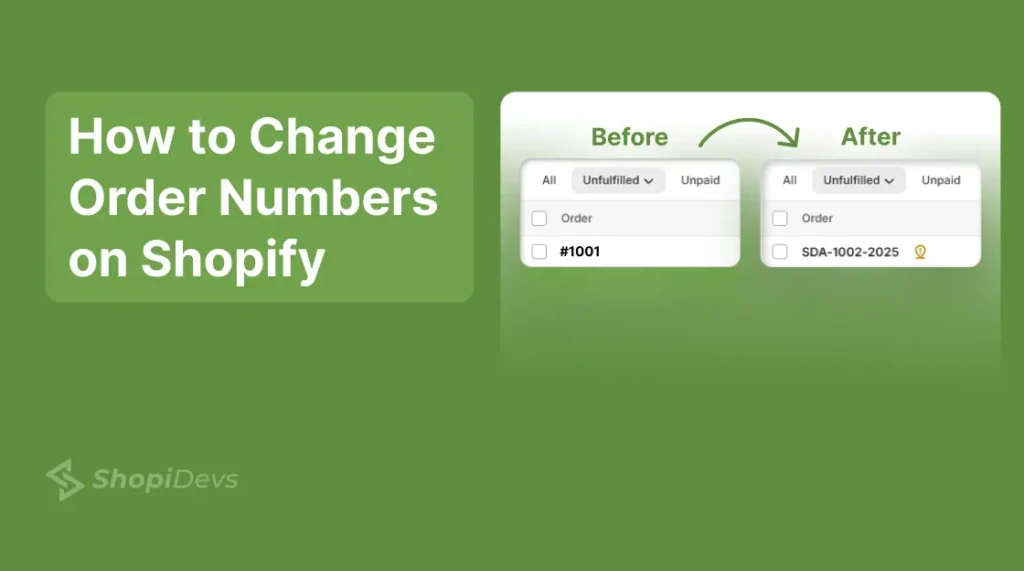
What you can control is the format. A prefix adds your brand code. A suffix adds the year. Combined, SDA-1001-2026 carries more context than #1001 ever could, and it takes under five minutes to set up.
This guide covers the native method, what each format looks like, when a third-party app makes sense, and what Shopify Plus actually changes.
Shopify starts every store at order #1001 and increments sequentially from there. You cannot reset the counter or change the base number on a standard Shopify plan.
What you can change is the format: go to Settings → General → Order ID Format and add a prefix and/or suffix.
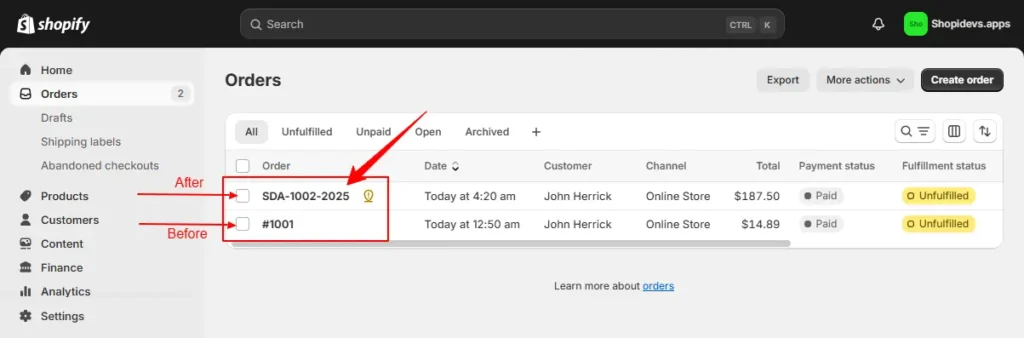
Adding a prefix of SDA- turns order #1001 into SDA-1001. Adding a suffix of -2026 turns it into SDA-1001-2026. Changes apply only to new orders. Existing orders are not updated retroactively.
For full number replacement (custom counters or non-sequential formats), you’ll need Shopify Plus via the Admin API or a third-party app such as Cleverific Order Editor.
- Shopify order numbers start at #1001 by default. The minimum starting number is fixed and cannot be lowered.
- The native way to customize order numbers is through Settings → General → Order ID Format. You can add a prefix, a suffix, or both.
- Test orders count toward your sequence. Every test order increments the counter by one.
- Order numbers are customer-facing. Order IDs are internal database references used by the Shopify API. They are different things.
- Shopify Plus merchants can set a higher starting counter via the Admin API, but cannot reduce the counter below the current value.
- Shopify does not assign invoice numbers natively. Order numbers and invoice numbers are separate systems.
What Is a Shopify Order Number?
A Shopify order number is the sequential identifier your store assigns to every placed order. It starts at #1001 and goes up by one with each new order. Customers see this number on their order confirmation emails, order status pages, and any invoices you send.
Shopify chose #1001 as the default starting point intentionally. Starting at 1 would signal to customers that they are your first buyer, which can reduce trust. The four-digit start makes a new store look more established.
The order number is what your support team, customers, and fulfillment partners reference. When a customer emails about an issue, they quote this number. When you manage shipping and fulfillment, this is the identifier you track.
Order Number vs. Order ID: What’s the Difference?
These two terms get used interchangeably, but they are not the same thing in Shopify’s architecture. Confusing them causes real problems when you try to use the API or set up integrations.
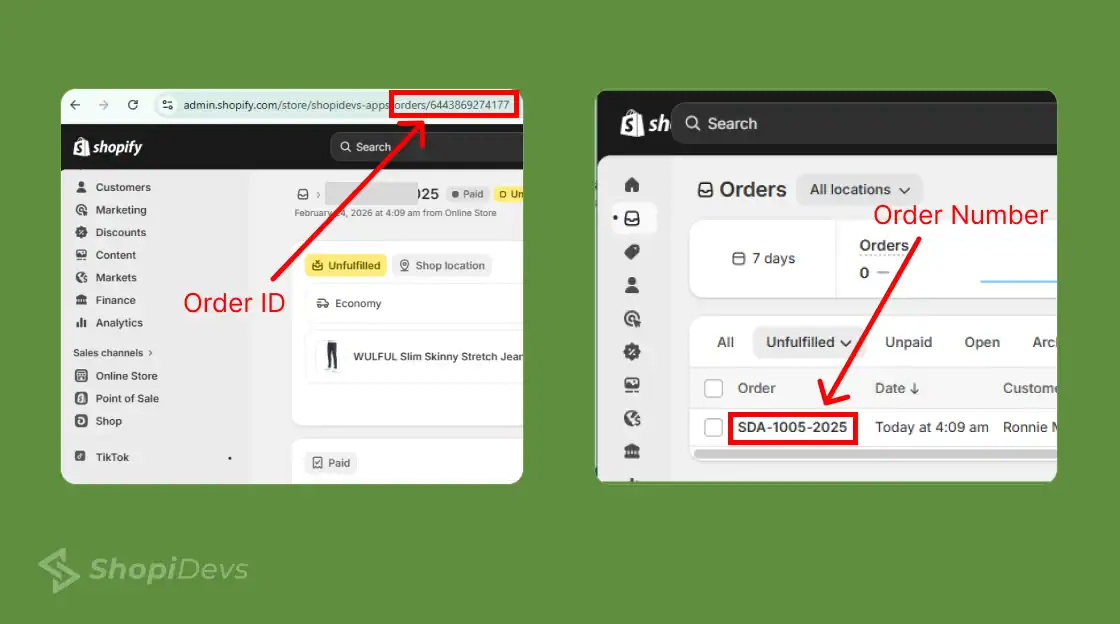
| Feature | Order Number | Order ID |
|---|---|---|
| Visible to customers | Yes — on emails, invoices, and order status pages | No — internal only |
| Example format | #1001 or SDA-1001-2026 | 5678901234567 (long numeric string) |
| Can be customized | Yes — prefix and suffix via Settings | No — fixed by Shopify’s database |
| Used in API calls | Limited use | Yes — primary reference in REST and GraphQL API |
| Used in Shopify admin | Yes — order list and order detail pages | Yes — in URLs and API responses |
| Affected by prefix/suffix | Yes | No |
If you are building a Shopify integration or connecting an ERP system, always use the Order ID for API calls, not the order number. The order number can change format through prefix and suffix settings, but the Order ID never changes.
Similarly, when you need to find a Shopify product ID for API work, use the internal ID rather than the customer-facing reference.
Shopify Order Number Format Examples
Before you change anything, it helps to see what the output actually looks like. Here are the four format options Shopify supports natively through the prefix/suffix setting.
Shopify’s default. Sequential from 1001 onward. No prefix or suffix configured.
Prefix “SDA-” added. Good for brand identification or multi-store setups.
Suffix “-2026” added. Useful for year-stamping orders for accounting or auditing.
Both prefix and suffix applied. Combines branding with year-based tracking.
One Thing to Know Before You Change
The prefix and suffix only apply to new orders placed after you save. Orders already in your system keep their original number format. If order #1001 exists and you add a prefix of “SDA-“, the next order becomes SDA-1002, not SDA-1001. Plan your format before you start receiving real orders.
| Setting | Prefix Field | Suffix Field | Output |
|---|---|---|---|
| Default | (empty) | (empty) | #1001 |
| Brand prefix | SDA- | (empty) | SDA-1001 |
| Year suffix | (empty) | -2026 | 1001-2026 |
| Brand + year | SDA- | -2026 | SDA-1001-2026 |
| Region prefix | US- | (empty) | US-1001 |
How to Change Order Numbers on Shopify (2 Methods)
Shopify does not natively allow you to change or customize your Shopify order number. But you can do this job by following the 2 different methods I have provided below:
Method 1: Change the Format with Prefix and Suffix
This is the native Shopify method. No app, no code. Takes under 5 minutes. It works on all Shopify plans, including Basic.
- Log in to your Shopify admin Make sure you have admin-level access. Go to your store’s Shopify admin dashboard.
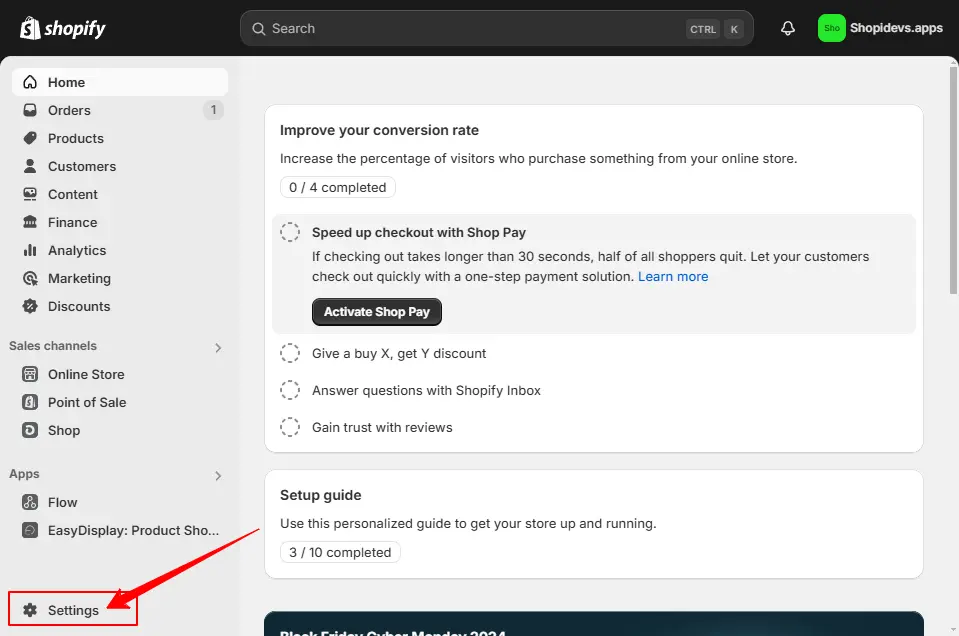
- Go to Settings: Click Settings in the bottom left corner of the admin sidebar.
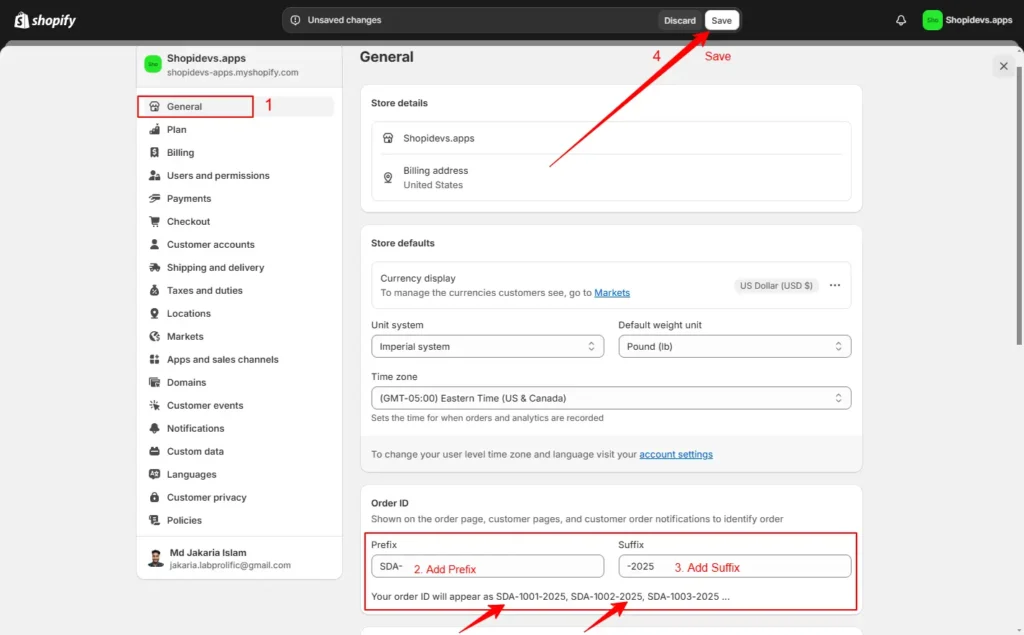
- Open general settings and find order ID format: Inside settings, click general. Scroll down until you find the Order ID format section. You will see two fields labeled Prefix and Suffix.
- Add your prefix and/or suffix: Type your prefix in the Prefix field (e.g., SDA-) and/or a suffix in the Suffix field (e.g., -2026). Use letters, numbers, and hyphens. Avoid spaces and special characters; they can cause display issues in some email clients.
- Click Save: Hit Save in the top right. The new format is now active for all orders placed after this point.
Place a test order to verify: Before going live with the new format, place a test order on Shopify using the Bogus Gateway. Confirm the order number appears correctly in the admin, the confirmation email, and the order status page.
Method 2: Use a Third-Party App
The native prefix/suffix method works well for most stores. But some merchants need more, a fully custom counter, non-sequential formats, or the ability to reset the number entirely. That requires a third-party app.
Two apps commonly used for this are Cleverific Order Editor and Order Editing | Upsell. Both extend Shopify’s default order management and allow custom number formats beyond what Settings natively supports.
When to choose an app over the native method
| Situation | Native (Prefix/Suffix) | Third-Party App |
|---|---|---|
| Add brand name to order numbers | Yes — prefix field | Yes |
| Add year or region code | Yes — suffix field | Yes |
| Set a custom starting number | No | Yes (some apps) |
| Non-sequential formats (e.g., random IDs) | No | Yes |
| Edit existing order numbers retroactively | No | Depends on app |
| Cost | Free (built into Shopify) | Monthly subscription |
Check Your Integrations Before Installing an Order Editing App
Changing existing order numbers retroactively can break fulfillment software, accounting tools, and email sequences that reference the original order number. Test thoroughly in a staging environment before applying changes to live orders.
This is also relevant to store security and data integrity .
Does Shopify Plus Allow Custom Order Numbers?
Shopify Plus gives you one additional option that standard plans do not: you can use the Admin REST API to adjust the order counter to a higher starting number.
In practice, this means a Plus merchant who has processed 500 orders (current counter at #1501) can use the API to jump the counter to, say, #5001, making the next order #5002.
This is useful for stores migrating from another platform that had a higher order count or stores that want their numbers to start at a round figure.
What Shopify Plus Cannot Do
Even on Shopify Plus, you cannot set the order counter to a number lower than your current highest order number. If your last order was #1501, you cannot reset the sequence back to #1001 or #1.
The only way to start from a lower order number is by creating a new Shopify store. If Shopify Plus pricing is outside your budget, review our guide on Shopify Plus alternatives to explore lower-cost options.
For most standard Shopify merchants, the prefix/suffix method handles everything they actually need. The Plus API route is a niche requirement for specific migration or multi-store scenarios.
How Test Orders Affect Your Order Number Sequence
This catches a lot of new merchants off guard. Every test order you place, regardless of whether you use the Bogus Gateway or a real payment method in test mode, increments your order counter permanently.
If you place 20 test orders during store setup, your first real customer order becomes #1021, not #1001. There is no way to exclude test orders from the sequence or reverse the count.
How to minimize the impact
- Keep test orders to the minimum needed to verify checkout, email, and fulfillment workflows.
- Use the Bogus Gateway (Shopify’s built-in test payment processor) rather than creating test transactions through real payment providers. Both increment the counter, but the Bogus Gateway is easier to clean up from your order history.
- Archive or delete test orders from your admin after testing. This does not reverse the counter, but it keeps your order list clean.
- If you are pre-launch and the current counter bothers you, a prefix can make early numbers feel intentional, e.g., BETA-1021 communicates context to any internal team member reviewing early orders.
A gap in your sequential order numbers is not something most customers notice. The bigger concern is internal consistency, making sure your support team, fulfillment partners, and accounting tools all reference the same number for the same order.
Order Numbers vs Invoice Numbers on Shopify
Shopify does not assign invoice numbers. The order number and the invoice number are not the same thing, and Shopify only provides the former natively.
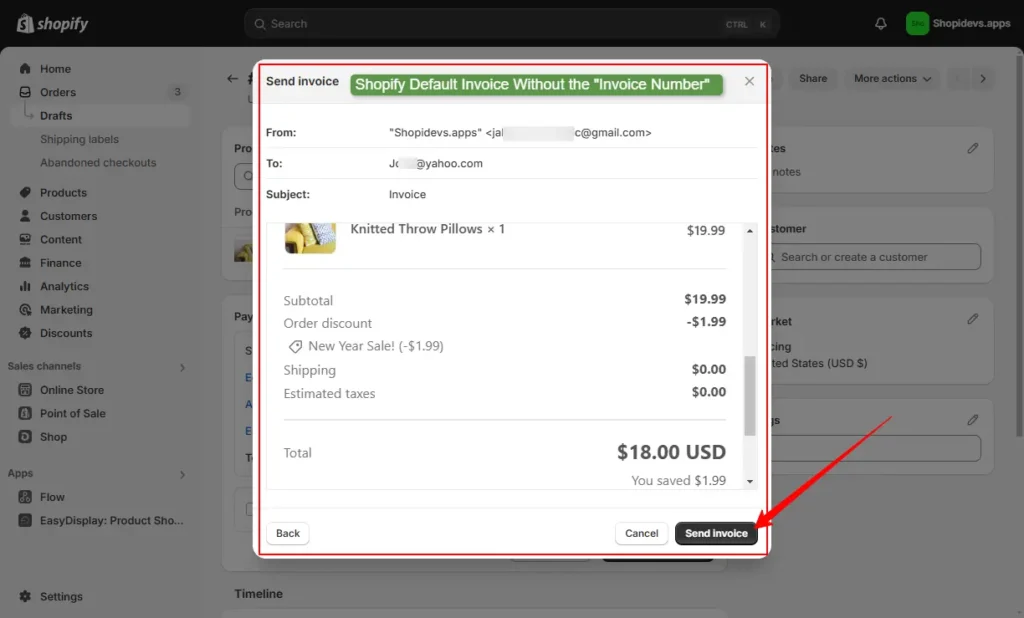
For businesses that require invoice numbers (common in B2B, wholesale, and many international markets), you have two options:
- Shopify’s Free Invoice Generator: Available at invoice-generator.com (Shopify’s free tool). You enter the order details manually and generate an invoice with a custom number.
- Invoice app: Apps like Sufio or Order Printer Pro generate automatic invoice numbers for each order and attach them to customer-facing documents.
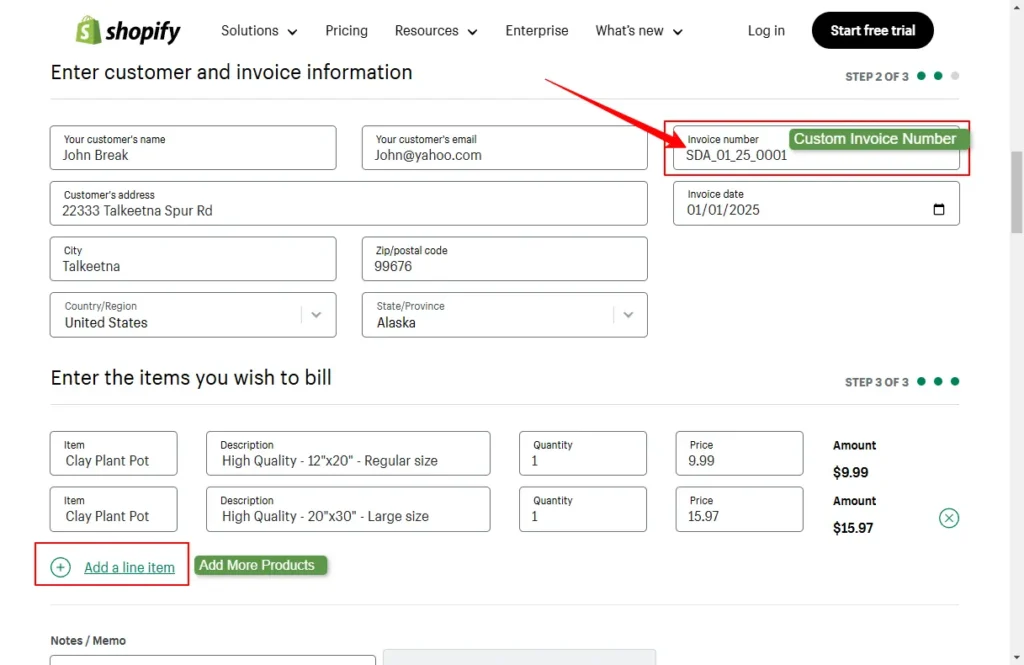
If you run a store requiring both order numbers and sequential invoice numbers for compliance, check with a tax advisor for your specific jurisdiction. Consecutive invoice numbering rules vary by country.
Best Practices for Shopify Order Number Formats
After getting an idea, now you know how to set the entire format of your Shopify order number, right? This time, we are giving some solid tips about the right order number format for your Shopify store to make the most out of it.
Let’s try these tips:
Keep prefixes short and meaningful
A prefix of 2-4 characters is enough. SDA works. MYAMAZINGSTORE creates numbers that are unwieldy in emails and support tickets. Short codes that reflect your brand abbreviation or location are the most practical.
Stick to alphanumeric characters and hyphens
Spaces, slashes, and special characters can cause rendering issues in certain email clients and PDF invoices. Use letters, numbers, and hyphens only.
Decide your format before you launch
Changing your order number format mid-operation creates inconsistency across your records. Orders before the change have one format. Orders after have another. This complicates customer service lookups and accounting reconciliation. Set your format before you receive your first real order.
Check compatibility with your third-party apps
Some fulfillment, shipping, and accounting apps read order numbers directly. If you add a prefix after these integrations are live, test every connected tool to ensure it still reads and processes orders correctly. This applies to how you organize your store data more broadly; consistency across systems matters.
Communicate changes to your team
If you change the order number format, brief your customer support and fulfillment teams on the new format before it goes live. A support agent who doesn’t recognize the new format will waste time during a customer lookup.
Use year suffixes for accounting clarity
Adding a year suffix like -2026 makes it immediately obvious which year an order belongs to when reviewing records. This is particularly useful if you export orders for accounting and work with large order volumes across multiple years.
Keep Your Order Data Safe with Syncora: Backup & Restore
Your Shopify store data, including orders, products, customers, themes, and files, is one of your most valuable business assets. If something goes wrong because of an app conflict, accidental deletion, or a configuration mistake, Syncora helps you recover quickly.
- Automatic backups for products, orders, customers, themes, pages, and files
- Restore your store data in minutes with no technical expertise required
- Google Drive integration to keep backup copies under your control
- Safe store migration and duplication without data loss
Frequently asked questions
Can you change Shopify order numbers?
You cannot reset or fully replace the order sequence natively. What you can change is the format, add a prefix and suffix from Settings > General > Order ID format. For a custom counter or non-sequential format, you need Shopify Plus (via the Admin API) or a third-party app like Cleverific.
How do I add a prefix to Shopify order numbers?
Go to Shopify admin > Settings > General > Order ID format. Enter your prefix in the Prefix field (e.g., “SDA-“) and click Save. All orders placed after saving will include the prefix. Example: SDA-1001. Existing orders are not updated retroactively.
What is the default Shopify order number format?
Shopify assigns order numbers starting at #1001 by default. They are sequential and increment by one with every order, including test orders. The # symbol is added automatically by Shopify in the admin and on customer-facing documents. You cannot start below #1001 on a standard plan.
What is the difference between a Shopify order number and order ID?
The order number (#1001, SDA-1001) is customer-facing and appears on emails, invoices, and order pages. The order ID is a long numeric string used internally by Shopify’s database and API. Customers never see the order ID. You can customize the order number format with a prefix/suffix. The order ID cannot be changed.
How do I format order IDs in Shopify admin?
Go to Settings > General and scroll to Order ID format. Add a prefix (before the number) and/or suffix (after the number) and click Save. Example: prefix “SDA-” and suffix “-2026” produces SDA-1001-2026. Only new orders placed after saving are affected.
Can I reset Shopify order numbers to start from 1?
No. Shopify does not allow resetting the counter to a number lower than your current highest order number. The minimum is #1001. On Shopify Plus, you can use the Admin API to set a higher starting number, but not a lower one. To start from #1, you would need to open a brand new Shopify store.
Does Shopify Plus allow custom order numbers?
Shopify Plus gives you access to the Admin API, which allows you to set the order counter to a number higher than your current count. This is useful for stores migrating from another platform with a higher order history. However, even on Plus, you cannot go below your current highest order number or use fully non-sequential formats without an app.
Do test orders affect my Shopify order number sequence?
Yes. Every test order increments the counter permanently, the same as a real order. If you place 10 test orders before launch, your first customer order will be #1011. There is no way to exclude test orders from the sequence. Keep test orders minimal before launch to avoid large gaps in your numbering.
Need Help Setting Up Your Shopify Store?
Order formats, store settings, and theme customization. Get expert Shopify help to launch and scale your store with confidence.

Jakaria is an SEO Content Writer in Shopify, Ecommerce, WordPress, and Tech Industry with 5+ years of experience. He specialises in developing engaging, helpful content by simplifying complex topics into an amazing story for B2B, SaaS, and Shopify businesses. He’s also passionate about staying updated on growth marketing strategies and Shopify trends.