
Apps need it. The Shopify API needs it. Automation workflows, inventory syncs, and Facebook product feeds all need it. Your Shopify product ID sits behind every third-party integration in your store. But Shopify does not surface it front and center.
This guide covers all five methods to find your Shopify product ID and variant ID: from the 30-second admin URL trick to pulling 250 IDs at once from the bulk JSON endpoint.
Quick Answer
To find your Shopify product ID: go to Shopify Admin → Products → click any product → check the URL. The number after /products/ is the product ID (e.g., 7522653143105).
To find your variant ID: from the same product page, scroll to Variants → click any variant → check the URL. The number after /variants/ is the variant ID (e.g., 42044315631681).
Key Takeaways
-
Your product ID is in the admin URL after
/products/. No app needed. -
Your variant ID is in the URL after
/variants/when you open a specific variant. -
Add
.jsonto any storefront product URL to see the full product data, including all variant IDs. -
Use
/admin/variants.json?limit=250in your admin URL to pull up to 250 IDs at once. - For large stores or automation, the Shopify GraphQL Admin API is the most scalable option.
What Is a Shopify Product ID and Variant ID?
A Shopify product ID is a unique numeric identifier Shopify assigns to every product the moment it is created. It is permanent, uneditable, and used by every system that needs to reference a specific product: apps, APIs, automations, and marketing platforms.
A Shopify Variant ID is a separate unique number assigned to each variant of a product. If a product has small, medium, and large options, each size gets its own variant ID. The parent product ID stays the same across all variants. Each variant adds its own additional identifier on top of it.
The Core Difference
Product ID = the parent product. Variant ID = a specific version of that product (size, color, style). Both are assigned by Shopify automatically and cannot be manually changed.
What Do These IDs Look Like?
Product IDs and variant IDs are long numeric strings. Here is what they look like in the Shopify admin URL:
https://admin.shopify.com/store/your-store/products/7522653143105/variants/42044315631681
The yellow number is the product ID. The orange number is the variant ID. Both live in the URL every time you open a product or variant in the admin.
Why You Need These IDs
The product ID is the bridge between your Shopify store and everything connected to it. Here is where these IDs actually matter:
5 Methods to Find Shopify Product ID and Variant ID
You can find the Shopify product or variant ID from the Shopify admin > product URL, product JSON data, all variant JSON data, and using third-party apps. Let’s start with the easiest method:
For your help, you can check out the video tutorial below to get an idea of how to find Shopify product ID and variant ID easily.
Method 1: Find Shopify Product ID and Variant ID from Shopify Admin URL
This is the quickest method. No apps. No JSON. No code. You just need access to Shopify Admin.
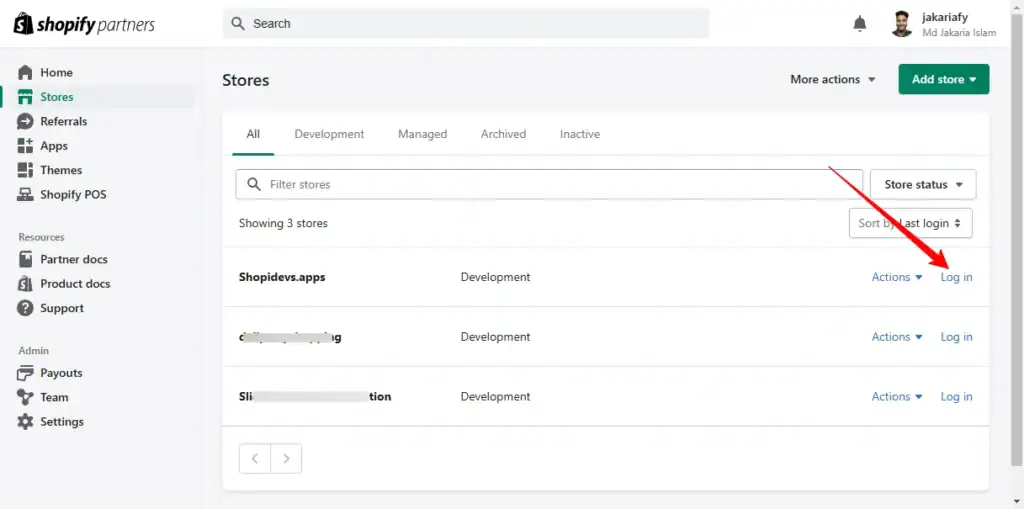
- Log in to your Shopify store at admin.shopify.com.
- Click Products in the left sidebar.
- Click on the product you want to find the ID for.
- Look at the browser URL. The long number after
/products/is your product ID.
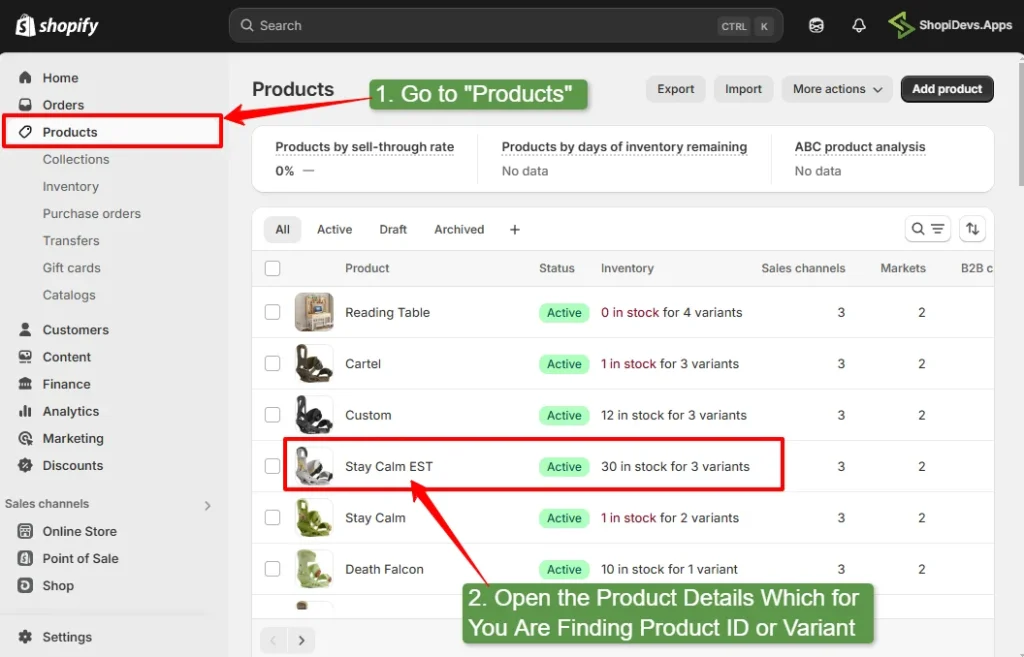
https://admin.shopify.com/store/shopidevs-apps/products/7522653143105
Finding the Variant ID from the Admin URL
Once you are on the product page, scroll down to the Variants section. Click on any variant (for example, “Medium”). The URL updates and shows the variant ID after /variants/.
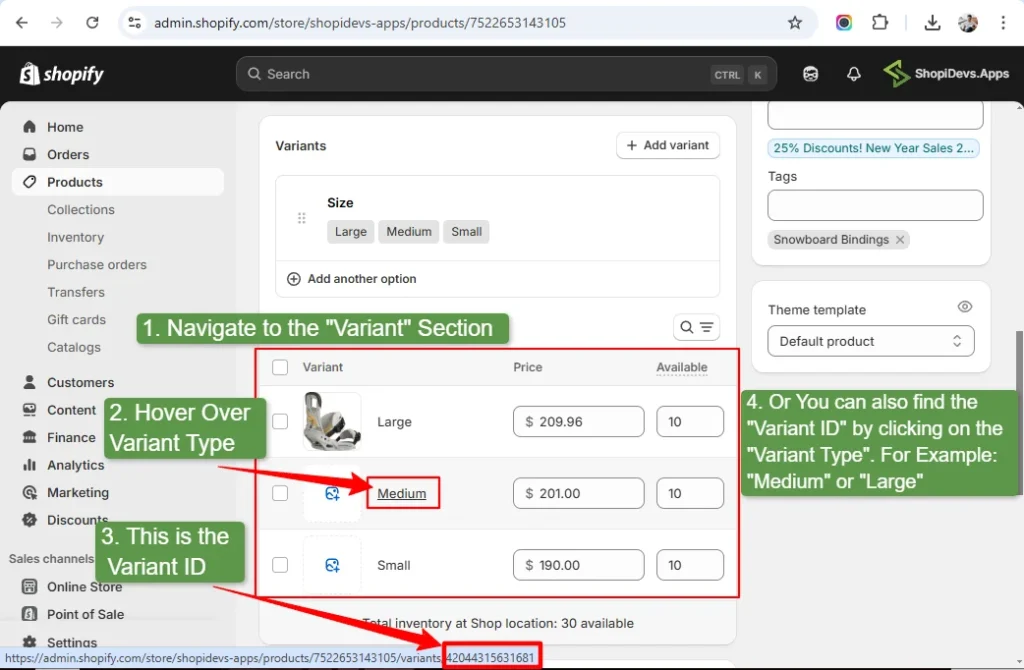
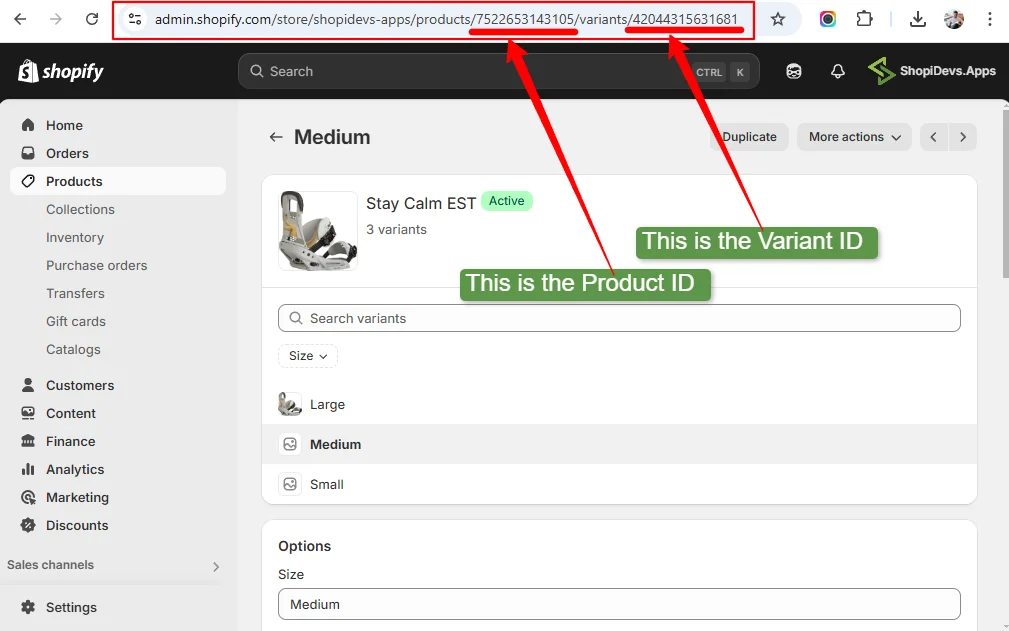
https://admin.shopify.com/store/shopidevs-apps/products/7522653143105/variants/42044315631681
Quick Tip
You can hover over a variant in the list (without clicking) and check the link preview at the bottom of your browser. The variant ID appears there without needing to leave the product page.
Method 2: Find Product ID and All Variant IDs from the Product JSON
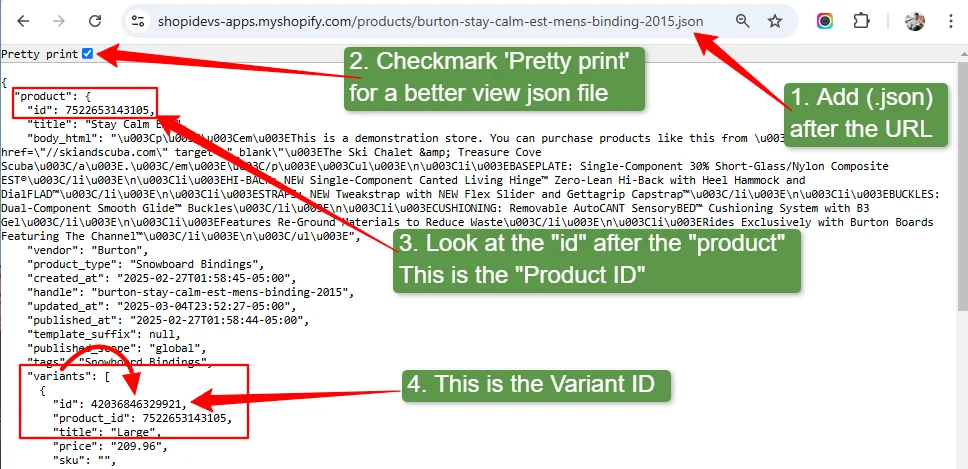
If you want to see all variant IDs for a product in one view, add .json to the end of any product’s storefront URL. This returns the raw product data including the product ID and every variant ID.
.json
to the end of the URL and press Enter.
"id"
under the
"product"
object for the product ID. Find the
"id"
inside each
"variants"
array item for variant IDs.
Example:
https://your-store.myshopify.com/products/product-handle.json
Finding Variant ID from the Storefront URL
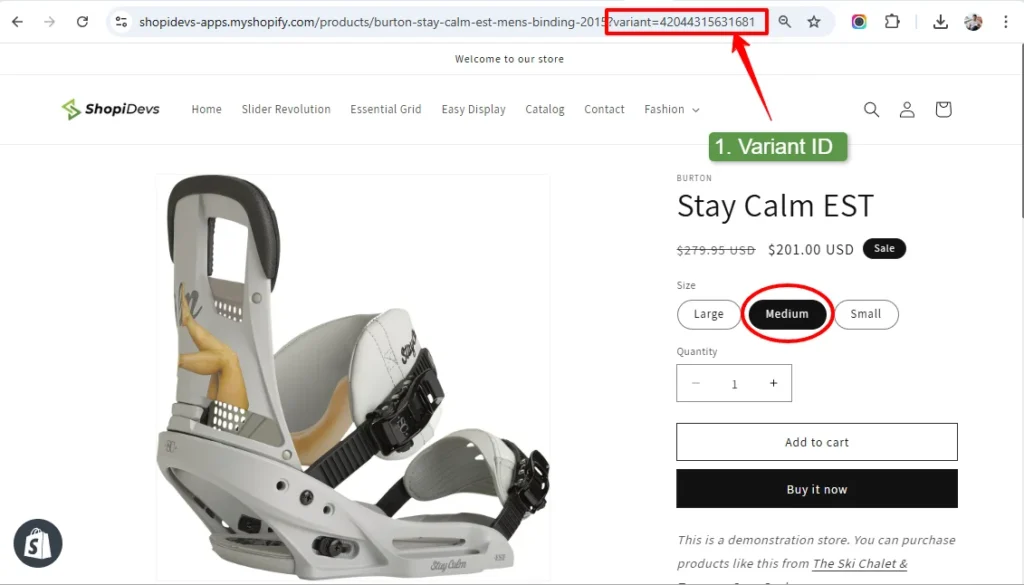
There is another fast way to find a variant ID directly from the storefront without using JSON:
- Go to any product page with multiple variants.
- Click on a variant (e.g., “Medium”).
- Check the browser URL. The number after
?variant=is the variant ID.
Method 3: Export Up to 250 Product and Variant IDs at Once (Bulk JSON)
This is the fastest way to pull multiple IDs without any app or code. A single URL gives you up to 250 product and variant IDs in one view.
https://admin.shopify.com/store/your-store-name
https://admin.shopify.com/store/your-store/admin/variants.json?limit=250
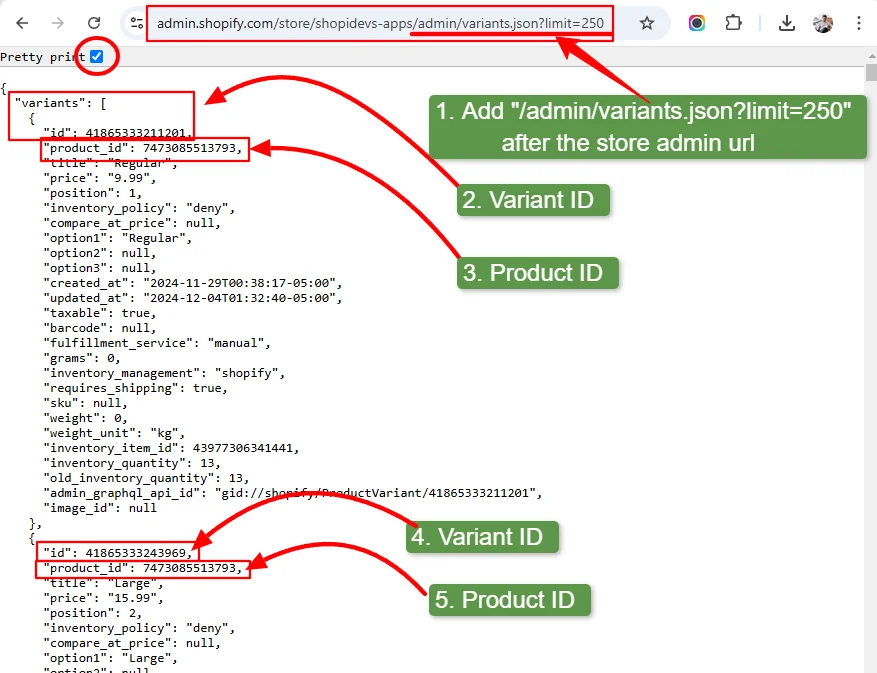
Paste the JSON output into ChatGPT or Gemini and ask it to extract all product IDs and variant IDs into a spreadsheet format. This is much faster than manually reviewing large Shopify catalogs.
Method 4: Export Product IDs Using a Shopify App
Shopify’s default product export does not include product IDs or variant IDs. If you need clean, recurring exports, a dedicated Shopify app is the easiest path.
Two reliable options for this:
- Matrixify: Export all product data including IDs in CSV or Excel format. Supports custom field selection and filtering.
- EZ Exporter: Focused export tool with template support. Useful for recurring scheduled exports.
Apps add a monthly cost. If you only need product or variant IDs occasionally, the built-in methods above are usually enough. Use an app when you need scheduled exports, recurring syncs, or combined data exports that include IDs, SKUs, pricing, and inventory.
Method 5: Export Product IDs via the Shopify Admin API (Advanced)
For full automation, large catalogs, or custom integrations, the Shopify Admin API gives you the most control. This method requires developer access and API knowledge.
Shopify now recommends the GraphQL Admin API over the REST API. A single GraphQL query retrieves product IDs, variant IDs, titles, and SKUs for as many products as your store has.
Basic GraphQL query to retrieve product IDs and variant IDs:
{
  products(first: 10) {
    edges {
      node {
        id
        title

        variants(first: 10) {
          edges {
            node {
              id
              title
              sku
            }
          }
        }
      }
    }
  }
}
Run this in the Shopify GraphQL Admin API explorer. The id fields return global IDs in the format gid://shopify/Product/7522653143105. The numeric part at the end is your standard product ID.
All methods comparison at a Glance
| Method | Best For | Difficulty | Bulk? | Cost |
|---|---|---|---|---|
| Admin URL | Single product or variant | Easy | No | Free |
| Product JSON | One product, all variants at once | Easy | No | Free |
| Variants JSON (bulk) | Up to 250 IDs at once | Easy | Yes (250) | Free |
| Shopify App | Large stores, no-code bulk exports | Easy | Yes (unlimited) | Paid app |
| Shopify GraphQL API | Full automation, custom integrations | Advanced | Yes (unlimited) | Free (dev time) |
How to Find Your Shopify Catalog ID
Shopify does not assign a native “catalog ID” for standard stores. The term shows up most often when you connect your store to Facebook Commerce Manager or Google Merchant Center, both of which use catalog IDs to track your product feeds.
| Platform | Where to Find the Catalog ID |
|---|---|
| Facebook Commerce Manager | Go to Commerce Manager, select your catalog, and find the Catalog ID in the Settings tab. |
| Google Merchant Center | Open your Merchant Center account. The feed ID is available under Products → Feeds. |
| Shopify GraphQL API | Use the catalogs query in the Shopify Admin API to retrieve catalog IDs programmatically. |
If you are organizing products inside Shopify, you usually do not need a catalog ID. Instead, use Shopify collections and tags to group products, then structure them further with subcollections for better navigation and merchandising.
Your Product Data Is More Valuable Than You Think
Product IDs, variant data, order history, and customer records are critical store assets. One app conflict, accidental deletion, or theme error can cause data loss. Syncora automatically backs up your Shopify store and helps you restore everything in minutes.
Try Syncora: Backup & Restore →Frequently asked questions
What is a Shopify Product ID?
A Shopify Product ID is a unique numeric identifier assigned to every product in your store when it is created. It is used by apps, the Shopify API, and third-party integrations to identify and interact with specific products. You can find it in the admin URL after /products/.
How do I find my Shopify product ID?
Go to Shopify Admin, click Products, open any product, and look at the browser URL. The long number after /products/ is the product ID. No apps or additional tools are needed for a single product.
How do I find the variant ID in Shopify?
From Shopify Admin, open a product, scroll to the Variants section, and click on any variant. The number after /variants/ in the browser URL is the variant ID. You can also add .json to your storefront product URL and find all variant IDs under the variants array in the JSON output.
Can I change my Shopify product ID?
No. Product IDs are assigned permanently by Shopify at creation and cannot be edited or reassigned. If you need a new ID, you must delete the product and recreate it, which generates a fresh product ID.
What is the difference between a product ID and a variant ID in Shopify?
A product ID identifies the parent product. A variant ID identifies a specific version of that product, such as a size or color. Every product has one product ID. Each variant of that product has its own unique variant ID. If a product has no variants, it still has a default variant with its own ID.
How do I export all Shopify product IDs at once?
Add /admin/variants.json?limit=250 to your Shopify admin base URL to retrieve up to 250 product and variant IDs in one request. For larger catalogs, use a Shopify app like Matrixify or EZ Exporter, or use the Shopify GraphQL Admin API with pagination to export all IDs programmatically.
How do I find my Shopify catalog ID?
Shopify does not assign a native catalog ID for standard stores. If your store is connected to Facebook Commerce Manager or Google Merchant Center, find the catalog ID in those platforms’ settings. It can also be retrieved via the Shopify GraphQL Admin API using the catalogs query.

Jakaria is an SEO Content Writer in Shopify, Ecommerce, WordPress, and Tech Industry with 5+ years of experience. He specialises in developing engaging, helpful content by simplifying complex topics into an amazing story for B2B, SaaS, and Shopify businesses. He’s also passionate about staying updated on growth marketing strategies and Shopify trends.