
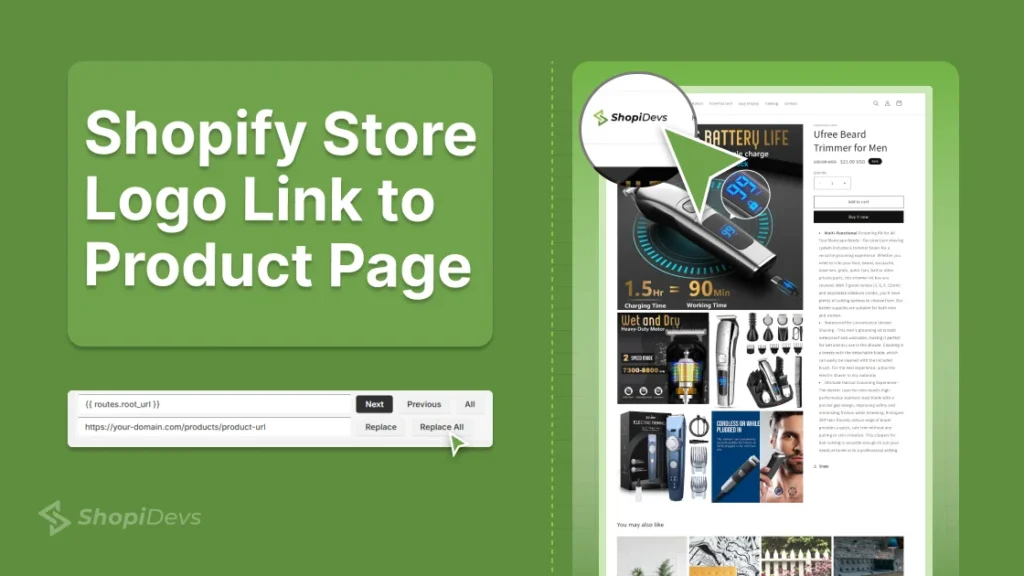
Every visitor who clicks your logo expects to land on the homepage. That default is exactly why redirecting it to a flagship product page works: it interrupts a habit and puts your best-selling item in front of every single visitor who clicks it, on every page of your store.
The change happens in one file, header.liquid, by replacing the default homepage route with your product page URL. No app, no custom code beyond a single find-and-replace. This guide covers when the tweak is worth making, the 5-step process, and the backup step almost everyone skips before touching theme code.
To make your Shopify logo link to a product page: go to Online Store, Themes, Edit Code, open header.liquid, find
{{ routes.root_url }},
and replace it with your product page URL. Save and preview the storefront to confirm.
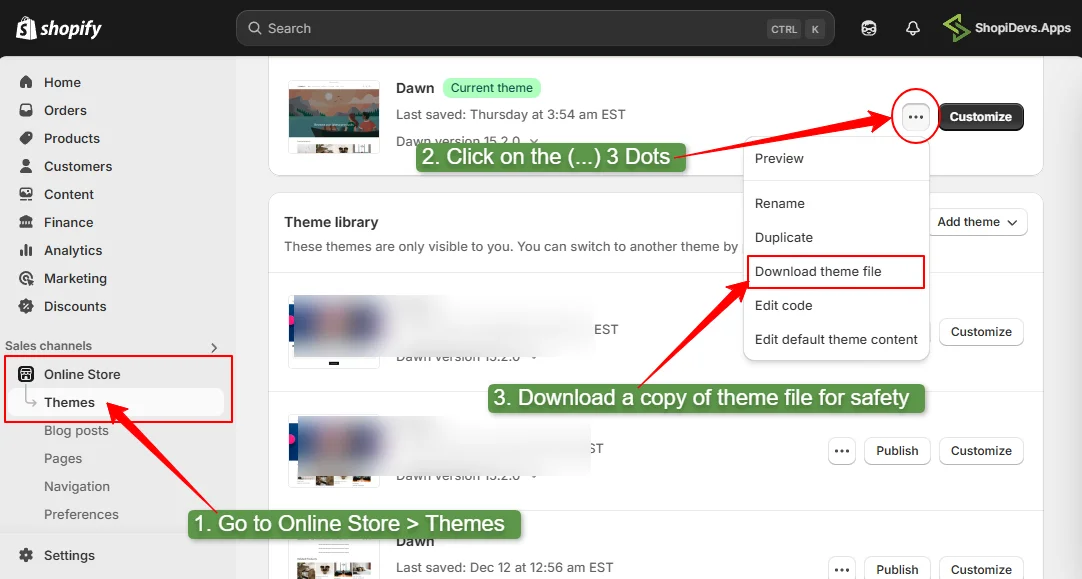
Back up your theme file first (Online Store, Themes, three-dot menu, Download theme file) so you can restore it instantly if the edit doesn’t land the way you expect.
- Redirecting your logo works best for launches, seasonal sales, or promoting one flagship product, not for stores that need to showcase a full catalog
-
The edit is a single find-and-replace in header.liquid:
{{ routes.root_url }}becomes your product page link - Replace All changes two instances at once, the logo’s default position and its centered layout position
- Download your theme file before editing code, so a mistake is a one-click restore instead of a rebuild
- Advanced tweaks like rotating links or conditional logic by time of day require developer help, not native theme settings
- Add UTM parameters to the destination link if you want to track how many clicks the logo redirect is actually driving
When to Redirect Your Logo (and When Not To)
Your store logo is real estate every visitor sees on every page. Before repointing it, know when that’s an advantage and when it works against you:
- Good fit: a product launch, a seasonal sale, or a single flagship or bestselling item you want every visitor to land on regardless of entry page.
- Good fit: a limited promotional window where you want to boost conversion on one specific SKU without redesigning the homepage.
- Poor fit: stores that need to showcase multiple products or categories at once, a single-product redirect works against that goal.
- Poor fit: leaving the redirect live indefinitely. Visitors expect the logo to return them to the homepage, and breaking that pattern permanently creates confusion instead of conversions.
Back Up Your Theme First
This edit touches theme code directly. It’s a simple change, but any code edit carries some risk, and the fix is trivial if you back up first and expensive if you don’t.
- Go to Online Store, Themes: Open your Shopify admin and navigate to the Themes page.
- Click the three-dot menu next to Customize: This opens the theme’s additional options menu.
- Select Download theme file: Shopify emails you a link to download the full theme file. If anything goes wrong during editing, this file restores your original setup.
A manual theme file download covers this one edit. It doesn’t cover your products, orders, and customer data day to day. Syncora runs in the background, capturing changes automatically so a bad edit anywhere in your store, not just header.liquid, is a one-click restore instead of a rebuild.
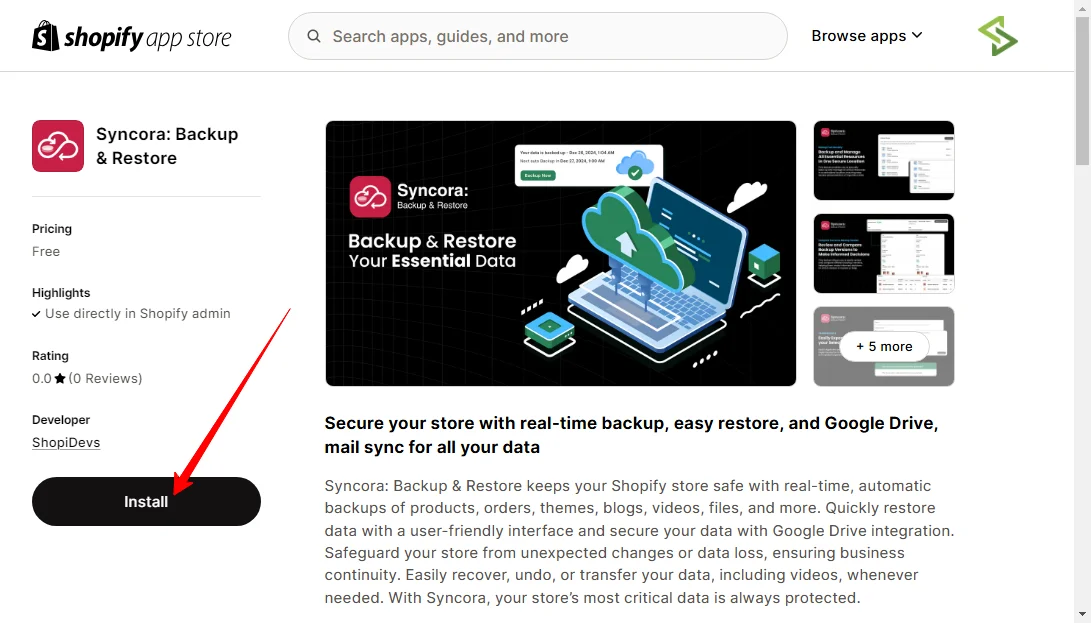
- Automatic backups of themes, products, orders, and files as changes happen
- One-click restore for the whole store or a specific version
- Scheduled daily or weekly backups that need no manual triggering
- Duplicate or transfer store data for testing or migration
- Doesn’t replace the one-time manual theme download for this specific edit
- Full value shows up over time, not from a single backup event
5 Steps to Change the Logo Link
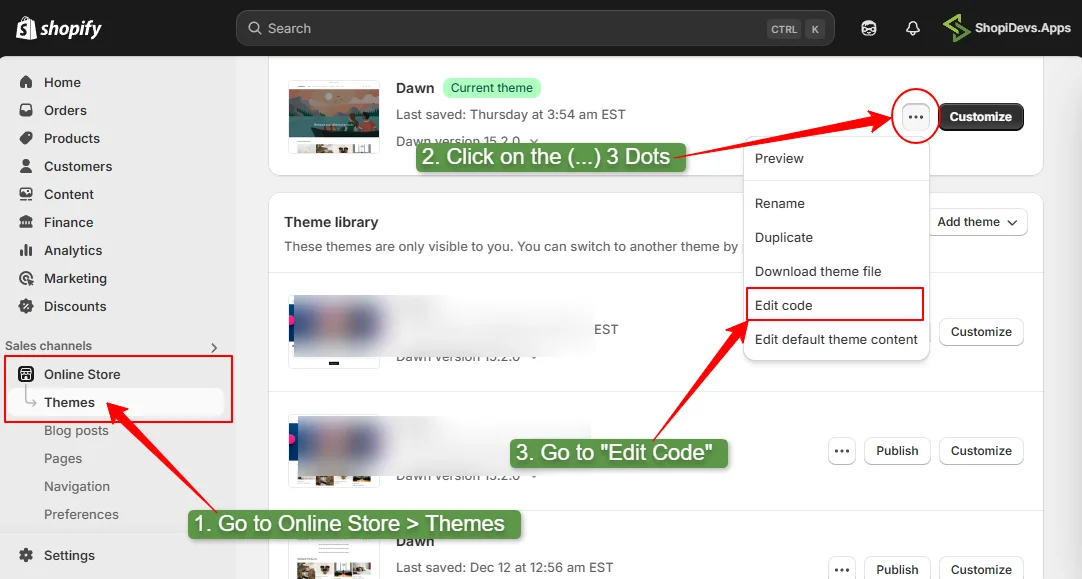
- Access the theme code editor: From Online Store, Themes, click the three-dot menu next to Customize, then select Edit Code.
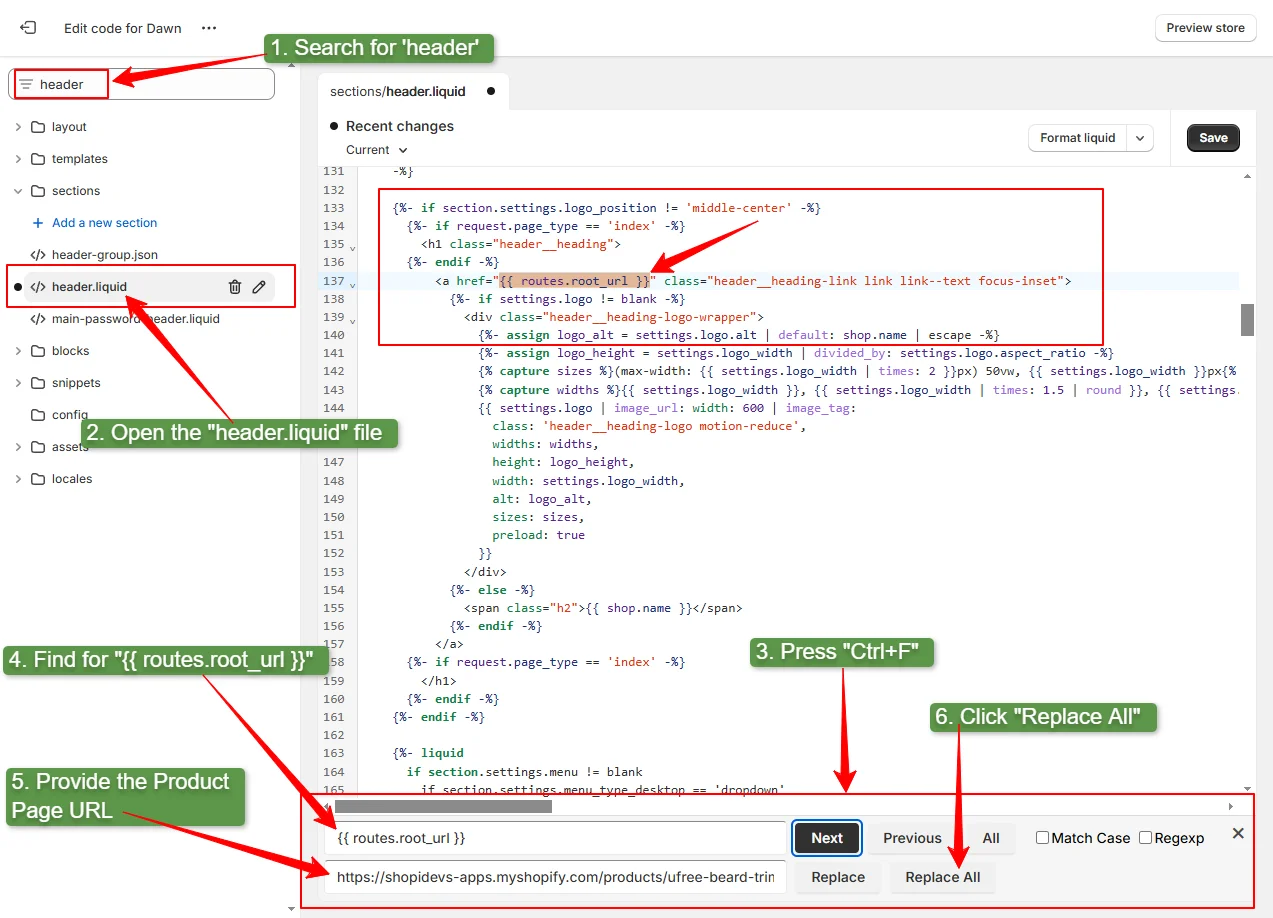
- Open header.liquid: Search for “header” in the file list, or find it manually inside the Sections folder.
- Find the logo URL code: Press Ctrl+F (or Cmd+F) inside the code editor and search for
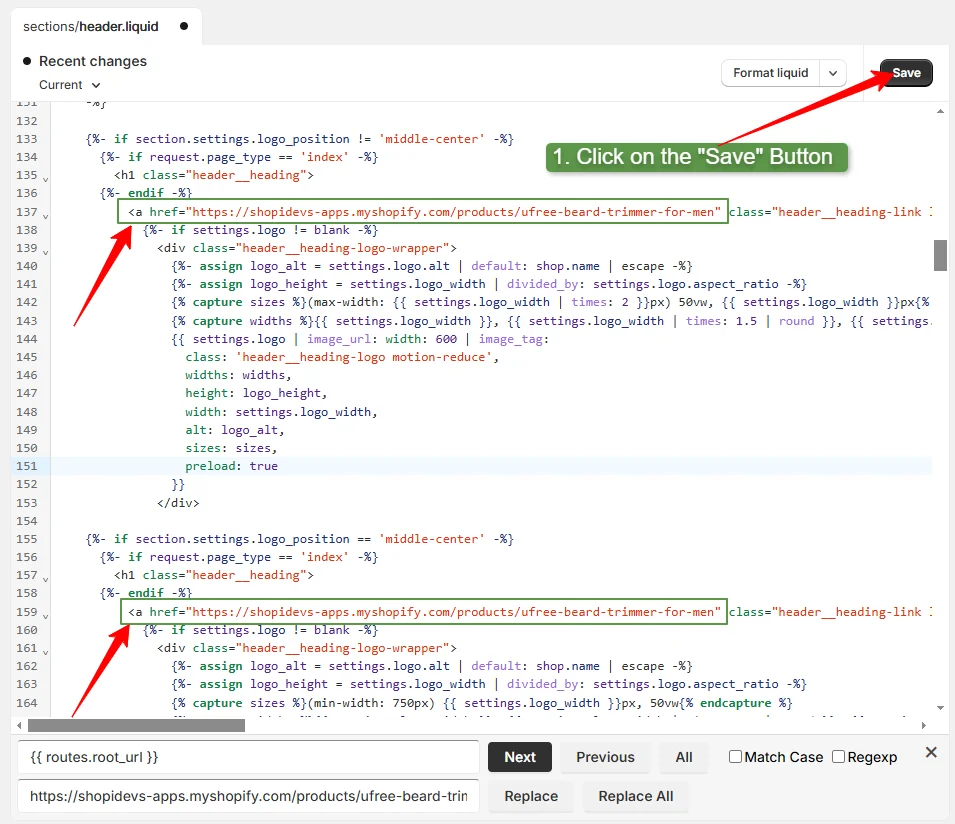
{{routes.root_url}}. - Replace with your product page URL: Enter your product page link in the replacement field, then click Replace All. This updates both instances of the logo, the default position and the centered layout position.
- Save and preview the storefront: Click Save, then visit your live storefront and click the logo to confirm it lands on the product page instead of the homepage.
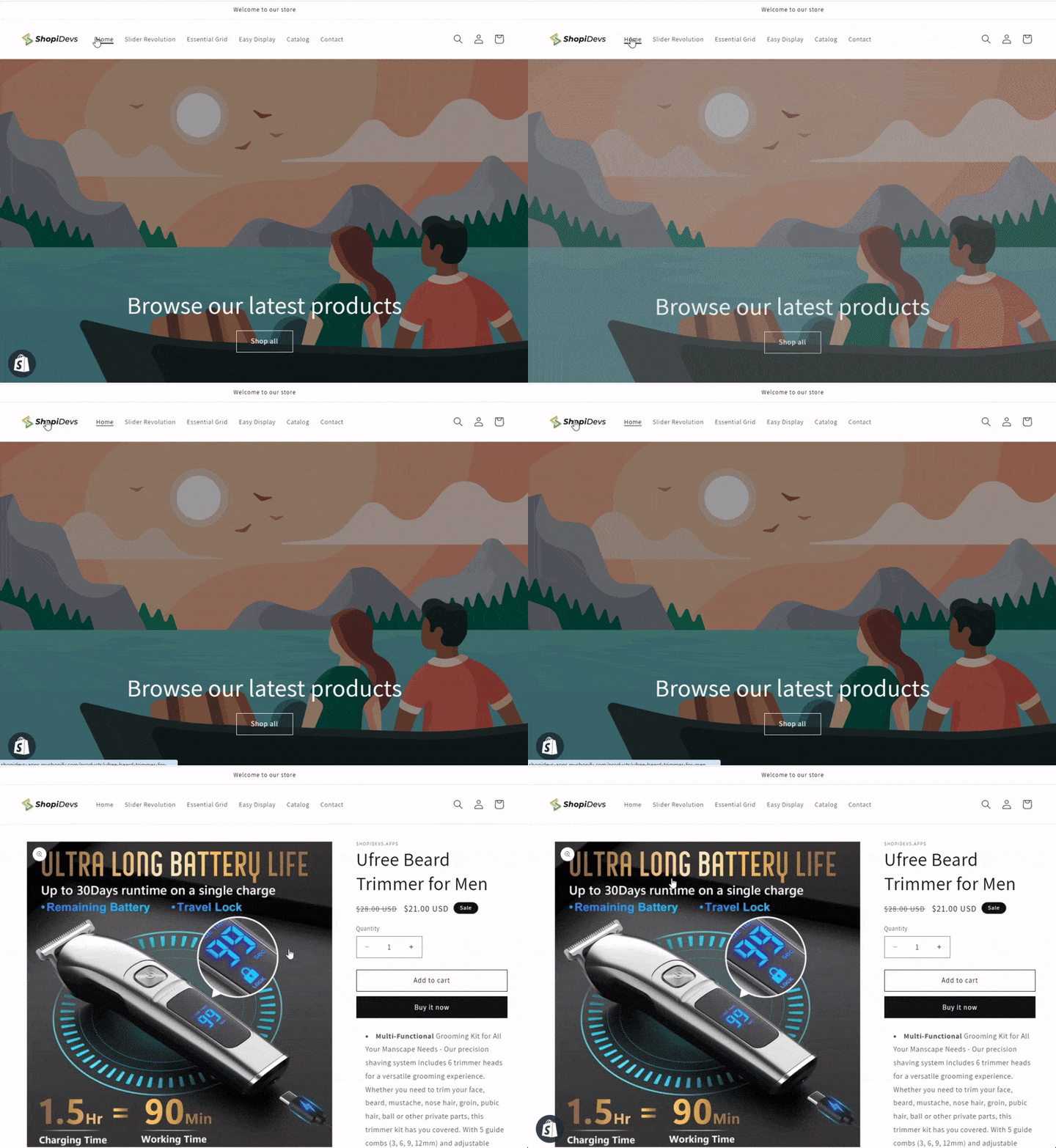
No custom code needed: this entire change is a single find-and-replace inside an existing file. You are not adding new Liquid logic, just swapping one URL reference for another.
5 Advanced Tips for Technical Teams
The basic redirect covers most use cases. For teams with developer resources, these extensions push the same idea further:
- Conditional logic for dynamic links: route the logo to different pages based on conditions, bestsellers during peak hours, clearance items during off-peak times.
- JavaScript for rotating product links: cycle the logo’s destination across multiple products to keep repeat visitors engaged.
- UTM parameters for analytics: add UTM tags to the destination link to measure exactly how many clicks the redirect drives.
- Personalized links based on behavior: point the logo to a product a visitor already viewed or added to cart, rather than a fixed destination for everyone.
- Mobile optimization: confirm the logo and any clickable banner elements work smoothly on mobile, where most traffic actually lands.
Without coding skills, stick to the basic 5-step redirect, add UTM tracking, and confirm mobile behavior. The conditional logic and personalization tips require developer support to implement safely.
Frequently Asked Questions
How do I add a logo to a Shopify page?
Go to Online Store, Themes, Customize on your active theme. In the theme editor, find the Header section, then the Logo setting. Upload your logo using the standard image size for Shopify and save.
How do I find my Shopify store’s logo URL?
Visit your storefront, right-click the logo, select Inspect, and hover over the img src attribute. This shows the original image size, rendered size, file size, and current source, click the source link to see the logo’s URL.
How do I make a Shopify logo take you to a product page?
Edit your theme’s header.liquid file. Replace the default homepage URL, {{routes.root_url}}, with your product page link, then save and test. Download your theme file first as a safety backup before editing code.
How do I change my homepage to a product page on Shopify?
There are three approaches: delete the homepage’s sections and rebuild it as a product showcase with images and details, use custom code to redirect the homepage route to a product page, or use an app like Slider Revolution to build a visually rich homepage that showcases products directly. See the full homepage-as-product-page guide for the complete walkthrough.
Will changing the logo link break my Shopify SEO?
No, as long as the change is intentional and temporary for a promotion or launch. Leaving it permanently redirected away from the homepage can confuse returning visitors, so treat it as a time-bound tactic rather than a default setting.
Protect Your Theme Before You Edit Code
Automatic backups mean a header.liquid edit, or any theme change, is never a risk you have to think twice about.

Jakaria is an SEO Content Writer in Shopify, Ecommerce, WordPress, and Tech Industry with 5+ years of experience. He specialises in developing engaging, helpful content by simplifying complex topics into an amazing story for B2B, SaaS, and Shopify businesses. He’s also passionate about staying updated on growth marketing strategies and Shopify trends.