Single-product stores, hero product launches, and seasonal campaigns all share the same challenge: the homepage should put the product front and center. But Shopify does not let you natively set a product page as the homepage.
There are three ways to get around this. Each has a different trade-off on SEO, design flexibility, and technical complexity.
This guide covers all three with step-by-step screenshots.
To set a product page as your homepage on Shopify: go to Online Store → Themes → Customize, click Add Section, choose Featured Product, select your product, remove existing homepage sections, and save. This is the safest SEO-friendly method and usually takes less than 20 minutes.
For a high-converting product homepage with sliders, templates, and advanced design controls, use Slider Revolution . Avoid the JavaScript redirect method for any long-term setup.
- Shopify doesn’t natively support using a product page as the homepage, but there are practical workarounds.
- Using the Theme Editor is the safest and most SEO-friendly method.
- Custom Liquid redirects should only be used for temporary campaigns.
- Slider Revolution offers the most flexibility for conversion-focused product homepages.
- This approach works best for single-product stores and featured product launches.
Should You Use the Product Page as a Homepage on Shopify?
This setup works for specific store types. It is not a global improvement. Before making the change, check whether your store fits the process or not.
If your store has multiple product categories or relies on collections and tags for navigation, a product-focused homepage may create a confusing shopping experience and limit product discovery. This approach works best for single-product stores, featured offers, or campaign-specific landing pages.
5 Reasons to Use a Product-Focused Homepage
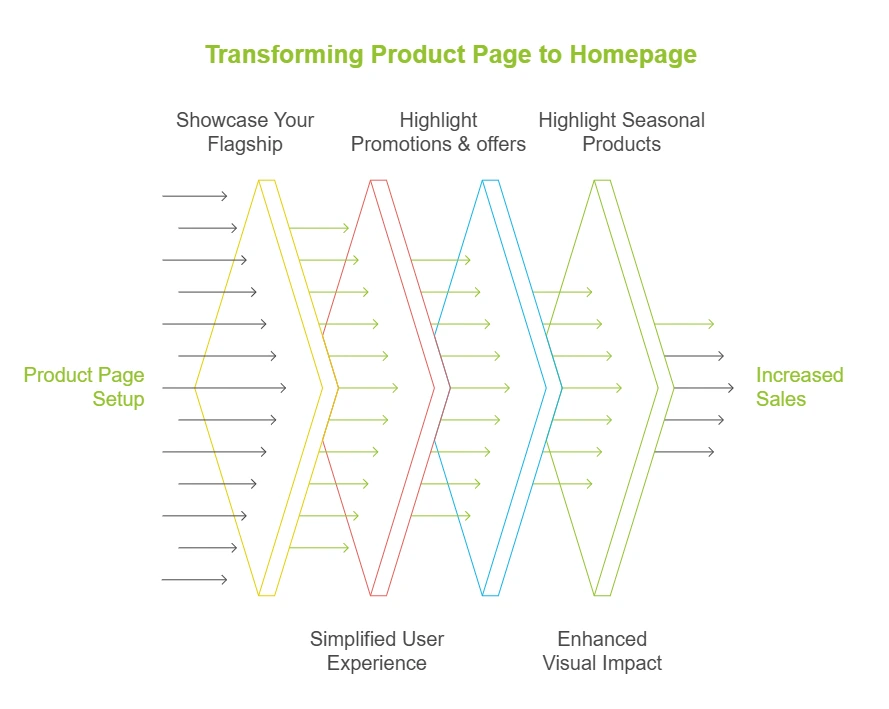
When the fit is right, putting your product on the homepage has real conversion advantages:
- Direct customer focus: Visitors land on your flagship product immediately, cutting the path to purchase.
- Simplified user experience: Fewer navigation steps means faster buying decisions.
- Higher conversion potential: A focused layout with one clear CTA outperforms a general homepage for single-offer stores.
- Seasonal campaign control: Swap the featured product for launches or promotions without rebuilding the whole site.
- Visual impact: A full-width product hero creates a stronger first impression than a standard homepage grid.
Method Comparison at a Glance
Shopify doesn’t allow you to make your product page the homepage. But it allows you to add products on the homepage. However, we have unlocked 3 different ways to make your product page the homepage. Here is a quick comparison of them:
Method 1: Using the Shopify Theme Editor (Recommended)
This is the safest and simplest method. You add a Featured Product section to the homepage, customize it, and delete the sections you no longer need. No coding, no redirects, no SEO risk.
Step 1: Log in to the Shopify Store
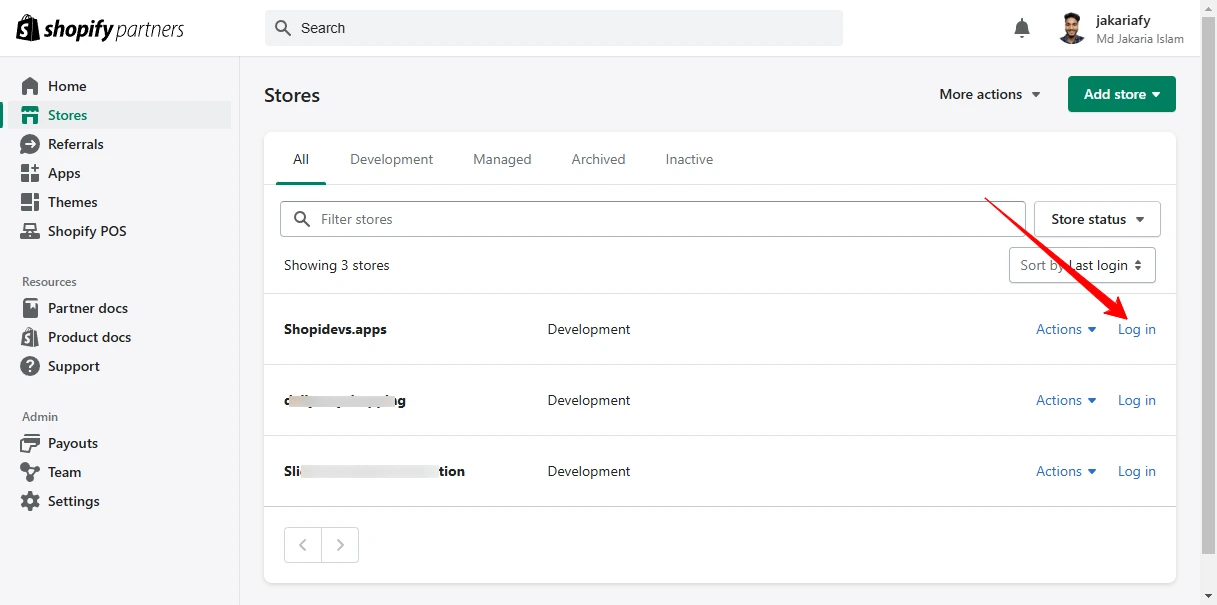
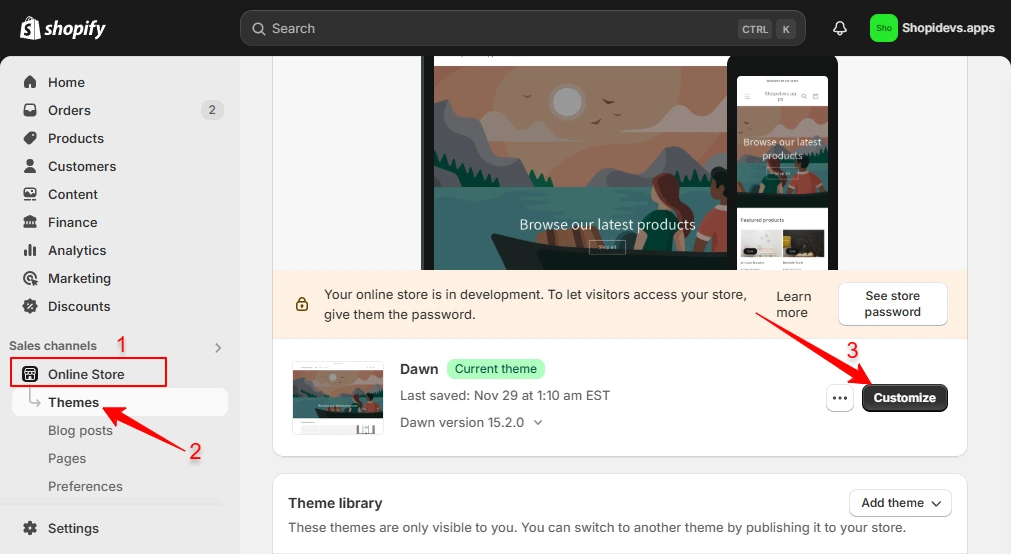
Step 2: Go to Online Store > Theme > Customize
In the left sidebar, click Online Store, then Themes. Click the Customize button next to your active theme.
Step 3: Add ‘Featured Products’ Section
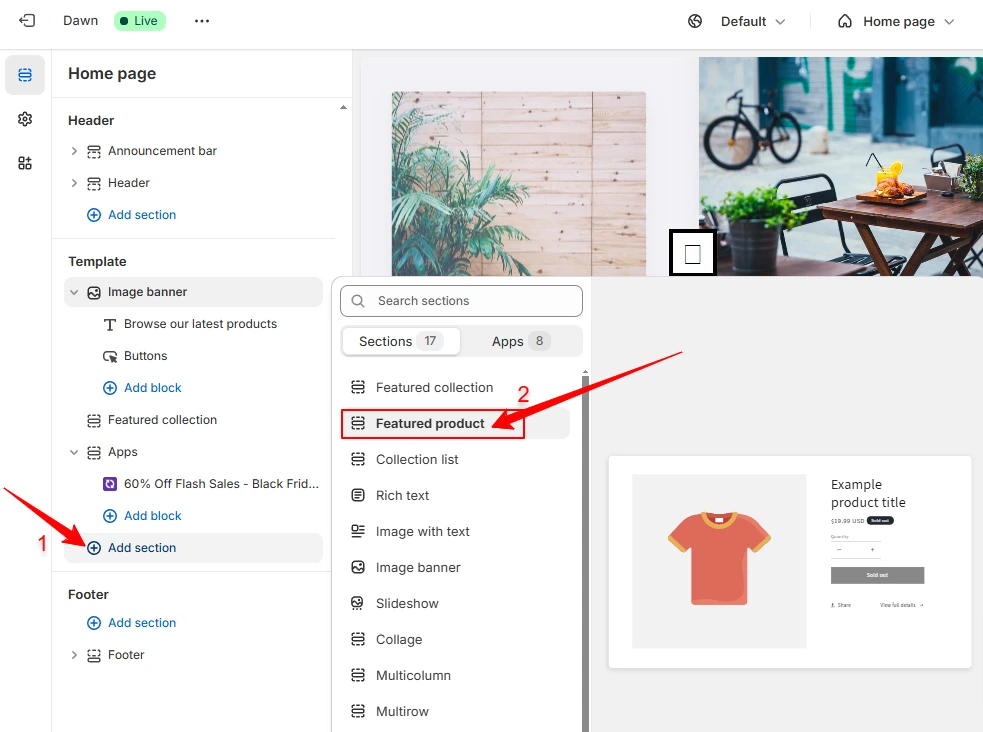
Click Add Section in the left sidebar and select Featured Product. This adds the product display block to your homepage layout.
Step 4: Select Your Product and Customize Settings
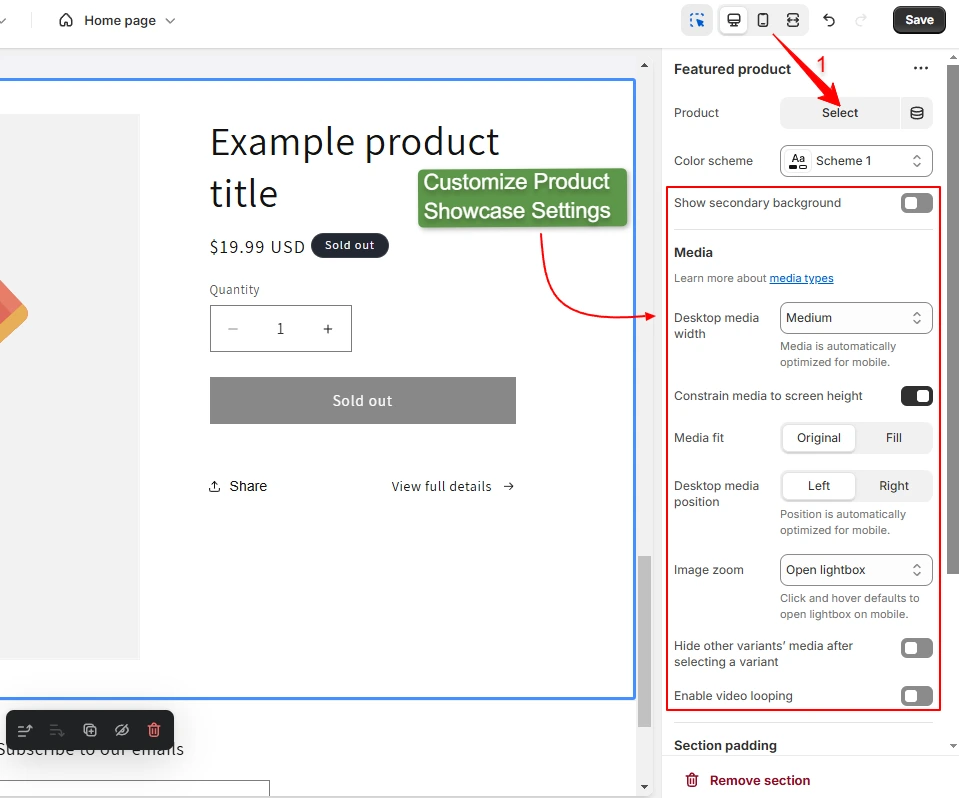
Click the Featured Product section, choose the product you want to feature, and adjust the display options: title, button text, price display, SKU, and layout.
Step 5: Add Visuals, Then Delete Existing Sections
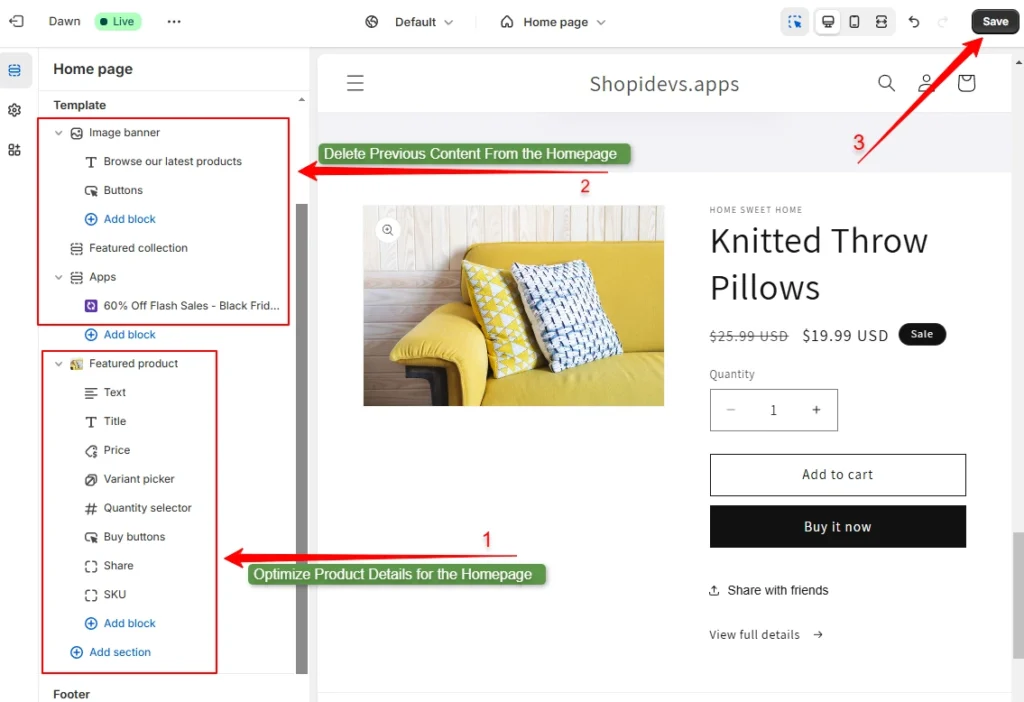
Add any additional content blocks (product images, videos, reviews) using Add Section. Then hover over each existing section you no longer need and click the delete icon to remove it. Click Save.
Step 6: Preview Your New Product Homepage
Click the preview icon to see the final result. Your homepage now functions as a product page.
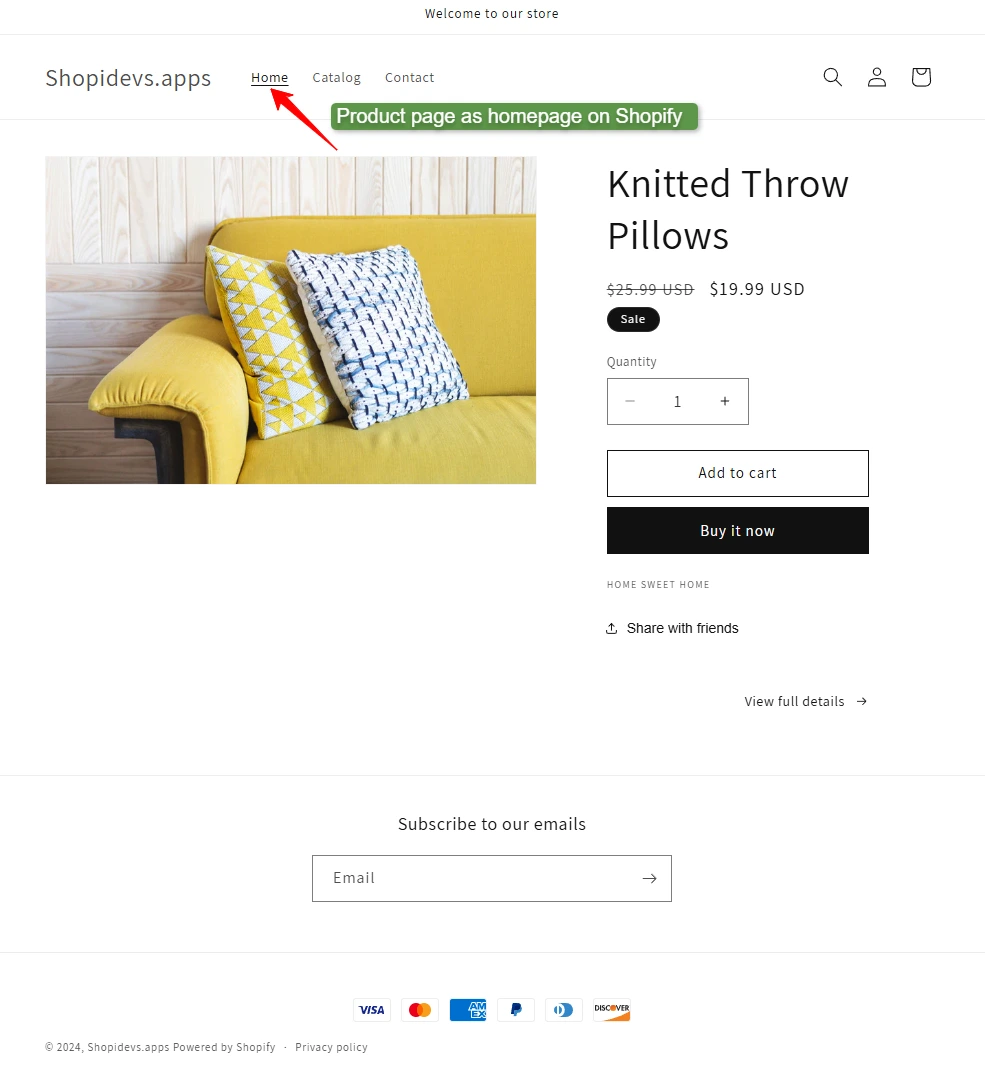
Note: For a high-converting product homepage, also add videos, customer reviews, FAQs, and product descriptions. Check our guide on creating landing pages on Shopify for layout inspiration.
Method 2: Custom Liquid Redirect (Use With Caution)
This method adds a JavaScript redirect in your theme.liquid file. When visitors land on the homepage, they are automatically sent to your product page URL. It takes about 10 minutes to set up.
SEO Warning
Shopify’s homepage carries the most domain authority of any page on your store. A JavaScript redirect does not reliably transfer that authority to the product page. Search engines may struggle to index this setup correctly, which can reduce your organic rankings over time. Use this method only for short-term promotional campaigns, not as a permanent store setup.
Step 1: Log in to Shopify Admin
As per the previous method, first of all, you need to log in to the Shopify Store.
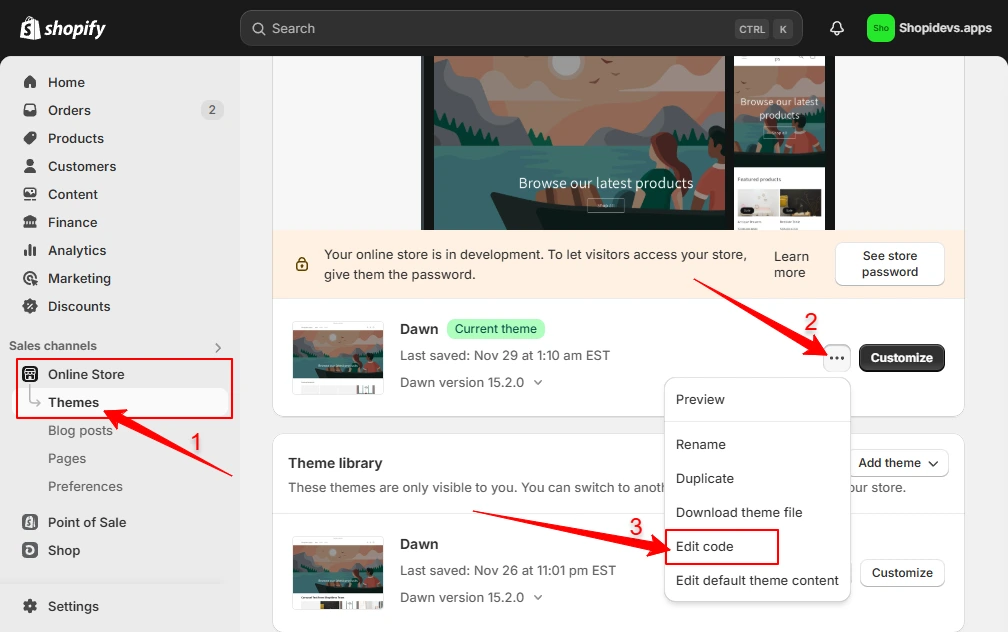
Step 2: Go to Online Store → Themes → Edit Code
Click Online Store → Themes. Click the (…) three dots button next to Customize, then select Edit Code.
Step 3: Copy This Custom Liquid Code
Use the following code. Replace PRODUCT_PAGE_LINK_HERE with your actual product page URL.
{% if template == 'index' %}

<script>

window.location.href = "PRODUCT_PAGE_LINK_HERE";

</script>

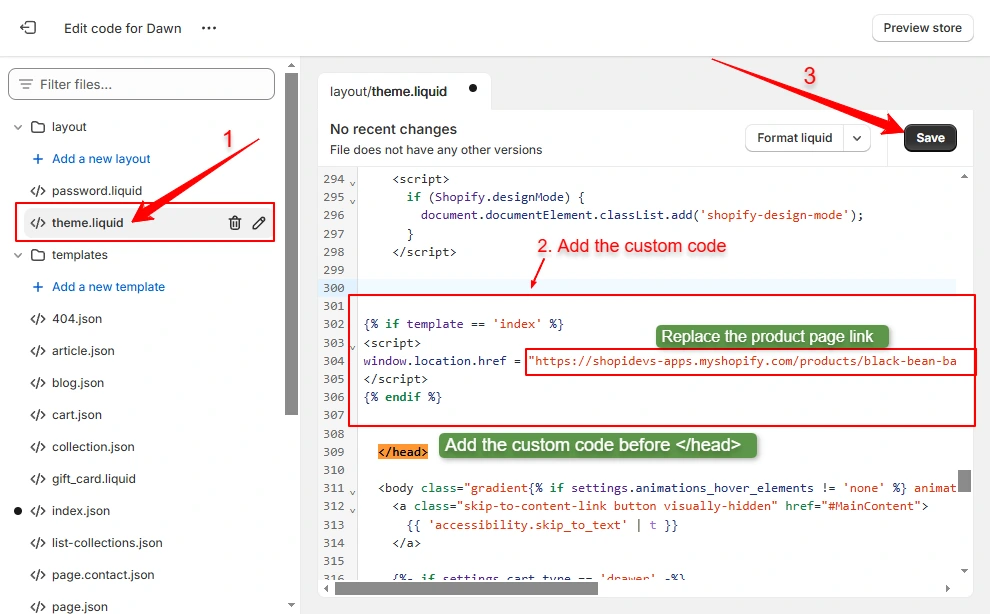
{% endif %}Step 4: Paste the code into the theme. liquid Before </head>
In the code editor, open the theme.liquid file. Find the closing </head> tag. Paste the code directly above it. Replace the placeholder URL with your product page URL. Click Save.
Step 5: Preview the Storefront
Visit your store homepage. The browser should redirect you to the product page automatically. If it does not redirect, clear your browser cache and try again.
How to Redirect Other Pages on Shopify
For redirecting any page other than the homepage: go to Content → Menus → URL Redirects → Create Redirect. Enter the source URL and the destination URL, then save. This is Shopify’s native redirect system and is SEO-safe.
Method 3: Slider Revolution App (Best for Conversion-Focused Stores)
This is the most powerful option. Slider Revolution gives you 300+ professional templates for hero sliders, product carousels, video sections, countdown timers, and more. You can build a full product-focused homepage without writing any code.

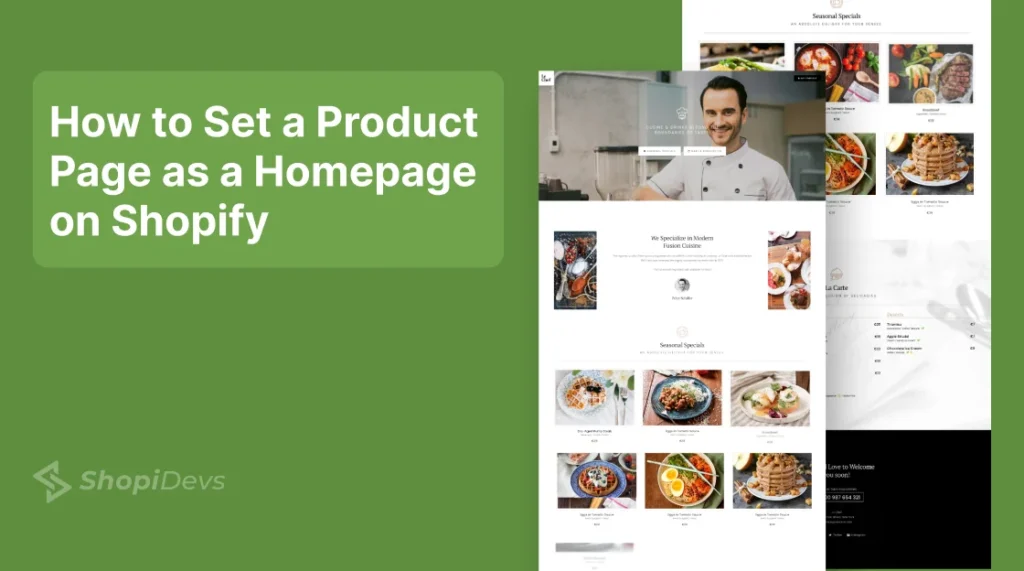
Here, I will make a product page for the homepage of a restaurant using ‘Le Chef’ templates. Let’s explore how to make a product page homepage in Shopify using the “Slider Revolution and Sections” app:
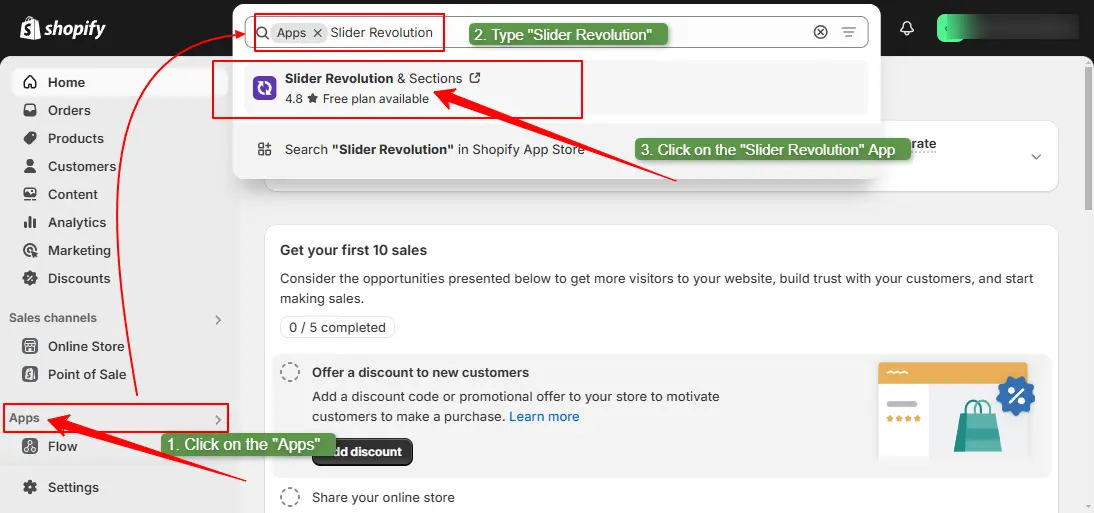
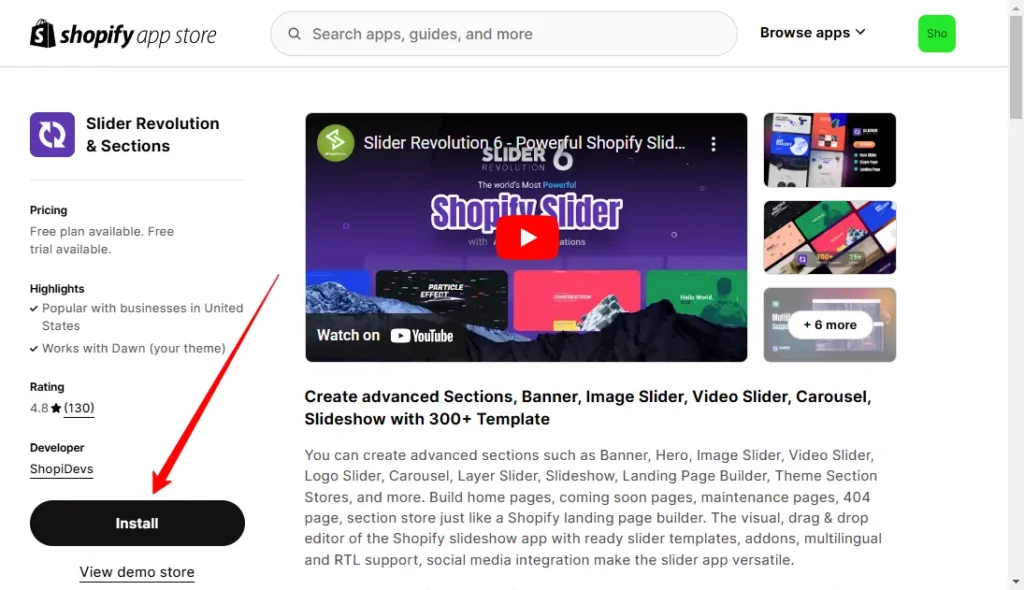
Step 1: Install the Slider Revolution App
In your Shopify admin, go to Apps and search for “Slider Revolution.” Click “Install” on the Slider Revolution & Sections app.
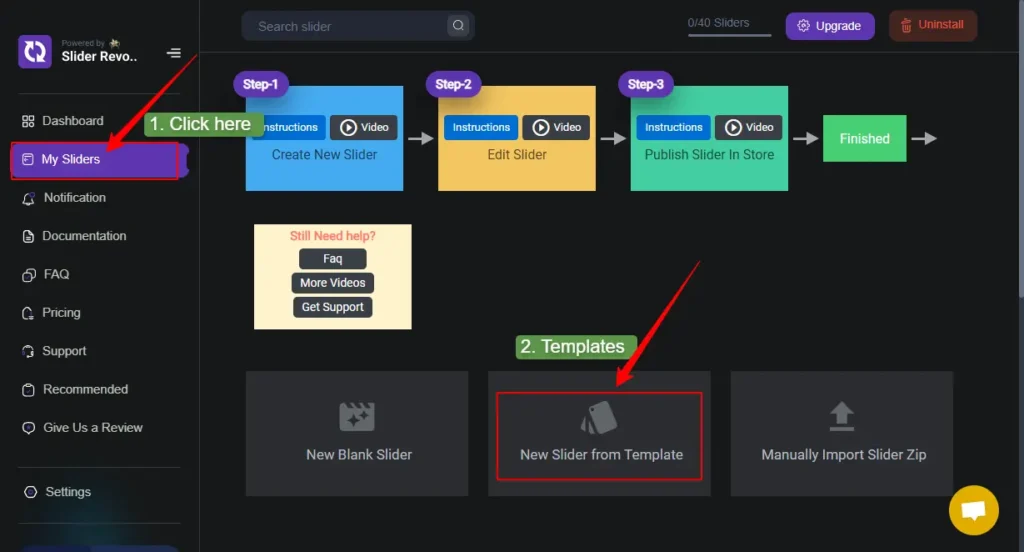
Step 2: Go to My Sliders → New Slider From Templates
From the Slider Revolution dashboard, click My Sliders. You will see three options. Select “New Slider From Templates” to browse the template library.
Step 3: Install a Hero Slider Template and a Product Carousel Template
Install two templates to build your product homepage:
- A Hero Slider template for the top banner (we used “Le Chef Header” in this example)
- A Product Carousel template to display your products below the hero
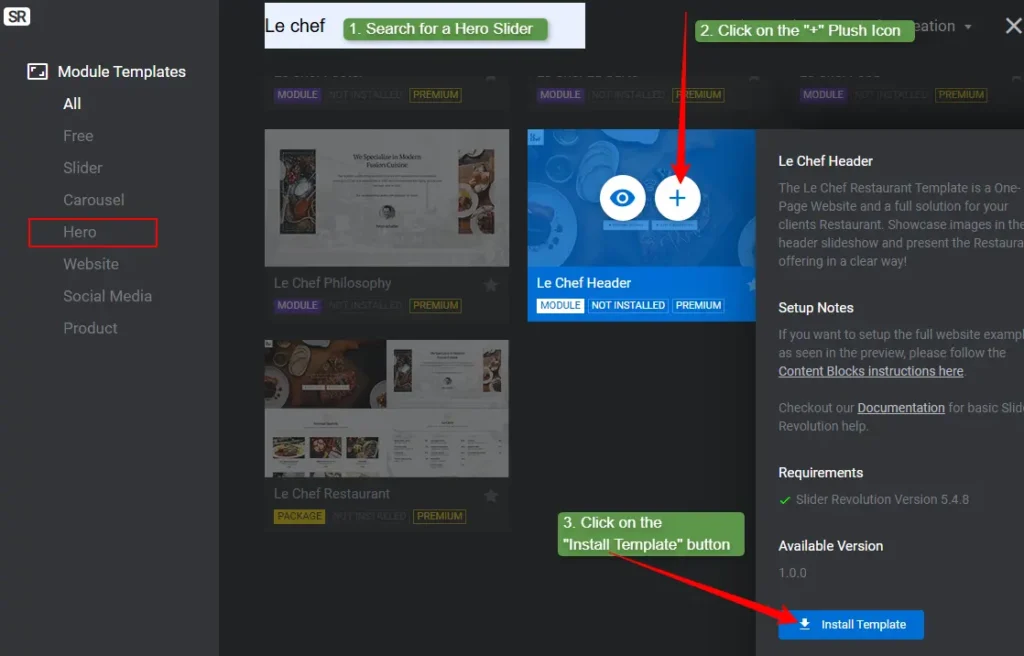
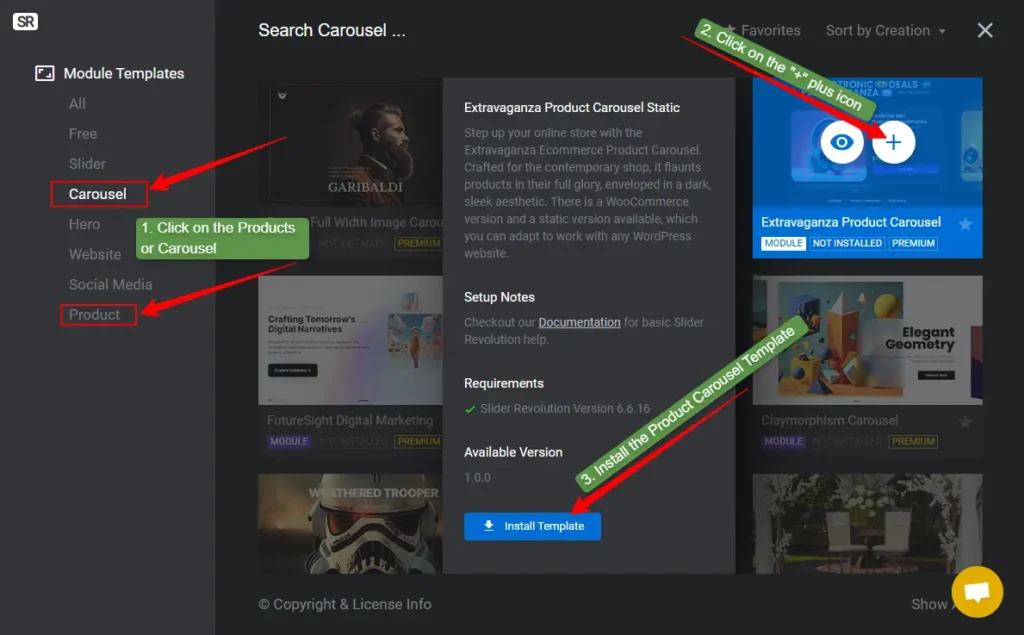
You can also add video sections, countdown timers, and testimonial sliders by installing additional templates from the same library.
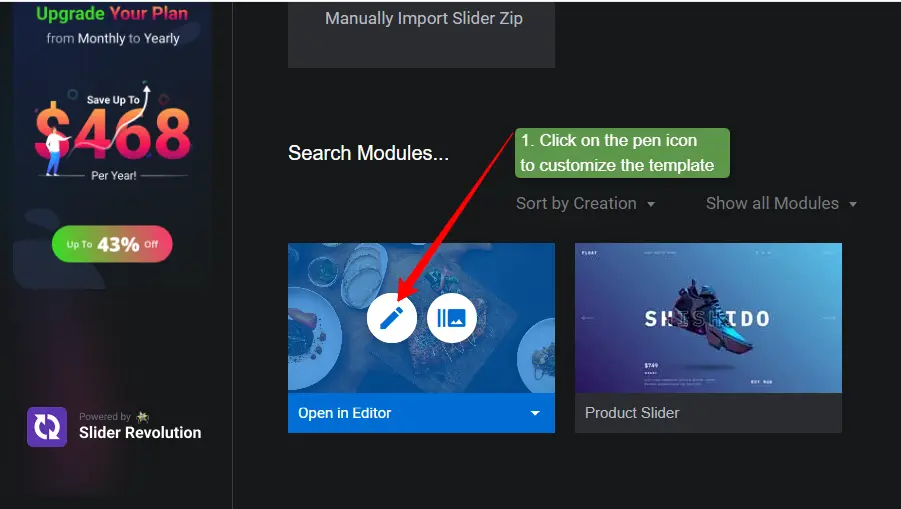
Step 4: Click the Pen Icon to Customize Templates
In My Sliders, hover over a slider and click the pen icon to open the editor.
Step 5: Customize the Hero Slider and Copy the Shortcode
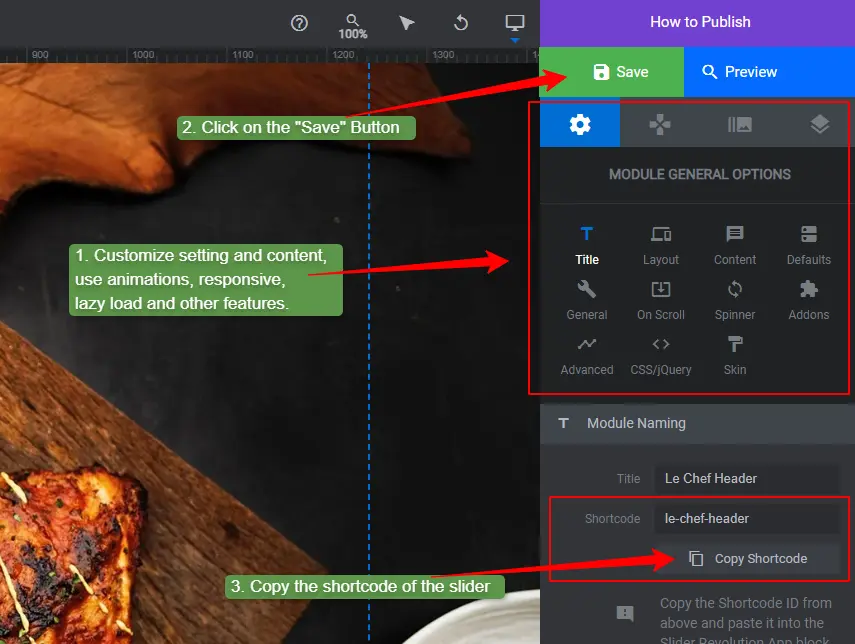
Edit the layout, text, background, and animations of your hero slider. When done, click Save and copy the shortcode from Module General Options → Title.
Step 6: Activate the Slider Revolution App in Shopify
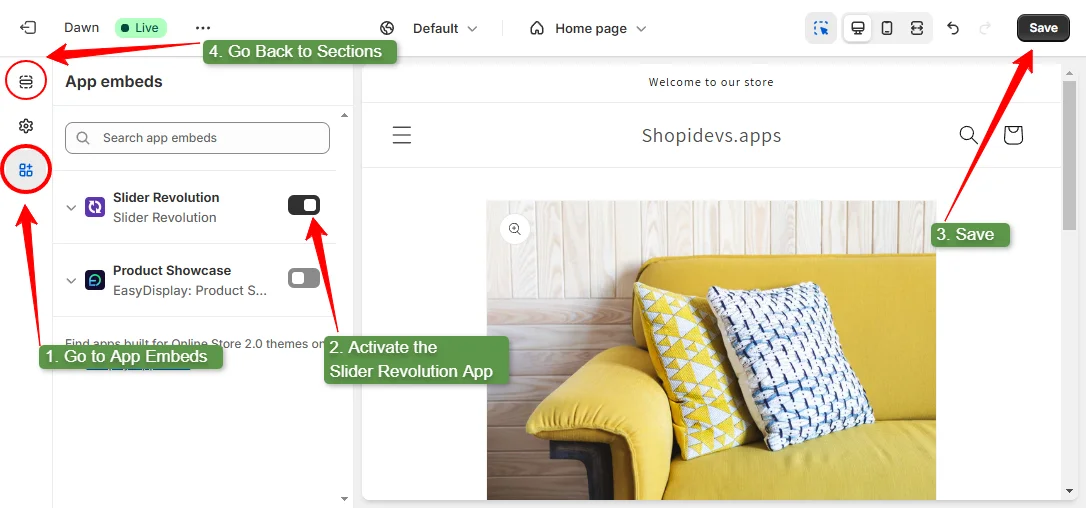
Go to Online Store → Themes → Customize. Click the app. Embeds an icon and turns on Slider Revolution & Sections. Click Save.
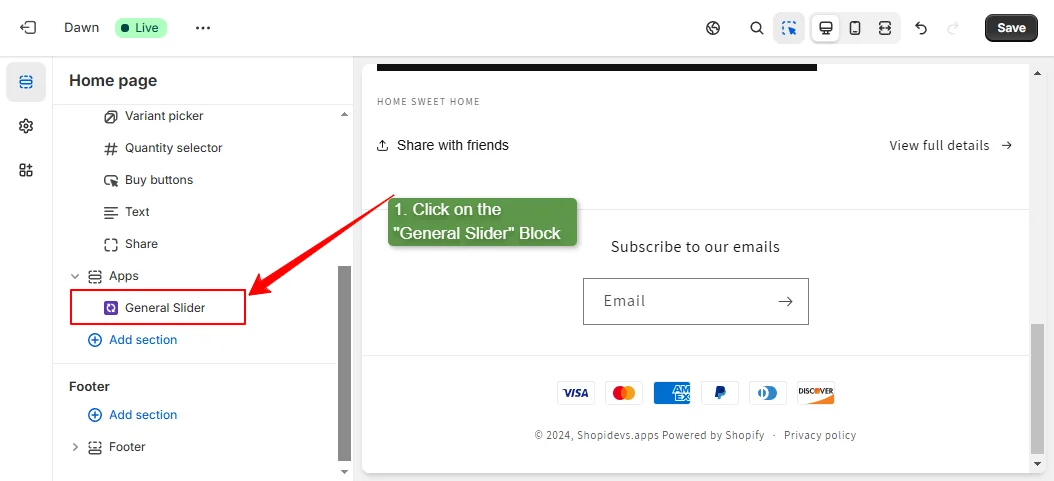
Step 7: Add a General Slider Block to Your Homepage
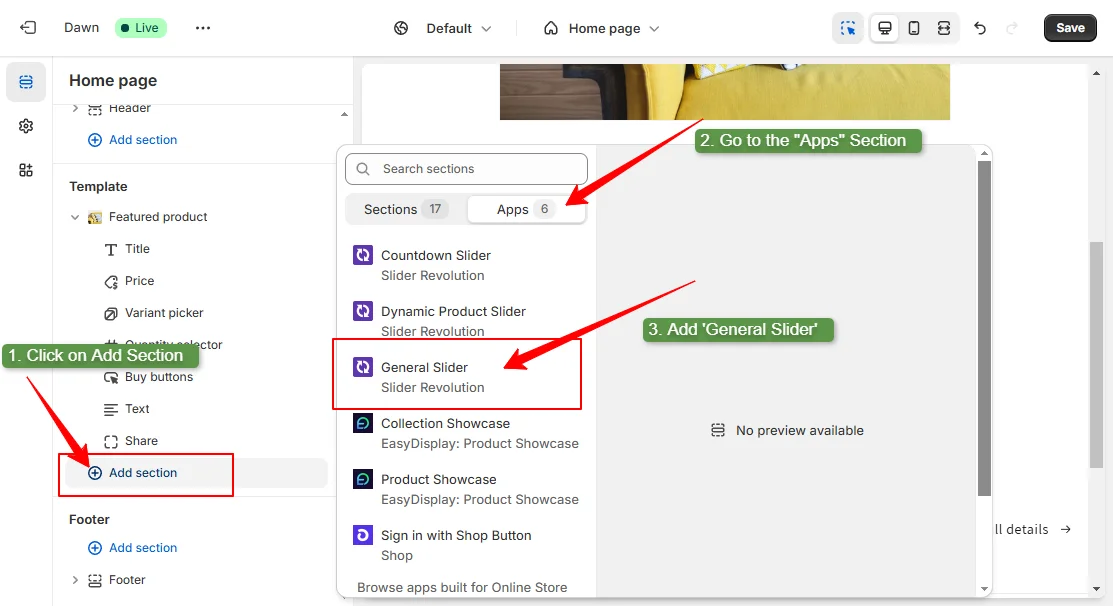
In the theme editor, click Add Section → Apps → General Slider. This adds a slider block to your homepage.
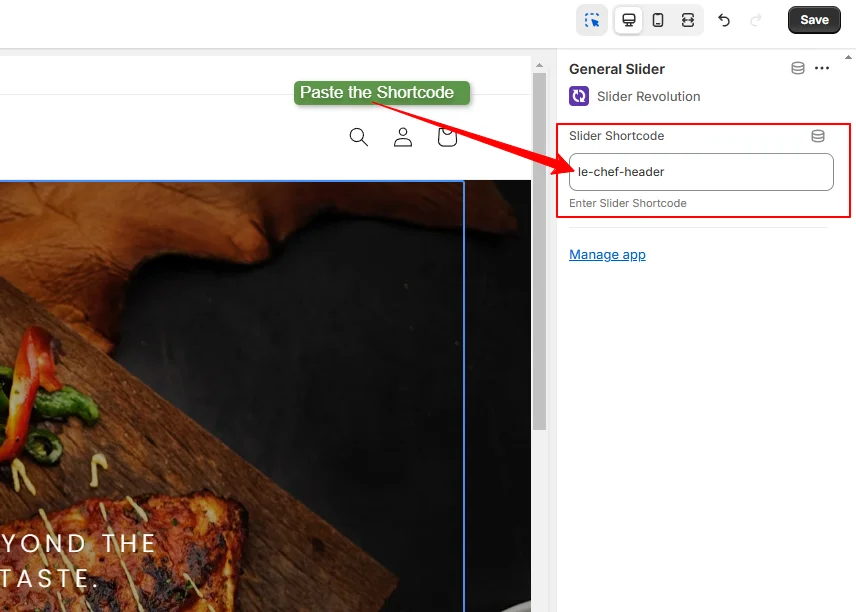
Step 8: Paste the Hero Slider Shortcode
Click the General Slider block and paste the shortcode you copied in Step 5. The hero slider will appear in the preview.
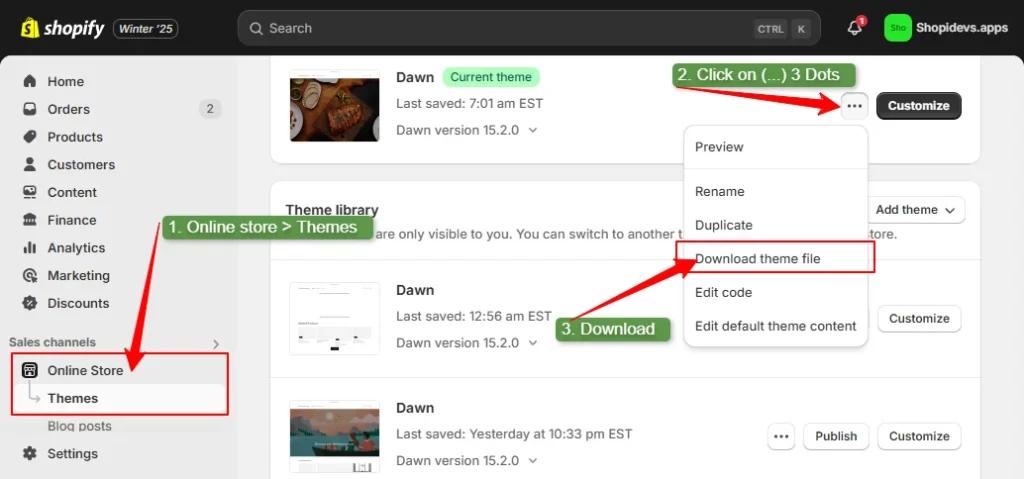
Step 9: Back Up Your Theme, Then Delete Previous Sections
Before deleting, download a backup of your current theme in case you need to restore it later.
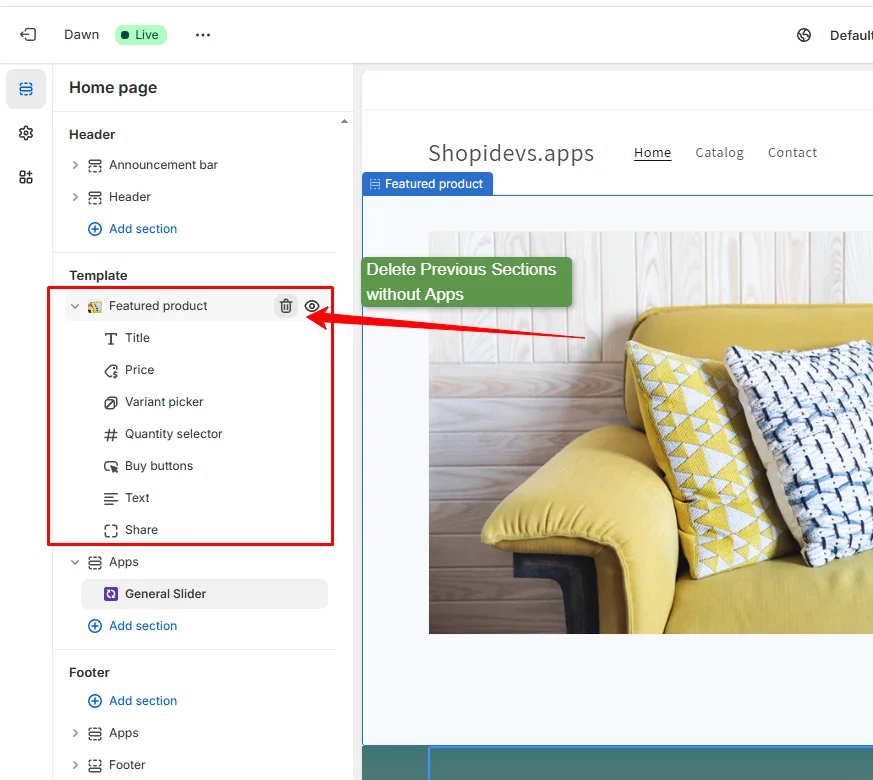
Once backed up, hover over each existing homepage section and click the delete icon to remove it. Keep only the app sections.
Step 10: Customize the Dynamic Product Slider and Copy Its Shortcode
Go back to Slider Revolution, open your product carousel template with the pen icon, customize it, click Save, and copy the shortcode.
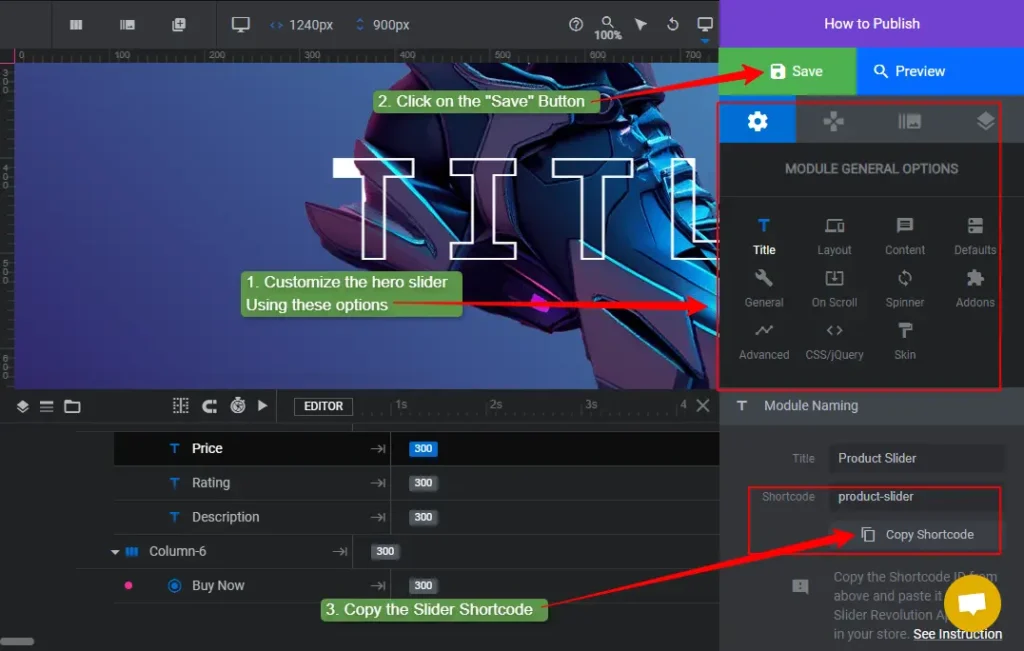
Step 11: Add a Dynamic Product Slider Block
In the Shopify theme editor, click the + icon, go to Apps, and select Dynamic Product Slider.
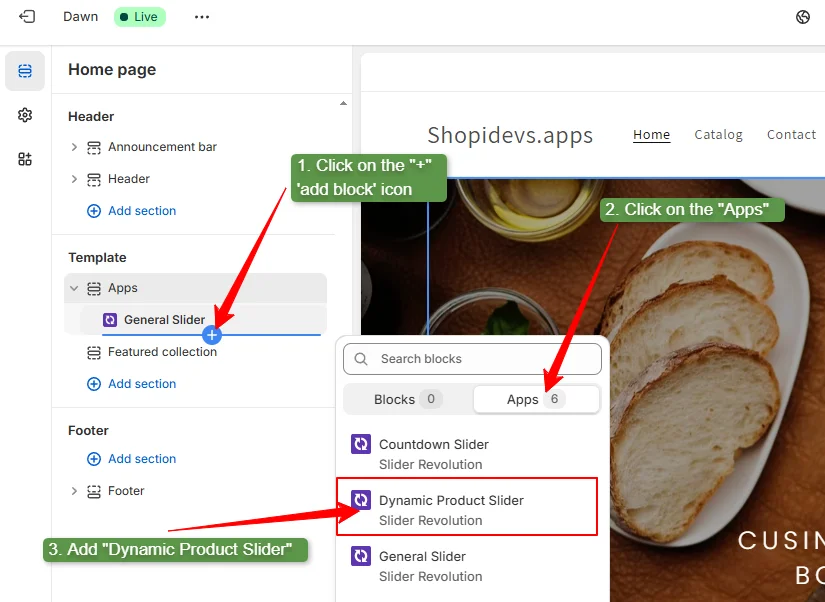
Step 12: Paste the Product Slider Shortcode and Select Your Collection
Click the Dynamic Product Slider block, paste the shortcode, select the product collection you want to display, and set how many products to show.
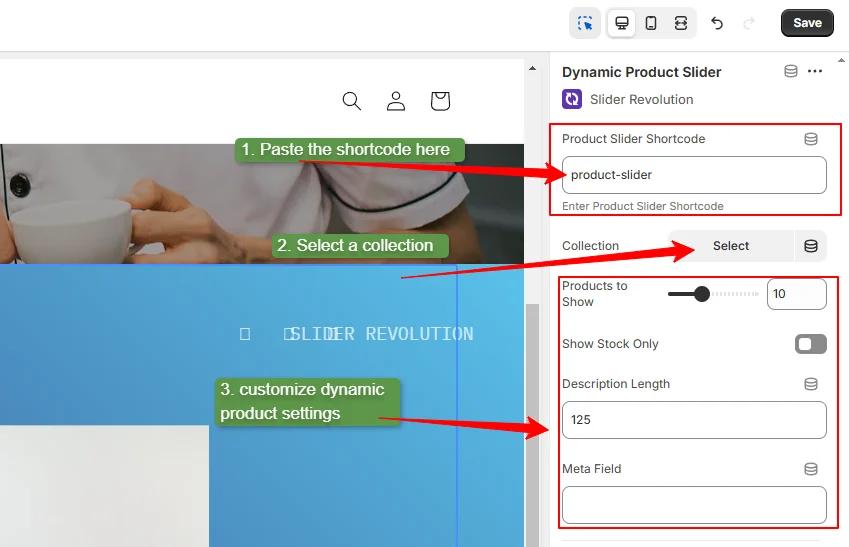
Note: Add more sliders by following the same process, like adding a ‘general slider’ and ‘dynamic sliders.’ You can add product reviews, videos, images, and other information by using the Slider Revolution app.
Also, you can “Countdown Slider” for any seasonal sales or discounts for a limited time.
Step 13: Add Any Additional Sections (Optional)
Add more sections as needed: testimonials, featured collections, countdown timers, or video banners. Follow the same process for each additional slider type.
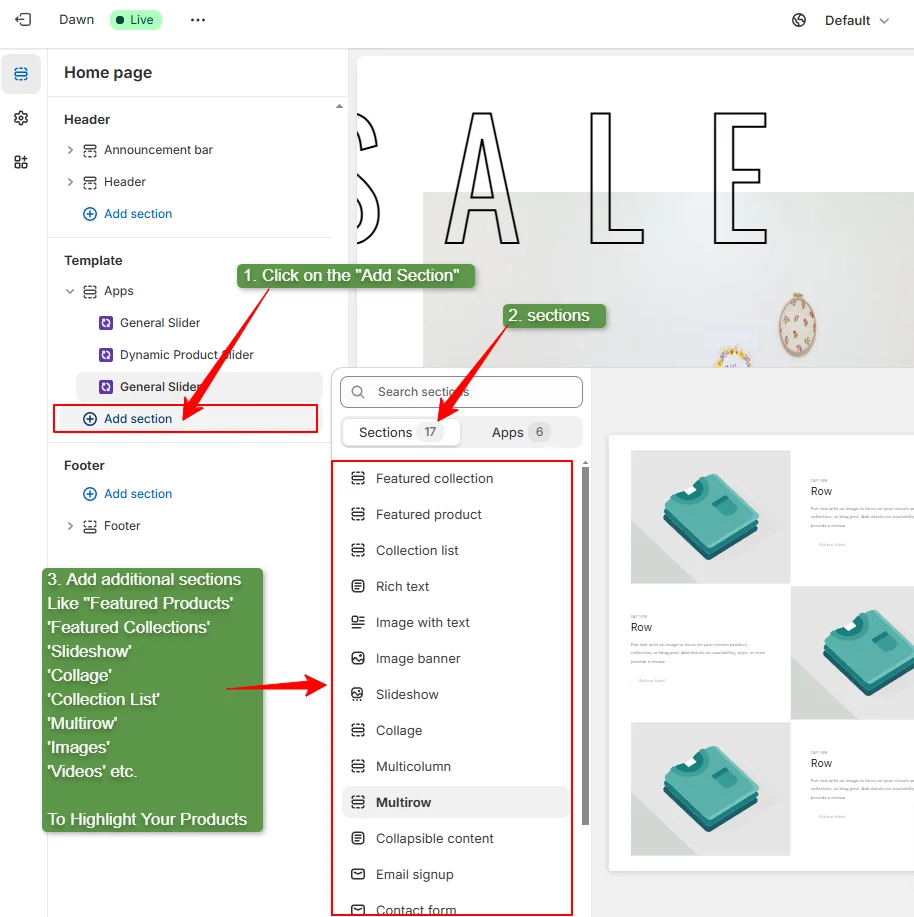
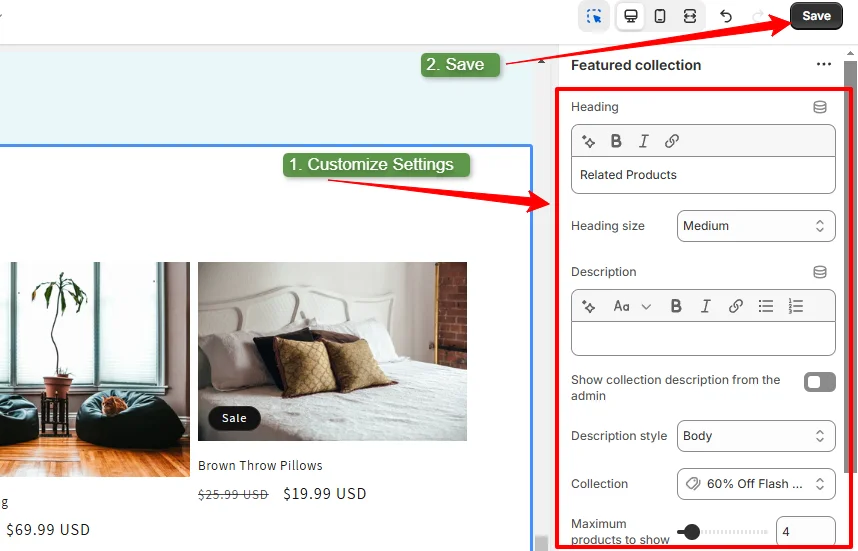
Step 14: Save the New Product Page on Your Homepage
After adding and customizing all sections of the product page on the homepage, click on the “Save” button.
What Else Can You Add?
Slider Revolution supports countdown timers for seasonal sales, video banners, customer review sliders, and product comparison sections. Each can be added using the same template-and-shortcode process above. If you get stuck, ShopiDevs support can help.
Let’s check the final result of the homepage as a product page using Slider Revolution slider templates.
Build a High-Converting Product Homepage With Slider Revolution
300+ ready-made templates. Dynamic product sliders. Hero banners, countdown timers, video sections, and conversion-focused layouts. Build a product-first homepage without writing a single line of code.
Frequently asked questions
How do I set a product page as my homepage on Shopify?
Go to Online Store → Themes → Customize, click Add Section, choose Featured Product, select your product, customize the section, delete all other homepage sections, and click Save. This is the safest method with no SEO risk and takes under 20 minutes.
Can I redirect my Shopify homepage to a product page?
Yes, by adding a JavaScript redirect to the theme.liquid file. However, this carries SEO risk because JavaScript redirects are not reliably followed by search engine crawlers. Use this only for short-term campaigns, not as a permanent setup. For redirecting other pages, use Shopify’s native URL redirect tool under Content → Menus → URL Redirects.
What is the best way to make a product page your Shopify homepage?
For a simple setup, use the Shopify Theme Editor (Method 1) to add a Featured Product section and remove other sections. For a high-converting product homepage with professional design and sliders, use the Slider Revolution app (Method 3). Both are SEO-safe. Avoid the Liquid redirect method for any permanent store configuration.
Does making a product page the homepage hurt SEO?
Using the Theme Editor or Slider Revolution to display a product on the homepage is safe for SEO. Using a JavaScript redirect from the homepage to a product page can hurt SEO because search engines may not follow the redirect correctly and your homepage authority may not transfer. Avoid the redirect method for long-term setups.
What is the difference between a landing page and a product page on Shopify?
A landing page is built around one specific goal, like collecting leads or promoting a campaign, and typically has no navigation. A product page provides detailed product information (images, variants, price, reviews) and is connected to your store’s checkout. When you make a product page your homepage, it acts as both: the entry point to your store and the primary conversion page.
What types of stores should use a product-focused homepage?
Single-product stores, hero product launches, limited-time seasonal campaigns, and conversion-optimized DTC brands benefit most. Stores with multiple product categories, broad catalogs, or discovery-stage buyers should not use this approach as it limits navigation and reduces organic keyword coverage.

Jakaria is an SEO Content Writer in Shopify, Ecommerce, WordPress, and Tech Industry with 5+ years of experience. He specialises in developing engaging, helpful content by simplifying complex topics into an amazing story for B2B, SaaS, and Shopify businesses. He’s also passionate about staying updated on growth marketing strategies and Shopify trends.