
Your theme shows 1000 instead. The cart total is missing a currency symbol. Or prices look fine in USD but break when an international customer switches currency.
Every one of these problems has the same root cause: a missing or wrong Shopify money filter.
Shopify Liquid stores all prices as integers in cents. product.price for a $10.00 product return. Without a money filter, that raw integer goes straight to your storefront. This guide covers all four money filters, what each one does, when to use it, and exactly how to apply it in your theme files.
The Shopify money filter converts a raw price value (stored in cents) into a formatted currency string. For example, product.price returns 1000 for a $10.00 product, while {{ product.price | money }} outputs $10.00 using your store’s currency format. Shopify provides four money filters: money, money_with_currency, money_without_trailing_zeros, and money_without_currency.
Key Takeaways
- Shopify stores prices as integers (in cents), and money filters convert them into readable currency values.
- Shopify includes four money filters, each designed for a different currency display format.
moneyis the default filter and uses your store’s standard HTML currency format.money_without_trailing_zerosremoves unnecessary decimals, displaying$50instead of$50.00.- You can apply money filters to values like
product.price,cart.total_price,line_item.price, and more. - Currency formatting is controlled from your Shopify Admin settings, not by the filter itself.
What Is the Shopify Money Filter?
The Shopify money filter is part of the Liquid templating language. Its job is simple: take a raw integer price value and format it into a currency string your customers can read.
Every price object in Shopify, product.price, variant.price, cart.total_price, line_item.price — returns a number in cents. That means a $12.50 product returns 1250. A $100 product return.
Without a money filter applied, your theme renders those raw integers. The filter converts them into the formatted output your store currency settings define.
Why cents?
Shopify stores prices as integers (cents) to avoid floating-point rounding errors. For example, $10.50 + $0.99 = $11.49, but in floating-point math, 10.50 + 0.99 can sometimes return 11.490000000000001. Using integers ensures accurate calculations for pricing, discounts, taxes, and totals.
Currency Formatting in Shopify
Each money filter maps to one of four currency format types in your Shopify admin. Understanding this mapping tells you which filter to use for each situation.
Currency Formatting Types
| Name | Used In | Money Filter |
|---|---|---|
| HTML with currency | Online Store, Shopify Admin | | money_with_currency |
| HTML without currency | Online Store, Shopify Admin | | money |
| Email with currency | Notification Emails | | money_with_currency |
| Email without currency | Notifications, Order Printer | | money_without_currency |
Currency Format Options
Within each format type, Shopify supports five amount format patterns. These control how the number itself is displayed — decimal separators, comma separators, and decimal precision.
| Format Variable | Example Output | Use Case |
|---|---|---|
{{ amount }} |
1,234.56 | Standard USD-style formatting |
{{ amount_no_decimals }} |
1,234 | Whole numbers, no cents shown |
{{ amount_with_comma_separator }} |
1.234,56 | European format (German, French) |
{{ amount_no_decimals_with_comma_separator }} |
1.234 | European, no decimals |
{{ amount_with_apostrophe_separator }} |
1’234.56 | Swiss format |
How to Change Currency Formatting in Shopify
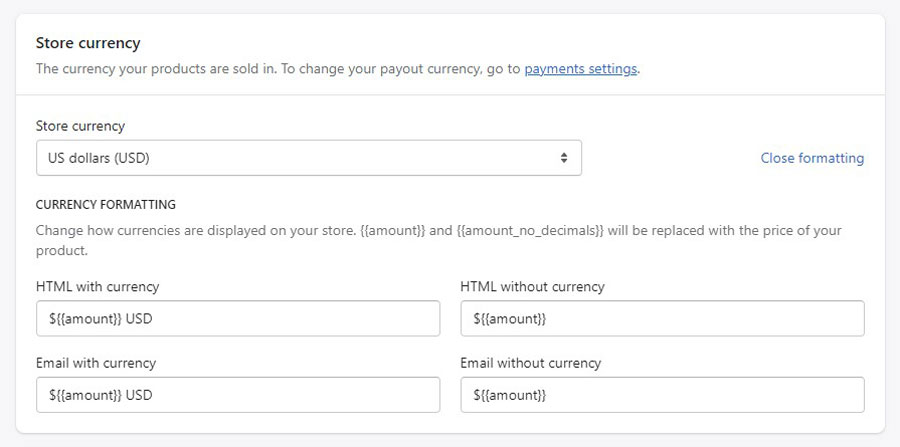
Log in to your Shopify admin
Go to Settings from the left sidebar.
Open Store Details
Open Store details and scroll to Store currency.
Click Currency Formatting
Click Currency formatting beside your store currency.
Replace the Amount Variable
Replace {{ amount }} with your preferred format variable.
Save
Click Save to apply the new currency format.
All 4 Shopify Money Filters Explained
| Filter | Input (cents) |
Output | Shows Currency Code | Best For |
|---|---|---|---|---|
| money
|
1000 | $10.00 | No | Product pages, cart totals |
| money_with_currency
|
1000 | $10.00 USD |
Yes | Multi-currency stores, order summaries |
| money_without_trailing_zeros
|
5000 / 1050 |
$50 / $10.50 |
No | Clean pricing display, round numbers |
| money_without_currency
|
1000 | 10.00 | No | Custom currency displays, API integrations |
Pro tip:
money_without_trailing_zeros is ideal for stores with mostly
round-number pricing, such as apparel, memberships, or digital products.
It automatically removes .00 while keeping prices with cents
unchanged, giving your storefront a cleaner look without extra Liquid logic.
Real Code Examples: product.price, cart.total, line_item.price
Product Price
{{ product.price | money }}
Standard product price display. Commonly used in
product.liquid
or product card snippets.
Variant Price
{{ variant.price | money }}
Updates automatically when shoppers choose a different size, color, or option.
Cart Total
{{ cart.total_price | money }}
Displays the total cart value. Usually found in
cart.liquid
or cart drawer templates.
Line Item Price
{{ line_item.price | money }}
Shows the price of each item in the cart. Useful for cart summaries and order confirmations.
Line Item Total
{{ line_item.line_price | money }}
Displays the subtotal for each line item after multiplying price by quantity.
Compare At Price
{{ product.compare_at_price | money }}
Shows the original price before a discount. Display it only when it’s higher than the sale price. Learn more in our Shopify Compare at Price guide.
Compare At Price with Conditional Logic
A common pattern is showing a sale badge and the original price only when a discount is active. Here’s how that looks:
Using Money Filter in JavaScript
When you need to pass a formatted price into a JavaScript variable, for example, in a cart drawer or dynamic price update script, output it directly from Liquid:
Watch out:
If you’re updating prices dynamically with JavaScript (for example, when a customer changes a variant), remember that the money filter runs server-side during page rendering. For client-side updates, use the raw integer price and format it in JavaScript, or use Shopify.formatMoney() from option_selection.js.
Where to Use Money Filters in Your Theme
Money filters appear across multiple template files. Here’s where you’ll most commonly need them:
| Template File | Price Objects | Recommended Filter |
|---|---|---|
product.liquid
|
product.price, variant.price, compare_at_price |
| money
|
cart.liquid
|
cart.total_price, line_item.price, line_item.line_price |
| money
|
order.liquid
|
order.total_price, line_item.price |
| money_with_currency
|
| Email notifications | order.total_price, subtotal_price |
| money_with_currency
|
| Collection pages | product.price (in product cards) |
| money_without_trailing_zeros
|
| Search results | product.price (in search snippets) |
| money
|
For multi-currency stores:
If your store uses Shopify Markets or Shopify Payments with multi-currency enabled, always use
| money_with_currency
in order summaries and confirmation emails. This makes the currency explicit for international customers and prevents confusion when their bank statement shows a different currency.
Common Mistakes and How to Fix Them
Mistake 1: Forgetting the Filter Entirely
The most common mistake. You output {{ product.price }} without any filter, and the storefront shows 1000 instead of $10.00.
Wrong
{{ product.price }}Right
{{ product.price | money }}Mistake 2: Applying Money Filter to an Already-Formatted String
If you’re pulling a price from a JavaScript variable or a metafield that already contains a formatted string like "$10.00", applying a money filter on top of it will break the output. Money filters expect raw integers in cents, not strings.
Mistake 3: Using the Wrong Filter for the Context
Using | money_without_currency on a product page leaves customers with no currency symbol — they see 10.00 and don’t know if it’s USD, GBP, or EUR. Conversely, using | money_with_currency everywhere clutters the UI with redundant currency codes.
A practical rule: use | money for standard storefronts, switch to | money_with_currency for order confirmations and emails where currency clarity matters.
Mistake 4: Currency Format Not Set in Admin
If your currency formatting fields in Shopify admin are empty or incorrectly configured, money filters will output unexpected results. Always verify your currency format settings under Settings → Store details → Currency formatting before debugging theme code.
Debugging tip: If prices look wrong after a theme update, first check the money filter used in the template and then verify the currency format settings in your Shopify Admin. In most cases, one of these two is causing the issue.
If you’re working on product-level customizations and need to reference specific items, you’ll often need the Shopify product ID and variant ID alongside price data. For store organization that affects how prices appear across collections, see our guide on Shopify collections vs tags.
Frequently asked questions
What is the Shopify money filter?
The Shopify money filter is a Liquid filter that converts a raw price integer (stored in cents) into a formatted currency string. Shopify stores all prices as integers, for example, $10.00 is stored as 1000. Applying | money converts that integer into a readable price, like $10.00 based on your store’s HTML currency format setting.
How do I use the money filter with product.price in Shopify Liquid?
Apply the filter directly after the price object using a pipe: {{ product.price | money }}. This outputs the product price formatted according to your store’s HTML without currency setting. For variant prices, use {{ variant.price | money }}. For the cart total, use {{ cart.total_price | money }}.
What is the difference between money and money_with_currency in Shopify?
| money shows the price with the currency symbol only, for example $10.00. | money_with_currency appends the ISO currency code as well, for example $10.00 USD. Use money_with_currency for order summaries, confirmation emails, and multi-currency stores where customers need to know the exact currency type.
What does money_without_trailing_zeros do in Shopify?
The money_without_trailing_zeros filter drops the decimal point and trailing zeros when a price is a whole number. So {{ 5000 | money_without_trailing_zeros }} outputs $50 instead of $50.00. If the price has actual cents, like $49.99, those are displayed normally. It’s commonly used on collection pages and product cards for cleaner pricing.
How do I display a compare at price with the money filter in Shopify?
Use a conditional in Liquid to check if the compare at price is greater than the regular price, then apply the money filter: {% if product.compare_at_price > product.price %}{{ product.compare_at_price | money }}{% endif %}. This ensures the strikethrough price only appears when there’s an actual discount. See our detailed guide on Shopify compare at price for more.
Why is the money filter showing the wrong currency format?
The money filter output is controlled by your currency format settings in Shopify Admin. Go to Settings → Store details → Currency formatting and check the HTML with currency and HTML without currency fields. If those format strings are incorrect or missing, money filters will output unexpected results. Make sure each field contains the correct amount variable, for example ${{ amount }} for USD.
Can I use the money filter for cart line item prices in Shopify?
Yes. Apply it to line_item.price for the unit price of each item, or line_item.line_price for the total price of that line (unit price multiplied by quantity). Both return integers in cents and accept all four money filter variants.
Protect Your Shopify Store Data
Theme edits, product updates, and price changes can go wrong. Syncora automatically backs up your entire Shopify store, including products, orders, themes, and settings, so you can restore everything in minutes if something breaks.
Try Syncora: Backup & Restore →
I’m a digital marketing expert with a deep understanding of Shopify App Store optimization. I contribute insightful articles on Shopify to help businesses thrive online.