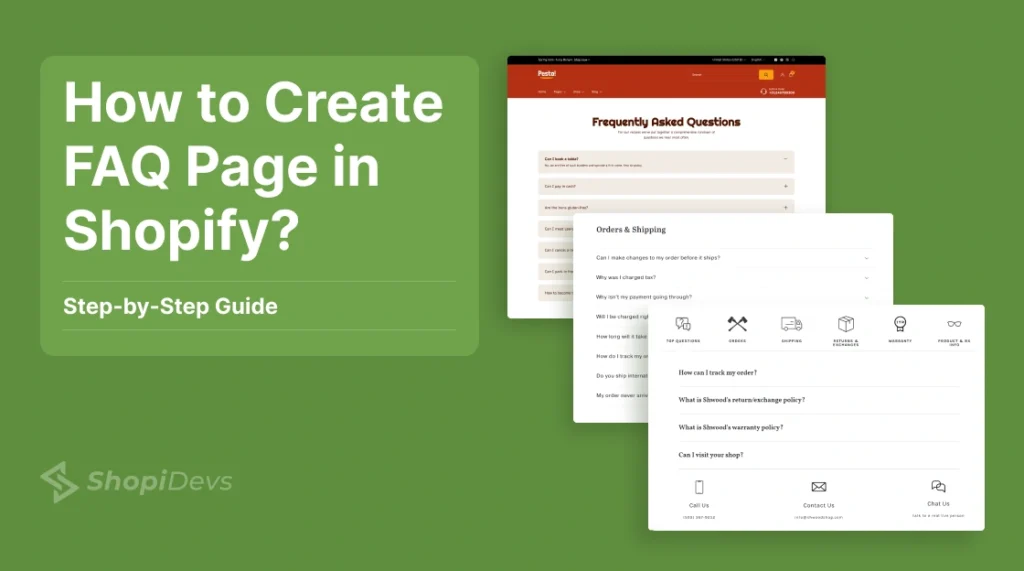
Most guides on this topic still say Shopify’s Dawn theme has no built-in way to add an FAQ accordion, and that you need custom Liquid code to get one. That was true when Online Store 2.0 first shipped. It isn’t anymore: Dawn and every current 2.0 theme now include a native Collapsible content section, and most stores can build a working FAQ page with it in under 10 minutes, no code at all.
This guide covers all three real ways to build one: the native section, custom code (still useful for non-2.0 themes or specific design needs), and dedicated FAQ apps. It also covers something almost no other guide on this topic mentions: how to structure your FAQ content so AI answer engines like ChatGPT, Perplexity, and Google AI Overviews can actually cite it.
Quick Answer
To create an FAQ page in Shopify: go to Online Store, Pages, Add page, name it FAQ. Then in the theme editor, create a template for that page and add the Collapsible content section (available natively on Dawn and other Online Store 2.0 themes), adding one row per question.
For older themes without this section, or for full design control, use custom Liquid code. For a searchable FAQ with categories and a help center, use a dedicated app instead.
Key Takeaways
- Dawn and other Online Store 2.0 themes now include a native Collapsible content section, no custom code required for a basic accordion FAQ
- Custom code is still worth it for non-2.0 themes or when you need a specific design that the native section doesn’t support
- FAQ apps add search, categories, and help-center features that neither native sections nor custom code provide out of the box
- Add FAQPage schema markup to your FAQ page, it’s one of the most reliable ways to get pulled into Google AI Overviews and cited by ChatGPT
- Structure answers as direct, 40-60 word responses. AI engines and featured snippets both favor answer-first formatting over long preambles
- Link your FAQ page in the main navigation, footer, and relevant product pages, visibility affects both customers and how thoroughly search engines crawl it
What Belongs on a Shopify FAQ Page
A Shopify FAQ page is a self-service page answering your customers’ most common questions about products, policies, and services, so they don’t have to open a support ticket for something you could have answered up front.
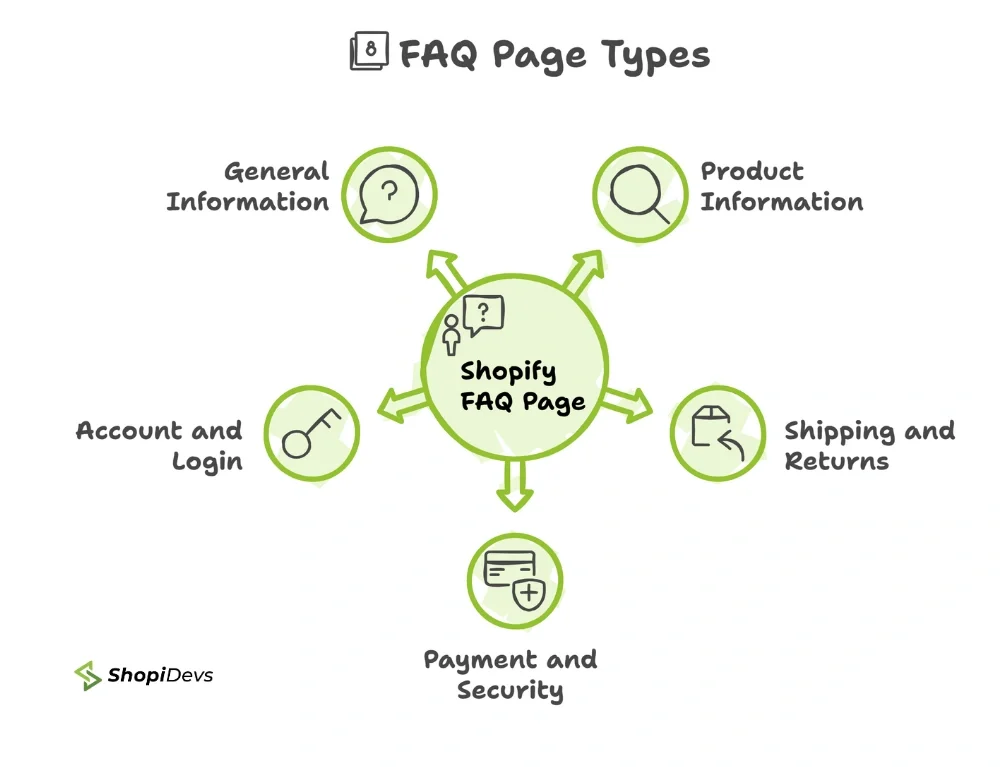
The categories that consistently show up across well-built FAQ pages:
- Product information: features, sizing, materials, and care instructions
- Shipping and returns: costs, delivery windows, return policy, and exchange steps
- Payment and security: accepted methods, security measures, and order processing
- Account and login: account creation, password reset, and order tracking
- General information: store policies, terms of service, and contact details
Why Your Store Needs One
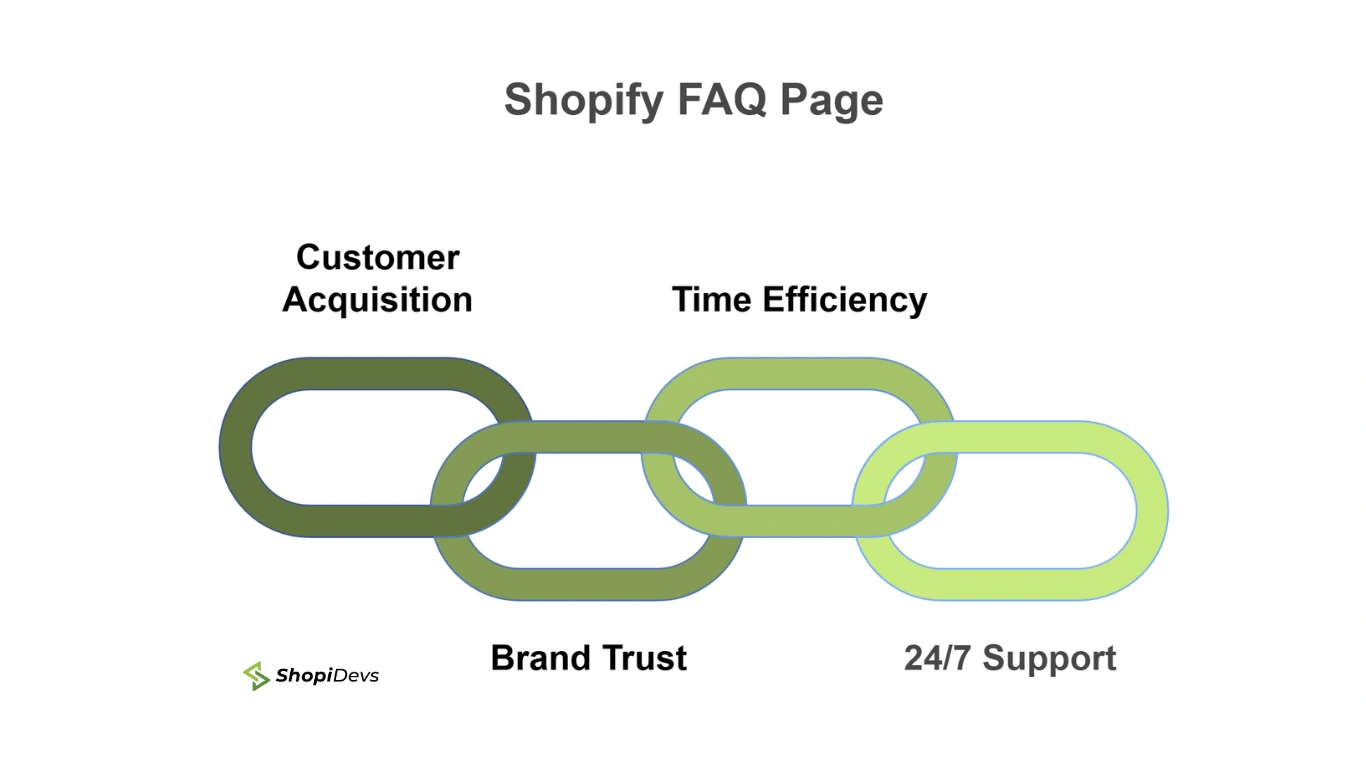
An FAQ page does four concrete jobs at once: it answers pre-purchase hesitations that would otherwise cause drop-off, it signals transparency that builds trust before checkout, it deflects repetitive support tickets your team would otherwise field one at a time, and it stays available around the clock regardless of time zone or staffing. Done well, it also becomes one of your most linkable pages for search, since it directly answers the exact phrases customers type into Google.
Method 1: Native Collapsible Content Section (No Code)
This is the current default and the fastest path for most stores. Dawn and other Online Store 2.0 themes ship with a Collapsible content section built for exactly this use case.
- Create the FAQ page: Go to Online Store, Pages, Add page. Title it FAQ or Frequently Asked Questions, and keep it set to Visible.
- Create a template for the page: From Pages, select Create template, name it FAQ, and choose the FAQ page as its template type.
- Open the theme editor on that template: Go to Online Store, Themes, Customize, then switch the page selector to your new FAQ template.
- Add the Collapsible content section: Click Add section and select Collapsible content (called Collapsible row in some theme versions).
- Add one row per question: Inside the section, click Add row for each FAQ item. Enter the question as the row heading and the answer as the row content, then Save.
Why most guides get this wrong: older tutorials, including earlier versions of this one, claim Dawn has no native FAQ section and jump straight to custom code. That was accurate before Online Store 2.0 matured. Check for Collapsible content in your Add Section list first, it covers a standard accordion FAQ without touching a single line of Liquid.
Method 2: Custom Code (For Full Design Control)
The native section covers a standard accordion. If you need specific styling, custom hover states, or your theme predates Online Store 2.0 and lacks Collapsible content entirely, custom code is still the right call.
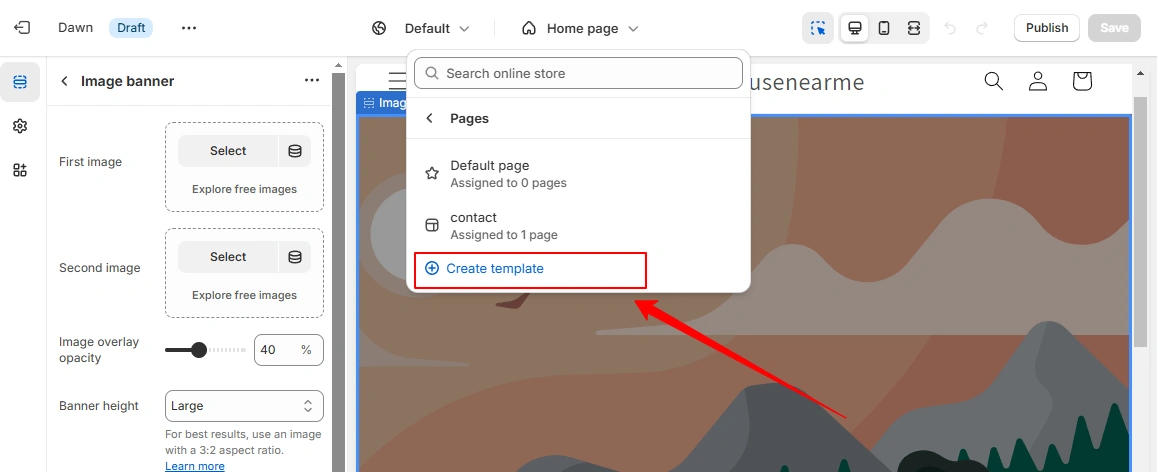
- Create the template=
Go to Customize, select Pages from the dropdown, click Create Template, name it, choose Default Page, and click Create Template.
- Create the page and assign the template
Go to Online Store, Pages, Add Page. Write the title and select the template you just created as the Theme Template.

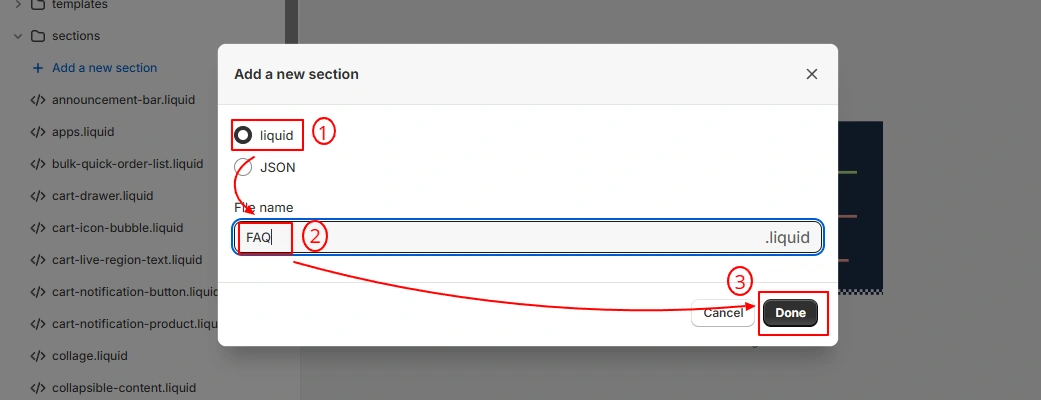
- Add a new section file in Edit Code: Go to Theme, the three-dot menu, Edit Code. Under Sections, click Add a new section, choose Liquid, and name the file (for example, faq).
- Clear the default code and paste this snippet: Select and delete the default boilerplate in the new file, then paste the code block below.
{%- style -%}
  .faq.page-width.page-width--narrow.faq-custome-area {
    padding-top: 10px;
    padding-bottom: 25px;
  }
  .faq { border-radius: 8px; overflow: hidden; }
  .faq .tab-label::after { content: '\276F'; transition: all .4s; }
  .faq .tab-toggle { display: none; }
  .faq .tab-label {
    background-color: #9e8e848a;
    display: flex; justify-content: space-between;
    padding: 10px 15px; font-weight: bold; color: white; font-size: 18px;
  }
  .faq .tab-label:hover { background-color: #9e8e84bd; }
  .faq .tab-toggle:checked ~ .tab-label::after { transform: rotate(90deg); }
  .faq .tab-toggle:checked ~ .tab-label { background-color: rgb(53, 95, 231); }
  .faq .tab-content {
    background-color: #EDEDED; max-height: 0px; overflow: hidden;
    transition: all 0.4s; padding: 0 1em;
  }
  .faq .tab-toggle:checked ~ .tab-content { max-height: 100vh; padding: 1em; }
  .faq .tab { margin-bottom: 10px; }
{%- endstyle -%}

<div class="faq page-width page-width--narrow faq-custome-area">
  {% for block in section.blocks %}
    <div class="tab">
      <input type="checkbox" id="tab{{forloop.index}}" class="tab-toggle">
      <label for="tab{{forloop.index}}" class="tab-label">{{block.settings.faq-title}}</label>
      <div class="tab-content">{{block.settings.faq-content}}</div>
    </div>
  {% endfor %}
</div>

{% schema %}
{
  "name": "F.A.Q section",
  "settings": [],
  "blocks": [{
    "type": "text",
    "name": "FAQ content",
    "settings": [
      { "id": "faq-title", "type": "text", "label": "Faq Title" },
      { "id": "faq-content", "type": "textarea", "label": "Faq Content" }
    ]
  }],
  "presets": [{ "category": "FAQ Section", "name": "faq content" }]
}
{% endschema %}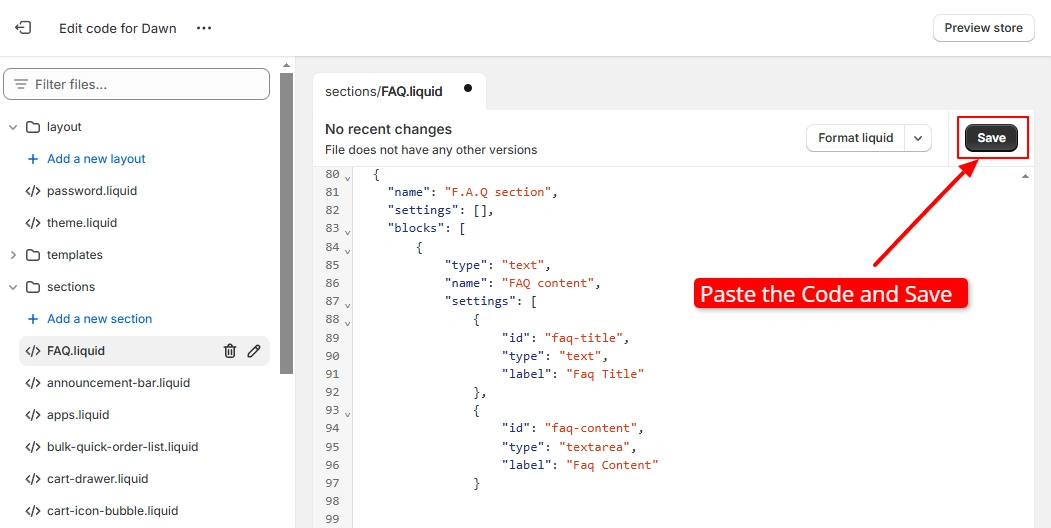
- Add the section and write your FAQs: Save the file, return to Customize, open your FAQ template, click Add Section, and select the FAQ content section you just built. Click into each block to add a question and answer, then use the plus icon to add more.
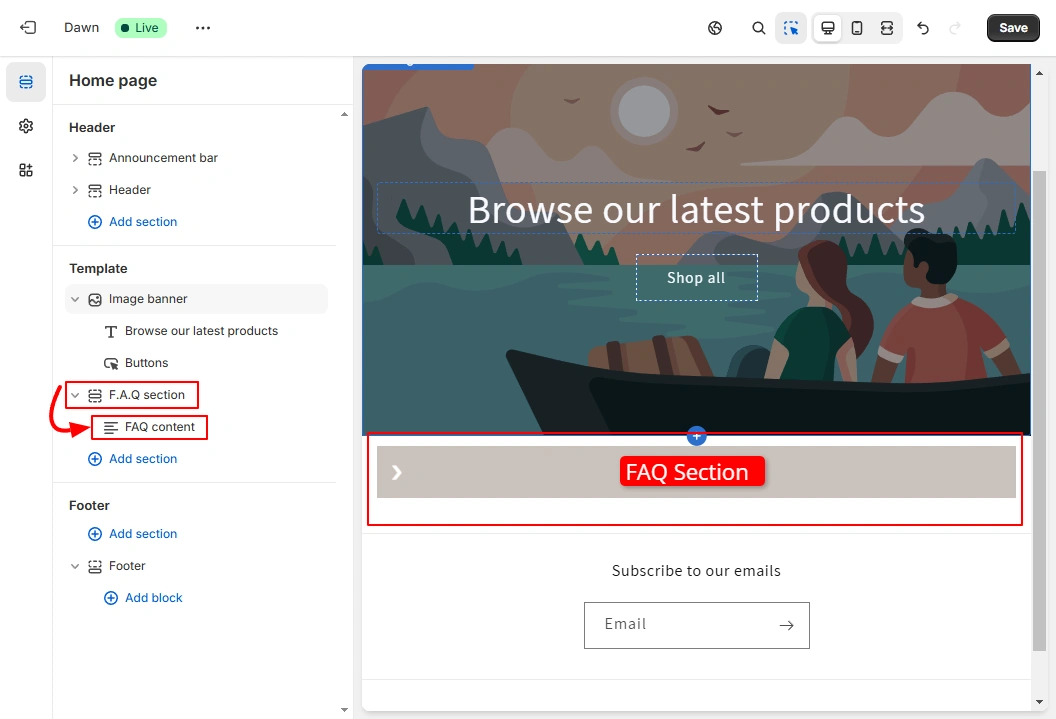

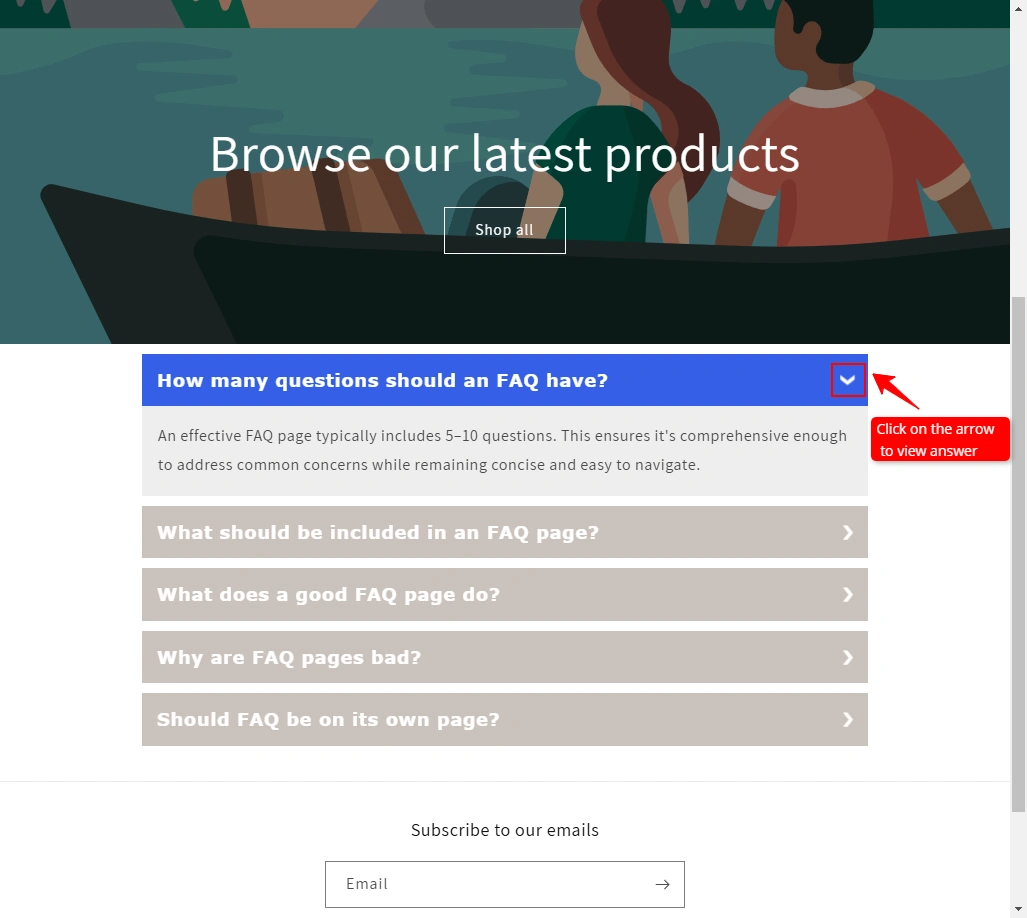
File naming: use lowercase for the section file name. Shopify’s theme file system treats naming inconsistently on some setups, and lowercase avoids the issue entirely.
Method 3: FAQ Apps (Search, Categories, Help Center)
Both methods above produce a static accordion. Once you’re managing 30+ questions across multiple categories, or want an on-page search bar, a dedicated app is the more practical route. Several current options carry Shopify’s Built for Shopify badge:
| App | Rating | Best For |
|---|---|---|
| StoreFAQ: Product FAQ Chatbot | 4.9 (146 reviews) | Product-page FAQ blocks plus a chatbot layer |
| EasySlide Accordion tabs & FAQ | 4.9 (99% 5-star) | Clean accordion styling across pages, not just a dedicated FAQ page |
| Corner FAQ Page & Help Center | 5.0 (52 reviews) | SEO-friendly FAQ pages with a searchable help-center layout |
| D: AI FAQ Page | 4.6 (131 reviews) | Auto-generating FAQ answers from product and store data |
Check each app’s current listing on the Shopify App Store FAQ category before installing, ratings and feature sets shift as apps update.
Method Comparison at a Glance
| Need | Native Section | Custom Code | FAQ App |
|---|---|---|---|
| No-code setup | Yes | No | Yes |
| Full design control | Limited | Yes | Varies by app |
| On-page search | No | No | Yes |
| Categories / help center | No | Manual only | Yes |
| Works on pre-2.0 themes | No | Yes | Yes |
| Cost | Free | Free | Free plan, then paid tiers |
Where to Place Your FAQ Page
- Main navigation: a direct link in the top nav or a dropdown keeps it one click away from any page.
- Footer: footers are the default location shoppers check for policy and support links.
- Support or Help page: if you run a separate support hub, link the FAQ page prominently from there.
- Product pages: linking relevant FAQ answers directly from product pages catches hesitation at the exact moment it happens.
How to Write FAQs That Actually Convert
The structure matters less than what you put inside it. Five things separate FAQ pages that reduce support tickets from ones that don’t:
- Study competitor FAQs first: identify what questions they cover and where the gaps are for your specific product category.
- Answer real issues, not generic ones: pull actual recurring questions from support tickets and chat logs rather than guessing.
- Keep it simple: short, direct sentences beat technical jargon. If a customer has to reread the answer, it’s too long.
- Match your brand’s tone: a playful DTC brand and a B2B supplier shouldn’t sound the same on this page, consistency reinforces brand voice.
- Keep it current: outdated shipping windows or discontinued return policies erode the trust the page exists to build. Review it quarterly.
Optimize Your FAQ Page for AI Search (AEO/GEO)
An FAQ page is one of the highest-leverage page types for AI search visibility, because the format already matches what answer engines are built to extract: a clear question paired with a direct answer. Most Shopify FAQ guides stop at design and SEO basics. Here’s what actually affects whether ChatGPT, Perplexity, and Google AI Overviews cite your page.
- Add FAQPage schema markup. Structured data explicitly tells search and AI crawlers “this is a question, this is its accepted answer.” It’s one of the most reliable levers for inclusion in Google AI Overviews and for being lifted into ChatGPT responses.
- Lead every answer with the direct response. Write the actual answer in the first 40-60 words, then add supporting detail after. AI engines and featured snippets both pull from the front of the answer, not the middle.
- Cite sources for any claim with a number. A statistic without a source is a claim an AI engine can’t verify, and unverifiable claims get skipped in favor of a competitor’s cited version.
- Use bullet points and short lists inside answers. ChatGPT in particular tends to lift structured formats like bullets and FAQs closer to verbatim than dense paragraphs.
- Keep it accurate and current. AI engines cross-reference claims across sources. An FAQ page with a stale return policy or discontinued shipping promise is a page that gets quietly dropped from citation, not corrected.
A minimal FAQPage schema block for your FAQ page looks like this:
<script type="application/ld+json">
{
  "@context": "https://schema.org",
  "@type": "FAQPage",
  "mainEntity": [
    {
      "@type": "Question",
      "name": "Your question here",
      "acceptedAnswer": {
        "@type": "Answer",
        "text": "Your direct, 40-60 word answer here."
      }
    }
  ]
}
</script>Add one Question/Answer object per FAQ item, insert the script tag before the closing </head> or </body> in your page template, and validate it with Google’s Rich Results Test before publishing.
Frequently Asked Questions
How many questions should an FAQ page have?
Most effective FAQ pages include 5-10 questions. That’s enough to cover common concerns without becoming so long that customers give up scanning it. Beyond that range, split into categories or move to a searchable help-center app.
What should be included in a Shopify FAQ page?
Concise answers to your most common customer questions, categories if you have more than 10 items, links to detailed resources like your return policy or shipping page, and contact information for anything the FAQ doesn’t resolve.
Why do some FAQ pages fail to reduce support tickets?
Usually because the answers are outdated, the page is disorganized, or the questions don’t match what customers actually ask. An FAQ page pulled from guesswork instead of real support logs rarely covers the right ground.
Should the FAQ be its own page or part of another page?
Its own page, in most cases. A dedicated FAQ page centralizes answers for easy access, links cleanly from the main menu or footer, and has room for well-organized categories that a sidebar widget can’t accommodate.
Does Shopify’s Dawn theme have a built-in FAQ section?
Yes, as of the current Online Store 2.0 theme architecture. Dawn and other 2.0 themes include a native Collapsible content section that builds a working accordion FAQ without custom code. Older guides claiming otherwise are describing an earlier version of the theme.
Need Help Setting Up Your FAQ Page or Its Schema?
Whether it’s the native section, custom code, or getting FAQPage schema validated correctly, ShopiDevs can set it up right the first time.
Talk to ShopiDevs
I’m a digital marketing expert with a deep understanding of Shopify App Store optimization. I contribute insightful articles on Shopify to help businesses thrive online.