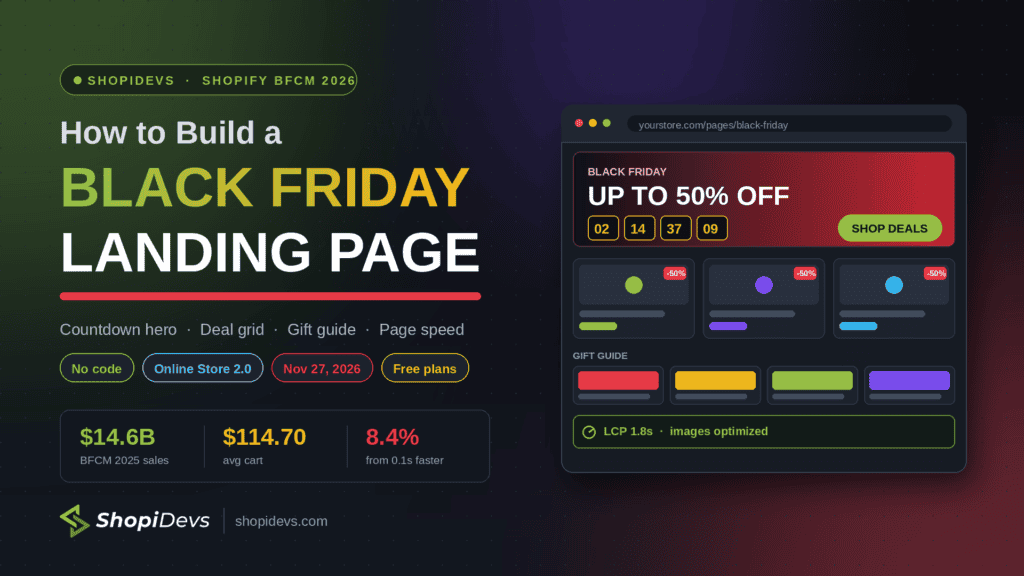
On Black Friday 2025, sales across Shopify peaked at $5.1 million per minute at exactly 12:01pm EST. That is the single most expensive minute of the year to have a landing page that renders badly on a phone, or a countdown timer that already hit zero, or a “Shop Deals” button that scrolls to a section you deleted an hour earlier.
Almost every guide to Black Friday landing pages is a list of what to put on the page. Very few mention the two things that actually decide whether the page survives the weekend: where you build it, and when you stop touching it. This guide covers the anatomy, but it starts with those two, because a beautiful page built directly on a live theme in the third week of November is a liability, not an asset.
This is written for Online Store 2.0 themes and assumes no coding. Screenshots are from a standard Dawn-based setup.
Quick answer
Build a Shopify Black Friday landing page by duplicating your live theme first, then creating a page under Online Store › Pages, assigning it a dedicated page template, and stacking five sections onto it: a countdown hero, a deal grid, a gift guide, social proof, and a sticky offer bar. Publish the duplicate theme when the page is finished and tested.
The part most guides skip: build on a duplicate theme, not your live one. Shopify has no undo for theme edits, and Black Friday is the worst possible day to discover you broke your homepage at 12:01pm.
- Black Friday 2026 is 27 November, Cyber Monday is 30 November. The page should be live and indexed by early November.
- Build on a duplicate theme. Shopify keeps no version history for theme edits.
- App embeds are per theme. Re-enable them after publishing the duplicate or every app section vanishes.
- Freeze the layout around 17 November. After that: prices, stock and copy only.
- Compress the imagery. Shopify’s servers cope; your page weight is what slows down. A 0.1s faster mobile load tracked to 8.4% more retail conversions.
- Keep the URL in December. Swap the content, reuse it next year, keep the ranking.
Source: Shopify BFCM 2025 results.
Why a Landing Page Beats Sending Traffic to a Collection
The instinct is to make a “Black Friday” collection, tag your discounted products into it, and point every ad and email at /collections/black-friday. It works, and it is better than nothing. But a collection page is a sorting interface. It shows a grid, a filter sidebar and a price. It cannot tell a shopper what the offer structure is, when it ends, why the bundle is better value than the single item, or what other people bought.
A landing page can do all of that in a fixed order that you control. That matters most on paid traffic, where the visitor arrives with no context and decides in a few seconds.
| Job to be done | Collection page | BFCM landing page |
|---|---|---|
| Communicate the offer structure | Description text above the grid, often truncated | A dedicated hero and tier explanation |
| Create urgency | Not natively supported | Countdown timer, stock counters, sale badges |
| Control the reading order | Fixed by the theme and the sort setting | Section by section, exactly as you arrange it |
| Show social proof | Star ratings on tiles at best | UGC gallery, video reviews, testimonials |
| Segment the audience | One grid for everyone | Gift guide blocks: For Him, For Her, Under $50 |
The practical compromise: build the landing page and keep the collection. The landing page is where campaign traffic lands and where the argument is made; the collection is where “browse everything” links go, and it is what Shopify’s own search and filtering understand. Link one to the other in both directions.
Step 1: Duplicate Your Theme Before You Touch Anything
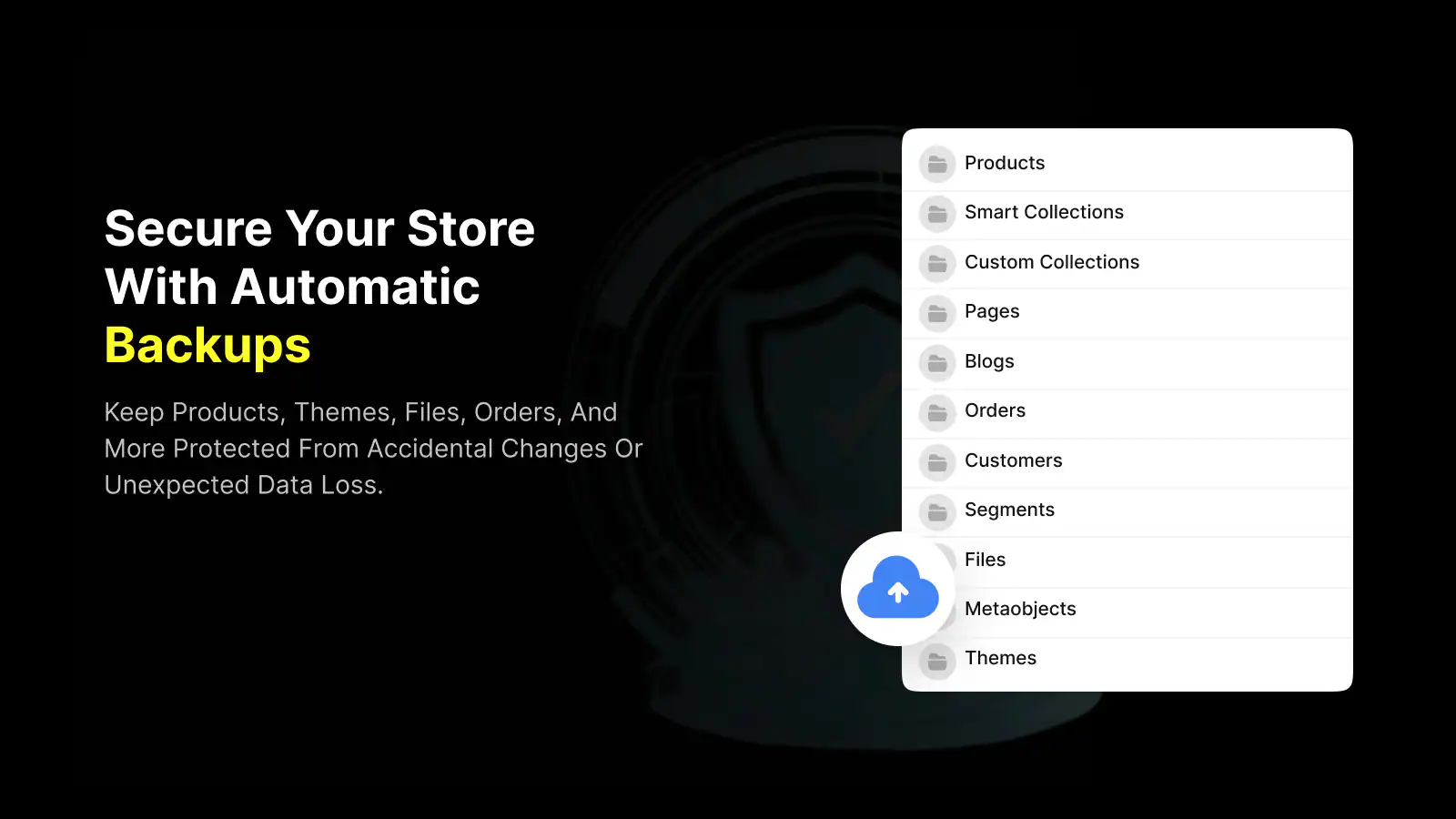
This is the step that separates a calm November from a bad one. Shopify does not keep a version history for theme customizations. Delete a section, and the settings inside it are gone; there is no undo once you leave the editor.
- Take a backup first. Install Syncora: Backup & Restore and run a backup before you start building. Its free plan covers pages and blogs; theme, collection and file backups are on the Starter plan at $6.99/month. Theme backup is the one that matters here, because a Black Friday build is almost entirely theme work.
- Duplicate the live theme. Go to Online Store › Themes, find your published theme, open Actions and choose Duplicate. Rename the copy something obvious like “BFCM 2026 build”.
- Work only in the duplicate. Everything from here happens in the unpublished copy. Your live store keeps running untouched while you build.
- Preview and share. Use Actions › Preview to get a shareable preview URL. Anyone with the link sees the finished page on your real domain, with real products, before customers do.
The gotcha almost nobody warns you about: app embeds are enabled per theme, not per store. When you publish the duplicate, any app whose embed was only switched on in the old theme will go quiet, and the sections it powers will vanish from the page. Shopify documents this behaviour under app embeds, and ShopiDevs covers the same step in the EasyBoost setup guide. Re-check every embed in the theme editor immediately after publishing.
Step 2: Create the Page and Give It Its Own Template
A landing page needs a template that is not your standard page template, otherwise every future page you create inherits your Black Friday sections.
- Create the page. Go to Online Store › Pages › Add page. Title it something a shopper would search — “Black Friday Deals 2026” — and set the URL handle to
/pages/black-friday. Keep the handle year-free so you can reuse it every November. - Create a page template. In the theme editor, open the template dropdown at the top, choose Pages, then Create template. Name it
black-friday. Shopify createspage.black-friday.jsonin the duplicate theme. - Assign it. Back in the page editor, set Theme template to
page.black-fridayin the right-hand sidebar and save. - Strip the template down. Remove the default page-content section if you are building entirely from app sections, or keep it and place your sections around it.
- Fill in the SEO fields. Scroll to Search engine listing and write a real title and description. This page will be crawled and it will get direct search traffic in November, so treat it as a landing page for organic queries as well as ads. Shopify’s Spring 2026 Edition also introduced agentic storefronts, which is one more reason to keep the page’s text as real HTML rather than baked into images.
The Anatomy: Five Sections That Do the Work
Every section below earns its place by answering a question the shopper is already asking. Anything that does not answer one of those questions is decoration, and decoration costs you load time on the busiest traffic day of the year.
1. Countdown hero — “Is this actually a deal, and how long do I have?”
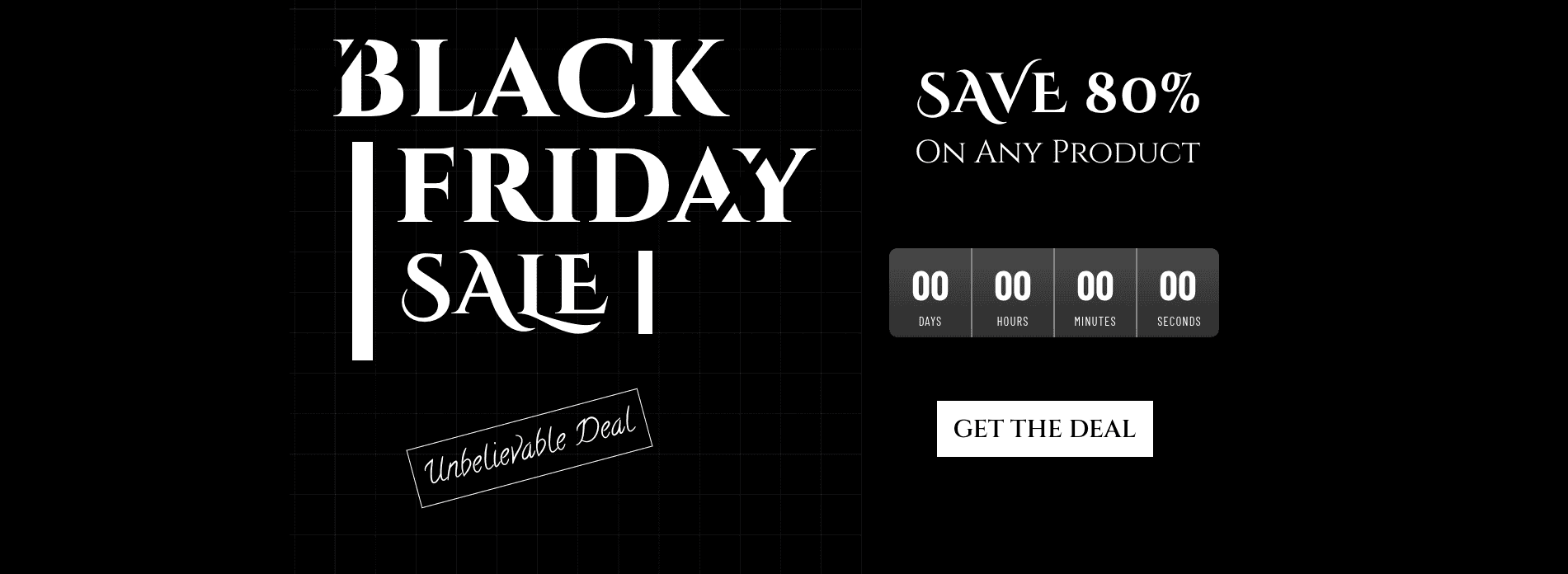
The hero has about two seconds. It needs the offer in plain words (“Up to 50% off everything”), a live countdown, and one button. Not three buttons, one.
Slider Revolution & Sections ships 600+ prebuilt templates including seasonal hero layouts with countdowns, so this is a customise-and-publish job rather than a design job. You can see one running on the Black Friday countdown demo. Note the pricing honestly: the free tier lets you build and test but not publish, so a live hero needs the Starter plan at $4.99/month. Our guide to the Shopify hero slider goes deeper on hero structure.
2. Deal grid — “Show me what is discounted”
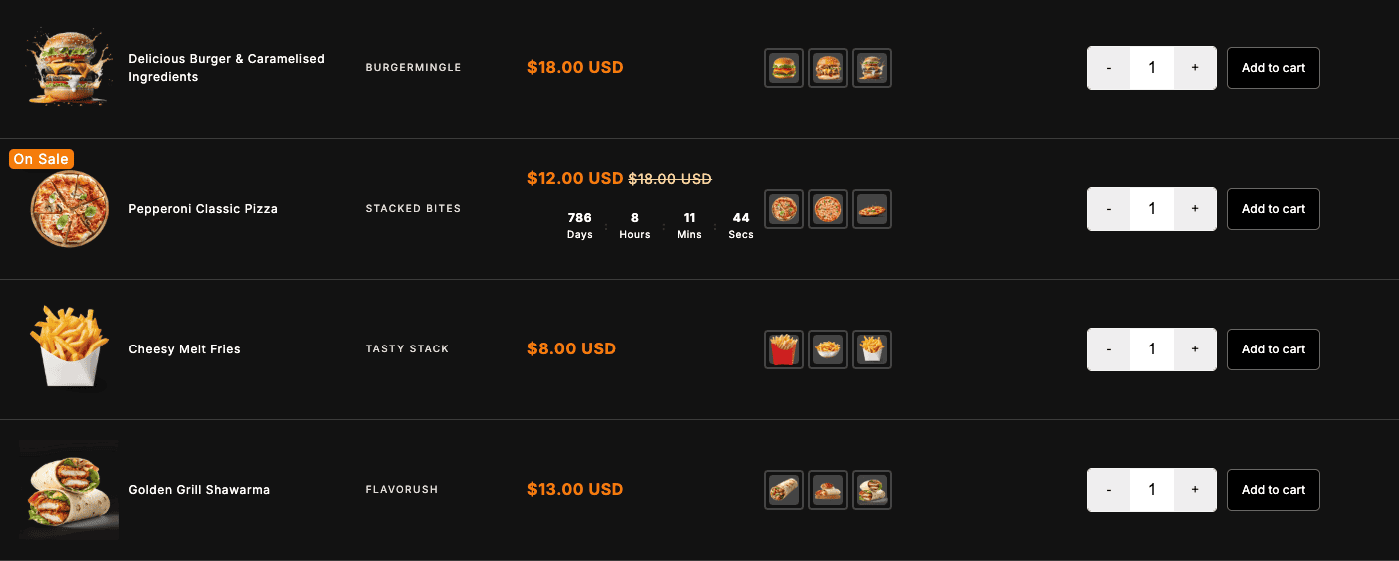
Immediately below the hero, before any storytelling. A shopper who clicked a 50%-off ad wants to see 50%-off products, not your brand values.
EasyBoost builds this from a collection, so the grid stays correct as stock moves — you are not maintaining a hand-built list at 2am. It also adds the two things a plain grid lacks: sale badges and per-product countdowns. The countdown table demo shows both together. EasyBoost’s free plan is limited to one slider or grid on the homepage only, so a landing page build needs the Premium plan at $9.99/month.
3. Gift guide blocks — “Which of these is for me?”

November traffic is disproportionately people buying for someone else. Splitting the catalogue into “For Him”, “For Her”, “Under $50” and “Last-minute” does more for conversion than another five per cent off, because it removes the work of guessing.
A collection grid handles this cleanly: one tile per curated collection, each linking through. Essential Grid Gallery does this from collection sources — see the collection grid demo. If you have not organised your catalogue for this yet, start with organising products on Shopify.
4. Social proof — “Can I trust a store I have never bought from?”
Black Friday sends you a large share of first-time visitors who found you through an ad. They have no reason to trust you, and a discount alone does not create trust — if anything, a steep discount from an unknown store invites suspicion.
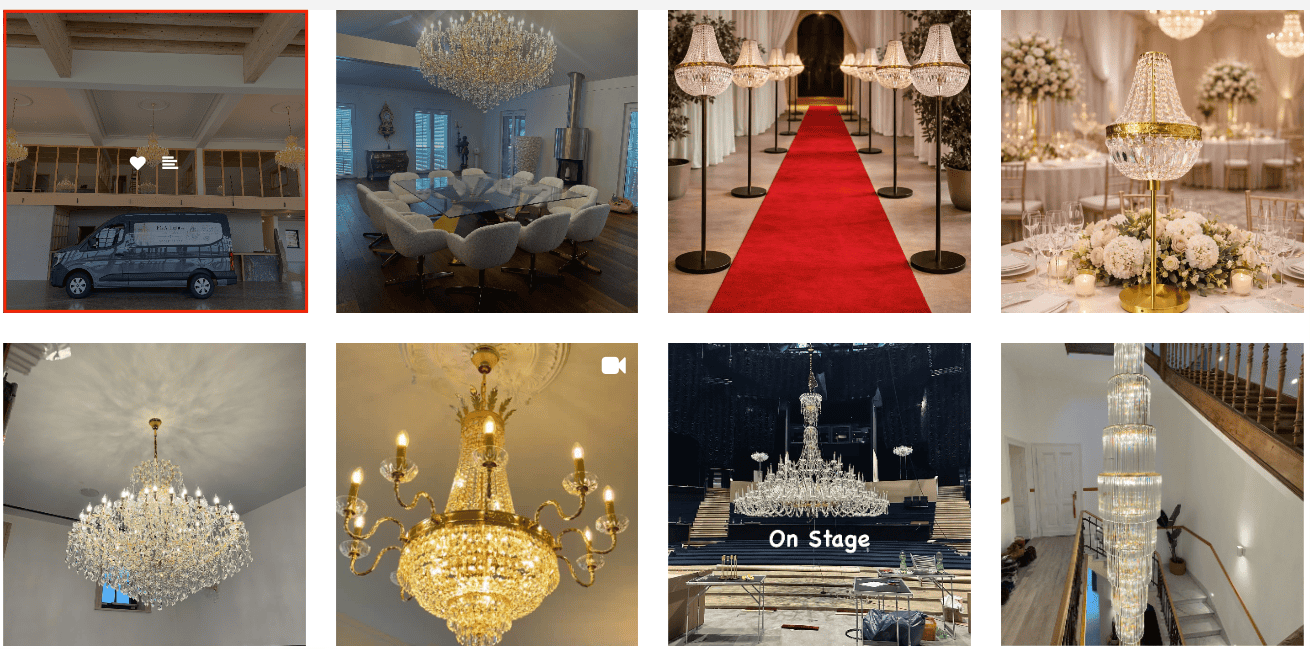
Real customer photos and video answer that faster than a testimonial slider of pull quotes. Essential Grid Gallery can build a shoppable video wall from YouTube, Instagram or your own uploads, with product hotspots so a shopper goes from the video straight to the product page. The shoppable gallery demo shows the pattern. Hotspot tagging and video sources are on the Basic plan at $5.99/month; the free plan is images only.
5. Sticky offer bar — “How do I get back to the deals?”
Long landing pages lose people mid-scroll. A scrolling marquee or sticky bar carrying the headline offer and a single link keeps the entry point on screen the whole way down. EasyBoost handles the scrolling display; keep the message to one line and one link.
Which App Builds Which Section
| Section | App | Plan needed to publish |
|---|---|---|
| Countdown hero, video banner | Slider Revolution & Sections | Starter, $4.99/mo (free tier cannot publish) |
| Deal grid, sale badges, bundles, sticky bar | EasyBoost: Carousel, Collection | Premium, $9.99/mo (free tier is homepage only) |
| Gift guide grid, UGC and shoppable video | Essential Grid Gallery | Basic, $5.99/mo (free tier is 1 gallery, images only) |
| Image compression, unused-media cleanup, alt text | Fileora: File Manager & Image Optimizer | Free, no paid tier |
| Backup and one-click rollback | Syncora: Backup & Restore | Free for pages and blogs; Starter $6.99/mo adds themes |
Fileora is free outright. The other four have free plans you can build and test on and all bill monthly, so a page built in October and retired in December costs roughly one month of each. Conversion rate improvements made on this page tend to carry over to the rest of the store afterwards, which is the argument for not treating it as disposable.
Make the Page Fast Before It Gets Popular
“My store slows down on Black Friday” is one of the most common complaints of the weekend, and the cause is almost always misunderstood. Shopify’s own infrastructure is not the bottleneck: over BFCM 2025 it peaked at 489 million edge requests per minute and 31.8 million API requests per minute without falling over. Your store is not going to run out of servers.
What actually gets slower is your page, on their phone. Three things stack up at exactly the wrong moment:
- The BFCM page is the heaviest page you own. A slider, a video gallery, a product grid and a full-width hero on one URL is several times the weight of a normal product page.
- The imagery is brand new and uncompressed. Campaign artwork comes back from a designer at full resolution in October and goes straight into the media library. Nobody resizes a 4MB hero the week before a sale.
- The audience is on worse connections than usual. Black Friday shopping happens on mobile data, in shops, on trains, at work — not on your office wifi where you tested it.
The cost of getting this wrong is measurable. In a Google-commissioned study by Deloitte across 37 brands and 30 million user sessions, a 0.1 second improvement in mobile load time was associated with an 8.4% increase in retail conversions and a 9.2% increase in average order value. One tenth of a second. On a page you are already paying to send traffic to.
Source: Milliseconds Make Millions, Deloitte Digital for Google.
On an ecommerce landing page the Largest Contentful Paint element is nearly always the hero image, and Google’s threshold for a “good” LCP is 2.5 seconds. If your hero is a 3MB PNG, that number is not achievable no matter what else you fix.
The image pass, in three steps
Fileora (File Manager & Image Optimizer) is built for exactly this cleanup, and it is free. Do this pass after the page is built and before your code freeze.
- Compress the campaign images you just uploaded. Compress and resize in lossless quality, then restore any original in one click if a crop looks wrong. The one-click restore is what makes this safe to do in November — you are not destroying your only copy of the artwork.
- Optimize theme images section by section, with preview. Rather than a blanket bulk-compress across the whole store, work through the sections on the landing page one at a time, preview the result, and roll back anything that degrades. Hero and lifestyle photography is where the weight is; a product thumbnail at 200px wide is not your problem.
- Delete the media nobody is using. Fileora lists images that no product, page or collection references — typically the leftovers of every campaign you have ever run. Clearing them does not speed up the page directly, but it makes the library navigable enough that you can actually find and fix the files that do matter.
Two extras worth doing in the same session: generate alt text for anything missing it, since gift guide pages pick up real traffic from image search in November; and use replace file rather than delete-and-reupload when you swap an image, because replacing keeps the existing product references intact instead of breaking them. Fileora also works alongside Essential Grid Gallery, so gallery imagery is covered by the same pass.
Do the image pass before the freeze, not during the sale. Compressing images is a content change rather than a layout change, so it feels low-risk — but it changes what every visitor is looking at, and a bad resize on your hero is very visible. Run it in the week before your freeze date, check the page on a phone afterwards, and keep the rollback option in reach.
Before You Publish: Four Checks
Do these in the theme preview, on the duplicate theme, before it ever goes live.
- Open it on your own phone. Not the theme editor’s mobile preview — a real device on mobile data. Check that the hero text is readable without zooming, that the countdown does not wrap onto four lines, and that the primary button is reachable with a thumb.
- Set the countdown to a time that has not passed. The most common launch-day failure is a timer left at a test value that expires immediately, which makes the page look abandoned.
- Click every link. Section anchors, gift guide tiles, hotspots in the video gallery. Anything pointing at a collection you renamed will 404.
- Check the page weight. Sliders, video and image galleries all add requests. Run the page through PageSpeed Insights and compare it against your normal product page. If it is dramatically heavier, cut a section rather than shipping something that stalls on a 4G connection.
The 2026 Timeline, Working Backwards
Black Friday 2026 is Friday 27 November; Cyber Monday is Monday 30 November. Every date below is derived from those two.
| When | What happens |
|---|---|
| Early October | Duplicate the theme. Build the page. Nothing is public yet. |
| Late October | Publish the page with a “coming soon” state and an email capture. Add it to the navigation so Google finds it early. |
| Mid November | Final layout locked. Run the image compression pass and the four checks. Take a fresh backup. |
| ~17 November | Your code freeze. No app installs, no theme edits, no new sections from here. |
| 27–30 November | Prices, stock and copy only. If something must change, change it in a duplicate and publish deliberately. |
| 1 December | Swap the page to a post-sale state. Do not delete the URL. |
The freeze date is the one people argue with, and it is the one that matters. Ten days sounds excessive until you remember that a theme change made on 24 November has no realistic testing window before the traffic arrives.
What to Do With the Page in December
By the first week of December the page has done its job, and this is where most stores make an avoidable mistake: they delete it. That throws away every backlink, every share, and whatever ranking the URL earned during its highest-traffic month.
- Ranking and backlinks accumulate year over year on one URL
- Swap the hero to “Black Friday is over — here is what is still reduced” and keep the traffic
- Next November you edit a page that already exists instead of building one
- Every link pointing at it starts returning a 404
- You rebuild from scratch next year and re-earn the ranking from zero
- Ads and emails still in circulation land on a dead page
If you genuinely need the page gone, set a URL redirect to your main sale collection rather than leaving a 404 behind. And keep the theme itself: export or back it up so next year’s build starts from the finished version, not a blank template.
Frequently Asked Questions
Do I need a page builder app to make a Shopify Black Friday landing page?
No. On an Online Store 2.0 theme you can create a custom page template in the theme editor and add app sections to it, which is what this guide describes. A page builder becomes worth it if you want layouts your theme’s sections cannot produce, or if you are building many campaign pages a year rather than one.
Should the Black Friday page be a page or a collection?
Both, doing different jobs. The page is the campaign destination where the offer is explained and the argument is sequenced; the collection is where “shop all deals” points, and it is what Shopify’s filtering and search understand natively. Link them to each other.
When should I publish my Black Friday landing page?
Publish it in late October in a “coming soon” state with email capture, rather than the week of the sale. That gives Google time to crawl and index it, builds a list you can mail on launch day, and means launch is a content swap rather than a new page going live under load.
What is a code freeze and do I really need one?
A code freeze is a date you set after which nobody edits the theme, installs an app, or changes layout — only prices, stock and copy change. Roughly ten days before Black Friday is a reasonable line. It matters because a change made two days before the sale has no realistic testing window, and there is no undo for theme edits without a backup.
How do I add a countdown timer to a Shopify page without code?
Both Slider Revolution (inside a hero section) and EasyBoost (next to a product grid or table) add countdown timers from the theme editor with no code. Set the end time in your store’s timezone, and double-check it has not already passed before you publish. There is a fuller walkthrough in our guide to the Shopify countdown banner.
My app sections disappeared after I published the new theme. What happened?
App embeds are enabled per theme. Publishing a duplicate theme does not carry the embed toggles over from the old one. Open Online Store › Themes › Customize › App embeds on the newly published theme, switch each app back on, and save.
Will my Shopify store slow down under Black Friday traffic?
Not because of Shopify. Its infrastructure peaked at 489 million edge requests per minute over BFCM 2025 without degrading. What slows down is your own page: a campaign landing page carrying a slider, a video gallery and uncompressed hero artwork is several times heavier than a normal product page, and most of your visitors are on mobile data. Compress the campaign imagery, cut any section that is not earning its place, and test on a real phone rather than office wifi.
Do I need to compress images if Shopify already serves WebP?
Shopify’s CDN converts and resizes images for delivery, which helps, but it cannot undo a hero that was exported at 4000px and 3MB when the slot renders at 1400px. Resizing to roughly the dimensions the section actually uses is the part the CDN cannot do for you, and it is where most of the saving is.
Can I reuse the same landing page next year?
Yes, and you should. Keep the URL handle year-free (/pages/black-friday rather than /pages/black-friday-2026), update the year in the visible title and SEO fields each November, and swap the products and imagery. The URL keeps whatever authority it has accumulated.
Looking for campaign ideas rather than build instructions? Start with 40 Shopify Black Friday strategies and marketing ideas, then come back here to build the page.

I’m a digital marketing expert with a deep understanding of Shopify App Store optimization. I contribute insightful articles on Shopify to help businesses thrive online.