
A 1-second delay in page load time reduces conversions by 7%. On a store doing $10,000 a month, that is $700 in lost revenue per second of delay. Most Shopify stores are running 3 to 5 seconds slower than they need to be.
The biggest culprits are almost always the same: uncompressed images, unused app scripts loading on every page, and a theme with more features enabled than the store actually uses. None of these require a developer to fix.
This guide covers every layer of Shopify speed optimization in order of impact, from the changes that take 10 minutes and move your PageSpeed score by 20 points, to the Core Web Vitals fixes that take more effort but directly affect your Google ranking.
Shopify store speed optimization is the process of improving page load time so customers can browse products faster and complete purchases with less friction. It includes image optimization, app cleanup, lazy loading, theme optimization, and Core Web Vitals improvements that directly impact SEO and conversion rates.
The fastest improvements usually come from compressing images, removing unused apps and scripts, and enabling lazy loading. These three changes often deliver the biggest performance gains with the least development effort.
- 53% of mobile visitors leave if a page takes longer than three seconds to load.
- A 0.1-second speed improvement can noticeably increase ecommerce conversion rates.
- Most Shopify stores score between 28 and 45 on mobile PageSpeed before optimization.
- Images typically account for 60 to 80% of total page weight, making them the highest-impact optimization target.
- Every installed app adds JavaScript, even when its features are not used on every page.
- Core Web Vitals (LCP, INP, CLS) directly influence both search rankings and user experience.
- Always verify leftover theme code after uninstalling Shopify apps, since some scripts remain in the theme files.
Why Shopify Speed Is a Revenue Problem, Not a Tech Problem
Most merchants treat speed optimization as a developer task. It is not. It is a revenue task. Every second your store takes to load is costing you customers who will never come back.
Speed problems hurt you in three ways at once. First, visitors leave before seeing your products. Second, Google ranks faster pages higher. Third, paid traffic becomes more expensive because lower Quality Scores push up your cost per click. If you want to improve your Shopify conversion rate, start here.
What is a good speed score for a Shopify store?
A Google PageSpeed Insights score of 70 or above on mobile is the minimum competitive threshold. The average Shopify store scores 28-45 on mobile. Best-in-class stores score 75 or above. Your Shopify admin speed report uses a different calculation from Google PageSpeed Insights. Check both. Prioritize your mobile score, because most Shopify traffic comes from mobile devices.
How does page speed affect Shopify conversions?
Deloitte tracked 37 retail and travel brands and found that a 0.1-second improvement in load time drove a 9.2% increase in retail consumer spending (Deloitte, “Milliseconds Make Millions,” 2020). Amazon found that every 100ms of added latency cost them 1% in revenue. These are not projections. They are observed, measured outcomes from real traffic at scale.
For a store doing $50,000 per month in revenue, a one-second page speed improvement translates to roughly $6,000 in additional monthly revenue. See the full impact table below.
Speed-Revenue Impact: What One Second Can Earn
Assuming an average Shopify conversion rate of 1.4% and Deloitte’s finding that every 0.1-second improvement increases conversions by roughly 8%.
| Monthly Visitors | Average Order Value | Current Monthly Revenue | Revenue After Speed Improvement | Estimated Monthly Gain |
|---|---|---|---|---|
| 5,000 | $65 | $4,550 | $4,914 | +$364 |
| 10,000 | $85 | $11,900 | $12,852 | +$952 |
| 25,000 | $95 | $33,250 | $35,910 | +$2,660 |
| 50,000 | $110 | $77,000 | $83,160 | +$6,160 |
| 100,000 | $120 | $168,000 | $181,440 | +$13,440 |
Assumes a 1.4% baseline conversion rate. Actual performance varies by industry, traffic quality, pricing, and customer behavior.
Does Shopify affect website speed?
Shopify’s hosting infrastructure is excellent. They run on Fastly’s CDN, use HTTP/2, and serve static assets with one-year browser caching. Shopify also converts your images to WebP automatically (active since 2021). These built-in features mean the hosting itself is rarely the problem. The problem is what you add on top: apps, custom scripts, unoptimized images, and theme code that was not built for speed.
What Shopify controls and optimizes automatically: CDN delivery, image format conversion, HTTP/2, browser caching, and server response time. What you control: image file sizes before upload, installed apps, theme code quality, custom fonts, and third-party tracking scripts. Your optimization work lives entirely in the second list.
Step 1: How to Check Your Shopify Store Speed
Before fixing anything, measure everything. Pick a benchmark and track it after every change. You cannot know if a fix worked without a before number.
Tool 1: Google PageSpeed Insights (Primary)
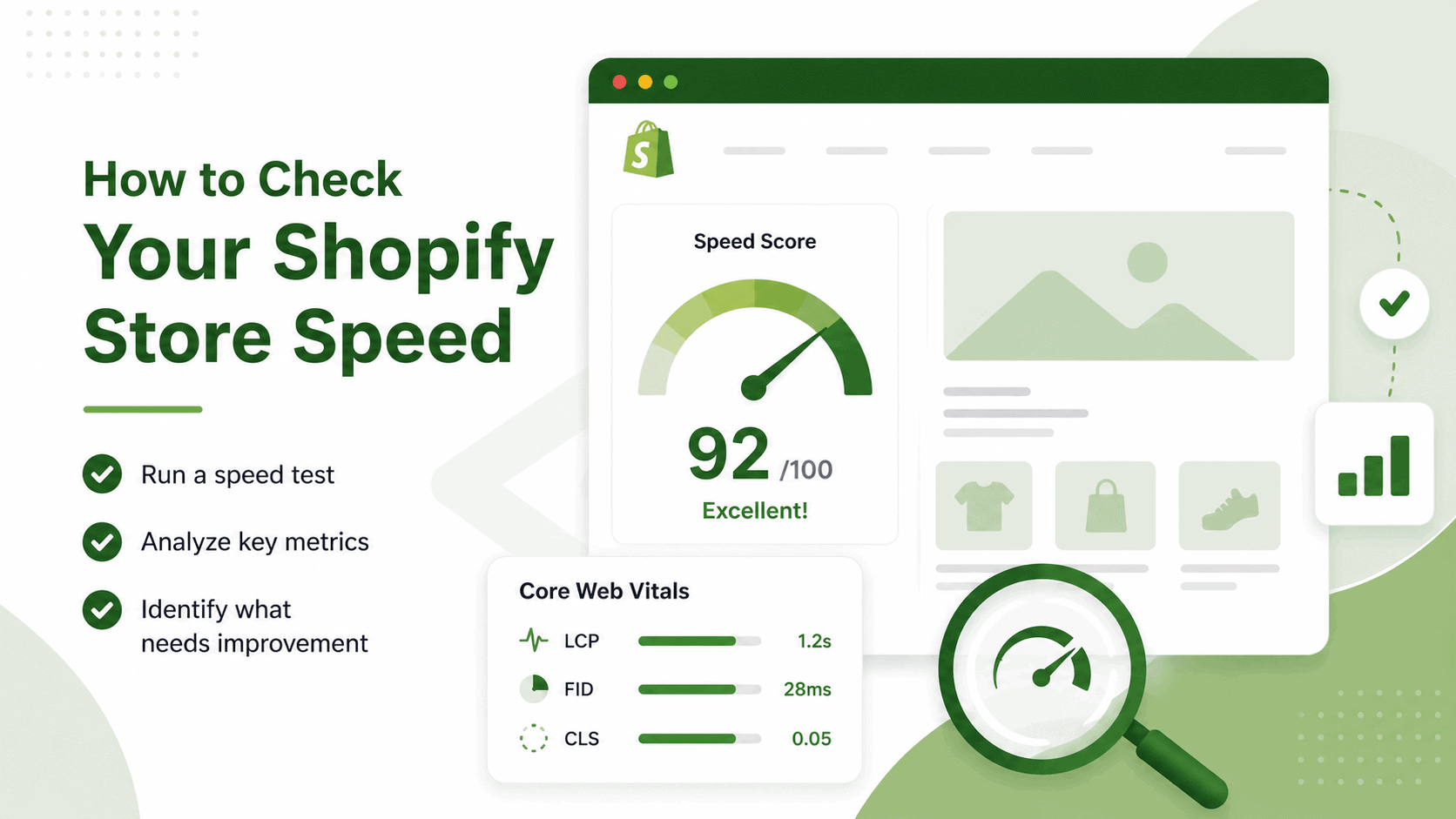
Go to pagespeed.web.dev. Enter your store URL. Run the test on mobile first. PageSpeed Insights shows your Core Web Vitals scores from real user data (the “field data” section at the top) alongside lab test results (the “diagnostics” section). The field data is what Google uses for ranking. The diagnostics section tells you exactly what to fix.
Tool 2: Shopify’s Built-In Speed Report
In your Shopify admin, go to Online Store, then Themes. Below your active theme, click the speed report link. Shopify’s speed score benchmarks your store against similar Shopify stores. A score above 50 is competitive. Above 70 is excellent. This score differs from Google PageSpeed Insights because Shopify uses its own calculation methodology.
Tool 3: GTmetrix
GTmetrix at gtmetrix.com shows a waterfall diagram of every request your page makes. This is the best tool for identifying which specific files, scripts, or apps are causing slowdowns. Look for files that take more than 500ms to load. Those are your highest-priority fixes.
Tool 4: WebPageTest
WebPageTest at webpagetest.org lets you test from specific locations and connection speeds. Test on a 4G connection from your primary customer geography. This gives you the closest approximation to what real mobile customers experience.
What does the Shopify speed score mean?
Shopify’s speed score is calculated using Google Lighthouse, weighted toward the performance of your storefront pages (home page, product pages, collection pages). It is not the same as your PageSpeed Insights score. A Shopify speed score above 70 means you are in the top tier of Shopify stores in your category. A score below 40 means your page weight or JavaScript load is significantly above average.
The five metrics to record before you start fixing
- LCP (Largest Contentful Paint): How fast your biggest content element loads. Target: under 2.5 seconds.
- INP (Interaction to Next Paint): How fast your page responds to clicks. Target: under 200 milliseconds.
- CLS (Cumulative Layout Shift): How much the page layout shifts as it loads. Target: 0.1 or less.
- TBT (Total Blocking Time): How long JavaScript blocks the browser from responding. Target: under 200ms.
- FCP (First Contentful Paint): How fast the first element appears on screen. Target: under 1.8 seconds.
Bottom line: Record all five before touching anything. Every fix you make should move at least one number. If a fix makes no measurable difference, move on.
Step 2: Image Optimization: The Biggest Single Win in Shopify Speed
Images account for 60-80% of total page weight on most Shopify stores. Fix images before anything else. This one category delivers more speed improvement than all other tactics combined on a typical store.
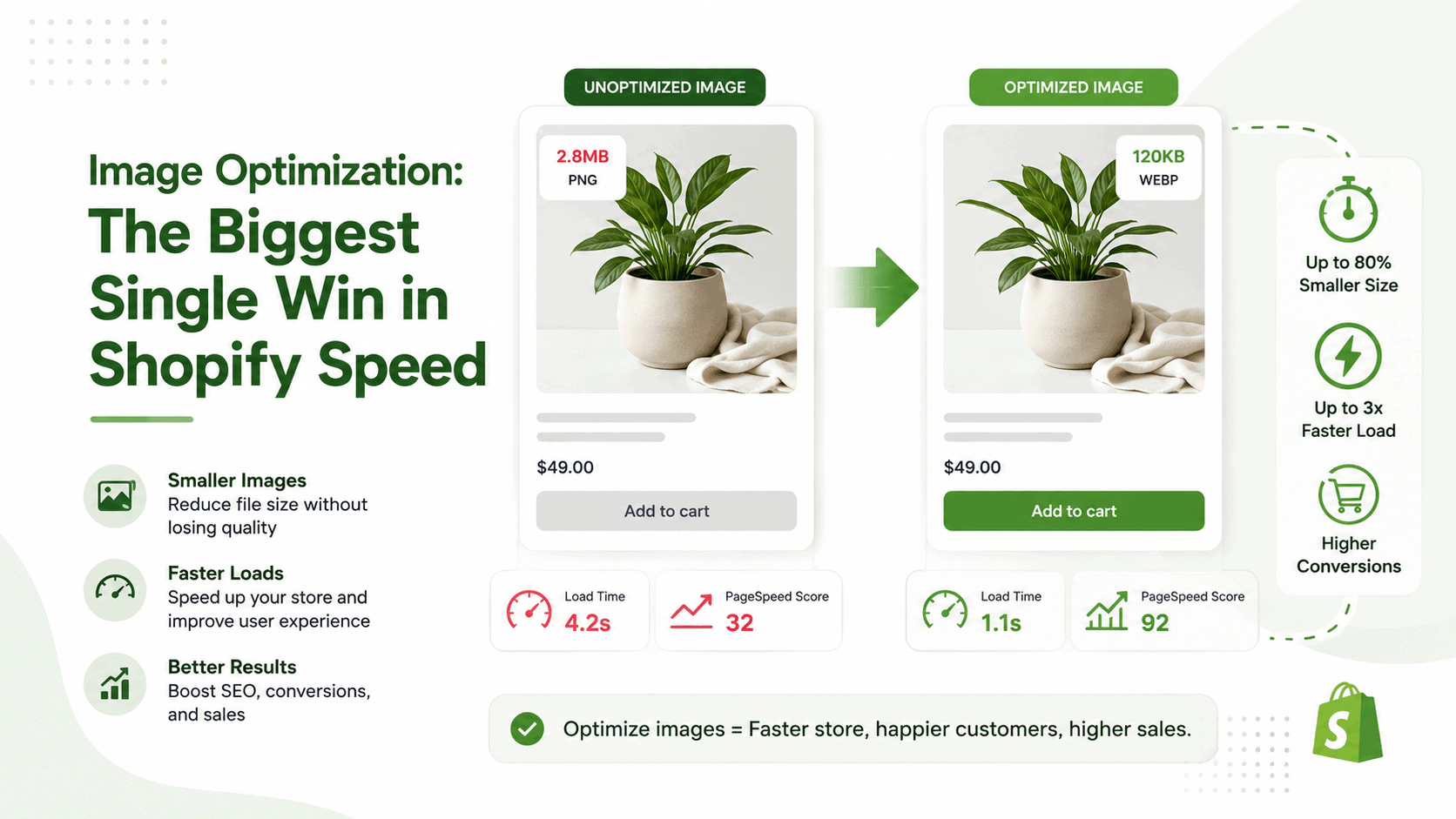
The average merchant uploads product photos straight from a camera or phone: files of 3-8MB each. A product page with 8 images at 4MB each loads 32MB of image data. That is a catastrophic performance problem. It also directly tanks your LCP score, because the hero product image is almost always the Largest Contentful Paint element.
Compress before you upload
Use TinyPNG (tinypng.com) or Squoosh (squoosh.app) before uploading any image to Shopify. Both are free. Both reduce file size by 60-80% with no visible quality loss for web display. Target file sizes: hero images under 200KB, product images under 100KB, thumbnail images under 40KB.
Use WebP format
Shopify has automatically converted uploaded images to WebP since 2021. This happens in the background. However, the original file size still determines how much processing the browser must do. A 5MB JPEG that Shopify converts to WebP is still a large WebP file. Compress the source file first, then upload. The combination of pre-upload compression plus Shopify’s automatic WebP conversion delivers the best result.
Set correct image dimensions
Never upload an image larger than the display size. If your product image displays at 800px wide on desktop, upload it at 1200px (to cover retina screens) and no wider. Uploading a 4000px image that displays at 800px forces the browser to download 25x more data than necessary.
Add descriptive alt text
Alt text is not just an accessibility requirement. It is an SEO signal. Every product image should have a specific, descriptive alt text that names the product, variant, and context. “Blue ceramic coffee mug with gold rim, 12oz” beats “product image.” For more on this, see the guide on Shopify product photography.
Use lazy loading for below-the-fold images
Images that appear below the fold do not need to load immediately. Add loading="lazy" to any image that does not appear in the first screen view. Your hero image and above-the-fold product image should use loading="eager" to load immediately.
Shopify CDN note: Shopify serves all images through their global CDN (Fastly). This means delivery speed is already optimized. The file size before delivery is what you control. Compress files before upload. The CDN handles the rest.
File Manager: Audit and organize your media library before optimizing
File Manager lets you see every image in your Shopify media library with file sizes, filter by file type, and bulk-manage assets. It is the fastest way to identify oversized images before you compress and re-upload. Unlike Shopify’s native media library, File Manager provides file size visibility and organizational tools to keep your assets clean and optimized.
Try File Manager FreeBottom line: Image optimization is the highest-ROI action in Shopify speed work. A merchant who compresses 50 product images from 3MB to 80KB each cuts their product page weight by 97%. Do this before touching a line of code.
Step 3: App Bloat Audit: The Hidden JavaScript Killer
Every Shopify app you install loads its JavaScript on every page of your store. Not just the pages where you use the app. Every page. Product pages, collection pages, checkout, blog posts: all of them load every app’s scripts on every visit.
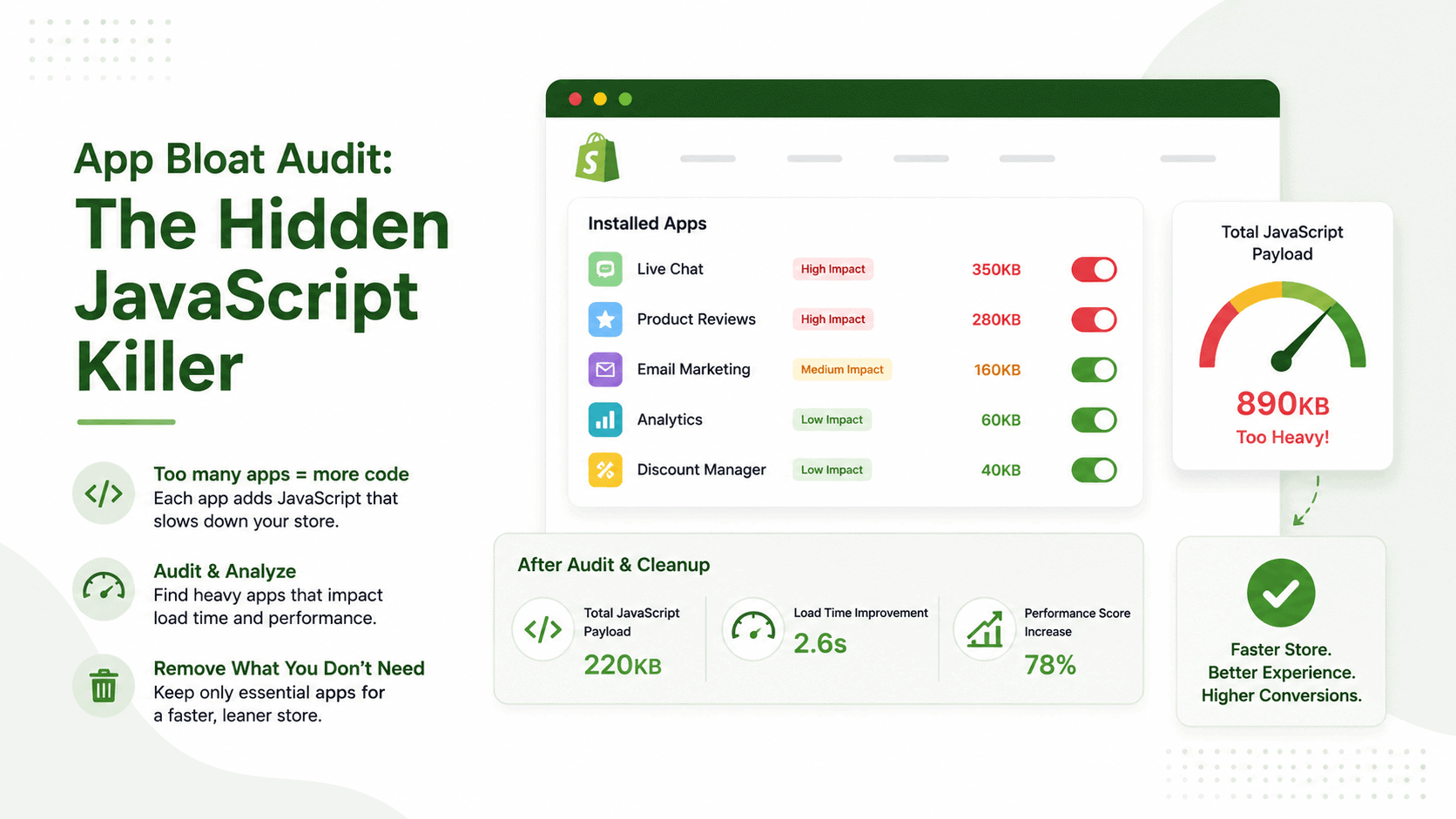
The average Shopify store has 6-8 apps installed. Each app adds 50-200KB of JavaScript. That means your store carries 300-1,600KB of extra JavaScript before a single product image loads. For reference, the entire recently viewed products section on a well-built store should weigh under 15KB.
If you are evaluating upsell apps for Shopify, always check their JavaScript footprint before installing. A lightweight upsell app that adds 30KB beats a feature-heavy one that adds 300KB, even if the heavier one has more features you will never use.
How to audit your app JavaScript with Chrome DevTools
Open your store in Chrome. Press F12 to open DevTools. Click the Network tab. Reload the page. Filter by “JS” in the type filter. Sort by size. Look for large JavaScript files from domains you do not recognize. Each unfamiliar domain is likely an app script. The domain name will usually hint at which app it belongs to (for example, “cdn.judge.me” belongs to Judge.me reviews).
Once you identify the largest scripts, trace them back to specific apps. Then ask: does this app actively contribute to revenue right now? If the answer is no or you are not sure, it should be uninstalled.
How to decide what to remove
Apply this filter: if you have not actively used this app’s features in 30 days, it is still loading on every page but generating no value. Remove it. Apps you tried during testing and forgot about are particularly common offenders. So are apps from abandoned experiments with discount popups, social proof widgets, and countdown timers.
Critical: Uninstalling an app from the Shopify dashboard does not always remove its code from your theme. Go to Online Store → Themes → Actions → Edit code, then open theme.liquid. Search for script tags or snippets from the app’s domain and remove any leftover code manually. Otherwise, the app’s JavaScript may continue loading even after it has been uninstalled.
Apps that should always be audited
- Live chat and customer support apps (often 100-300KB each)
- Abandoned cart recovery apps that overlap with Klaviyo or email tools you already use
- Review apps from previous testing (if you switched to a different reviews app, remove the old one)
- Currency converter apps that load exchange rate scripts globally
- Any app that adds a floating widget, badge, or sticky element to every page
Bottom line: One removed app can recover 50-200KB of JavaScript instantly, with no configuration required. Run a DevTools network audit once per quarter and remove everything that is not actively earning its place.
Step 4: Lazy Loading: Defer What Visitors Have Not Seen Yet
Lazy loading means images and videos only load when a visitor scrolls them into view. Without lazy loading, your browser downloads every image on the page immediately, even if the visitor never scrolls to see them. For a product page with 20 images, that is a massive amount of wasted initial load time.
Google’s own research shows that lazy loading reduces initial page load time by 20-30% on pages with many images (Google, Web Fundamentals, 2023). For stores with photo galleries, lookbooks, or sliders, this number can be higher.
Shopify’s native lazy loading
Shopify’s Dawn theme (and all themes built on Shopify’s theme architecture since 2021) includes native lazy loading for images. To verify it is active, view the page source of your storefront and search for loading="lazy" on image tags below the hero. If you see it, lazy loading is working. If not, your theme may need an update or a custom implementation.
For your hero image and any image above the fold, use loading="eager", not lazy. Lazy-loading your hero image delays the LCP element and directly hurts your Core Web Vitals score.
Lazy loading for galleries
Standard Shopify product images support lazy loading natively. But if you use a custom gallery for lookbooks, product showcases, or Instagram feeds, you need to verify that gallery’s own lazy loading settings. A Shopify photo gallery with 50 images and no lazy loading will load all 50 images at once, no matter where on the page the gallery sits.
If you use lookbook pages or shoppable galleries on your store, see the guide on how to create a lookbook in Shopify for gallery performance best practices.
Essential Grid: Gallery lazy loading with skeleton loaders
Essential Grid loads gallery items only as visitors scroll, using skeleton loaders to preserve layout while images load. This helps reduce layout shift (CLS), lowers initial page weight, and improves perceived performance. Compared to native Shopify galleries or manually built grid layouts, Essential Grid includes these performance optimizations without requiring custom code.
Try Essential Grid FreeLazy loading for sliders and video backgrounds
Hero sliders and video backgrounds are LCP killers when not configured correctly. A slider with 5 slides at 2MB each loads 10MB before a visitor sees anything. The fix: enable lazy loading in your slider settings so only the first slide loads immediately, and subsequent slides load on demand.
Slider Revolution: Performance mode with lazy loading and poster images
Slider Revolution’s Performance Mode enables per-slide lazy loading, uses static poster images so video backgrounds display instantly, and defers loading secondary slides until visitors interact with the slider. When configured correctly, a hero slider can add less than 50KB to the initial page load. Without Performance Mode, the same slider may add 2 to 5MB.
Try Slider Revolution FreeBottom line: Lazy loading costs nothing to implement in modern Shopify themes and delivers a 20-30% reduction in initial page load. For any store with galleries, sliders, or lookbooks, it is a required configuration step, not an optional one.
Step 5: Theme and Code Optimization: Clean Code Loads Faster
Theme code is the second-biggest source of page weight after images. Most Shopify themes ship with code for every feature they offer. Even features you never activate. That CSS is still downloaded. Those JavaScript functions are still parsed.
Before editing any theme code: Duplicate your theme and work on the copy. Go to Online Store → Themes, open the three-dot menu on your active theme, and select Duplicate. Restoring a backup takes seconds, while recovering a broken theme can take hours. Before making structural code changes, review the Shopify Store Audit Checklist.
Remove unused CSS sections
Shopify themes often ship with CSS for features like mega menus, announcement bars, age verification popups, and loyalty program widgets. If you do not use these features, their CSS still loads on every page. Open Chrome DevTools, go to the Coverage tab (Ctrl+Shift+P, type “coverage”), reload the page, and look for CSS files with high unused percentages. Target any CSS file showing more than 50% unused code.
Eliminate duplicate JavaScript library loads
One of the most common hidden speed problems: multiple apps each loading their own version of jQuery. Your theme loads jQuery 3.6. App A loads jQuery 2.1. App B loads jQuery 3.4. The browser now parses three versions of the same library. In Chrome DevTools Network tab, filter by JS and look for “jquery” entries. If you see more than one, you have a duplicate load problem.
Choosing the fastest Shopify theme
Dawn is the fastest default Shopify theme. It scores 70-90 on mobile PageSpeed Insights with a clean install and no apps. Among paid third-party themes, check the theme’s PageSpeed score in the Shopify Theme Store listing. Any theme with a score below 50 on mobile will require significant custom optimization to be competitive. Shopify’s own themes (Sense, Craft, Refresh) benchmark similarly to Dawn.
Older themes built before Shopify OS 2.0 (pre-2021) often lack native lazy loading, use outdated JavaScript patterns, and load more CSS than newer themes. If your theme is more than three years old, a theme switch delivers more speed improvement than any amount of code cleanup.
Bottom line: Theme code optimization delivers the highest speed gains when combined with app cleanup. Fix both together. A clean theme with a bloated app stack is still slow. A bloated theme with no apps is also slow. You need both.
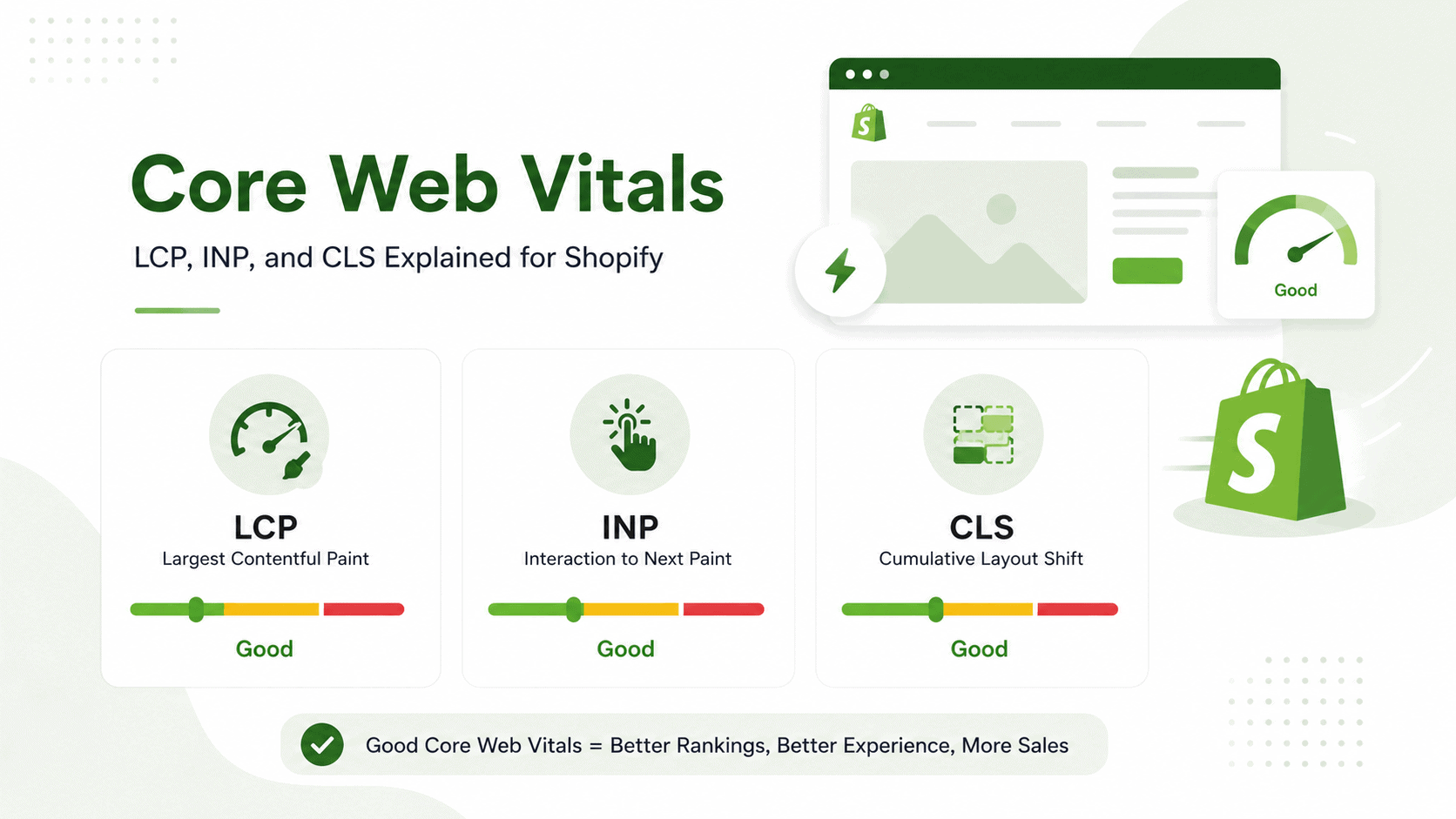
Step 6: Core Web Vitals: LCP, INP, and CLS Explained for Shopify
Google made Core Web Vitals a confirmed ranking signal in 2021. Pages that pass all three thresholds rank better than pages that fail them, all else being equal. For most Shopify stores, failing LCP is the primary problem. Check your performance against Shopify SEO fundamentals and the full Shopify SEO guide before and after fixing Core Web Vitals.
What is LCP in Shopify?
LCP stands for Largest Contentful Paint. It measures how long it takes for the largest visible element on your page to finish loading. On most Shopify stores, this is the hero image or the first product image. Target: under 2.5 seconds. Above 4 seconds is classified as “poor” by Google.
Most common LCP culprits on Shopify: A large, uncompressed hero image loaded without preload hint. A slider that defers the first slide. A video background that loads before a static image placeholder.
LCP fix for Shopify: Add a preload link tag in your theme’s head for the hero image: <link rel="preload" as="image" href="your-hero-image-url">. Add loading="eager" directly on the hero image tag. Compress the hero image to under 200KB. Together, these three changes typically move LCP from 4-6 seconds to under 2.5 seconds.
What is INP in Shopify?
INP stands for Interaction to Next Paint. Google replaced the older FID (First Input Delay) metric with INP in March 2024. INP measures how quickly your page responds after a visitor clicks, taps, or types. Target: under 200 milliseconds. Above 500ms is classified as “poor.”
The most common cause of poor INP on Shopify: heavy JavaScript blocking the main browser thread.
When too much JavaScript runs at once, the browser cannot respond to user input until the scripts finish. Fix this by deferring non-critical scripts. Add defer or async attributes to script tags that do not need to run before page content appears. Check the Coverage tab in Chrome DevTools to identify scripts with large amounts of unused code.
What is CLS in Shopify?
CLS stands for Cumulative Layout Shift. It measures how much the page layout moves around as it loads. Target: 0.1 or less. A score above 0.25 is classified as “poor.” High CLS is frustrating for shoppers because buttons move just as they try to click them.
The most common cause of high CLS on Shopify: images and videos without explicit width and height attributes. When no dimensions are set, the browser reserves no space for the image. When the image loads, everything on the page shifts downward to make room.
Fix: add width and height attributes to every <img> tag in your theme. Set them to the image’s display dimensions, not the file dimensions.
A secondary CLS cause: fonts that load after the page renders, causing text to shift when the custom font replaces the fallback. Fix this with font-display: swap in your font CSS declarations.
Average Shopify Mobile PageSpeed Score by Industry
Most Shopify stores score well below Google’s recommended 70+ mobile performance threshold.
| Jewelry / Accessories | |
| Fashion / Apparel | |
| Home & Garden | |
| Electronics | |
| Health & Beauty | |
| Food & Beverage | |
| Best-in-class Shopify |
Source: Google PageSpeed Insights sampling (2025) and published Shopify industry benchmark research. Scores represent average mobile performance.
Bottom line: Core Web Vitals are Google’s direct signal that page experience affects rankings. LCP, INP, and CLS each have a specific cause and a specific fix. Work through all three in order: LCP is usually highest impact, then CLS, then INP.
Step 7: Font and Third-Party Script Optimization
Fonts and third-party scripts are the two most overlooked speed problems in Shopify stores. Both are invisible to merchants during setup but become visible in your Core Web Vitals scores.
Custom fonts: the render-blocking problem
Every custom font family you load is an extra HTTP request. It is also a render-blocking resource: the browser will not display your text until the font file downloads. If the font download takes 2 seconds, your visitors see blank text for 2 seconds. This directly increases your CLS score because text reflowing when fonts load shifts page layout.
The rules: limit your store to a maximum of two font families. If you already use two, you do not need a third. Add font-display: swap to your font declarations. This tells the browser to display text in a system fallback font immediately, then swap to your custom font when it loads. The text is readable instantly. The layout shift from swapping is minimal.
If you load fonts from multiple providers (Google Fonts and a custom font host and a Typekit embed), consolidate to one source. Each additional font provider is an extra DNS lookup plus an extra download.
Third-party scripts: the hidden load
Every third-party script on your store loads from an external server that you do not control. Analytics tools, live chat, review widgets, social proof popups, and affiliate tracking pixels all fall into this category. Each adds load time. None of them need to load before your product content appears.
Scripts from social proof widgets (like the ones discussed in this guide on social proof apps) and scripts from discount popup apps are the most common culprits. Review widgets can add 200-400KB of external JavaScript. Popup scripts often load before page content.
How to defer non-critical scripts
Add the defer attribute to any script tag that does not need to run immediately. A script with defer downloads in the background while the page renders and executes after the page is fully loaded. This applies to analytics, review widgets, live chat, and affiliate tracking. None of these need to run before a visitor sees your products.
Google Tag Manager warning: Google Tag Manager is a common source of performance overhead. Every tag you publish increases JavaScript execution and network requests. Audit your GTM container regularly, remove unused tags, and delay non-essential tracking until after the initial page load whenever possible. A lean container helps improve Core Web Vitals without sacrificing analytics accuracy.
The Coverage tab audit
Open Chrome DevTools, press Ctrl+Shift+P, type “coverage,” and click “Show Coverage.” Reload your page. The Coverage tab shows every JavaScript and CSS file, its total size, and what percentage is actually executed or applied. Any JS file with more than 70% unused code is a prime candidate for deferral or removal.
Bottom line: Fonts and third-party scripts are the two easiest speed gains most merchants overlook. Two font families maximum, font-display: swap on both, and defer attributes on every non-critical script. These three changes alone can move your TBT score from 400ms to under 200ms.
Step 8: Shopify CDN and Built-In Performance Features
Shopify’s infrastructure handles several performance optimizations automatically. Most merchants do not know what these are or how to verify they are working. Understanding what Shopify controls helps you focus optimization effort where it actually matters.
Shopify’s CDN (Fastly)
Shopify serves all images, CSS files, and JavaScript files through Fastly, one of the fastest CDNs in the world. Fastly has over 200 global edge locations. When a customer in Toronto loads your store, they get assets served from a Fastly server in Toronto, not from a server in your country. This dramatically reduces delivery time for international customers.
To verify the CDN is serving your assets, view the source of any page on your store. Look at the URL of any image, CSS file, or JS file. CDN-served assets will have URLs containing cdn.shopify.com. If your images use URLs from an external hosting service or a third-party CDN you set up separately, you may be routing around Shopify’s CDN unnecessarily.
Automatic image format conversion
Since 2021, Shopify automatically converts uploaded images to WebP format for browsers that support it. WebP files are typically 25-35% smaller than equivalent JPEG files at the same visual quality. This conversion happens at the CDN level. You do not need to take any action to activate it. However, this conversion happens after upload. The original file size still matters because Shopify processes your original before serving the optimized version.
Browser caching
Shopify sets one-year cache headers on all static assets. This means repeat visitors download your images, CSS, and JavaScript exactly once. On their second visit, those assets load from the browser’s local cache. For stores with returning customers or repeat email traffic, this is a significant speed advantage. You cannot configure caching headers on Shopify, and you do not need to. It is already set to the optimal value.
What Shopify does NOT control
Shopify controls delivery infrastructure. You control what gets delivered. Shopify cannot compress a 5MB image for you. It can deliver a 5MB image very fast, but fast delivery of a large file is still slower than fast delivery of a small file. The fixes in Steps 2 through 7 live entirely in your control. Shopify handles everything else.
For detailed guidance on getting your store’s technical setup right before a major traffic event, see the Shopify store launch checklist. Speed optimization belongs in pre-launch prep, not post-launch firefighting.
Bottom line: Shopify’s CDN, WebP conversion, and browser caching are already running in your favor. Your job is to give the CDN smaller files to deliver. Every KB you cut from an image or script saves load time at every edge location worldwide.
What Slows Shopify Stores Down: The 5 Biggest Culprits
Speed problems on Shopify trace back to five specific issues almost every time. Here is each one: what it is, how to spot it, and the one-line fix.
Unoptimized Images
Many stores upload 2 to 5MB camera images that display at only a few hundred pixels wide. That forces browsers to download far more data than needed. How to spot it: Open Chrome DevTools → Network, filter by Images, and look for files larger than 500KB. Fix: Compress product images to under 100KB before uploading and serve responsive image sizes.
The App Graveyard
Apps installed for testing often leave JavaScript behind even after they are no longer used. How to spot it: Open DevTools → Network, filter by JS, and look for unfamiliar third-party domains. Fix: Remove unused apps and manually delete leftover script tags from your theme files if necessary.
Render-Blocking Third-Party Scripts
Analytics, chat widgets, review tools, and popup apps can block page rendering when loaded too early. How to spot it: PageSpeed Insights will flag render-blocking resources. Fix: Load non-critical scripts with defer or async, and delay non-essential scripts until after the initial page render.
Oversized Hero Banners and Sliders Without Lazy Loading
Large hero images and autoplay videos are a leading cause of poor LCP scores. How to spot it: Check the LCP element in PageSpeed Insights and review its file size. Fix: Enable lazy loading, use poster images for videos, compress hero media, and keep hero images below 200KB whenever possible.
Multiple Custom Fonts From Multiple Providers
Loading several font families from different providers creates extra network requests and delays text rendering. How to spot it: Filter the Network panel by Font and count the font files. Fix: Limit your store to one or two font families, enable font-display: swap, and use system fonts where practical.
Speed Optimization by Store Stage
Not every speed fix has the same priority at every store size. A new store with 50 orders per month should not spend time on server-side rendering experiments. A scaling store doing 1,000+ orders per month cannot afford to skip a full code audit. Here is the right sequence by stage.
| Store Stage | Priority Actions | Priority Tool | Target Score |
|---|---|---|---|
|
New Store
Under 100 orders/month |
Image compression before every upload. Choose Dawn or another lightweight theme. Keep installed apps to six or fewer. Skip speed optimization apps until traffic grows. |
TinyPNG Google PageSpeed Insights |
50+ Mobile |
|
Growing Store
100 to 1,000 orders/month |
Fix Core Web Vitals (LCP, INP, CLS). Enable lazy loading for images, galleries, and sliders. Defer third-party JavaScript. Audit and remove unused apps. |
GTmetrix Chrome DevTools |
60+ Mobile |
|
Scaling Store
1,000+ orders/month |
Perform a full theme code audit. Remove duplicate JavaScript libraries. Consolidate analytics inside GTM. Review apps quarterly and optimize Liquid code. |
WebPageTest Google Search Console |
70+ Mobile |
At every stage, the checkout page deserves separate attention. A fast product page that leads to a slow checkout page loses sales at the highest-intent moment. Read the guide on Shopify checkout optimization alongside this one. Also review your compare at price settings and product description structure, both of which affect product page weight when implemented with dynamic content.
“Page speed directly affects perceived trust. Users who experience slow page loads are significantly more likely to view a store as untrustworthy before they even interact with its content. Trust perception begins forming within the first few hundred milliseconds of a page load.”
Source: Baymard Institute, E-commerce UX Research
Frequently asked questions
How do I check my Shopify store speed?
Use three tools. First, Google PageSpeed Insights at pagespeed.web.dev: enter your store URL and run the mobile test. This gives you real-user field data and specific fix recommendations. Second, Shopify’s built-in speed report: go to Online Store, then Themes, and click the speed report link under your active theme. Third, GTmetrix at gtmetrix.com: this shows a waterfall diagram identifying which specific files are slow to load. Run all three before making any changes and again after.
What is a good speed score for a Shopify store?
A Google PageSpeed Insights mobile score of 70 or above is the competitive threshold. The average Shopify store scores 28-45 on mobile. Anything above 70 on mobile puts you in the top tier of Shopify stores. Note: Shopify’s own speed score (visible in your admin) uses a different calculation and benchmarks you against similar Shopify stores only. Always check your PageSpeed Insights mobile score as the primary metric.
Why is my Shopify store so slow?
The five most common causes: (1) Unoptimized images uploaded at 2-5MB that display at 400px. (2) An app graveyard: apps you stopped using but never deleted, still loading scripts on every page. (3) Render-blocking third-party scripts from analytics, live chat, or popup tools loading before page content. (4) Hero banners or sliders with no lazy loading, loading 3-5MB of media before the page renders. (5) Multiple custom fonts from multiple providers, each one a render-blocking HTTP request. Fix these in order. Images first, then apps, then scripts.
How do I speed up my Shopify store for free?
Five free fixes with measurable impact: (1) Compress all images below 100KB using TinyPNG (tinypng.com, free). (2) Uninstall any app you have not actively used in 30 days. (3) Remove leftover app script tags from theme.liquid. (4) Add font-display: swap to your font CSS to prevent invisible text during load. (5) Add the defer attribute to non-critical third-party script tags. None of these require paid tools or developer help. Start with images. That single fix usually moves the needle more than everything else combined.
Does image size affect Shopify speed?
Images are the single largest contributor to page weight. They account for 60-80% of total page size on most Shopify stores. Shopify automatically converts uploaded images to WebP since 2021, which reduces file size by 25-35% versus JPEG. But the original file size still matters because Shopify processes your source file. A 5MB JPEG becomes a smaller WebP, but it is still much larger than a properly compressed source file would produce. Always compress before uploading. Target: hero images under 200KB, product images under 100KB.
Give Your Store a Speed Advantage
Slider Revolution improves hero performance with lazy loading, poster images, and performance mode. Essential Grid loads gallery images progressively with skeleton loaders to reduce CLS and improve perceived speed. Both apps work with any Shopify theme and are free to try.

Nahid Komol is a product marketer and GTM strategist specializing in WordPress, SaaS, and AI-integrated growth (AEO, AIO, GEO). With 10+ years of hands-on experience at brands like FunnelKit, FlyWP, and weDevs, he brings deep expertise in content strategy, product positioning, user acquisition, and full-funnel marketing. He's led campaigns generating $100K in sales, grown organic traffic by 70%, and ranked 500+ articles on Google, and is now building AI agent workflows that automate core marketing operations at scale. When he's not crafting strategies or engineering prompt systems, you'll find him exploring sci-fi, composing music, or capturing the quiet poetry of nature through his lens.