Shopify redesigns destroy organic traffic more often than people expect. Not because the new theme is bad. Because nobody documented what the old one was doing right.
URLs change without 301 redirects in place. Top-performing pages lose their internal links. Meta titles and image alt text get wiped when the theme switches. Three to four weeks after launch, traffic is down 20 to 30% and the diagnosis takes longer than the redesign did.
A pre-redesign audit prevents all of this. Here are 9 steps to run through before you touch the theme.
A Shopify pre-redesign audit is a structured review of your store’s SEO baseline, page speed, top-performing pages, images, conversion data, mobile experience, installed apps, and homepage before any design work begins. Spending 5 to 7 hours on this audit helps prevent the traffic, ranking, and conversion losses that commonly happen after a redesign.
Before redesigning your store, create a full backup, export your top-performing pages and keywords from Google Search Console, benchmark Core Web Vitals and page speed, record conversion metrics, prepare a 301 redirect map for every changing URL, and compare the same metrics after the new theme goes live.
Key Takeaways
- Back up your Shopify store first. Shopify does not automatically back up products, metafields, themes, or settings.
- Export your top pages and keywords from Google Search Console before changing URLs, then create 301 redirects for every moved page.
- Prepare your redirect map before the redesign starts, not after launch. This is one of the biggest causes of lost organic traffic.
- A temporary 0 to 20% traffic fluctuation is normal after a redesign, but larger drops usually indicate missing redirects or SEO issues.
- Benchmark Core Web Vitals before changing themes. Compare LCP, CLS, and INP after launch to confirm performance hasn’t declined.
- Record your conversion rate, add-to-cart rate, average order value, and abandonment rate before the redesign so you can accurately measure results.
- Follow a structured pre-redesign audit framework covering SEO, speed, UX, redirects, apps, analytics, and conversions before approving any new Shopify theme.
Why Skipping the Audit Costs You More Than the Redesign
A Shopify redesign is supposed to move your store forward. For many store owners, it moves them backward, at least for the first few months. The design looks sharper. The layout feels modern. But organic traffic falls. Conversion rate drops. Mobile bounce rate climbs. And nobody can explain why.
The answer is almost always the same. They redesigned without first documenting what was already working.
Here is what actually happens in a typical redesign without an audit:
- Old URLs get changed without 301 redirects, and years of link authority disappear overnight
- Content that was ranking for 40+ keywords gets rewritten to “sound cleaner” and loses all those positions
- Images get replaced without preserving alt text, breaking image SEO
- A new theme loads slower than the old one, and conversions drop before the first sale
- Trust signals (review counts, shipping guarantees, payment icons) move below the fold on mobile, and the conversion rate falls without anyone noticing why
- The top 3 converting product pages get a layout change that breaks the purchase flow
Typical traffic fluctuation during the first month after a Shopify redesign when redirects and SEO are handled correctly.
Of Shopify stores fail Core Web Vitals on mobile. A heavier or poorly optimized theme can make performance even worse.
Estimated conversion rate loss for every additional one-second delay in page load on retail ecommerce sites.
A pre-redesign audit takes 5 to 7 hours. It saves months of recovery work. Think of it as photographing every room before a renovation, not because you love how it looks now, but because you need to know exactly what’s there before you tear it apart.
The goal isn’t to preserve the old design. It’s to preserve your SEO equity, Core Web Vitals, conversion benchmarks, analytics data, and customer experience so the new Shopify theme has a measurable standard to outperform. A redesign should improve your store, not reset everything you’ve already built.
Follow these 9 Steps to Audit Before You Redesign a Shopify Store
Here are the 9 things to audit before you redesign. Work through them in order. Each one builds on the last.
Step 1. Back Up Your Store Before Anything Else
This is the rule that sounds obvious until something breaks and you have no restore point. Before you change a theme, move a product, or hand access to a designer, back up your store.
Shopify does not automatically back up your store data. This surprises most merchants. Your themes, products, collections, metafields, blog posts, and customer data are your responsibility to protect. Shopify keeps uptime. Backups are on you.

Back up your store completely before any design work begins: products, themes, metafields, and settings.
What to back up
- Products and variants: including descriptions, prices, metafields, and custom attributes
- Collections: both manual and automated, with their conditions
- Theme files: your current live theme, plus any saved versions
- Blog posts and pages, especially ones driving organic traffic
- Navigation menus: header, footer, and any custom menus
- Store settings: taxes, shipping zones, payment providers
- Customer data: order history, tags, notes
Important: Shopify’s built-in CSV exports only include products, customers, and orders. They do not back up your theme code, page content, blog posts, metafields, navigation menus, theme settings, or app configurations. A CSV export is useful for data migration, but it should never be treated as a complete backup before redesigning your Shopify store.
A proper backup captures everything, not just what’s exportable through the Shopify admin. And it should happen automatically, not just once before a big change.
Syncora: Backup and Restore for Shopify
Syncora automatically backs up your entire Shopify store, including products, themes, pages, blog posts, metafields, navigation, files, and settings. If anything goes wrong during a redesign, you can restore your store with one click and get back online within minutes. It also supports Google Drive backups and offers a more affordable alternative to many backup apps.
Back Up Your Store with SyncoraSee also: How to protect your Shopify store from accidental changes, a deep dive into why store data disappears and how to stop it before a redesign breaks something you cannot recover.
Step 2. Pull Your SEO Baseline and Build Your Redirect Map
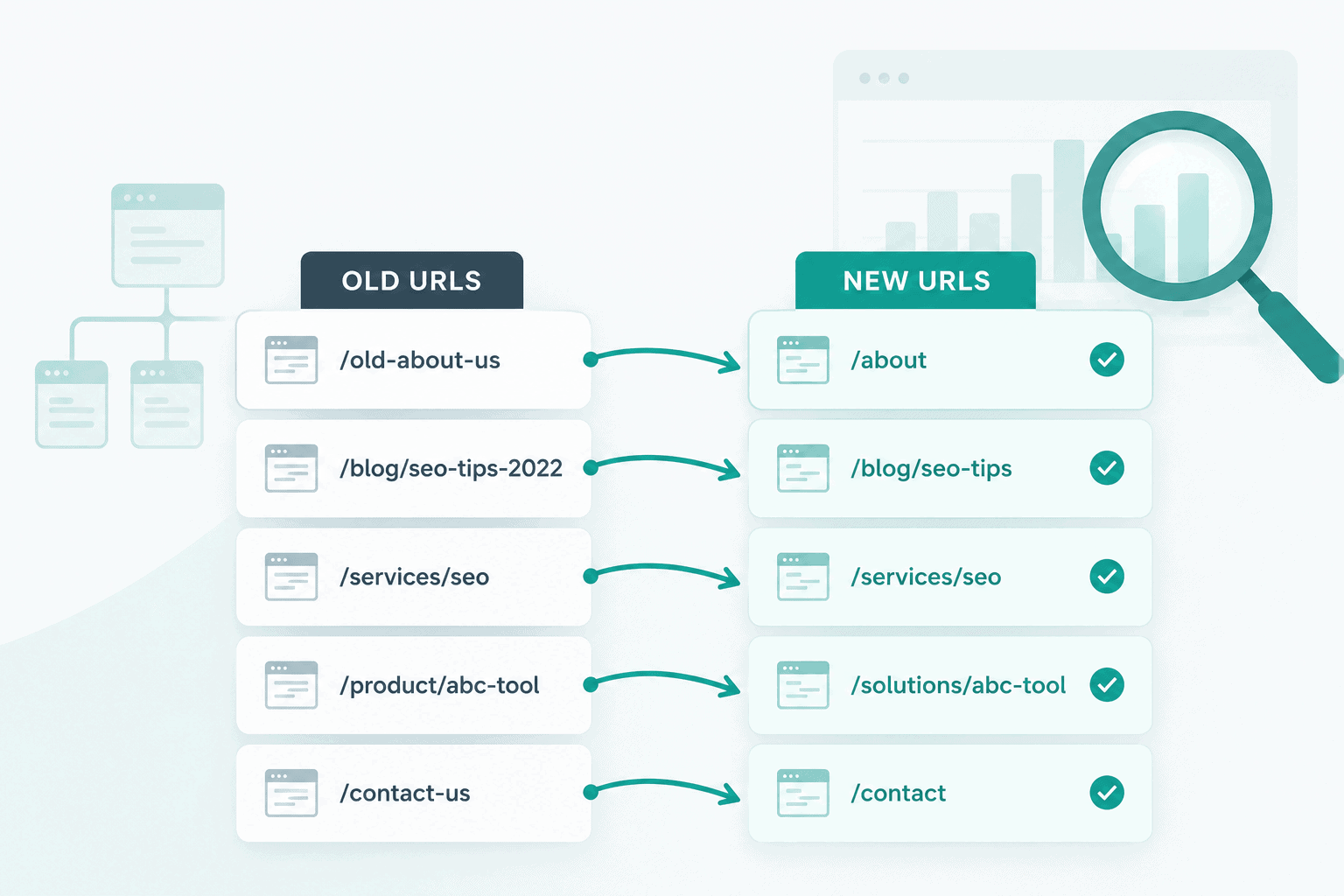
Before the redesign, you need to know exactly where your store stands in search. And before the designer touches a single URL, you need a redirect map. Most store owners do the SEO export. Almost none build the redirect map ahead of time. That is why most redesigns break rankings.
Open Google Search Console. Export the last 6 months of data. You want four specific reports.
Export 6 months of GSC data before any design work starts. This becomes your post-launch benchmark and your redirect map source.
Report 1: Your top 50 pages by clicks
- Go to Search Results, then Pages.
- Sort by clicks. Export the top 50.
These are your highest-value pages. Every single URL in this list must either stay the same in the new design or have a 301 redirect pointing to the new version. No exceptions.
The most common Shopify redesign mistake:
Changing a URL without creating a 301 redirect. For example, if your product page changes from
/products/blue-denim-jacket to
/products/jackets/blue-denim without a redirect,
Google treats the original page as removed. Any rankings, backlinks, and SEO authority built by that URL
are largely lost, often resulting in a significant drop in organic traffic that can take months to recover.
Report 2: Your top 100 keywords by impressions
- Go to Search Results, then Queries.
- Sort by impressions. Export the top 100.
- Note which pages each keyword is driving traffic to.
If those pages get rewritten during the redesign, the keywords go with them. This matters because designers and copywriters often “simplify” content during redesigns. They strip details to make pages cleaner. Google uses that detail to understand what the page is about.
Less content often means fewer rankings. Before any page content gets rewritten, check whether that page is in your top 100 keyword list first.
As Greg Bernhardt, Shopify’s SEO Strategist, put it: “A lot of times we see sites reduce content and make it vague. You lose information density, context, and opportunities to rank.”
Report 3: Pages with zero clicks in the last 90 days
These are candidates for cleanup during the redesign. Pages that get no traffic and serve no purpose create crawl waste. The redesign is a good time to consolidate or remove them. See also: how Shopify handles canonical URLs, understanding this helps you decide which pages to merge versus redirect.
Report 4: Build your redirect map now, not after the brief
This is the step most store owners skip. They plan to build the redirect map “after the design is approved.” By then, it is too late to find every URL that needs mapping. Build it now, while the old site is still live.
Here is the process:
- Download Screaming Frog (free for up to 500 URLs). Crawl your store. Export the full URL list.
- Open a spreadsheet. Create two columns: Old URL and New URL.
- For every URL that will change in the redesign, add a row: old path on the left, new path on the right.
- For URLs staying the same: no row needed. No action required.
- After the new theme is live, go to Shopify Admin, then Online Store, then Navigation, then URL Redirects. Import your spreadsheet as a CSV.
One hard rule for Shopify redirects:
Never create redirect chains. If
/products/old-name redirects to
/products/interim-name, which then redirects to
/products/new-name, search engines must follow multiple hops before reaching the final page.
Always redirect the original URL directly to its final destination.
Fewer hops improve crawl efficiency, preserve more link equity, and help Google index your new URLs faster.
Store your redirect map in the same folder as your GSC exports. When the designer asks which URLs are changing, hand them this document. That single conversation prevents 80% of post-launch redirect errors.
For more on Shopify SEO fundamentals, the complete Shopify SEO guide covers on-page, technical, and content SEO in one place. And before you write any new content in the redesign: 10 Shopify SEO tips to rank quickly is worth reviewing so the new content you add works harder than the old.
Step 3. Audit Your Page Speed and Core Web Vitals
New themes often look fast. They are not always fast. Before your redesign, run a speed test on your current store. After your redesign, run it again. If your score went down, the new theme is costing you money.
Every 1-second delay in page load time drops conversions by 7%, based on a Deloitte study across 37 major retail websites. Amazon calculated that every 100 milliseconds of latency cost them 1% in sales. Walmart found that a 1-second improvement in load time increased its conversions by 2%.
These aren’t abstract tech stats. They are what happens to your checkout rate when your theme is slow.
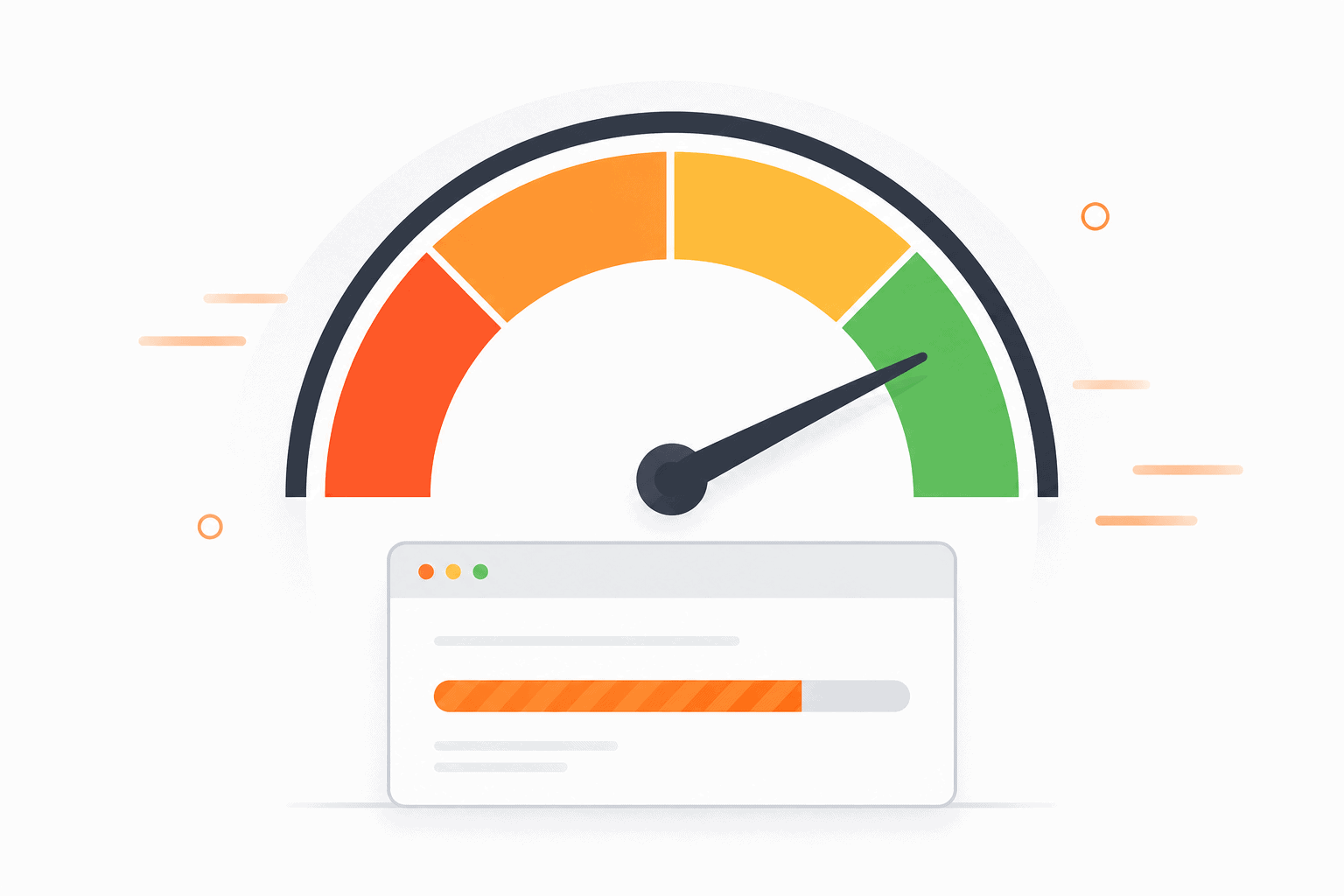
Run PageSpeed Insights on your homepage, a product page, and a collection page before you touch anything. Record both mobile and desktop scores.
Three numbers to record before the redesign
- LCP (Largest Contentful Paint): How long until the main content on screen loads. Target: under 2.5 seconds. This is almost always your hero image or main banner.
- CLS (Cumulative Layout Shift): How much the page jumps around as it loads. Target: under 0.1. Layout shifts happen when fonts, images, or widgets load late and push content down.
- INP (Interaction to Next Paint): How quickly the page responds to clicks or taps. Target: under 200ms. Slow INP often traces back to heavy JavaScript from installed apps.
Run PageSpeed Insights (free, at pagespeed.web.dev) on at least three URLs: your homepage, your top product page, and your best-selling collection page. Write down every number for both mobile and desktop. This is your pre-redesign baseline. Do not skip the mobile column; Step 7 will build on it.
What to watch for in the new theme
New themes bring new code. More animations, bigger images, heavier fonts, third-party scripts. All of that adds load time. If the new theme has autoplay videos, particle animations, or script-heavy widgets, benchmark the demo version before committing to it.
The fastest Shopify themes load in under 2 seconds out of the box. If the demo scores below 70 on mobile PageSpeed, the live version with your apps installed will score even lower.
Only a small percentage of Shopify stores achieve an excellent LCP under 2.5 seconds, while many still fail Core Web Vitals on mobile devices. Measuring your current performance before a redesign tells you whether improving site speed should be your highest priority or simply part of routine optimization after launch.
Google’s official site migration guidance recommends documenting your existing URLs, page performance, structured data, and internal linking before making significant changes. Theme redesigns, URL updates, navigation changes, JavaScript additions, and new apps can all affect how Google crawls, indexes, and ranks your Shopify store. Performing a pre-redesign audit helps preserve your existing SEO equity and makes it easier to identify any issues after launch.
Source: Google Search Central documentation on Site Moves with URL Changes, Core Web Vitals, and Search Essentials.
Step 4. Map Your Top-Performing Pages
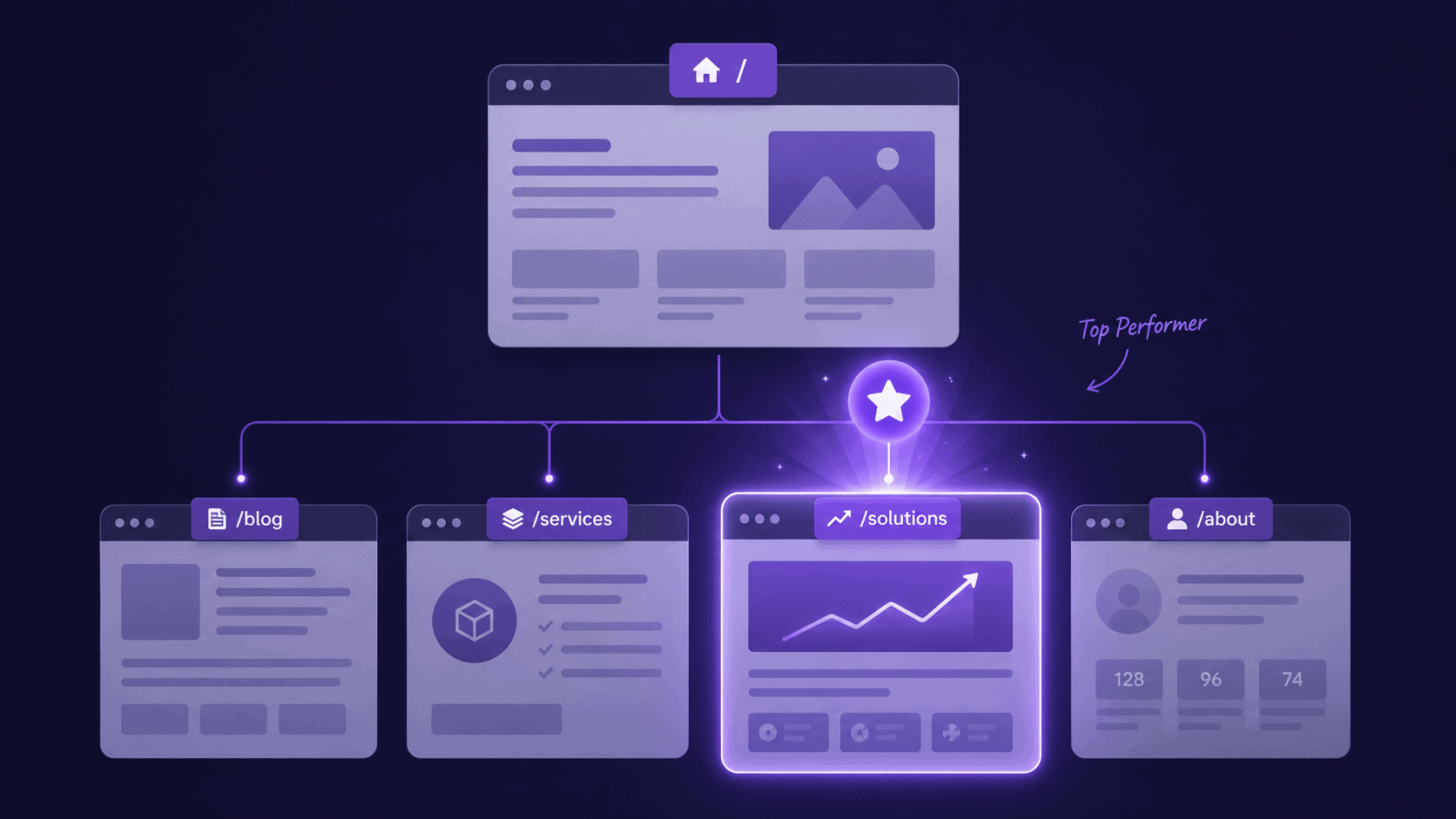
The GSC export from Step 2 shows you which pages get organic traffic. This step adds a second layer: which pages actually make you money.
These two lists are not always the same. A blog post might drive 2,000 visits a month and zero sales. A product page might get 200 visits and convert at 8%. You treat them completely differently during the redesign.
How to build your page performance map
In your Shopify admin, go to Analytics, then Reports, then Sessions by landing page. Export it for the last 90 days. You want:
- Sessions: How much traffic each page receives
- Conversion rate: How many sessions result in a purchase
- Revenue: Total revenue attributed to each landing page
Sort by revenue. The top 10 pages on that list are your protected assets. During the redesign, these pages get extra attention, not shortcuts. Their layout, content, and URL structure must be preserved or improved, never degraded. For more on reading your store’s data correctly, Shopify Analytics vs Google Analytics explains which platform to trust for which metric.
The designer’s trap: Designers naturally optimize for how a page looks. Your job is to protect how it performs. A product page converting at 6% is far more valuable than a visually stunning page converting at 1.5%. Before approving any redesign, benchmark your conversion rate, add-to-cart rate, checkout completion rate, and revenue per visitor. If any of these decline after launch, you’ll know exactly where to investigate.
The pages you can redesign freely
Pages with low traffic and low conversion are fair game. The About page. The general Contact page. Category pages that haven’t ranked in 6 months. These can be redesigned without worrying about breaking something that was working.
See how others approach a full theme review: the Shopify theme review checklist gives you a structured way to evaluate what stays and what goes. Before go-live, run through the Shopify store launch checklist to make sure nothing critical slips through.
Step 5. Audit Your Images and Media Library
Images are the biggest source of page speed problems on Shopify stores. They are also the most ignored part of a pre-redesign audit.
Most redesigns bring in new images. New hero photos. Refreshed product shots. Lifestyle images for the homepage. What most store owners forget is that all the old images are still sitting in the media library, uncompressed, unnamed, and unoptimized, and the new theme will load them right alongside the new ones.
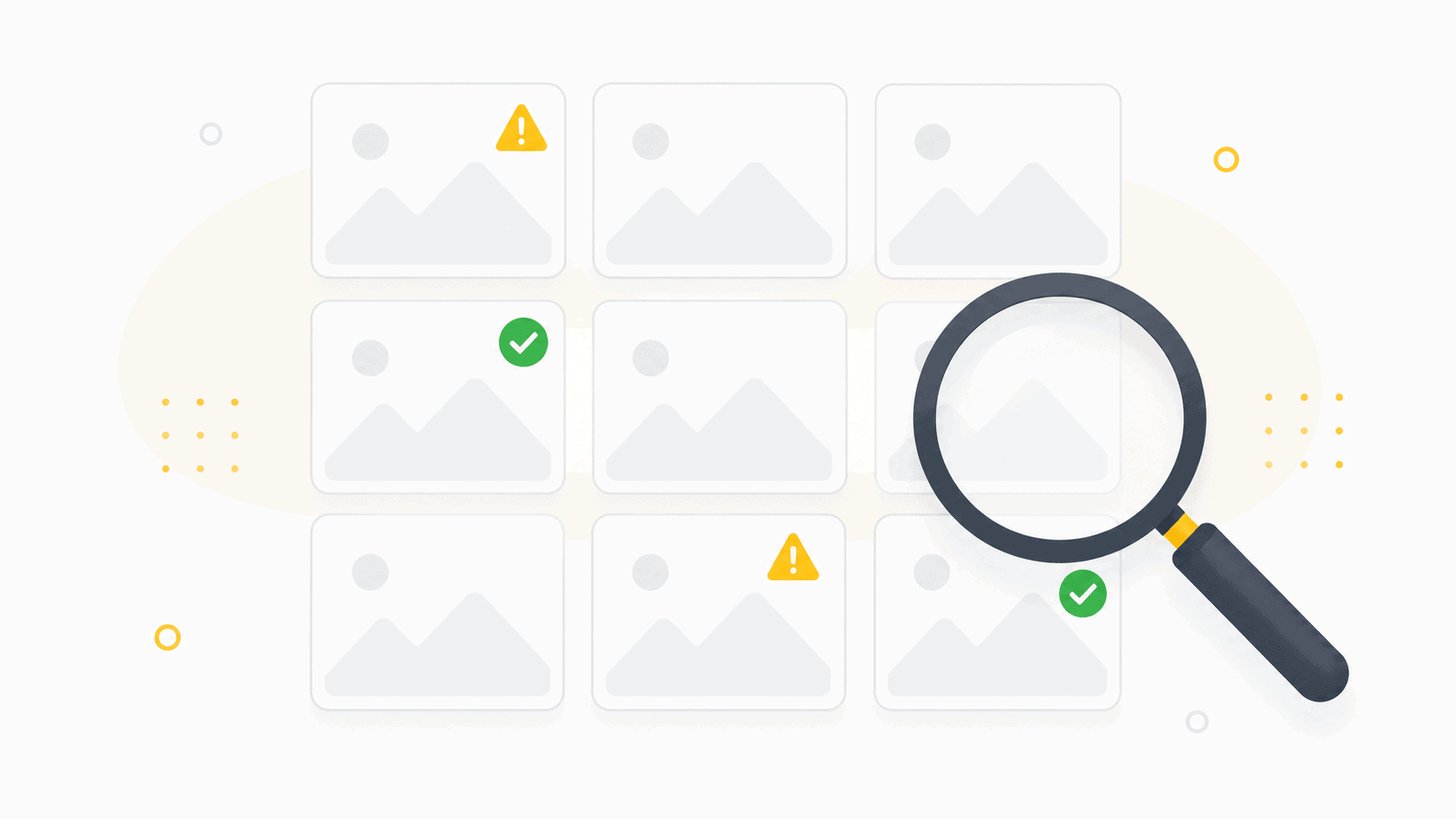
A media library audit before redesign reveals unused images, missing alt texts, and oversized files eating your page speed budget.
What your image audit should cover
- File sizes: Any image above 200KB is a page speed problem. Product images should be under 150KB. Hero banners under 300KB.
- Alt text: Missing alt text means missing image SEO. How many of your images have blank alt fields? For stores with 500+ products, this number is almost always in the hundreds.
- Unused files: Images that are no longer attached to any product or page still take up storage. During a redesign is the right time to clean them out.
- File format: WebP files load up to 30% faster than JPEG or PNG at the same visual quality. If your images are all JPEG, converting them to WebP is a significant speed win.
- Image dimensions: A 4000x4000px image displayed at 800x800px is loading 4x the data needed. Resize images to their display dimensions before the new theme goes live.
The best image sizes for Shopify are documented here; use these as your target specs during the audit. And if you need to do a bulk export of your current image library before the redesign, this guide shows you how to export images from your Shopify store.
File Manager & Image Optimizer
Organize your Shopify files into folders, compress images in bulk, generate AI-powered alt text, and remove unused media before launching your new theme. Cleaning your media library before a redesign reduces page weight, improves SEO, and makes asset management much easier as your store grows.
Try File Manager FreeStep 6. Check Your Conversion Funnel Numbers
The average Shopify store converts at 1.3 to 1.8%, according to Littledata’s benchmarks. Stores in the top 20% convert at above 3.2%. The top 10% convert at above 4.7%.
Where does your store sit? If you don’t know this number before the redesign, you have no way to know whether the new design helped or hurt.
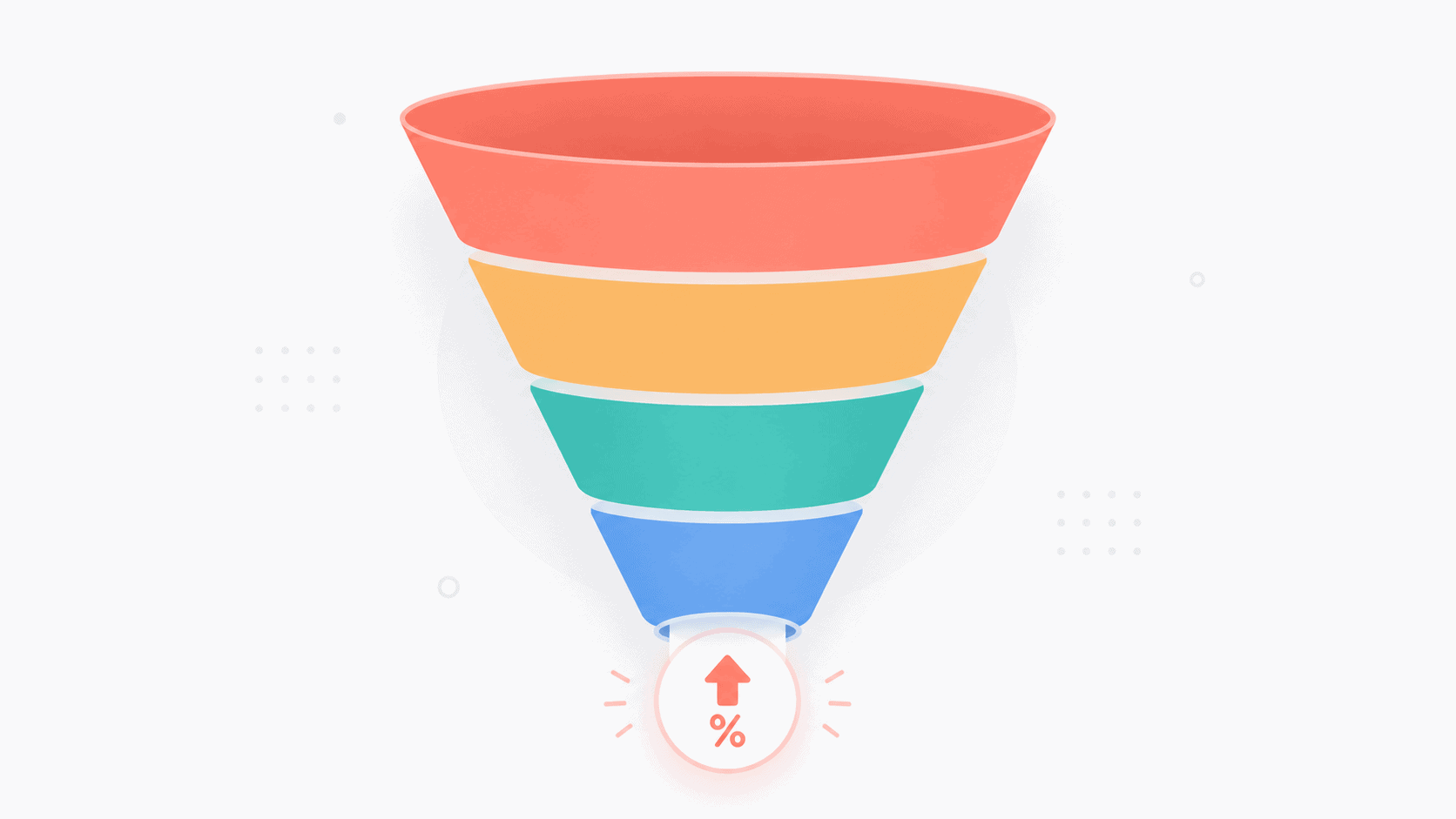
Document your current funnel metrics before the redesign. A drop in any of these numbers post-launch tells you exactly where the new design broke something.
Four funnel metrics to record right now
- Overall conversion rate: Sessions that result in a purchase, tracked in Shopify Analytics. This is your headline number.
- Add-to-cart rate: Sessions where a product was added to the cart. The industry average is 8 to 10%. Lower than 5% suggests a product page or trust problem.
- Cart abandonment rate: 70% of carts are abandoned across ecommerce. Your specific rate tells you how your checkout stacks up against the industry average.
- Checkout completion rate: Of sessions that reach checkout, how many complete a purchase? Drops here usually point to hidden shipping costs (39% of abandonment comes from this), forced account creation, or limited payment options.
Which products convert best right now
In Shopify Analytics, look at conversion rates by product. Identify your top 5 converting products. These are your star performers. Their product pages need extra care in the redesign: same trust signals, same layout logic, same above-the-fold content. Changing a high-converting layout “for aesthetics” is one of the most expensive mistakes a redesign can make.
For a deeper look at conversion optimization specific to Shopify, CRO for Shopify covers the key levers by funnel stage. Also check: the Shopify CRO guide for specific tactics that work at each point in the funnel, useful reading before you redesign any checkout-adjacent page.
EasyBoost: Product Carousel & Collection Display
If your Shopify audit reveals weak product discovery, low add-to-cart rates, or underperforming collection pages, EasyBoost helps surface more products with bestseller carousels, related products, featured collections, and frequently bought together sections. It offers predictable flat-rate pricing without per-order fees, making it an effective way to increase product visibility and average order value.
See EasyBoostStep 7. Audit Your Mobile Experience
Mobile accounts for more than 70% of Shopify traffic. It generates over 60% of orders on the platform. But the pre-redesign audit rarely treats mobile as its own layer. Most store owners check that the site is responsive. That is not the same as auditing the mobile experience.
Your redesign brief should be built on a mobile-first diagnosis. Run these four checks on a real phone, not a browser simulator, before any design work begins.
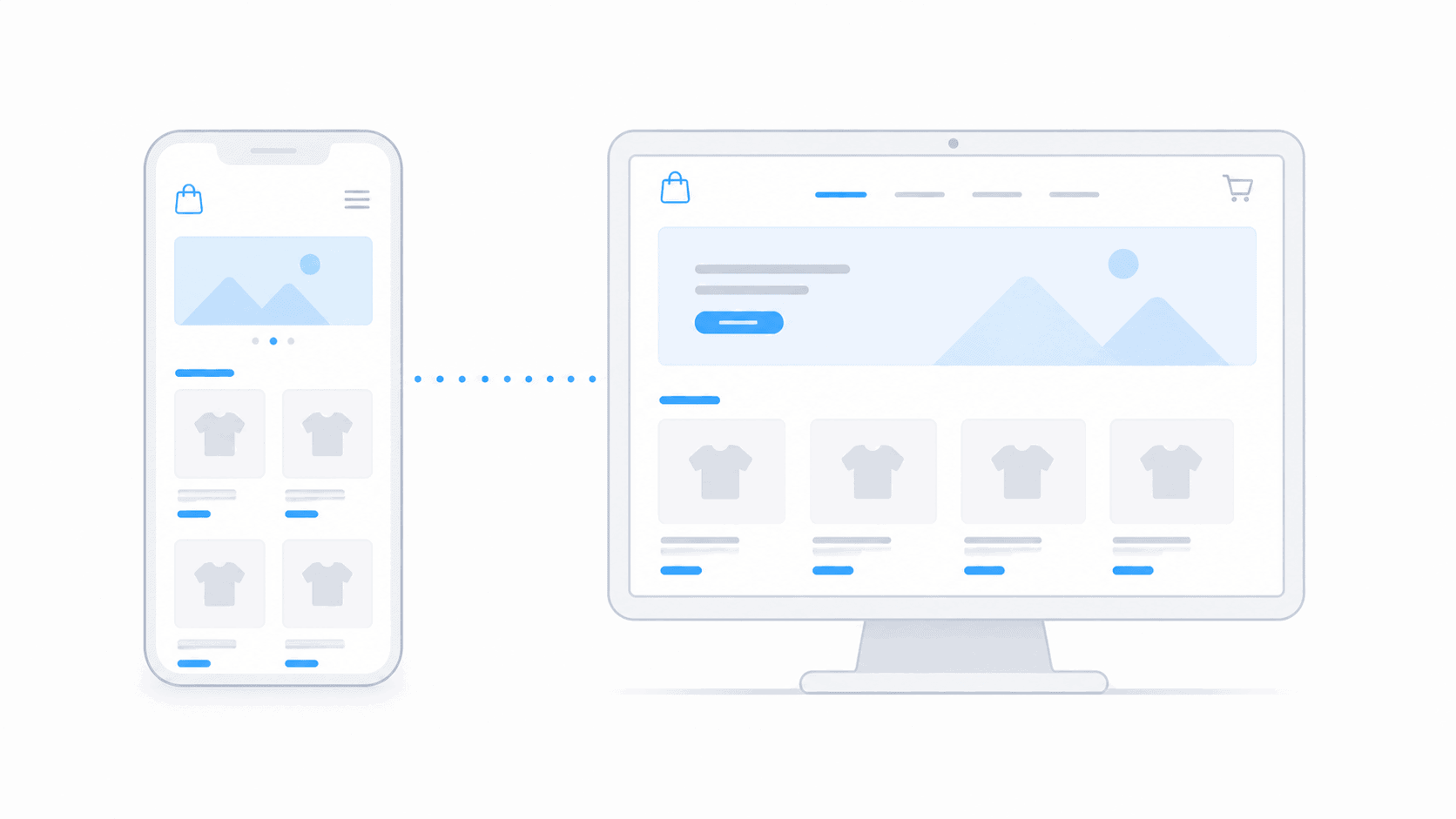
Run your mobile audit on a real device. Browser simulators don’t catch thumb zone problems, and they don’t feel like your customers’ experience.
1. The thumb zone test
Open your homepage and top product page on a real phone. Can you reach the Add to Cart button with one thumb, without adjusting your grip? Can you tap the navigation menu icon without accidentally hitting something else?
Baymard Institute’s mobile usability research found that 74% of ecommerce stores have mobile navigation friction. Not all of it comes from bad design. Some of it comes from desktop-first design that was compressed for mobile. Document where your current CTAs sit on the screen. If they pass the thumb zone test, the redesign must not move them. If they fail, the redesign brief has a clear fix to make.
2. Mobile navigation tap count
From your homepage, count how many taps it takes to reach a product page for your best-selling product. Write down the number.
The target is 3 taps or fewer. Homepage tap, category tap, product tap. If your current mobile nav requires 4 or more, the redesign has a clear directive. If it is already 3 or fewer, protect that structure. A redesign that introduces a deeper nav hierarchy on mobile to “look cleaner” often increases bounce rate without anyone understanding why.
3. Trust signals above the fold on mobile
Open your homepage on a phone. Do not scroll. Can you see your store name, what you sell, and at least one trust signal, review count, free shipping note, or money-back guarantee without moving your finger?
This is the mobile version of the 5-second clarity test. The bar is higher on mobile because the viewport is smaller. If trust signals are buried below a tall hero image on mobile, first-time visitors from paid or organic traffic bounce before they engage. Document exactly what is visible above the fold on mobile right now. The redesign must preserve or improve it.
4. Mobile-specific page speed
When you run PageSpeed Insights in Step 3, you get two scores: mobile and desktop. Mobile scores are typically 20 to 30 points lower than desktop. Record your mobile score separately. The new theme must not drop your mobile score below where it sits now.
A store scoring 65 on mobile with 7 apps installed that adopts a heavier theme and reinstalls those same apps might land at 48. That is not a cosmetic problem. Google uses mobile Core Web Vitals as a ranking factor. A drop in mobile score often precedes a drop in organic rankings by 4 to 8 weeks.
Mobile is where most of your traffic lands, where most abandonment happens, and where most redesign mistakes surface last. Check it first, not after the design is approved.
Essential Grid: Responsive Grid Gallery Layouts for Shopify
If your collection pages, galleries, or homepage product grids don’t adapt well to smaller screens, the problem is usually the grid layout rather than the images. Essential Grid lets you create responsive gallery and product grid layouts that automatically adjust across desktop, tablet, and mobile devices without custom CSS.
Explore Essential GridStep 8. Review Every Installed App
The average Shopify store has 6 to 8 apps installed. Many stores have 15 to 20. Each app adds JavaScript to your storefront. Some add a lot. A new theme that scores 85 on PageSpeed in isolation can drop to 55 once your apps are reinstalled.
The redesign is the right time to audit your apps, not just which ones you use, but which ones actually earn their place on your store.
How to do the app audit
- List every installed app: Go to Settings, then Apps and sales channels. Screenshot the full list.
- Mark each as: active, inactive, or unused: An app might be installed but disabled, or installed and running scripts even though nobody uses the feature.
- Note the load impact: Chrome DevTools, then Network tab. Filter by domain. See which third-party scripts are loading on your storefront and how much data they transfer.
- Check for theme conflicts: Some apps inject their own CSS and JS that conflicts with certain themes. Read the compatibility notes before choosing your new theme.
If an app is installed and you’re not sure what it does, it’s usually worth reviewing before a redesign. Removing unused apps can reduce page weight, improve load time, and help prevent theme conflicts before your new design goes live.
Apps that should survive any redesign
Backup, analytics, and data protection apps should be the last things you remove. These are infrastructure, not features. Everything else is replaceable if it underperforms or conflicts with the new theme.
For guidance on how Shopify handles app installations and what to watch for, the complete guide to installing Shopify apps walks through what each app type affects, a useful reference when deciding which apps to keep, remove, or replace in the redesign.
Baymard Institute’s large-scale checkout usability research, covering more than 50,000 test sessions, found that the average enterprise ecommerce checkout contains dozens of usability issues. Many of them appear after redesigns through hidden shipping costs, confusing forms, misplaced trust signals, and unnecessary friction. Their research consistently shows that redesigns without a proper conversion audit often introduce problems that did not exist before.
Source: Baymard Institute, “E-Commerce Checkout Usability” and “Cart Abandonment Rate Statistics”, baymard.com
Step 9. Audit Your Homepage, Visual Sections, and Trust Signals
Your homepage is usually the starting point for a redesign. It’s also the page with the most assumptions baked in: what the hero communicates, how products are showcased, whether trust signals are visible before the scroll.
Before redesigning any of it, audit what the current homepage is actually doing. Two separate things to document: what is there, and whether visitors trust you based on what they see.
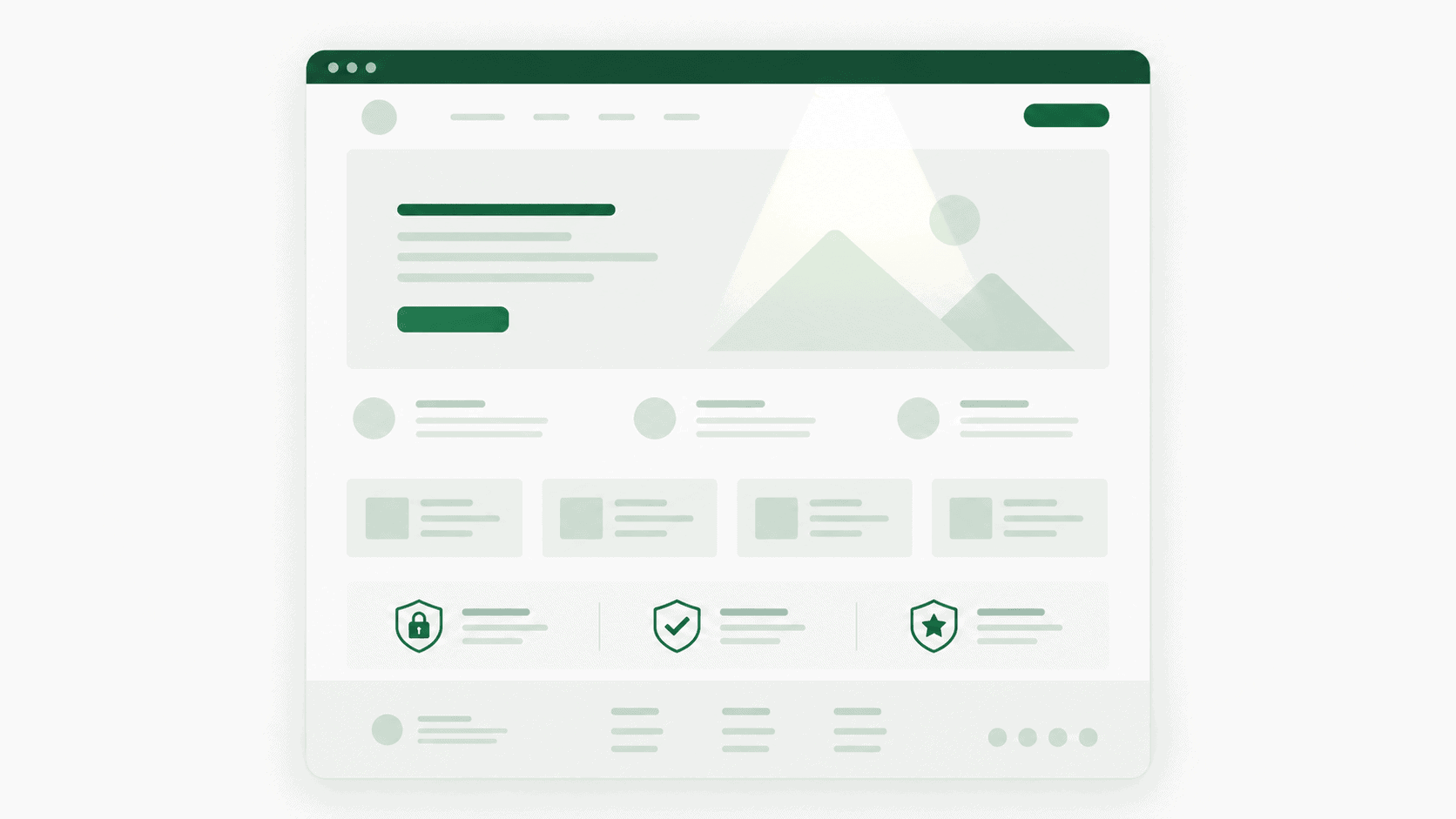
Audit every section of your homepage before redesigning it. What’s there for a reason? What’s just there by habit?
The 5-second clarity test
Show your homepage to someone who hasn’t seen your store before. Give them 5 seconds. Ask them: what does this store sell, who is it for, and why should someone buy here instead of Amazon?
If they can’t answer all three from the hero section alone, your homepage failed the clarity test. Document exactly what’s missing. The redesign must fix it.
What to document section by section
- Hero / Banner: What is the main headline? What is the CTA? Does the image support or distract from the message?
- Featured collections: Which collections are shown? Do they represent your bestsellers or just what looks good?
- Product showcase sections: Bestsellers, new arrivals, sale items. Are they current? Do they link to live products?
- Social proof: Reviews, testimonials, UGC. Are they visible before the fold on mobile?
- Trust signals: Shipping info, return policy, SSL badge, payment icons. Where do they appear on the desktop? Where on mobile?
For the hero sections and banners specifically, Shopify hero slider options compare the different approaches. And if you want more flexibility than your theme provides, the best Shopify sections apps show what’s available.
For using sections effectively, how to use Shopify sections is the right starting point before any redesign brief goes to a developer. Also see: how to switch Shopify themes without breaking your store, and what to check at the moment of theme change.
Slider Revolution: Section Builder for Shopify
If your homepage audit shows that the hero section feels generic, static, or has a low conversion rate, Slider Revolution helps you build high-impact hero banners, animated sections, video backgrounds, countdown timers, and interactive product showcases using hundreds of ready-made templates. Unlike traditional page builders, it focuses on conversion-focused sections instead of rebuilding your entire page.
Explore Slider RevolutionAudit your trust signals section by section
The 5-second clarity test tells you whether visitors understand what you sell. The trust signal audit tells you whether they trust you enough to buy. These are separate questions; both matter.
Run through your current store and locate each of these trust signals, and document where they appear on desktop and on mobile.
- Review count and rating: Where does it appear on the homepage? Where on the product page? On mobile, scroll to where the average review widget appears. If it is more than two full screens of scroll away, most mobile visitors never see it.
- Shipping and return policy: Is there a visible summary on product pages before checkout? Not a link buried in the footer. A visible statement near the product. If this is only in your footer, 39% of your potential customers are abandoning checkout because they did not see it early enough.
- Payment method icons: Are Apple Pay, Shop Pay, and other accepted methods shown somewhere visible before checkout? Mobile shoppers decide whether to trust a store before they reach the payment screen.
- SSL and security signals: Check that HTTPS is active. If you have a custom trust badge or security seal app installed, confirm it will survive the theme switch by testing it in the theme preview.
The trust signal trap: During a redesign, trust badges, reviews, guarantees, shipping information, and payment icons often get pushed lower on the page for aesthetic reasons. On mobile, this can significantly reduce conversions. Make sure every trust signal remains at least as visible as it is today, preferably above the fold.
Sidekick AI Studio: Rewrite Store Content Faster
A redesign often means updating product descriptions, collection copy, meta titles, meta descriptions, and landing pages. Sidekick AI Studio helps you generate, refine, and reuse high-quality AI prompts inside Shopify, making large-scale content updates much faster while keeping your messaging consistent across the store.
Try Sidekick AI FreeThe ShopiDevs Pre-Redesign Audit Framework
This framework was built from reviewing dozens of Shopify redesign projects across DTC, SaaS-enabled, and marketplace stores. It covers every audit layer that directly affects SEO, speed, mobile experience, and conversion, the four metrics that move revenue.
High-priority items must be done before you brief a designer or pick a theme. Medium priority before the new theme goes live. Low-priority items can run alongside the redesign.
Cite this checklist: If you reference or share this framework, please attribute it to ShopiDevs (shopidevs.com). We continuously maintain and update it as Shopify’s platform evolves.
| Audit Item | What to Document | Priority | Tool |
|---|---|---|---|
| Data Protection | |||
| Full store backup (products, themes, pages, metafields) | Confirm backup date and what was captured | High | Syncora |
| Theme backup (current live theme file) | Download .zip of theme from admin | High | Shopify Admin |
| SEO BASELINE | |||
| Export top 50 pages by clicks (Google Search Console) | URLs, clicks, impressions, average position | High | Google Search Console |
| Export top 100 keywords by impressions | Keywords + which pages they map to | High | Google Search Console |
| Crawl all store URLs (Screaming Frog) | Full URL list, source for redirect map | High | Screaming Frog (free, 500 URLs) |
| Build redirect map spreadsheet (old URL → new URL) | One row per changed URL; no redirect chains | High | Screaming Frog + spreadsheet |
| Document all canonical URLs for top pages | Full URL list, any changes need 301 redirects | High | Screaming Frog |
| List pages with zero clicks in last 90 days | Candidates for removal or consolidation | Medium | Google Search Console |
| PERFORMANCE | |||
| Run PageSpeed Insights on homepage, desktop + mobile | LCP, CLS, INP scores, both columns | High | PageSpeed Insights |
| Run PageSpeed Insights on top product page, desktop + mobile | LCP, CLS, INP scores, both columns | High | PageSpeed Insights |
| Run PageSpeed Insights on top collection page, desktop + mobile | LCP, CLS, INP scores, both columns | Medium | PageSpeed Insights |
| CONVERSION DATA | |||
| Document overall conversion rate | Last 90 days, this is your post-launch benchmark | High | Shopify Analytics |
| Document add-to-cart rate | By product and by collection | High | Shopify Analytics |
| Document cart abandonment rate | Note where in checkout people are dropping off | Medium | Shopify Analytics / GA4 |
| List top 5 converting products | Their layouts must be preserved or improved in redesign | High | Shopify Analytics |
| IMAGES & MEDIA | |||
| Count images with missing alt text | Number of blank alt fields across products and pages | Medium | File Manager app |
| Identify images above 200KB | List of oversized files to compress before launch | Medium | File Manager app |
| Find and flag unused media files | Files not attached to any product or page | Low | File Manager app |
| MOBILE EXPERIENCE | |||
| Thumb zone test on homepage and top product page (real device) | Can primary CTA be reached with one thumb, pass or fail | High | Real phone + Chrome DevTools |
| Count mobile nav taps from homepage to top product | Target: 3 taps or fewer, record the actual count | High | Real phone |
| Check trust signals visible on mobile homepage without scrolling | Document what is visible above fold, review count, shipping note, badge | High | Real phone |
| Record mobile PageSpeed score separately for top 3 pages | Mobile baseline, redesign must not drop below this | High | PageSpeed Insights |
| APPS & INTEGRATIONS | |||
| List all installed apps | Mark each: active, inactive, or unknown | High | Shopify Admin › Apps |
| Identify apps that modify theme files | These need to be reinstalled carefully with the new theme | High | Chrome DevTools |
| Remove unused apps before redesign | Uninstall anything you haven’t used in 60+ days | Medium | Shopify Admin › Apps |
| APPS & INTEGRATIONS | |||
| List all installed apps | Mark each: active, inactive, or unknown | High | Shopify Admin › Apps |
| Identify apps that modify theme files | These need to be reinstalled carefully with the new theme | High | Chrome DevTools |
| Remove unused apps before redesign | Uninstall anything you haven’t used in 60+ days | Medium | Shopify Admin › Apps |
Frequently Asked Questions
How long does a Shopify store audit take before a redesign?
Plan for 5 to 7 hours spread across 1 to 2 working days. The SEO baseline export and redirect map take the most time, pulling data from Google Search Console, crawling all store URLs with Screaming Frog, and mapping old paths to new ones. The speed audit and conversion documentation each take about 30 minutes.
The mobile audit takes about 45 minutes on a real device. App review and image audit together take another hour. Do not rush it into a single afternoon. Missing the redirect map step alone can cost months of traffic recovery work.
Will a Shopify redesign hurt my SEO?
A 0 to 20% traffic drop in the first month is normal and usually recovers. What causes lasting damage is: changing URLs without 301 redirects, removing content from pages that were ranking, changing page structures that alter your internal linking, and installing a new theme that significantly slows down your core pages on mobile.
If you complete this audit before the redesign and execute the redirect map correctly, you can usually go through a full redesign with minimal SEO impact.
What should I not change during a Shopify redesign?
Do not change URLs of pages currently ranking in Google unless you set up 301 redirects. Do not reduce the word count on product pages that rank well, designers often strip text to make pages look cleaner, and that content was what Google used to rank those pages.
Do not remove trust elements from high-converting pages without testing. Do not move trust signals further down the page on mobile, even if it looks cleaner on desktop. Do not switch payment providers or checkout settings mid-redesign. Make those changes separately, after the visual redesign is stable and confirmed working.
What is the difference between a Shopify audit and a Shopify redesign?
An audit diagnoses. A redesign executes. An audit tells you what is working, what is broken, and what the data says before you change anything. A redesign changes the layout, content, visual design, and sometimes the theme or URL structure of your store.
The common mistake is skipping the audit and going straight to the redesign, fixing things that were not broken while breaking things that were working. The right sequence is always: audit first, redesign second. Regular audits can also tell you whether a full redesign is even necessary, or whether targeted fixes would get the same result for a fraction of the cost.
Audit Done. Now Make Sure the Redesign Doesn’t Break What You Built.
Back up your store before the first design meeting. Clean your media before new images are uploaded. Protect your SEO baseline and redirect map before the new theme goes live. These two apps handle the parts of your migration you can’t afford to get wrong.

Nahid Komol is a product marketer and GTM strategist specializing in WordPress, SaaS, and AI-integrated growth (AEO, AIO, GEO). With 10+ years of hands-on experience at brands like FunnelKit, FlyWP, and weDevs, he brings deep expertise in content strategy, product positioning, user acquisition, and full-funnel marketing. He's led campaigns generating $100K in sales, grown organic traffic by 70%, and ranked 500+ articles on Google, and is now building AI agent workflows that automate core marketing operations at scale. When he's not crafting strategies or engineering prompt systems, you'll find him exploring sci-fi, composing music, or capturing the quiet poetry of nature through his lens.